Free Lessons
Courses
Seminars
TechHelp
Fast Tips
Templates
Topic Index
Forum
ABCD
 
Home   Courses   TechHelp   Forums   Help   Contact   Merch   Join   Order   Logon  
 
Back to Access Forum    Comments List
Upload Images   @Reply   Bookmark    Link   Email   Next Unseen 
Use Wildcards in a Combo Box
Stephen Kuperman 
    
5 years ago
I am using the template from the Security Seminar. I have the ServiceList form working. The form is really just a Listbox on a form with 3 buttons to show Service Jobs in different stages (Status) of repair. That works fine. In my application I have about 100 locations that are divided into 3 Zones  East, West and Central. I have added a combo box for the Zones that works OK,, my issue is that I would like to still show All locations in the 3 Zones. One would think that it would be easy to add it to the filter  or rather non-filter the records, but not so.
On the ServiceList form when the Combo box for Zones changes it just passes the name of the zonefrom the form to the query, works great. But how do I add in All Zones to the list of East, West and Central ?
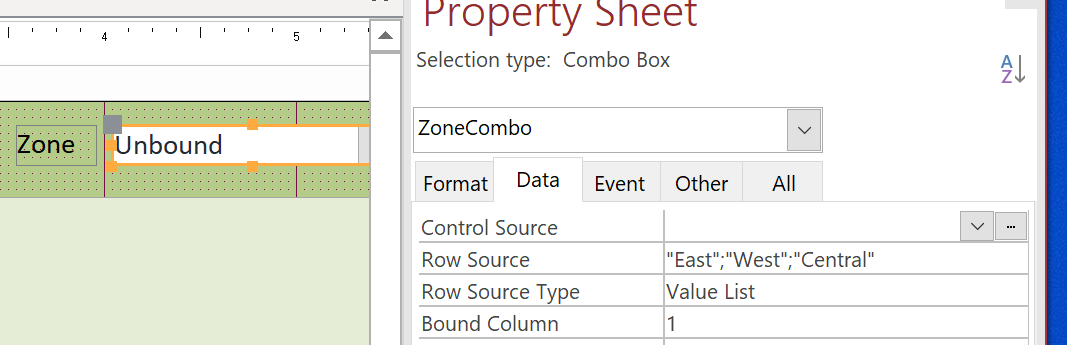
My thought is the easiest way would be to add it to the Dropdown box. I have the East, West, Central as a Value List. I tried to just add ____ or ____ as wildcards to show all items or just put it in the default for the Combo box but cannot get it to work.
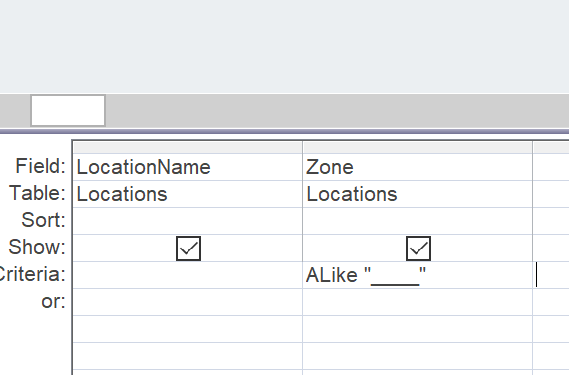
Adding ____ as criteria directly in the query does return all records.
Any suggestions would be appreciated.
Scott Axton  @Reply  
        
5 years ago
Check out Access Beginner 5.  ___ is not a valid wild card.  Valid wildcards for access are * and ?.
Take a look at the Filter Records video.  That may help to get where you need to be.

You could have and "All Zones" choice in the combobox but that would have to be handled in the event for your combo.
Most likely the After Update.  What is the code you have in the combo box now?
You can copy / past it here or screenshot and upload an image.  That is found in your original post - top right corner.
Scott Axton  @Reply  
        
5 years ago
Can you please tell us what you experience level in Access is?  

I see that your pip indicates started the Beginner series but you stated you have the Security Seminar.  Forgive me if I'm wrong, but if you don't have the background knowledge and just jumped right into Security you may have gotten in over your head.

I liken it to a person, that has never driven one day, deciding I'm going to jump in that car and go down the highway, in rush hour traffic, on a Friday.  
Those results wouldn't be good.
Stephen Kuperman OP  @Reply  
    
5 years ago
Scott, in reply to your first reply - the _ is a correct wildcard used for a SQL Server compatible syntax - ANSI 92. They work in both regular Access as well as a SQL Ser. environment. While it looks looks like just an underline, it is actually (4) four _ together. I thought 1 _ per letter would work for East, West and Cent. As I said it does work just adding it directly into the query designer.
Here is a link from Microsoft - https://support.microsoft.com/en-us/office/access-wildcard-character-reference-af00c501-7972-40ee-8889-e18abaad12d1
Stephen Kuperman OP  @Reply  
    
5 years ago
So I consider my self a beginner, more so that my use of Access is spread out. I first used it back in about 96 or 97 and made an Access application for a Courier business I owned. It handled all the dispatching and integrated nicely into Quickbooks. Youtube was not around so most of my help was from books and calls to Microsoft, they were pretty helpful.
I got into Access once again about 10 years ago working for a large company I made an application to enroll students into classes for continuing education professional credits. It tracked the students, awarded the correct credits and created a certificate for them when they finished the course.
Not enough room  -
Stephen Kuperman OP  @Reply  
    
5 years ago
I retired about 3 years ago and during Covid I was helping a school district repair computers, they really had no system to track the laptops being repaired so I have created a pretty nice program to help them with it.  The Security Seminar was pretty helpful in adding in security as well as some other points on a laptop repair program. I have taken a class in programming logic, VBA and played a bit with C long ago. I also went to DeVry and worked utility instrumentation and remote communications. I also have a bit of learning issue so retaining what I read can be difficult at times. So I'm a fairly technical person that only uses Access about once every ten years. Feel free to delete these last couple of posts on my experience.
Richard Rost  @Reply  
          
5 years ago
Can you post some screen shots so I can see what you're working with? Are your tables stored in SQL Server, or did you specifically change the Access Options settings for the query type? If so, you can use the ANSI-92 wildcards. If they're Access tables with the default settings, you need to use the ANSI-89 characters which are * and ? and of course don't forget the LIKE keyword. See Wildcards.
Stephen Kuperman OP  @Reply  
    
5 years ago
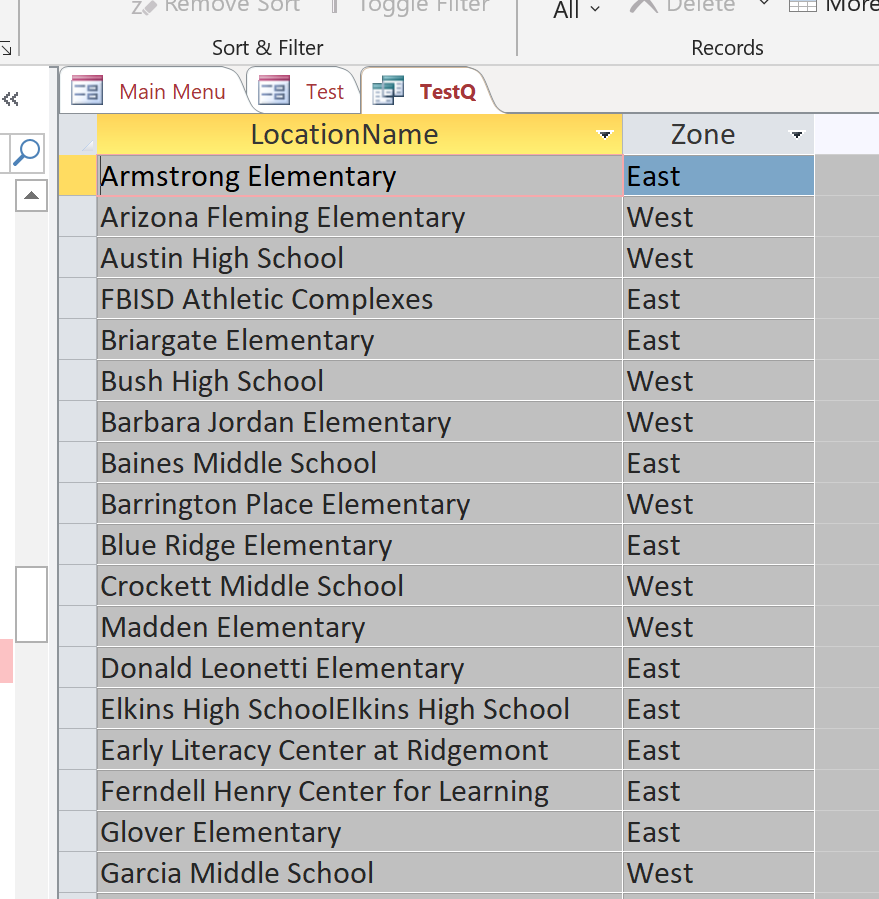
Attached are a couple of pictures.
As you can see I just have a Combobox with a Valuelist. Currently it shows East, West, Central.
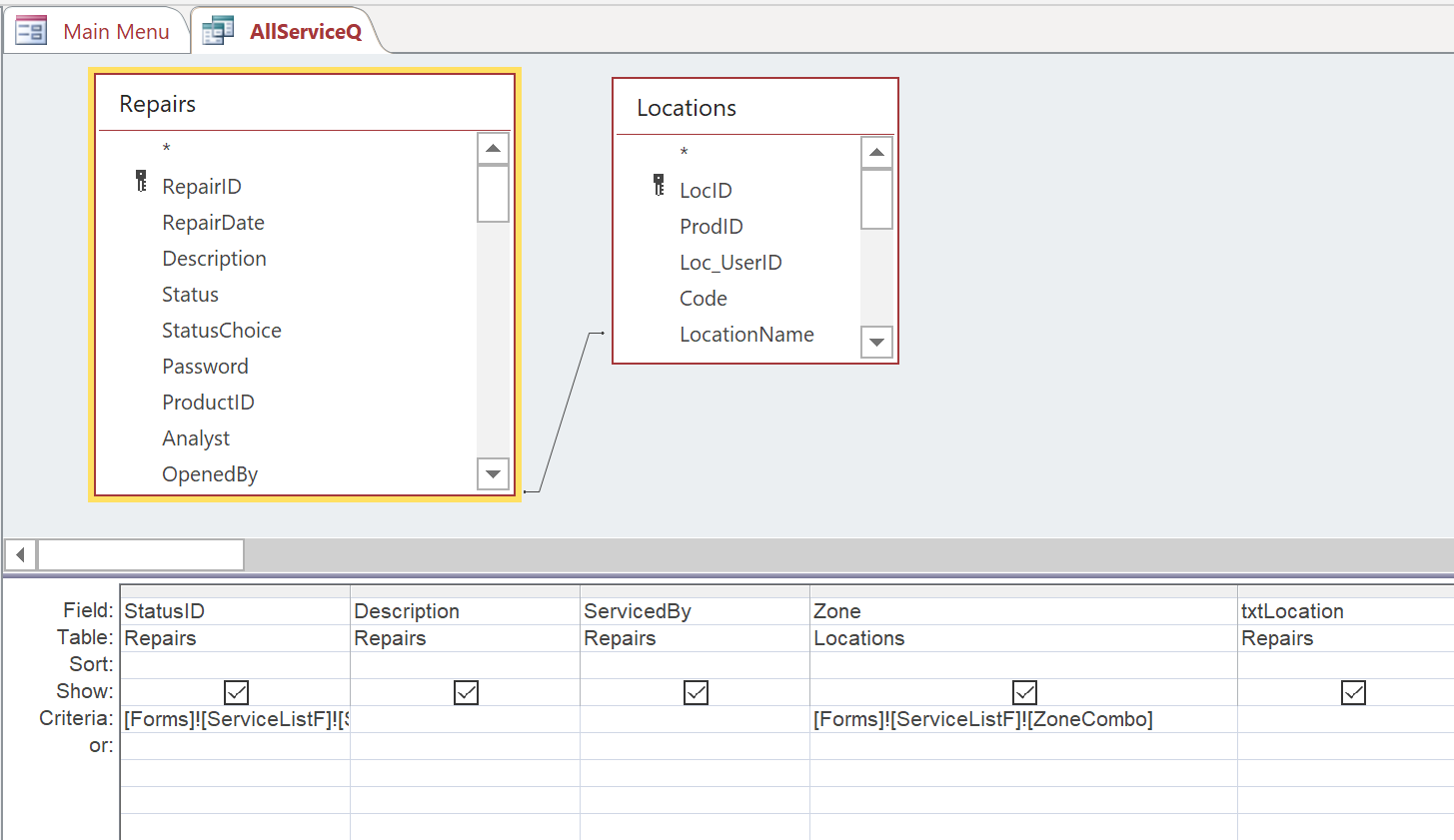
I have added into the queries for the form buttons to filter on Zone.
It works fine as shown for the 3 zones. I want to add a setting for All  which really is the same as not filtering the field.
Yes, I have my Access set for SQL Server Compatibility, so the ANSI  92 Wildcards should work.
I can go on the query and instead of getting the value form the Combobox I just paste it in as - ALike "____" and it works fine, basically using 4 wildcards and it gives me all the records. . Adding the same into the Valuelist returns nothing. Also it would have a weird name.
Another way to do it would be to use the 3 queries similar to the ones from the Seminar  1 for each of the buttons, then 4 variations of each for my 4 filter setting so 12 queries, While it would work it just seems a messy way to accomplish the task.
I think its really syntax errors not allowin
Stephen Kuperman OP  @Reply  
    
5 years ago

Stephen Kuperman OP  @Reply  
    
5 years ago

Stephen Kuperman OP  @Reply  
    
5 years ago

Stephen Kuperman OP  @Reply  
    
5 years ago

Scott Axton  @Reply  
        
5 years ago

Sorry to have not replied to you sooner.  I lost this post.

You taught an old hack something new.  I wasn't aware of the differing wildcards in SQL Server.  I don't use that and haven't ever to date. Again, "Yet".   So...

I changed one of the Blank Templates to play with.  Adding the ANSI 92 in to try and figure this out.
Sorry to say I couldn't get it to work in the Access Query Designer.

I did get it to work by using some VBA.  

First go into the properties of the ZoneCombo and add an "All"; choice.  I put mine at the start.  Under the Default for the ZoneCombo put in ="All"  (Start out showing everything.)

My form has a list box called CustListBox.  You didn't show or mention the name of your ListBox so you will have to change this example to meet your needs.

In the Events tab for the ZoneCombo choose the After Update and the ...
Choose Code Builder if asked.

Insert the code in the next post.  Pushing length limit.
Scott Axton  @Reply  
        
5 years ago
-------
Private Sub ZoneCombo_AfterUpdate()

   If ZoneCombo <> "All" Then
      CustListBox.RowSource = "SELECT CustomerID, FirstName, LastName, zone " & _
          "FROM CustomerT WHERE (((zone)=[forms]![ZoneF]![ZoneCombo]));"
   Else
      CustListBox.RowSource = "SELECT CustomerID, FirstName, LastName, zone " & _
          "FROM CustomerT; "
   End If
   CustListBox.Requery
  
End Sub

------

Just change the field names and list box names to suit your needs.
Scott Axton  @Reply  
        
5 years ago
Stephen
I just discovered that zone is a reserved word in the Access Database Engine.
So, I changed the field name in the customer table to MyZone and in the code above as well.
This seems to work now.

Looking at your images above that maybe part of you issues as well.

See:
Reserved Words

This thread is now CLOSED. If you wish to comment, start a NEW discussion in Access Forum.
 

Next Unseen

 
New Feature: Comment Live View


The following is a paid advertisement
Computer Learning Zone is not responsible for any content shown or offers made by these ads.
 

Learn
 
Access - index
Excel - index
Word - index
Windows - index
PowerPoint - index
Photoshop - index
Visual Basic - index
ASP - index
Seminars
More...
Customers
 
Login
My Account
My Courses
Lost Password
Memberships
Student Databases
Change Email
Info
 
Latest News
New Releases
User Forums
Topic Glossary
Tips & Tricks
Search The Site
Code Vault
Collapse Menus
Help
 
Customer Support
Web Site Tour
FAQs
TechHelp
Consulting Services
About
 
Background
Testimonials
Jobs
Affiliate Program
Richard Rost
Free Lessons
Mailing List
PCResale.NET
Order
 
Video Tutorials
Handbooks
Memberships
Learning Connection
Idiot's Guide to Excel
Volume Discounts
Payment Info
Shipping
Terms of Sale
Contact
 
Contact Info
Support Policy
Mailing Address
Phone Number
Fax Number
Course Survey
Email Richard
[email protected]
Blog RSS Feed    YouTube Channel

LinkedIn
Copyright 2026 by Computer Learning Zone, Amicron, and Richard Rost. All Rights Reserved. Current Time: 5/1/2026 7:19:37 PM. PLT: 0s