Free Lessons
Courses
Seminars
TechHelp
Fast Tips
Templates
Topic Index
Forum
ABCD
 
Home   Courses   TechHelp   Forums   Help   Contact   Merch   Join   Order   Logon  
 
Back to Access Forum    Comments List
Upload Images   @Reply   Bookmark    Link   Email   Next Unseen 
date change at 6am
Jeffrey Rainey 
     
4 years ago
I would like to change the date on a form at 6am not at midnight. Mill workers schedule is 6am to 6pm and I want there  job entries to still use the same date until 6am for the next shift. Thanks
Richard Rost  @Reply  
           
4 years ago
Hi Jeffrey. Need more info than this. Possibly some screen shots of what you're trying to do?
Jeffrey Rainey OP  @Reply  
     
4 years ago

Jeffrey Rainey OP  @Reply  
     
4 years ago
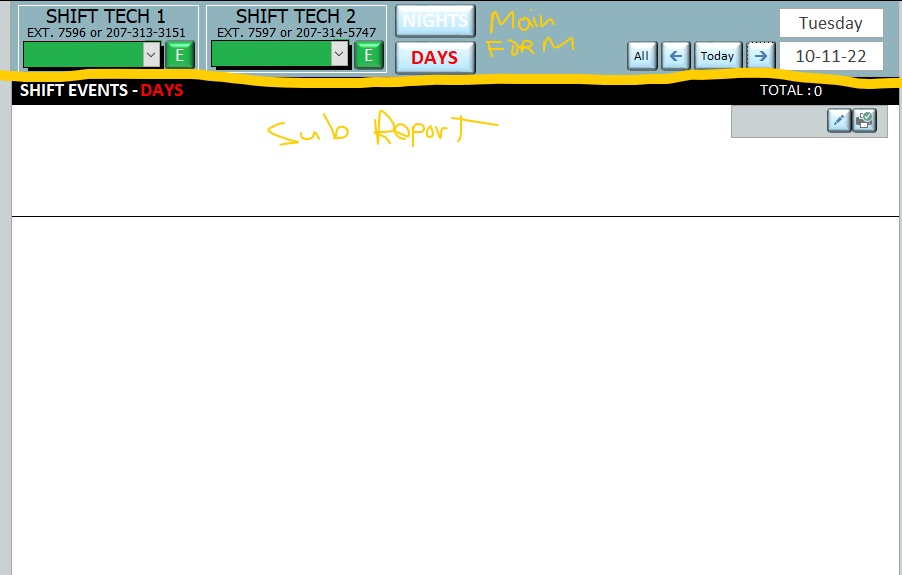
The tech's select there names in the combo boxes, click E button next to their name to open an event form that is populated with the date, and their name. The date is based on the text box on the main form with the date displayed. I don't want the date textbox on the main form to change at midnight but at 6am when the next day crew starts. Once they fill out and save the event it is displayed in the sub-report on the bottom. Thanks
Juan C Rivera  @Reply  
            
4 years ago
Why not set up functions to work by shifts? or provide date n time at start of shift and dont update on close of shift?
What do you think?
Kevin Yip  @Reply  
     
4 years ago
Then you need to set your own date value.  You can't use the date from your computer's internal clock, i.e. can't use Now() or Date().  You need to set your date value to be the previous day's date if the current time is between 12am and 5:59am.  This can be done with just an expression, with no VBA.  Set your date textbox's value (or default value) to be:

=IIf(Hour(Time())>=0 And Hour(Time())<6,Date()-1,Date())

But this only works once: the moment you open the form.  If your form stays open past 12am or past 6am, the above expression won't run again and thus won't update your date.  So somewhere on your form you need this expression to run again *when it needs to*, such as with a Refresh or Requery statement in VBA.  It's up to you when and how to refresh it: with a form's Timer event, a button's Click event, a control's AfterUpdate event, etc.
Jeffrey Rainey OP  @Reply  
     
4 years ago
I tried Kevin's approach. If Nights was selected and E button was clicked then... but I ran into data mismatch, not sure why at this point.
Kevin Yip  @Reply  
     
4 years ago
Hi Jeffrey, my formula evaluates to a date value, so make sure whatever variable or field you put my formula in uses the data type of a date also (i.e. not string, not numeral, but date) to avoid data mismatch error.

This thread is now CLOSED. If you wish to comment, start a NEW discussion in Access Forum.
 

Next Unseen

 
New Feature: Comment Live View


The following is a paid advertisement
Computer Learning Zone is not responsible for any content shown or offers made by these ads.
 

Learn
 
Access - index
Excel - index
Word - index
Windows - index
PowerPoint - index
Photoshop - index
Visual Basic - index
ASP - index
Seminars
More...
Customers
 
Login
My Account
My Courses
Lost Password
Memberships
Student Databases
Change Email
Info
 
Latest News
New Releases
User Forums
Topic Glossary
Tips & Tricks
Search The Site
Code Vault
Collapse Menus
Help
 
Customer Support
Web Site Tour
FAQs
TechHelp
Consulting Services
About
 
Background
Testimonials
Jobs
Affiliate Program
Richard Rost
Free Lessons
Mailing List
PCResale.NET
Order
 
Video Tutorials
Handbooks
Memberships
Learning Connection
Idiot's Guide to Excel
Volume Discounts
Payment Info
Shipping
Terms of Sale
Contact
 
Contact Info
Support Policy
Mailing Address
Phone Number
Fax Number
Course Survey
Email Richard
[email protected]
Blog RSS Feed    YouTube Channel

LinkedIn
Copyright 2026 by Computer Learning Zone, Amicron, and Richard Rost. All Rights Reserved. Current Time: 5/1/2026 5:41:10 PM. PLT: 0s