Free Lessons
Courses
Seminars
TechHelp
Fast Tips
Templates
Topic Index
Forum
ABCD
 
Home   Courses   TechHelp   Forums   Help   Contact   Merch   Join   Order   Logon  
 
Back to Access Forum    Comments List
Upload Images   @Reply   Bookmark    Link   Email   Next Unseen 
Relinking SQL Server tables
David Britz 
    
4 years ago
I'm having a real frustrating problem here. We have a client with a huge database, SQL Server on the back end, using a DSN to connect clients (that's just the way they do it). I have to change their linked tables to look to another DSN and save the password, but I cannot find any way to do this that will take under 4 hours (fortunately it's all billable :).

Microsoft, in their idiocy, when you select a DSN to use to bring tables in, you have that big listbox where every table has to be individually selected (no shift-Enter), and if you save the password, you must do so individually for each table. This database has almost 2 thousand tables!! That will take hours and hours. They're set up to use DSN, I prefer DSN-less but there's nothing for it. I already re-added the tables but unchecked save password so I don't have to click "OK" 1,800 times. Is there any quick way to change the DSN and save password for all of those tables at once?
David Britz OP  @Reply  
    
4 years ago

David Britz OP  @Reply  
    
4 years ago

David Britz OP  @Reply  
    
4 years ago
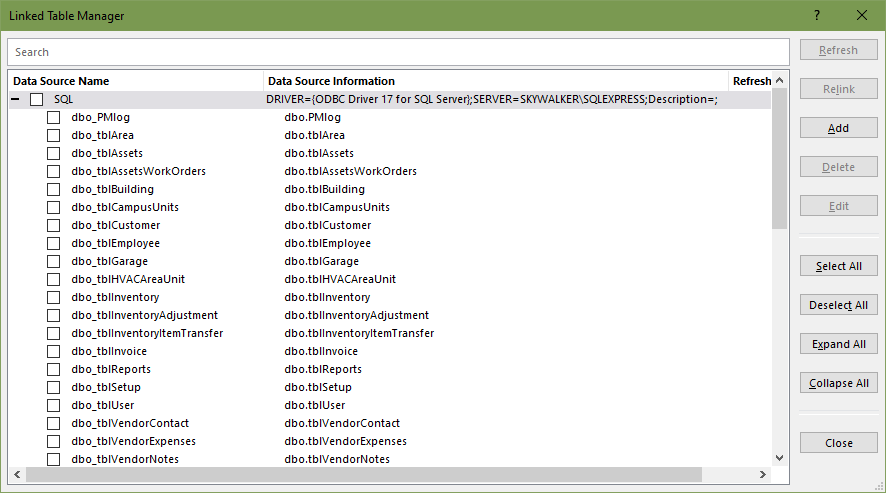
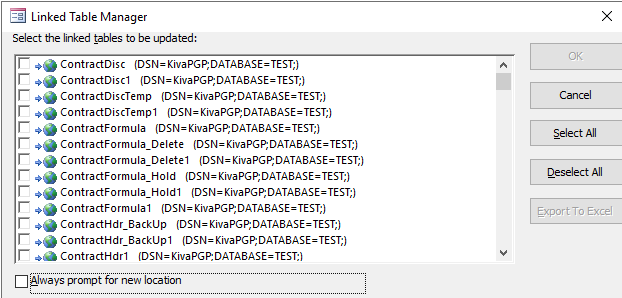
Just wanted to add. My Access on my home desktop has the "good" version of Linked Table Manager (top), yet most of our clients, including this one, have a seemingly more primitive version (bottom). I have no idea why or if it's possible to switch. Even on fresh installations of Office 365 I see the bad version.
Kevin Yip  @Reply  
     
4 years ago
You can use VBA to automatically look through all the table's DSN strings and change them.

You can see the DSN by hovering your mouse over a table's name (see picture below).  This string is stored in the Connect property of each TableDef.  Sample code is below:

Dim db As Database, n As Integer, i As Integer, s As String
Set db = CurrentDB
n = db.TableDefs.Count     ' n = number of tables minus 1
For i = 0 to n
     With db.TableDefs(i)
          If .Connect = MyCurrentDSN Then
               .Connect = MyNewDSN
               .RefreshLink
          End If
     End With
Next i

The If statement inside the For loop makes sure the table's current DSN is what you expect it to be before changing it.  After the change, the table link needs to be refreshed (RefreshLink).

This is not a frustrating problem.  Having to switch servers and DSNs is understandable and pretty routine stuff.  And the VBA code above is not terribly difficult.  It would not take 4 hours to run this code even if there were 10 thousand tables.  4 minutes maybe.

But make sure you backup your existing database and make sure you are proficient with the Access topics involved in the above code before using it, I recommend you.  The code is simple but the task is crucial, so you need tip-top knowledge for it.  You would likely need to make big or slight modifications to the code to suit your specific needs.
Kevin Yip  @Reply  
     
4 years ago

David Britz OP  @Reply  
    
4 years ago
It worked, thanks! I tried something like that before, the only difference between old and new is that old didn't save the password (to save time - it's 2,000 tables). I found that the password still wasn't saved. But yours worked (I think :))
Kevin Yip  @Reply  
     
4 years ago
Correction: the For statement above should be:

For i = 0 To n-1
Kevin Yip  @Reply  
     
4 years ago
The password is always saved, otherwise the user is prompted for the password every time a table is opened, which is not ideal.  In my picture above, Access hides the password in the DSN for security (the password is stored right after "UID=sa").

This thread is now CLOSED. If you wish to comment, start a NEW discussion in Access Forum.
 

Next Unseen

 
New Feature: Comment Live View


The following is a paid advertisement
Computer Learning Zone is not responsible for any content shown or offers made by these ads.
 

Learn
 
Access - index
Excel - index
Word - index
Windows - index
PowerPoint - index
Photoshop - index
Visual Basic - index
ASP - index
Seminars
More...
Customers
 
Login
My Account
My Courses
Lost Password
Memberships
Student Databases
Change Email
Info
 
Latest News
New Releases
User Forums
Topic Glossary
Tips & Tricks
Search The Site
Code Vault
Collapse Menus
Help
 
Customer Support
Web Site Tour
FAQs
TechHelp
Consulting Services
About
 
Background
Testimonials
Jobs
Affiliate Program
Richard Rost
Free Lessons
Mailing List
PCResale.NET
Order
 
Video Tutorials
Handbooks
Memberships
Learning Connection
Idiot's Guide to Excel
Volume Discounts
Payment Info
Shipping
Terms of Sale
Contact
 
Contact Info
Support Policy
Mailing Address
Phone Number
Fax Number
Course Survey
Email Richard
[email protected]
Blog RSS Feed    YouTube Channel

LinkedIn
Copyright 2026 by Computer Learning Zone, Amicron, and Richard Rost. All Rights Reserved. Current Time: 5/7/2026 1:09:09 PM. PLT: 1s