Free Lessons
Courses
Seminars
TechHelp
Fast Tips
Templates
Topic Index
Forum
ABCD
 
Home   Courses   TechHelp   Forums   Help   Contact   Merch   Join   Order   Logon  
 
Back to Access Forum    Comments List
Upload Images   @Reply   Bookmark    Link   Email   Next Unseen 
Stopping warnings
Scott Crippen 
   
3 years ago
Even after watching the video https://599cd.com/blog/display-article.asp?ID=1756

I have tried to test the method using the Application.FollowHyperlink to open a file.

I concatenated the TestFile location to isolate the folder and added an extension to play the audio file.  Everything works just fine except.....

When I click the button I get a warning. I tried setting warnings to off but it still pops up.

There was no warning in the video when Richard ran this.  Video for this starts about 21:24.  I am not sure what is happening except this warning might be outside of Access.

Here is the current VBA

Private Sub Test_Click()

    TestFile = (Me.FolderLocation & "\" & Me.Song & ".mp3")

    DoCmd.SetWarnings= False
    
    Application.FollowHyperlink TestFile

The warning is Titled as "Microsoft Office"

Text reads "Some Files can contain viruses or otherwise be harmful.... Make sure it is trustworthy.... Would you like to open the file?

Clicking OK plays the audio.  
Clicking Cancel brings up debug-  runtime error'16388': The hyperlink cannot be followed to the destination.  It highlights the last line of code.

Since this seems to be generated by Office, how do I stop it?


Scott Crippen OP  @Reply  
   
3 years ago
In the code, the line ACTUALLY reads, DoCmd.SetWarnings False
John Davy  @Reply  
         
3 years ago
Did you try setting the warning off directly after the Private Sub? And don't forget to Set Warnings back to True  John
Kevin Robertson  @Reply  
          
3 years ago
Is your database in a Trusted Location?
Scott Crippen OP  @Reply  
   
3 years ago
John, I didn't think that would matter since the FollowHyperlink command comes later.  I did try switching the location and no good.  AND... the set warnings on comes just before End Sub

Kevin, yes it is in a trusted location (my D: Drive)
Sandra Truax  @Reply  
         
3 years ago
I have the same problem when opening .mp3 files. I don't get the warning if I'm opening a .jpg or .pdf.
Scott Crippen OP  @Reply  
   
3 years ago
Sandra thanks.

This is STILL not resolved and it is giving me fits!!
Kevin Robertson  @Reply  
          
3 years ago
The only way I know is to edit the Registry (it is advisable to seek assistance if you have never worked with the Registry before).
Follow these steps:

- Click Start
- In the Search Box type RegEdit
- Open Registry Editor
- Locate the following registry subkey: HKEY_CLASSES_ROOT\.mp3
- In the right pane, right click (Default) and click Modify
- Under Value data, enter: WMP11.AssocFile.MP3
- Click OK
- Close the Registry Editor

Note: I wasn't getting the warning until I removed the value stated above. When I  re-entered the value the warning stopped displaying.
Be aware I am running Windows 11. The value may be different for Windows 10 or earlier.
Sandra Truax  @Reply  
         
3 years ago
Kevin, you are a genius!  I never posted this because I didn't figure there was any way of fixing it, but this worked!  The default was set to vlc, but now that I change it I don't get the warning.  Thank you SO much!
Kevin Robertson  @Reply  
          
3 years ago
Just had a look and the value I have for mp4 files is: QuickTime.mp4
Sandra Truax  @Reply  
         
3 years ago
Kevin, I tried WMP11.AssocFile.MP4 and that worked and Access no longer gives a warning on it.  It was set to vlc also.
Kevin Robertson  @Reply  
          
3 years ago
Excellent.
Sandra Truax  @Reply  
         
3 years ago
Kevin, last one :)   I save the webpages from 599cd as a single .mhtml file.  It is the last thing that gives me a warning message. Any ideas?

Scott, I hope you don't mind that I am posting on your post.
Kevin Yip  @Reply  
     
3 years ago
Kevin's method is sadly the only way to fix this particular problem with the FollowHyperlink command.  

If I were paid to fix this problem, I would advice another method that wouldn't need a registry hack to fix, because I wouldn't want my users, whose well-being I would be responsible for, to touch the registry with a ten-foot pole.  I wouldn't touch it even on my own computer unless there were absolutely no other way.

But in this case there is another way.  Using the Shell command doesn't cause the annoying warning message.  But you have to specify the executable file and use double double quotes galore.  E.g.:

    Shell """D:\Program Files\VideoLAN\VLC\vlc.exe"" ""G:\My Music\Songs\01-always.mp3""", vbNormalFocus
Scott Crippen OP  @Reply  
   
3 years ago
Kevin Robertson - I appreciate your information.  I finally determined it was a hyperlink problem, outside of Access.  From there, I found much of the same regedit guidance you mention for resolving this online.

As Kevin Yip points out, this requires a user to get into the registry.  What I am designing is a program where someone else's computer will run this.  Asking them to use regedit is not a good idea on several levels.  Most importantly, their admin would freak out with the idea of bypassing a system safeguard.  I am still looking for a temporary solution, which would revert any computer safeguards once Access closes.

I rather like the shell idea but.... since the files are randomized and vary, I have to account for them individually, as a string variable, from a specific location.  I can easily get to the folder or file with a shell but I am not sure how to grab the specific file once the user (Access) has identified it, and put it into the Shell command string.  

The file extensions being accessed are in several formats ... mp3, mp4, FLAC, WMV or WMA.  I need to figure out how to get the extension into the string AS WELL AS the file name.... Separately they I can isolate them in Access but not sure how to do this within a Shell.

How do you get the file GoodTune into this path and ahead of the file extension? AND how would you get the file extension into the correct location?
  
""G:\My Music\Songs\   ->>  GoodTune.mp3   <<-   """, vbNormalFocus  

Sandra, I figure if you are struggling with something along the same lines, you are not hijacking the question, just expanding on it a bit.  :-)

Kevin Yip  @Reply  
     
3 years ago
Hi Scott, you can use string concatenation to construct the full Shell command.  If you know the file name, the full command will simply be:

    Shell """D:\Program Files\VideoLAN\VLC\vlc.exe"" """ & MyFileName & """", vbNormalFocus

If you don't know the exact file name, you can use the Dir() command to find it.  For instance, you can use Dir() to find wildcard file names like *.mp3:

    Dim f As String, p As String

    ' Find files that match *.mp3 in G:\My Music\Songs\
    f = Dir("G:\My Music\Songs\*.mp3")

    ' Use Dir() without an argument to find the next file in the folder that matches *.mp3
    f = Dir()

    ' Dir() only returns a file name with no path. Be sure to add path to it to get its true location.
    ' If no file is found, Dir() returns an empty string ("").

    If f <> "" Then
        p = "G:\My Music\Songs\" & f
    Else
        p = "File not found"
    End If
Scott Crippen OP  @Reply  
   
3 years ago
Kevin- I am completely with you. I was trying to drill down deeper than necessary to grab the desired file.

I am not quite sure about the D:\Program Files\VideoLAN\VLC\vlc.exe though.  The user may use any of several players to open the file.  I get that vlc.exe will open then open the file specified.  Hyperlink will simply use whatever default is in the user computer.  I would prefer that, much as I am sure they would too.


THANKS!
Kevin Yip  @Reply  
     
3 years ago
Hi Scott, in a business environment you may want to restrict what outside apps your users can use.  You may not want them to use every conceivable video player software out there.  If you are the admin, then every app in every user's PC has to be tested by you before you allow them to be used.  You can't have your users running software you don't know about.  Since there are gazillion video player apps and you can't test them all, you can only allow chosen ones to be used, after you tested them.  This is just a business practice, of course, not really an Access topic.  But if you do want to let your users choose video players, you can always make a form, combo box, or something that lets them choose one, out of several that you have tested, preferably.
Scott Crippen OP  @Reply  
   
3 years ago
You have sound information, which I appreciate.  

The "user" is a radio station.  Obviously, they rely on audio players.   They have a different player for mp3 versus wav files but I am not sure which ones they use.  I do know they use windows media player but that is all I am sure about.  Whatever they use is set up as a default depending on the extension.  Otherwise, they have programs they open and select files for their editing purposes.  Edited, they are converted to mp3.  

The files in this application are audio only, designed to play an on-air game. Primarily, they rely on mp3 so that is the format I am using for all these songs. I am going to suggest they use a specific player.  More than likely, I will go with windows media player since I know they have and use it.

Thanks!
Kevin Yip  @Reply  
     
3 years ago
To all,

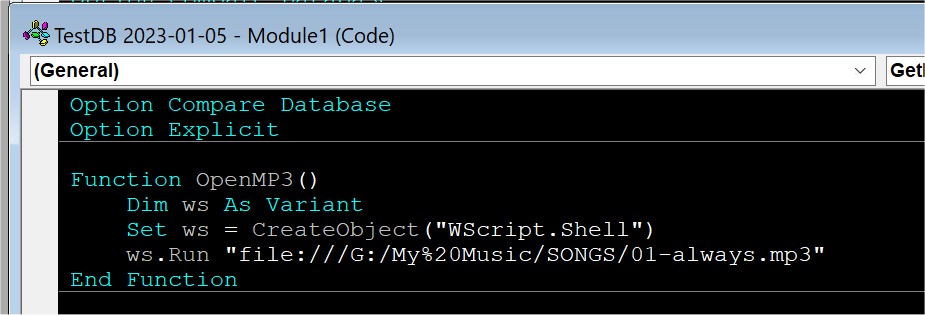
I figured out a way to accomplish the original goal of this thread in Access, and that is to use VBScript, which is VBA's little brother.  It is often used in ASP webpages (which Richard has courses on), but it can be used in the VBA environment as well.

See picture below for the code and syntax.  It creates a "Windows scripting" object, which is built-in in Windows, so it should work on all Windows PCs.  It uses the "Run" command to open the MP3 file.  Unlike the Shell command in VBA, this Run command doesn't require an executable file to be specified.  You can "run" an MP3 file directly, and it will be opened with whatever default program it is set up for.  And unlike the FollowHyperlink method in VBA, it does not create that annoying warning message.

Note that the MP3 file path has to be written in URL syntax, with the "file:///" protocol and "%20" representing spaces.  Otherwise it won't work.

Kevin Yip  @Reply  
     
3 years ago

This thread is now CLOSED. If you wish to comment, start a NEW discussion in Access Forum.
 

Next Unseen

 
New Feature: Comment Live View


The following is a paid advertisement
Computer Learning Zone is not responsible for any content shown or offers made by these ads.
 

Learn
 
Access - index
Excel - index
Word - index
Windows - index
PowerPoint - index
Photoshop - index
Visual Basic - index
ASP - index
Seminars
More...
Customers
 
Login
My Account
My Courses
Lost Password
Memberships
Student Databases
Change Email
Info
 
Latest News
New Releases
User Forums
Topic Glossary
Tips & Tricks
Search The Site
Code Vault
Collapse Menus
Help
 
Customer Support
Web Site Tour
FAQs
TechHelp
Consulting Services
About
 
Background
Testimonials
Jobs
Affiliate Program
Richard Rost
Free Lessons
Mailing List
PCResale.NET
Order
 
Video Tutorials
Handbooks
Memberships
Learning Connection
Idiot's Guide to Excel
Volume Discounts
Payment Info
Shipping
Terms of Sale
Contact
 
Contact Info
Support Policy
Mailing Address
Phone Number
Fax Number
Course Survey
Email Richard
[email protected]
Blog RSS Feed    YouTube Channel

LinkedIn
Copyright 2026 by Computer Learning Zone, Amicron, and Richard Rost. All Rights Reserved. Current Time: 5/2/2026 10:06:32 AM. PLT: 1s