Free Lessons
Courses
Seminars
TechHelp
Fast Tips
Templates
Topic Index
Forum
ABCD
 
Home   Courses   TechHelp   Forums   Help   Contact   Merch   Join   Order   Logon  
 
Back to Access Forum    Comments List
Upload Images   @Reply   Bookmark    Link   Email   Next Unseen 
Zoomed Image window
Teresa Meek 
     
3 years ago
Is there a TechHelp video that would show how to write the VBA so if you double click on image in a subform it would open that image in a larger window?
Adam Schwanz  @Reply  
           
3 years ago
Do you just want it to open the actual image file like in your default windows image application?
Adam Schwanz  @Reply  
           
3 years ago
If you have the image location stored, which I'm assuming you do if you're linking the images like Richard teaches, then you could just open the file with VBA using something like shell if you wanted to.

Here's an example of using shell to open a notepad file, you could do the same with photo and your image location
Dim vPID As Variant
'Launch file
vPID = Shell("notepad.exe ""C:\VBA\text.txt""", vbNormalFocus)
Teresa Meek OP  @Reply  
     
3 years ago
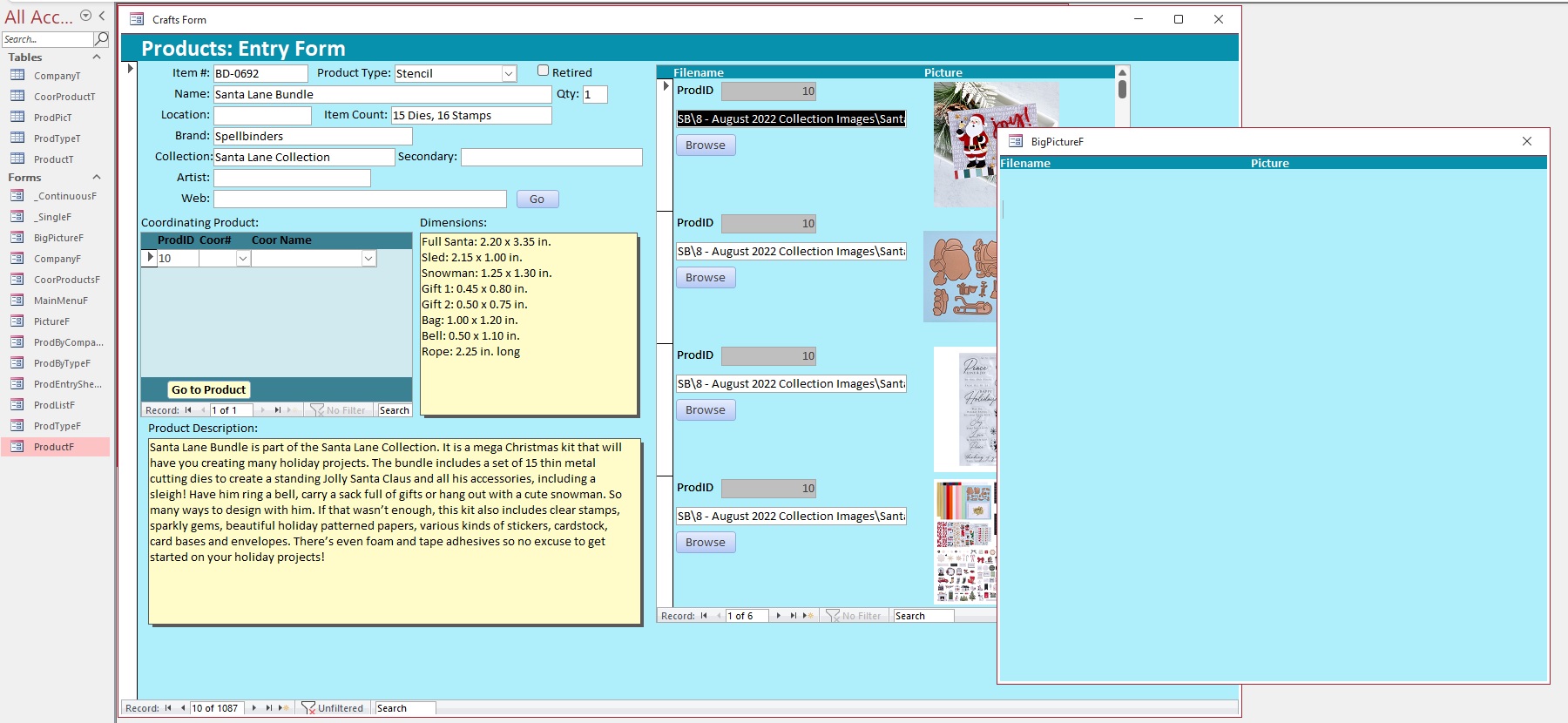
Ideally, I would like to open it in a larger window within the database. I have a Craft Supply database that I am creating to track products, coordinating products, storage location, description, etc.

I have a continuous subform "ProdImages" inside my "ProductF" form for the images but they are small. I would like to be able to 2xClick on the image to expand larger for my old eyes and then I would close it and move on.

I would assume that I would create a form with just the larger image but not sure if I am on the right track or reinventing the wheel, if there maybe a way to just display the image larger in a window through VBA rather than create a new form.
Adam Schwanz  @Reply  
           
3 years ago
Oh, I would just go the second form route then, that's much simpler than opening it in a 3rd program like photo or doing something like resizing the image field and sizing it back.
Dan Jackson  @Reply  
            
3 years ago
You could set the second form as Modal & Popup, remove all other elements like close button etc' then put an onclick event on the enlarged photo to DoCmd.close.

If youre feeling really brave, you could add a left and right arrow to move between records without closing the enlarged image
Kevin Yip  @Reply  
     
3 years ago
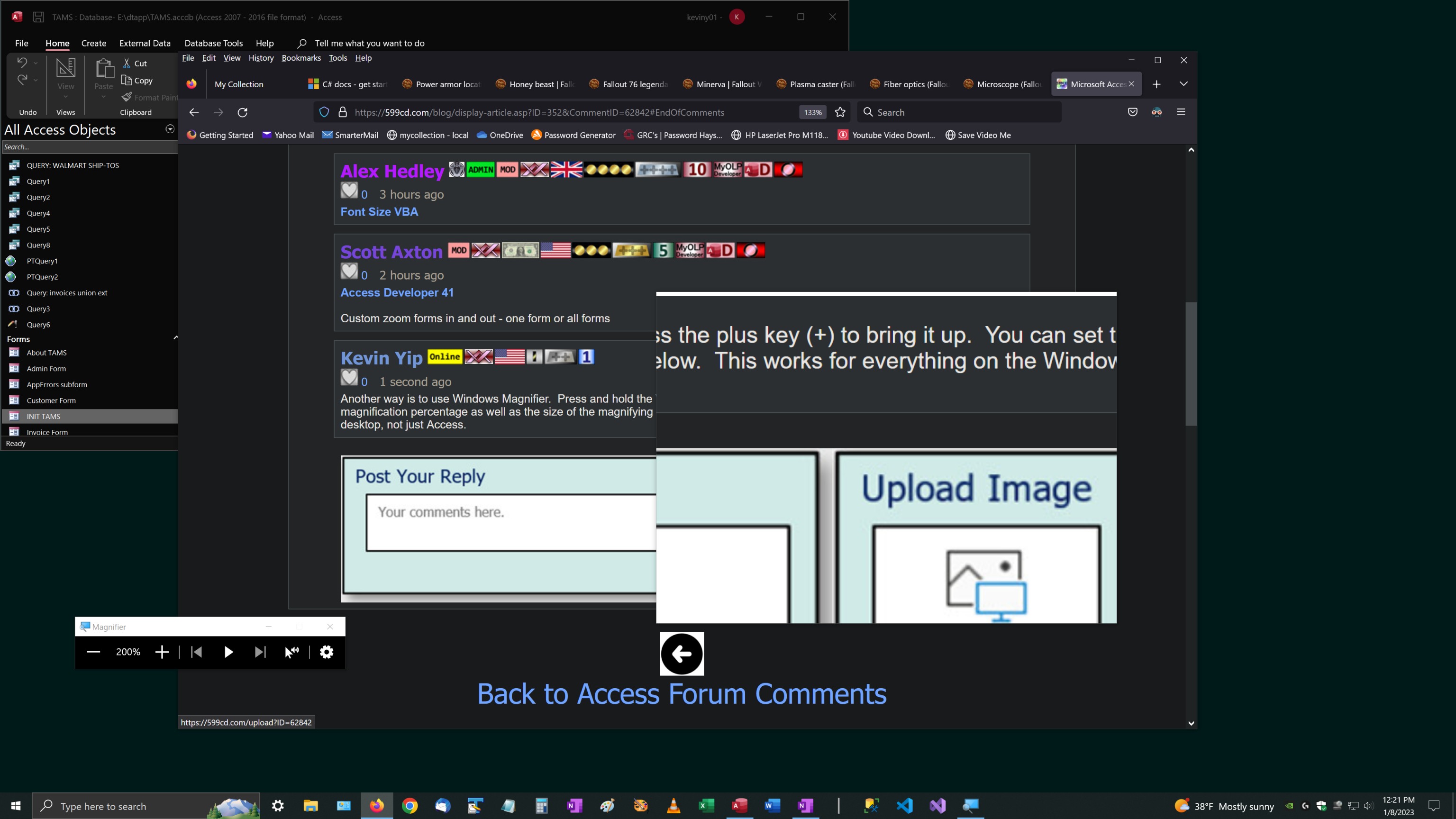
Hi Teresa, you can also use Windows Magnifier to zoom in.  Press and hold the Windows key, then press the plus key (+) to bring it up.  You can set the magnification percentage as well as the size of the magnifying window.  See picture below.  This works for everything on the Windows desktop, not just Access.
Kevin Yip  @Reply  
     
3 years ago

Dan Jackson  @Reply  
            
3 years ago
You could use 'send keys' if you wanted a link to the function on the form
Teresa Meek OP  @Reply  
     
3 years ago
Well...I have managed to get the form to pop up on a double click, but it does not bring up that image, just a blank. I am not sure how to tie it together since it is getting the image path from the filename field in the PictureF subform. The control source for the image in the form is:
=[CurrentProject].[Path] & "\images\" & [Filename]
The code that I tried for the popup image is a double click event for the same image and is:
Private Sub Picture_DblClick(Cancel As Integer)
    If IsNull(ProdID) Then Exit Sub
    DoCmd.OpenForm "BigPictureF", , , "PicId= & PicId" = [CurrentProject].[Path] & "\images\" & [Filename]
    End Sub

However this does not work. I am in no way even a beginner at VBA. I am just learning. Google is my frienemy.
Thanks for any help with this.
Teresa Meek OP  @Reply  
     
3 years ago

Kevin Robertson  @Reply  
          
3 years ago
Hi Teresa,

Here's how I accomplished this.
  I used an unbound form with a large image control.
  I made the form Dialog and Modal.
  I turned off Record Selectors, Navigation Buttons, Scrollbars and the Control Box.
  I added a Close Button to the Form.

In the Double Click event of the image on my main form I added this code:

Private Sub imgCustomerImage_DblClick(Cancel As Integer)

    DoCmd.OpenForm "EnlargedImageF", , , , acFormReadOnly
    With Forms!EnlargedImageF
        !imgEnlargedImage.Picture = imgCustomerImage.Picture
        .Caption = "Enlarged Customer Image For: " & FirstName & " " & LastName
    End With
    
End Sub
Teresa Meek OP  @Reply  
     
3 years ago
Yay, I got it working...kind of! I can now get the image to show in the BigPictureF when I double click on the image in the subform. However, if I just have the form open and I 2xClick the 3rd record image in the subform it will show the first record image because double clicking the image does not change the focus to that record in the subform. What code do I need to add to change the focus to the current record that I am clicking on? My code is currently:
Private Sub Picture_DblClick(Cancel As Integer)
    If IsNull(ProdID) Then Exit Sub
    DoCmd.OpenForm "BigPictureF", , , "PicID=" & PicID
End Sub

This thread is now CLOSED. If you wish to comment, start a NEW discussion in Access Forum.
 

Next Unseen

 
New Feature: Comment Live View


The following is a paid advertisement
Computer Learning Zone is not responsible for any content shown or offers made by these ads.
 

Learn
 
Access - index
Excel - index
Word - index
Windows - index
PowerPoint - index
Photoshop - index
Visual Basic - index
ASP - index
Seminars
More...
Customers
 
Login
My Account
My Courses
Lost Password
Memberships
Student Databases
Change Email
Info
 
Latest News
New Releases
User Forums
Topic Glossary
Tips & Tricks
Search The Site
Code Vault
Collapse Menus
Help
 
Customer Support
Web Site Tour
FAQs
TechHelp
Consulting Services
About
 
Background
Testimonials
Jobs
Affiliate Program
Richard Rost
Free Lessons
Mailing List
PCResale.NET
Order
 
Video Tutorials
Handbooks
Memberships
Learning Connection
Idiot's Guide to Excel
Volume Discounts
Payment Info
Shipping
Terms of Sale
Contact
 
Contact Info
Support Policy
Mailing Address
Phone Number
Fax Number
Course Survey
Email Richard
[email protected]
Blog RSS Feed    YouTube Channel

LinkedIn
Copyright 2026 by Computer Learning Zone, Amicron, and Richard Rost. All Rights Reserved. Current Time: 5/22/2026 11:05:55 AM. PLT: 0s