Free Lessons
Courses
Seminars
TechHelp
Fast Tips
Templates
Topic Index
Forum
ABCD
 
Home   Courses   TechHelp   Forums   Help   Contact   Merch   Join   Order   Logon  
 
Back to Access Forum    Comments List
Upload Images   @Reply   Bookmark    Link   Email   Next Unseen 
Address Book
Joshua Rivera 
    
3 years ago
Hello:

Let me preface this with saying thank you to everyone for their help along the way.

I've watched Search 2.0, Value From a Form and Value From Subform a few times but does not cover my specific question.

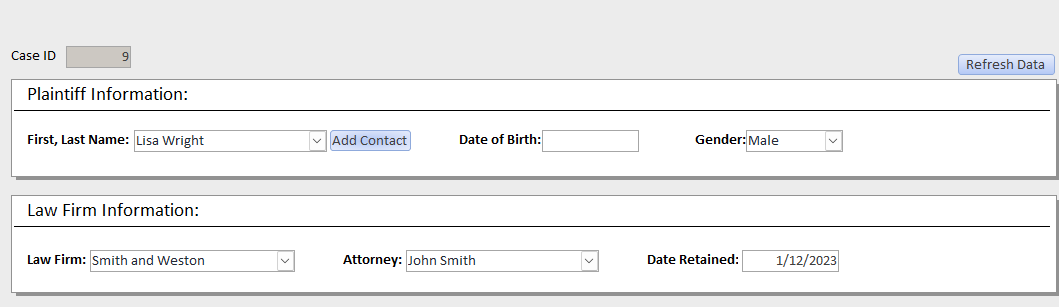
This is the desired function: CaseFileF (Picture 1), When entering in a plaintiff contact, I want to click on a (search) button next to the Text field that pulls up a contact search form. I would then search to see if that contact exists, if not I would create the contact. I know how to perform these functions thus far.

Want I would like to happen, is, after the contact is found or added to the contacts list and reflected on the ContactListForm, I want to select that contact record and import their contact information and show their FL name in the text field.

The videos I have seen and information I have read thus far, do not cover how to do this without a ComboBox.

The ComboBox drop down list of contacts is not the best way for us with the amount of contacts we will have in our database.  

Thank you! (See attached photos)
Joshua Rivera OP  @Reply  
    
3 years ago

Joshua Rivera OP  @Reply  
    
3 years ago

Joshua Rivera OP  @Reply  
    
3 years ago
I currently have the ComboBox as the direct way to see added Plaintiff Contacts. But when this list becomes over 100 or 1000 it will be cumbersome to search for the needed contact to use.
Juan C Rivera  @Reply  
            
3 years ago
try typing in what your looking for.  Access Developer Level 8.  I will look for another video.

V/r
Juan
Joshua Rivera OP  @Reply  
    
3 years ago
I've been searching the forum and videos and can't seem to find the referenced material.
I'm thinking it will have something to do with the DLookup function, but not sure.

Been trying to figure this out for a week.
Joshua Rivera OP  @Reply  
    
3 years ago
I have not watch Access Developer 8 yet, I'm a little ways off from that material. I looked over the course material, I don't know if it covers my specific function.
Kevin Robertson  @Reply  
          
3 years ago
You could do something like this to find records that match what is entered in the First and Last name Text Boxes.:
"WHERE FN=""" & FirstName & """ And LN=""" & LastName & """"
Joshua Rivera OP  @Reply  
    
3 years ago
Hi Kevin,

Thank you. So currently with the Combo Box I can type in the name of the contact and it will start to auto populate. And that works for now.

I guess what I'm looking for is a way to select the record in a Form (which is tied to a Query to pull contacts), and use that record in a separate form all with the click of a button from the Contact Form.

Something like this:
Case File Form > (Case File Form) PlaintiffName Text Field > (Case File Form) Search Contact = Button > Contact Form Opens > (Contact Form) Lookup Record > (Contact Form) Select Record > (Contact Form) Imported Selected Contact = Button > (Case File Form) Populates Contact Name in text field for Plaintiff contact.

Thanks!
Juan C Rivera  @Reply  
            
3 years ago
How about several combobox 1 select names, 2 show only contracts that match names, 3 find contract that matches and double click to open record just like Richard's customer database.  If you can do one you can do a second.  set 1st query to name, second query contracts this will show you what left in a listbox... let me know if this is what you can work with?
Dan Jackson  @Reply  
            
3 years ago
Could you not use Concatenation On your text box? When you click the name, you could have some vba that loads the info you need into that box. Doing this method means you can still use Search Form 2.0
Scott Axton  @Reply  
        
3 years ago
Joshua
Thinking out side the box a bit here so bear with me.

Consider obtaining the Access ZIP Code Template just to use as an example and help you through your "filtering" process.

Here is why I think that - It's all about distilling out the unneeded info to get to what you want.
My current Zip Code lookup table contains 51,694 records.  Of those records there are 41,857 unique zipcodes.
Consider searching for the city of "Washington".  That results in 306 records.  Beats looking through 51K records.
Now if I add in "DC" as the state I get 279 records.  Better.
Add in the Zip code of "20520" I get only 1 record.  Even better.

Here is the kicker though.  If I just looked up the Zip (20520) first, it would return that same result:  
Washington DC 20520
Same results just different ways of getting there.

The point I'm trying to make is start out with the most granular piece of data for your search first. Then, if you need to, drill down even further.

Why the Zip template? What does this have to do with your question?

Well in the second part, the added benefit is that Richard shows you how to use a little bit of VBA to take the results of the search and insert it into the record you are working with using a "Set" button. This would very easily converted to doing what you need to do.
The method is there, just modify it to your needs.

I see that you are a Learning Connection member so, if you decide to look into purchasing that Template, be sure to use the link for your discount that Richard emailed you.  It is already a reasonable price but an even better value with the discount.
Scott Axton  @Reply  
        
3 years ago
PS  -
Another benefit of the Zip lookup is you can use it as intended.  :)
Makes entering addresses Sooooo much easier.
Joshua Rivera OP  @Reply  
    
3 years ago
Juan C Rivera; Dan Jackson; Scott Axton:

Thank you all for your responses. I'm going to see if I can get the Access Zip Code Template to work with what I'm trying to accomplish. If I can't get the function to execute I'll reach back out for some help. Thank you again.
Joshua Rivera OP  @Reply  
    
3 years ago
@Scott Axton

Thank you, Thank you, Thank you!

The extended cut in the Zip Code Template was exactly was I was looking for, the "Set In" function. This solves my issue, been trying to find this information for over a week.
Scott Axton  @Reply  
        
3 years ago
Joshua
You are welcome!  Glad I could help.  I knew it was a little bit of a stretch but like Richard says, "It's like Legos.  Just depends on how you put them together."

This thread is now CLOSED. If you wish to comment, start a NEW discussion in Access Forum.
 

Next Unseen

 
New Feature: Comment Live View


The following is a paid advertisement
Computer Learning Zone is not responsible for any content shown or offers made by these ads.
 

Learn
 
Access - index
Excel - index
Word - index
Windows - index
PowerPoint - index
Photoshop - index
Visual Basic - index
ASP - index
Seminars
More...
Customers
 
Login
My Account
My Courses
Lost Password
Memberships
Student Databases
Change Email
Info
 
Latest News
New Releases
User Forums
Topic Glossary
Tips & Tricks
Search The Site
Code Vault
Collapse Menus
Help
 
Customer Support
Web Site Tour
FAQs
TechHelp
Consulting Services
About
 
Background
Testimonials
Jobs
Affiliate Program
Richard Rost
Free Lessons
Mailing List
PCResale.NET
Order
 
Video Tutorials
Handbooks
Memberships
Learning Connection
Idiot's Guide to Excel
Volume Discounts
Payment Info
Shipping
Terms of Sale
Contact
 
Contact Info
Support Policy
Mailing Address
Phone Number
Fax Number
Course Survey
Email Richard
[email protected]
Blog RSS Feed    YouTube Channel

LinkedIn
Copyright 2026 by Computer Learning Zone, Amicron, and Richard Rost. All Rights Reserved. Current Time: 5/2/2026 8:30:21 AM. PLT: 1s