Free Lessons
Courses
Seminars
TechHelp
Fast Tips
Templates
Topic Index
Forum
ABCD
 
Home   Courses   TechHelp   Forums   Help   Contact   Merch   Join   Order   Logon  
 
Back to Access Forum    Comments List
Upload Images   @Reply   Bookmark    Link   Email   Next Unseen 
Privacy Options
William Dowler 
      
2 years ago
Hi everyone,
I have an accde file in which I've hidden all Navigation objects (tables, forms, etc.). However if I click File the Privacy Options shows up between FeedBack and Exit. When this is clicked, all the Access options are displayed so that, theoretically a user could change this to display the Navigation Pane. How do I prevent this option from showing up?
Many thanks......
John Campbell  @Reply  
     
2 years ago
What you would need to do is create a custom menu that severely limits what you can do when you open the database.  A shortcut would be to got to File>Access Options >Current db> and deselect "Allow Full Menus".  You can also disable the "F!!" key using a macro or code.    Reach out to me [email protected]   www.ServiceFirstConsulting.com.  Thanks
William Dowler OP  @Reply  
      
2 years ago
John,
I already have "AllowFullMenus" disabled.
I really want to keep the "File" option enabled but just disable the "Options" from the drop-down that appears when "File" is selected.
It seems bizarre to me that we go through all the hoops to create a .accde file to protect our forms and tables only to have a user use the "Options" selection to add their name and password to the MemberT table (for instance).
I think I must be missing something basic here, but I don't know what that might be.
Kevin Yip  @Reply  
     
2 years ago
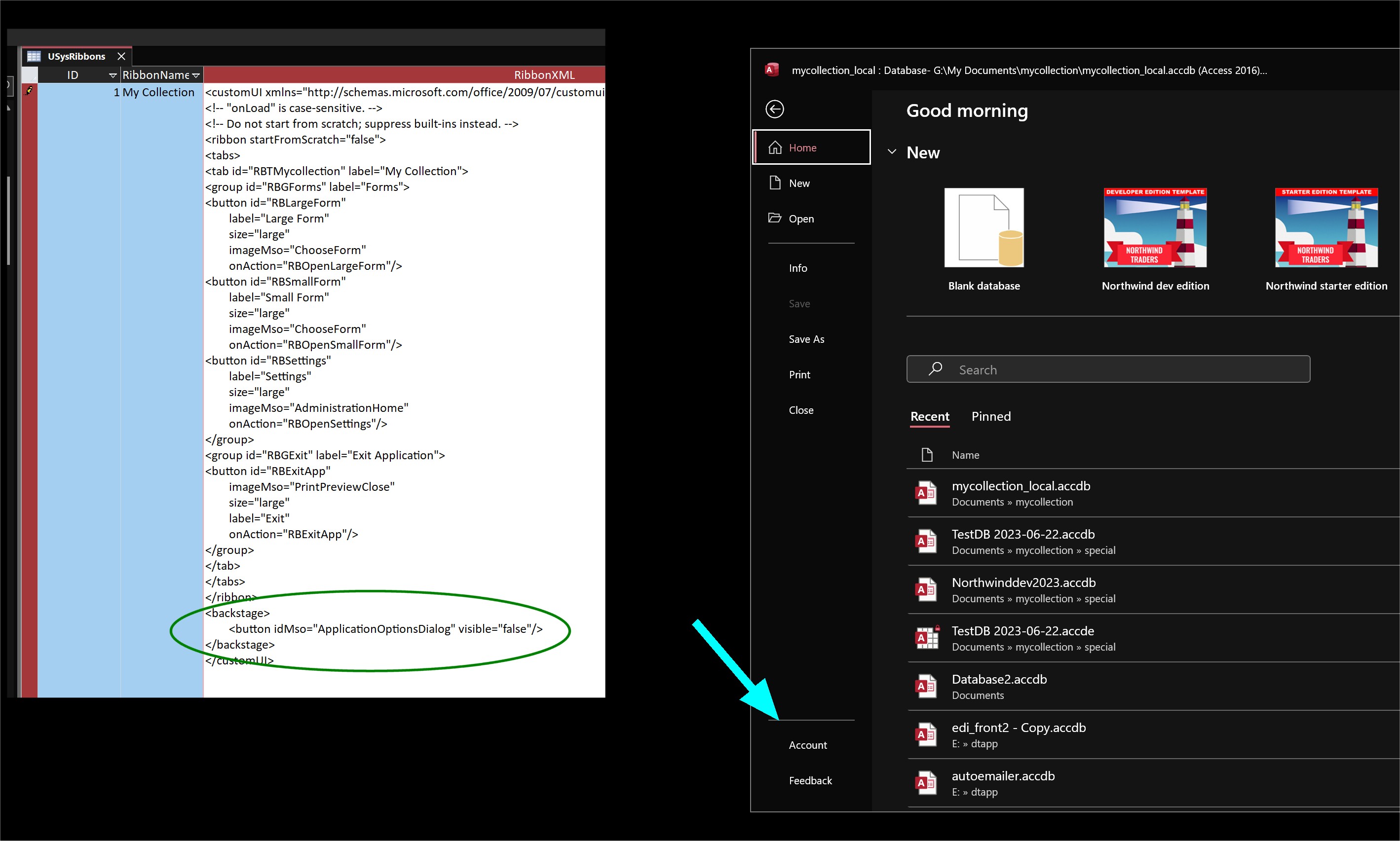
You can hide Privacy Options (or Options) by adding a "backstage" section in the XML table, as shown in the picture below.  In the ribbon XML table (USysRibbons), add the three lines circled below, right before the closing /customUI tag.  Privacy Options (or Options) should be gone, as shown in my picture.  All the other tabs and buttons (New, Open, Info, etc.) can all be hidden, with the right idMso values.
Kevin Yip  @Reply  
     
2 years ago

Kevin Yip  @Reply  
     
2 years ago
If you are unfamiliar with how to use "USysRibbons", Richard has a course on "custom ribbons" that covers this:

     https://599cd.com/ACD44
William Dowler OP  @Reply  
      
2 years ago
Kevin,
Thanks for the help here, I appreciate it.
What is the minimum set of code that I need to have in table USysyRibbons in order for this solution to work?
Many thanks....
Kevin Yip  @Reply  
     
2 years ago
If you only need to hide Privacy Options (or Options), it's a lot less code.  Richard's course is only at Part 1, and I don't know if it covers everything needed here, so I'll give you all the steps here.

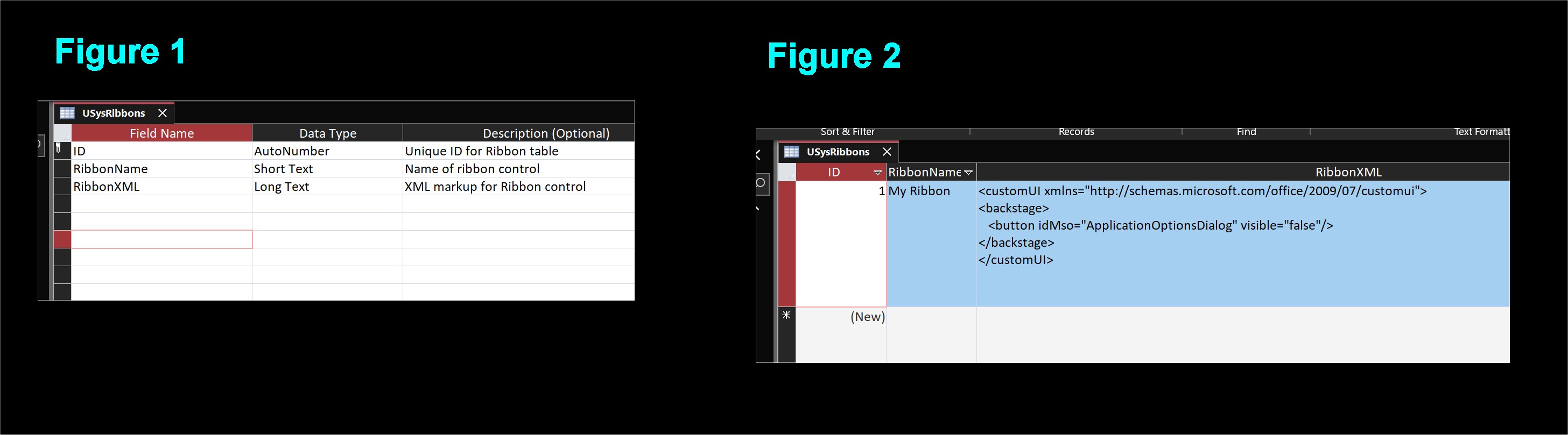
Create a table named USysRibbons, with the field names and types shown in Figure 1 below.  Note: any table with a name starting with "USys" is automatically hidden, so you need to unhide them in the navigation pane settings in order to see them.

Open USysRibbons, enter any number as ID, a name you choose for the RibbonName column, and the XML code in the third column exactly as shown in Figure 2.  Note the first line of XML with the schema address containing the date "2009/07".  This is the latest version of schema, and only this version works with the "backstage" tag.  Many online guides may use older versions dated 2006/01, and they don't work.

Restart the database file.  Go to File -> Options -> Current Database.  Next to "Ribbon Name," the drop-down box should show the ribbon name you chose in the step above.  Choose it, click OK.  

If you need to do anything else in Options, do it now.  Once you restart, the Options will be gone.  Create an accde file from this, and the Options (or Privacy Options) will be gone there too.
Kevin Yip  @Reply  
     
2 years ago

William Dowler OP  @Reply  
      
2 years ago
Kevin,
That's great thank you. I'll give it a whirl and let you know how I do.... Thanks again....
Kevin Yip  @Reply  
     
2 years ago
You're welcome.  But this is not completely hacker-proof (as Richard says in his security courses).  If a user knows what to do, they can.  Any user can simply create a query with the SQL statement "SELECT * FROM USysRibbons" and see all the settings inside and change them.  To be fully safe, you need an environment that truly protects these things, and Access is not that environment.  In my old job, I moved to SQL Server and created web interface that actually hid everything from users.  Visual Studio can create stand-alone execute files that will also hide everything too.
William Dowler OP  @Reply  
      
2 years ago
Kevin,
Outstanding!!
Many thanks. That worked perfectly.
ChatGPT couldn't come up with a workable solution.... I should have known to ask you first.
Your answers and solutions to requests on this forum are first class. Thanks again.
Richard Rost  @Reply  
          
2 years ago
I cover locking this down better in the Access Security Seminar

This thread is now CLOSED. If you wish to comment, start a NEW discussion in Access Forum.
 

Next Unseen

 
New Feature: Comment Live View


The following is a paid advertisement
Computer Learning Zone is not responsible for any content shown or offers made by these ads.
 

Learn
 
Access - index
Excel - index
Word - index
Windows - index
PowerPoint - index
Photoshop - index
Visual Basic - index
ASP - index
Seminars
More...
Customers
 
Login
My Account
My Courses
Lost Password
Memberships
Student Databases
Change Email
Info
 
Latest News
New Releases
User Forums
Topic Glossary
Tips & Tricks
Search The Site
Code Vault
Collapse Menus
Help
 
Customer Support
Web Site Tour
FAQs
TechHelp
Consulting Services
About
 
Background
Testimonials
Jobs
Affiliate Program
Richard Rost
Free Lessons
Mailing List
PCResale.NET
Order
 
Video Tutorials
Handbooks
Memberships
Learning Connection
Idiot's Guide to Excel
Volume Discounts
Payment Info
Shipping
Terms of Sale
Contact
 
Contact Info
Support Policy
Mailing Address
Phone Number
Fax Number
Course Survey
Email Richard
[email protected]
Blog RSS Feed    YouTube Channel

LinkedIn
Copyright 2026 by Computer Learning Zone, Amicron, and Richard Rost. All Rights Reserved. Current Time: 5/6/2026 12:40:34 PM. PLT: 1s