Free Lessons
Courses
Seminars
TechHelp
Fast Tips
Templates
Topic Index
Forum
ABCD
 
Home   Courses   TechHelp   Forums   Help   Contact   Merch   Join   Order   Logon  
 
Back to Access Search Template    Comments List
Upload Images   @Reply   Bookmark    Link   Email   Next Unseen 
coding hangup
Nathan Shepard 
      
2 years ago
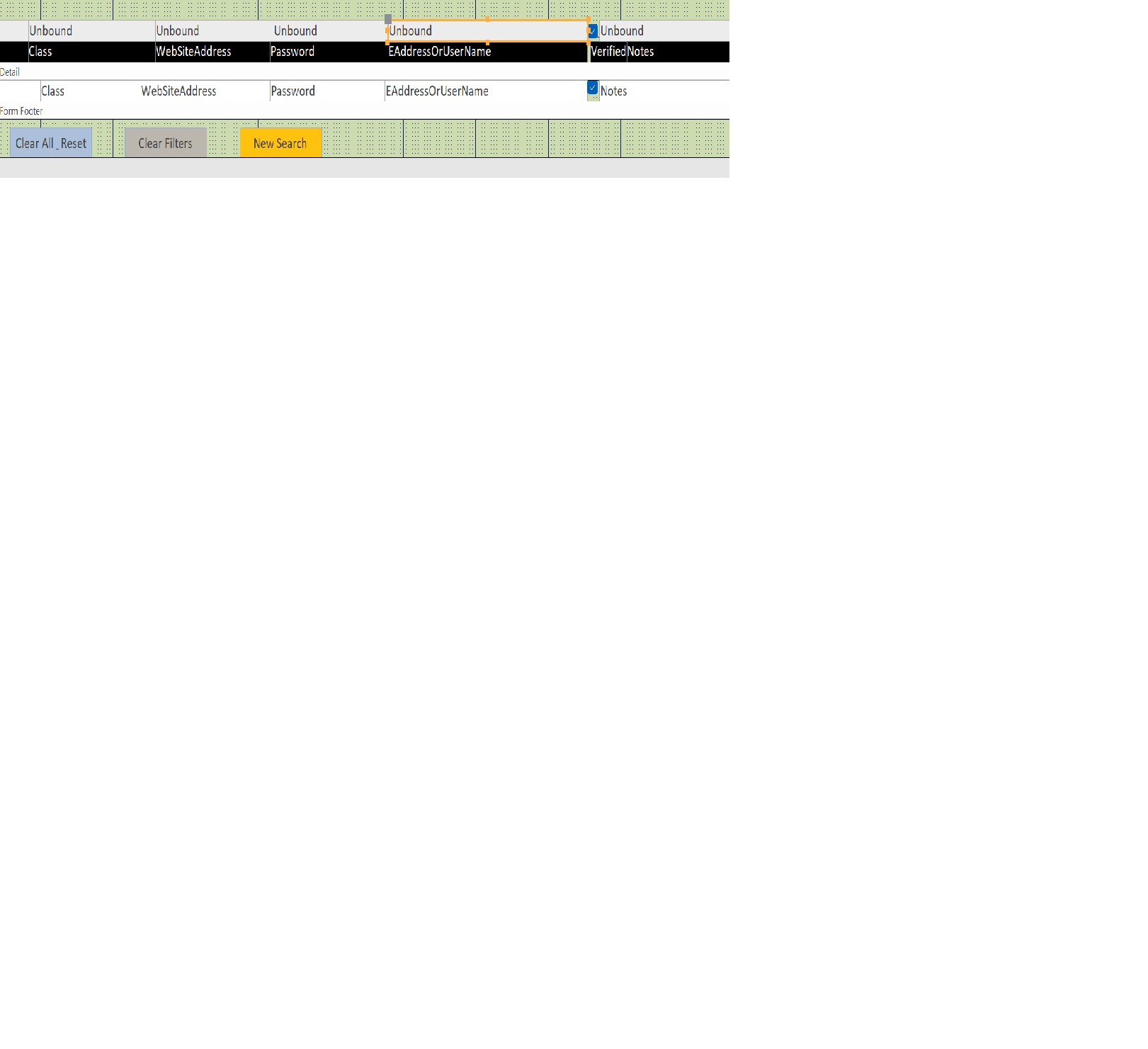
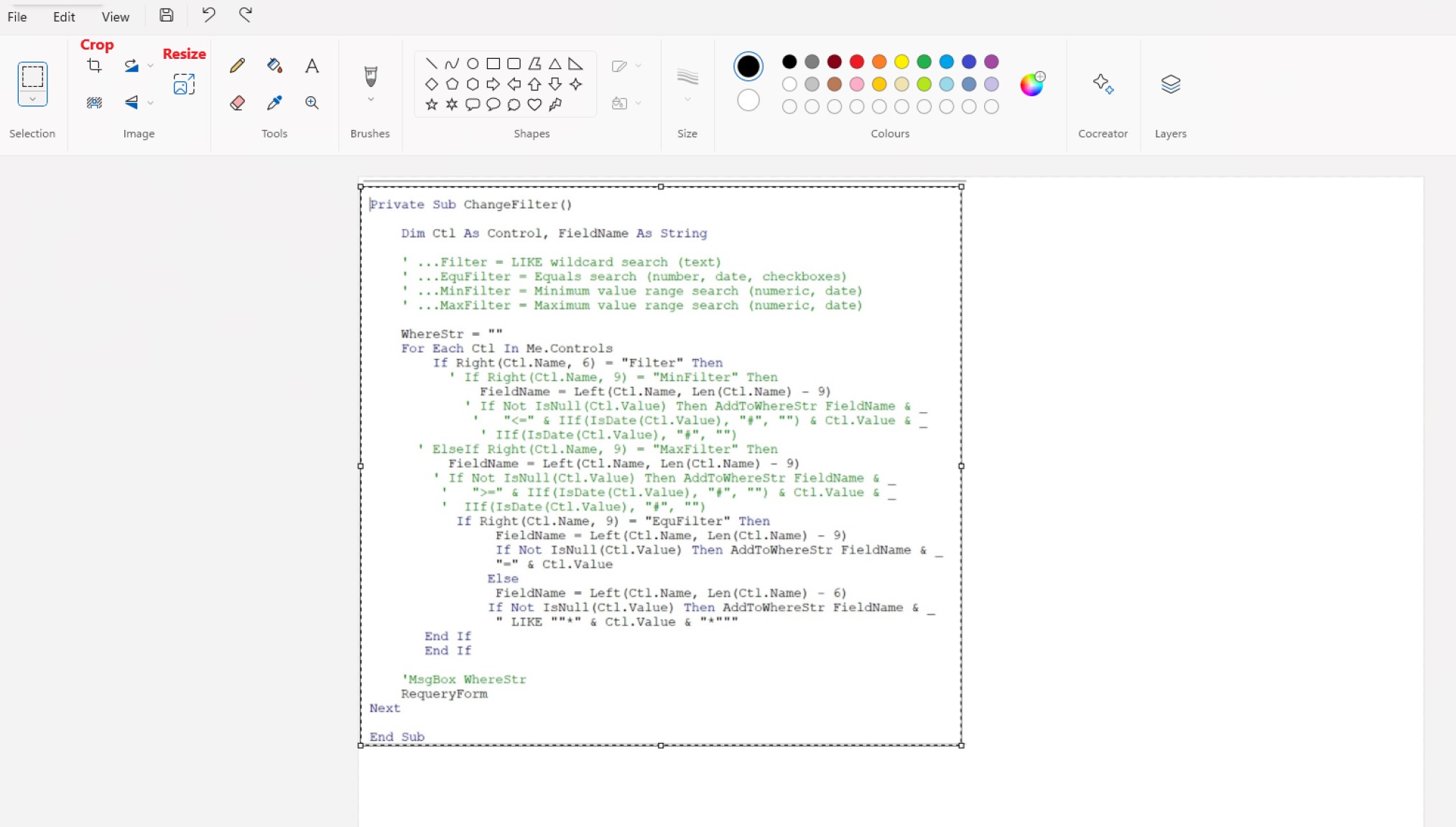
I modified the search template.  I don't have minfilters,MaxFilter, nor date fields.  I have strictly fields that are searched as wild cards.  they are just data fields.

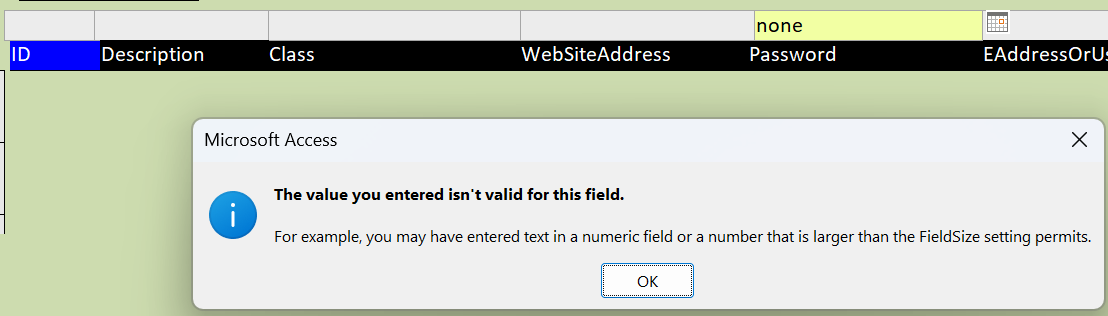
the problem is it does not filter the fields such as "financial or email or (joey082016 password).
Nathan Shepard OP  @Reply  
      
2 years ago

Nathan Shepard OP  @Reply  
      
2 years ago

Nathan Shepard OP  @Reply  
      
2 years ago
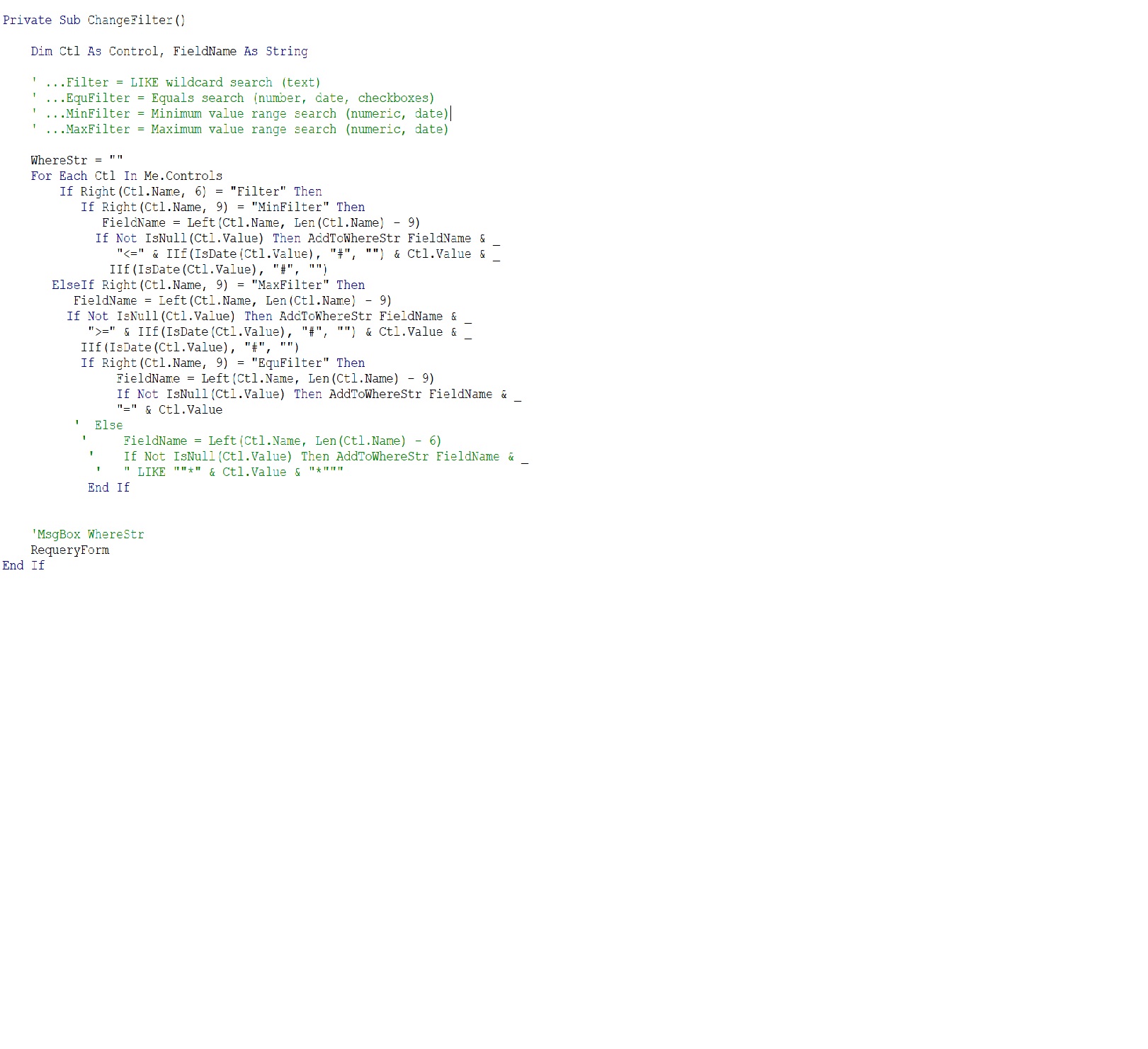
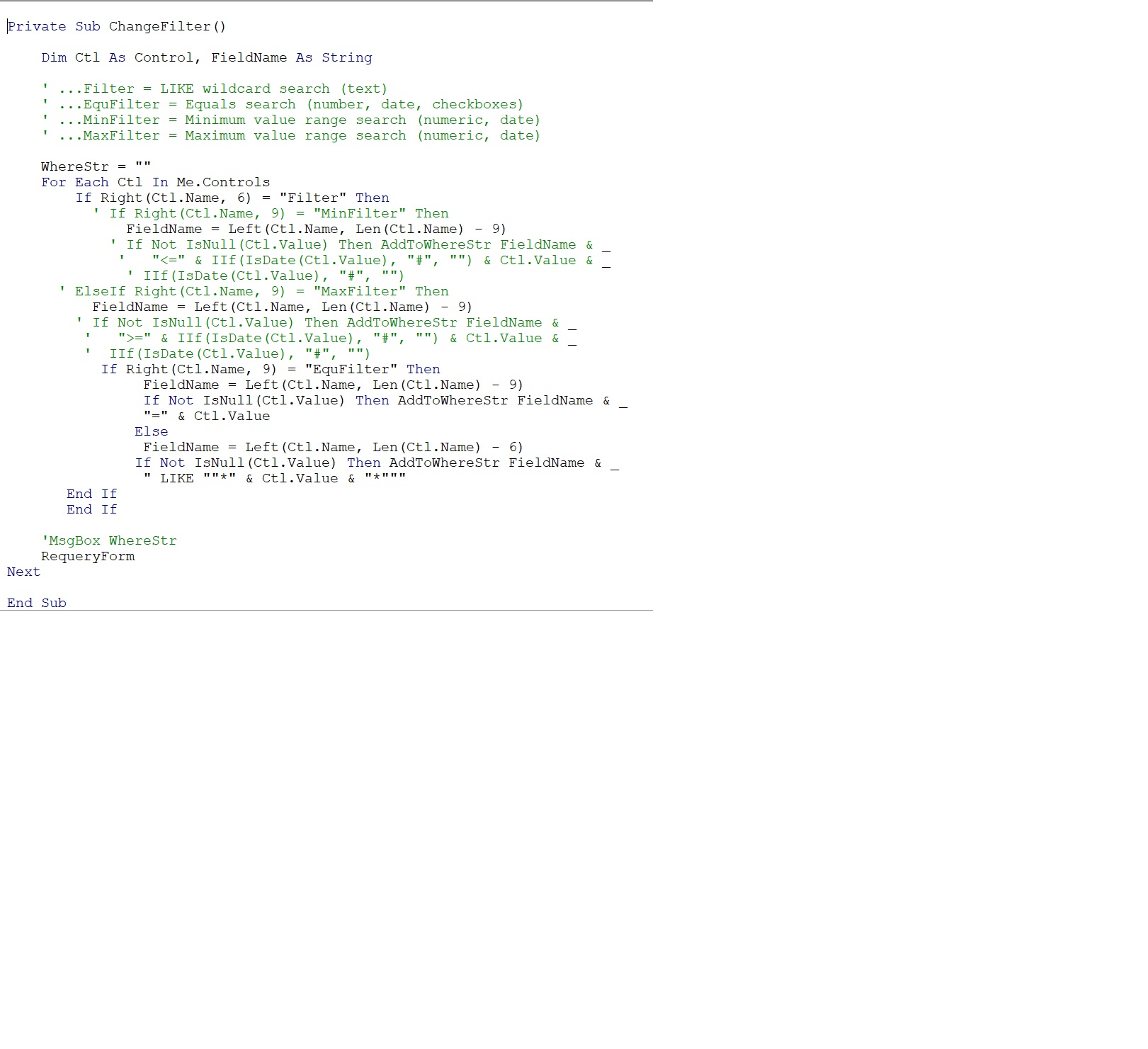
So I need help in modifying the  code to except regular fields to filter on.  There are no Minimium values, Maximium values or date fields.  I have commented some lines code.  It still does not work in filtering.

I filter on the following filters,  PassID, Description, Class, WebSiteAddress, Password, EAdressOrUserName, VerifiedInformation (Check Box), Notes, (IsActive (Checkbox).  They are plain old fields that no processing is done on them

Any assistance in modifiing the code would be appreciated.   thank you
Richard Rost  @Reply  
          
2 years ago
Nathan, you really should crop your images so there isn't so much empty white space. Are you using Snip & Sketch?

I'll try to take a look at your code when I have a few free minutes.
Nathan Shepard OP  @Reply  
      
2 years ago

Nathan Shepard OP  @Reply  
      
2 years ago
Notice the green lines are comments
Nathan Shepard OP  @Reply  
      
2 years ago
Richard
I use Windows plus Shift and S.  They copy it into paint.  Then I get a jpeg file.  Then save.  Then load it into the forum.  I know virtually nothing on paint.  Just how to save etc.
Nathan Shepard OP  @Reply  
      
2 years ago
I watched your video on snip.  I still don't know how to shrink it down the way you want it.
Nathan Shepard OP  @Reply  
      
2 years ago

Kevin Robertson  @Reply  
          
2 years ago
Use the selection tool to make your selection (click & drag).
Now click the crop button to remove all area outside of your selection.
If necessary, resize your image (important if your image is really small - we need to be able to see it clearly).
Kevin Robertson  @Reply  
          
2 years ago

Nathan Shepard OP  @Reply  
      
2 years ago
thank you Kevin.  I copied your instructions into my notes.
Richard Rost  @Reply  
          
2 years ago
Nathan, you purchased the Search Template. While it does include instructions on how to integrate it into your existing database, it doesn't explain how to customize and rewrite the code like you want - including removing the max/min stuff and making other modifications. That's what the full Access Search Seminar is for. The Seminar explains how all of this stuff is built. This is advanced developer material.

My recommendation would be to remove what you have already added to your database, and follow the Integration Instructions that are given - both the video on the Access Search Template and the written instructions on the Search Template Instructions page. It would be a LOT of work for me to review your code to try to figure out what you changed and what is / is not working. This is why the video tutorials are there.

Hundreds of people have integrated this template into their databases, so I know my code works - if you follow the integration instructions. If you're going to rewrite my code, then you're on your own. If you have specific questions about specific errors, feel free to post them - but I can't read over all of your code to try to figure out what's wrong.
Nathan Shepard OP  @Reply  
      
2 years ago
I used Search form 2.0 as a guide.  It works.  As for the search template.  I will work on it and eventually get it to work.  This post is now closed.

This thread is now CLOSED. If you wish to comment, start a NEW discussion in Access Search Template.
 

Next Unseen

 
New Feature: Comment Live View


The following is a paid advertisement
Computer Learning Zone is not responsible for any content shown or offers made by these ads.
 

Learn
 
Access - index
Excel - index
Word - index
Windows - index
PowerPoint - index
Photoshop - index
Visual Basic - index
ASP - index
Seminars
More...
Customers
 
Login
My Account
My Courses
Lost Password
Memberships
Student Databases
Change Email
Info
 
Latest News
New Releases
User Forums
Topic Glossary
Tips & Tricks
Search The Site
Code Vault
Collapse Menus
Help
 
Customer Support
Web Site Tour
FAQs
TechHelp
Consulting Services
About
 
Background
Testimonials
Jobs
Affiliate Program
Richard Rost
Free Lessons
Mailing List
PCResale.NET
Order
 
Video Tutorials
Handbooks
Memberships
Learning Connection
Idiot's Guide to Excel
Volume Discounts
Payment Info
Shipping
Terms of Sale
Contact
 
Contact Info
Support Policy
Mailing Address
Phone Number
Fax Number
Course Survey
Email Richard
[email protected]
Blog RSS Feed    YouTube Channel

LinkedIn
Copyright 2026 by Computer Learning Zone, Amicron, and Richard Rost. All Rights Reserved. Current Time: 5/17/2026 4:55:08 AM. PLT: 1s