Free Lessons
Courses
Seminars
TechHelp
Fast Tips
Templates
Topic Index
Forum
ABCD
 
Home   Courses   TechHelp   Forums   Help   Contact   Merch   Join   Order   Logon  
 
Back to Access Forum    Comments List
Upload Images   @Reply   Bookmark    Link   Email   Next Unseen 
video library DB best design
Gary James 
      
2 years ago
Richard, Over the past several months I've been ripping videos from my extensive DVD / Blu-ray library to an 8TB USB drive plugged into my Sony Blu-ray player.  I want to make an Access database of all the files and their locations in the hundreds of Folders and Subfolders on the drive.  My problem is deciding the best method of designing the database to make it easy to find a specific video, or print reports showing Alphabetized Folders and Files in those folders, or Alphabetized Files and Folder locations.

I could go with a simple One to Many relationship of a File to its entire Folder path.   Or a more complicated File Table, and Folder along with a junction table connecting each folder level entry with the folder above and below it.  From a coding standpoint option one sounds like the best choice.   But if I go with that, would I be boxing myself into a corner for future expansion of the database.

Adam Schwanz  @Reply  
           
2 years ago
Maybe I'm misunderstanding, but this would just be a MovieT with all your movies in it and a file location field in that table, wouldn't it? You can Search Form 2.0 any fields in the MovieT to easily find which movie you're looking for, and then you just have the file location stored there. You could even make a button next to your file location field to open directly to that folder location to go right to the movie. How you store the videos outside of Access is up to you, and unless I'm missing something (like you want the location to be automatically filled out or something), then it wouldn't affect the database.
Gary James OP  @Reply  
      
2 years ago
Yes, you understand the issue, and what you suggest is what I said in option 1, with the minor difference that I mentioned using a different table to include the file path because some very long paths contain many files, and that long text doesn't need to be replicated in each file table entry.

Option 2 is more complex because each level in the path would be its own entry in a folder table.   For example in the following file path 'K:\CHILDREN\DISNEY\TOY STORY"  In option 1 this would be a single folder entry (minus the drive letter), but in option 2 this would be 3 folder entries for CHILDREN, DISNEY,  and TOY STORY, with each also having an entry in a junction table with the folder below it in the path hierarchy.   This way I could look for the DISNEY folder and get a list of all folders and files that are present in just that directory.    In option 1 all the folders exist as a complete path string, so it would require far more effort to find what exists in just the DISNEY folder under the CHILDREN folder.  Whew.
Kevin Yip  @Reply  
     
2 years ago
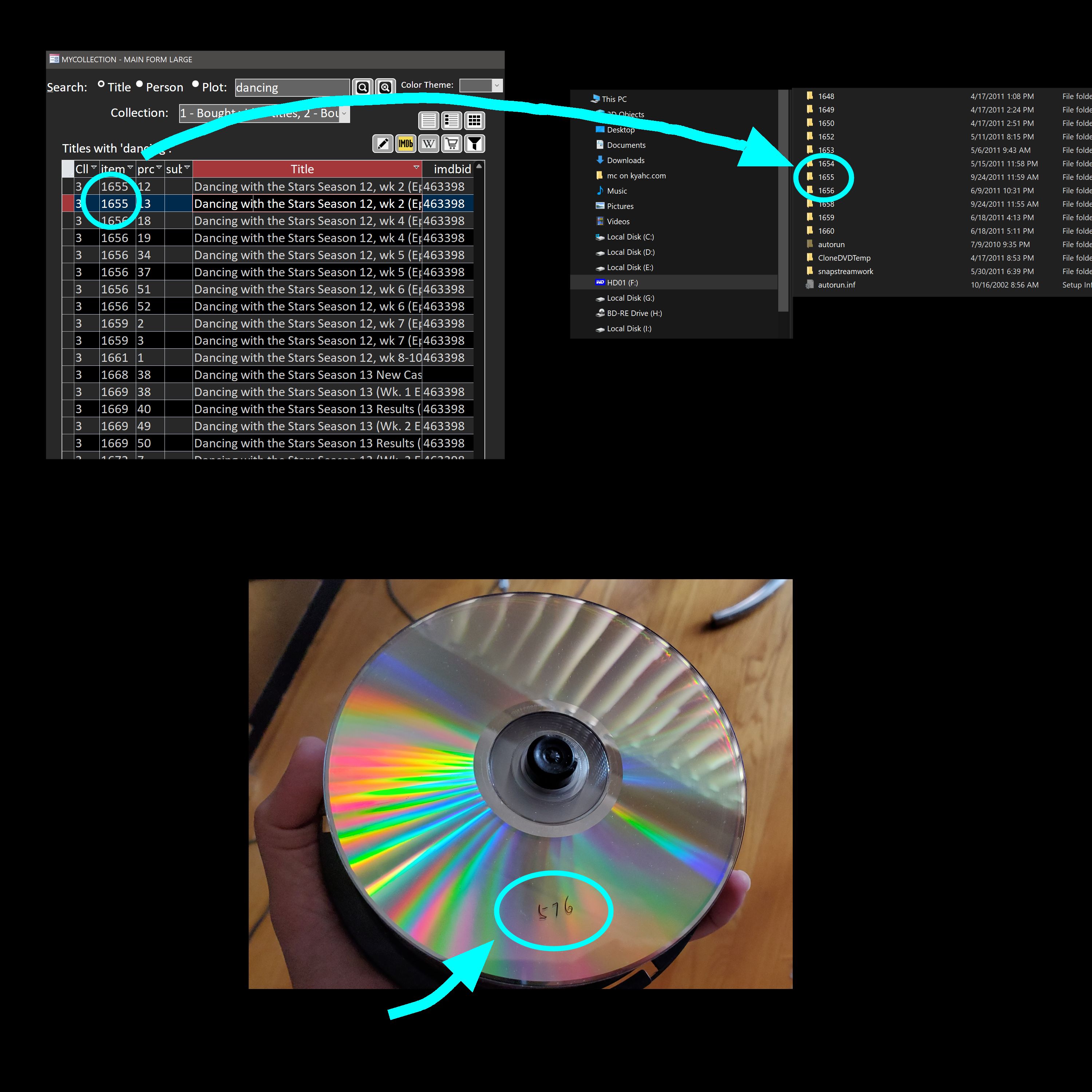
My method is to store video files in numeric folder names, then store those numbers in my Access table.  See picture below.  I handle physical optical discs the same way: I write the number on the disc surface, and store the number in Access.  I have thousands of TV recordings that are stored with this simple numeric scheme.
Kevin Yip  @Reply  
     
2 years ago

Kevin Yip  @Reply  
     
2 years ago
Note that I don't put show titles in the Windows file explorer.  I put them in my Access database.  When I search for titles, I search them in Access.  That's what a database is for.  I don't look for titles in Windows Explorer.  Therefore, all folder names can just be numeric codes, thus simplifying storage greatly.
John Davy  @Reply  
         
2 years ago
Hi Gary
Kevin's is better than mine. I created an Access database with a PickFile to locate my video, text, clip etc and also added with shellex the ability to play it from Access. I added a topic index and notes which can be searched so if I find a topic that matches my search I can double click and play or see the video, jpg or text or whatever else it is. I did it to be more responsive with the Forum but Kevin is much faster on the draw and has better forum responses that I do (he is lots smarter), so go with his advice.
HTH
John
p
Gary James OP  @Reply  
      
2 years ago
Kevin, I like your design but it wouldn't fit in with the way I envision my database working.   I envision two rows of controls at the top of a search form.   Each has a radio button that enables that row or the other.  One row has a single textbox to perform a file search that returns matching files along with the full folder path.   The second row contains several combo boxes positioned across the top of the forms list area..  The first combo has a list of dropdowns representing all the folders off the root directory.   With a root folder selected, the next combo fills with folder names that exist off the selected root folder, along with any files that are present in that folder   This continues with additional combos until the last folder in the path is selected.    Of course, it may be better just to have a single combo and some Up/Down arrows, and a updated path string showing the current selected folder depth in the path.   In either case, as the folder is selected in the combo the list portion of the form would fill with file names located in that path location.

With either of the views selected, I would like to print a report showing the currently displayed information.
Kevin Robertson  @Reply  
          
2 years ago
Access Developer 31 covers Files and Folders.
Kevin Yip  @Reply  
     
2 years ago
My point is you should organize your titles, categories, Disney, children's movies, etc. EVERYTHING with Access, instead of using  Windows file structure to do so.  Instead of making a Children folder, Disney subfolder, etc. in Windows Explorer, set up a Children category and Disney category *in your Access tables*.  In other words, you don't care how your files are stored in Windows Explorer, because *Access doesn't*.  Access uses whatever logic you created to search and organize your files.  What do you think would do a better job organizing your stuff: Access or Windows Explorer?  My bet is on Access, because a database is solely designed to organize data.
Gary James OP  @Reply  
      
2 years ago
Kevin, let me start at the beginning and maybe then you'll get a better understanding of what the intent of my database is.   First off, it's not to just keep track of all my DVD / Blu-ray disks.  I already have an Access database for that.   The new database will have a very targeted purpose; to let me know where a particular video file exists in the myriad of folders on my external USB drive.

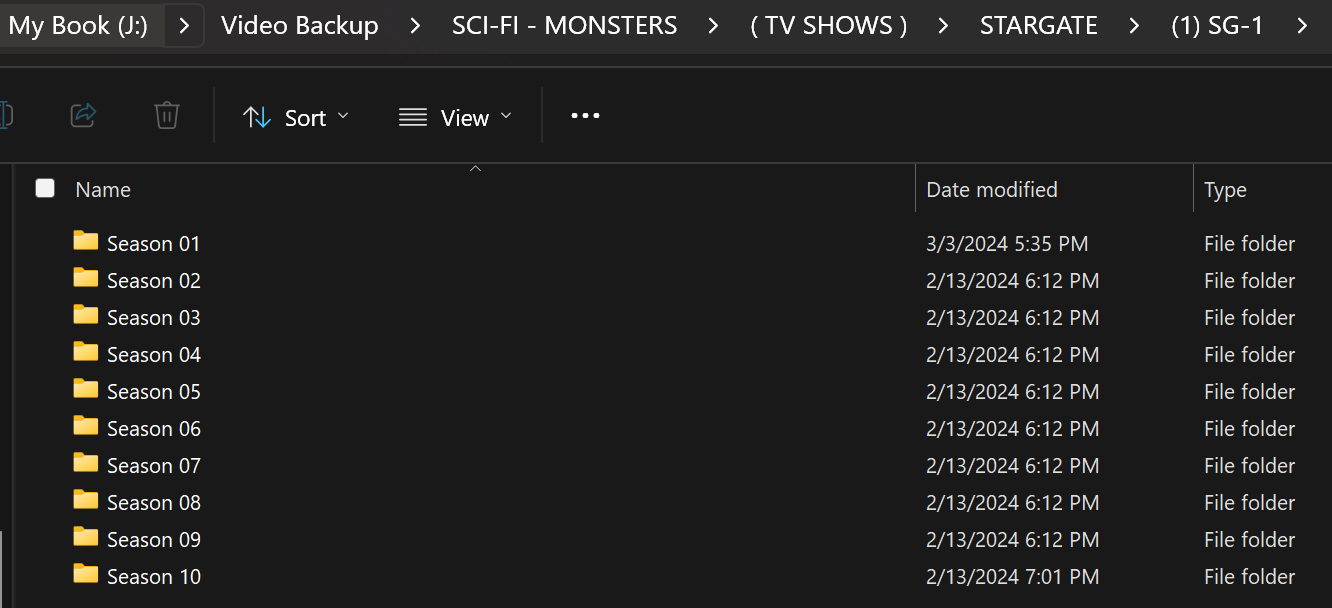
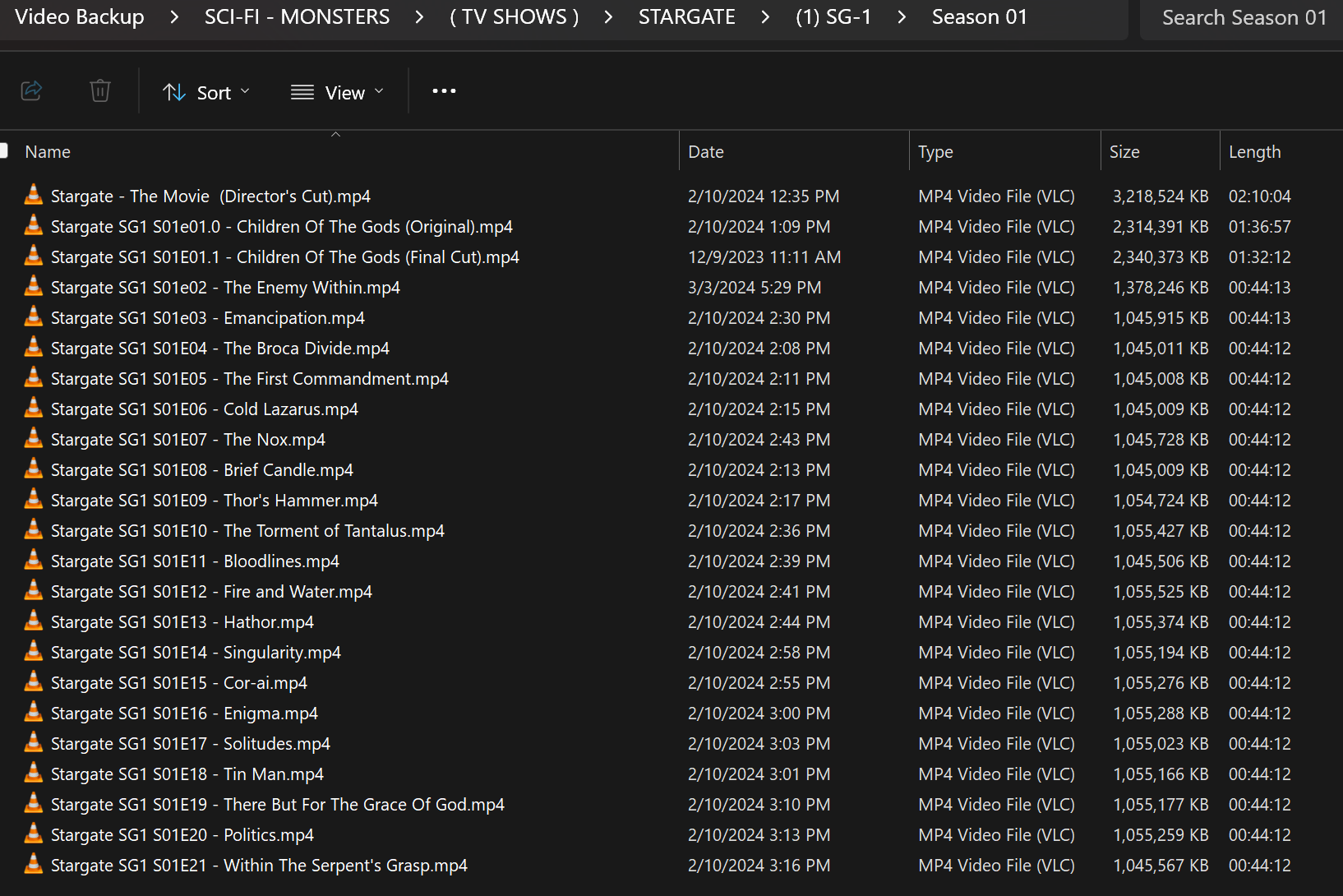
My external drive has more than 4,400 movie and TV episode videos located somewhere in 414 folders and subfolders.   The database will exist solely to let me search for a named video, and it will return the folder paths of all matching videos.   Conversely, I may want to ask what video files and sub folders exist in a specific folder path.  

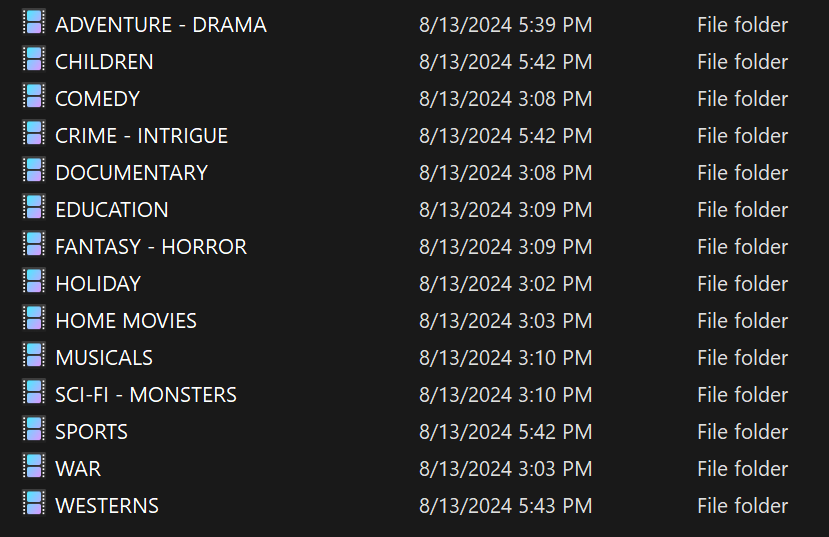
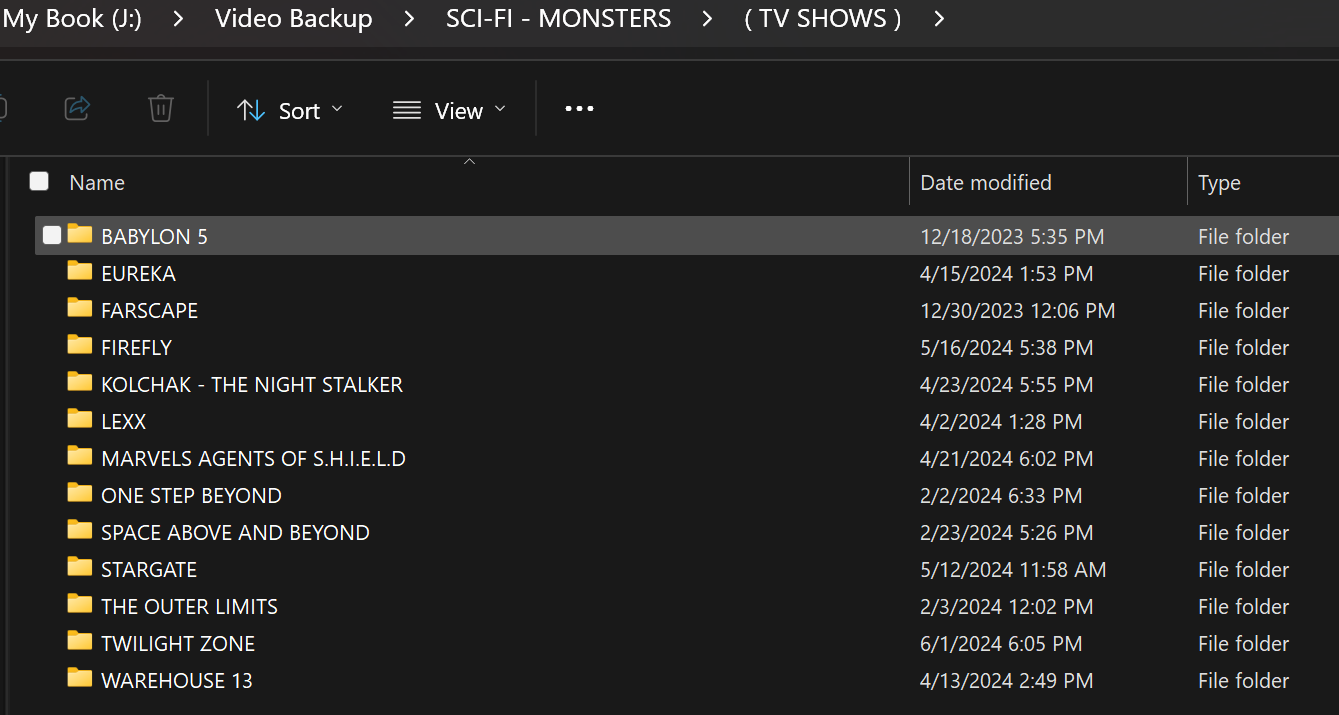
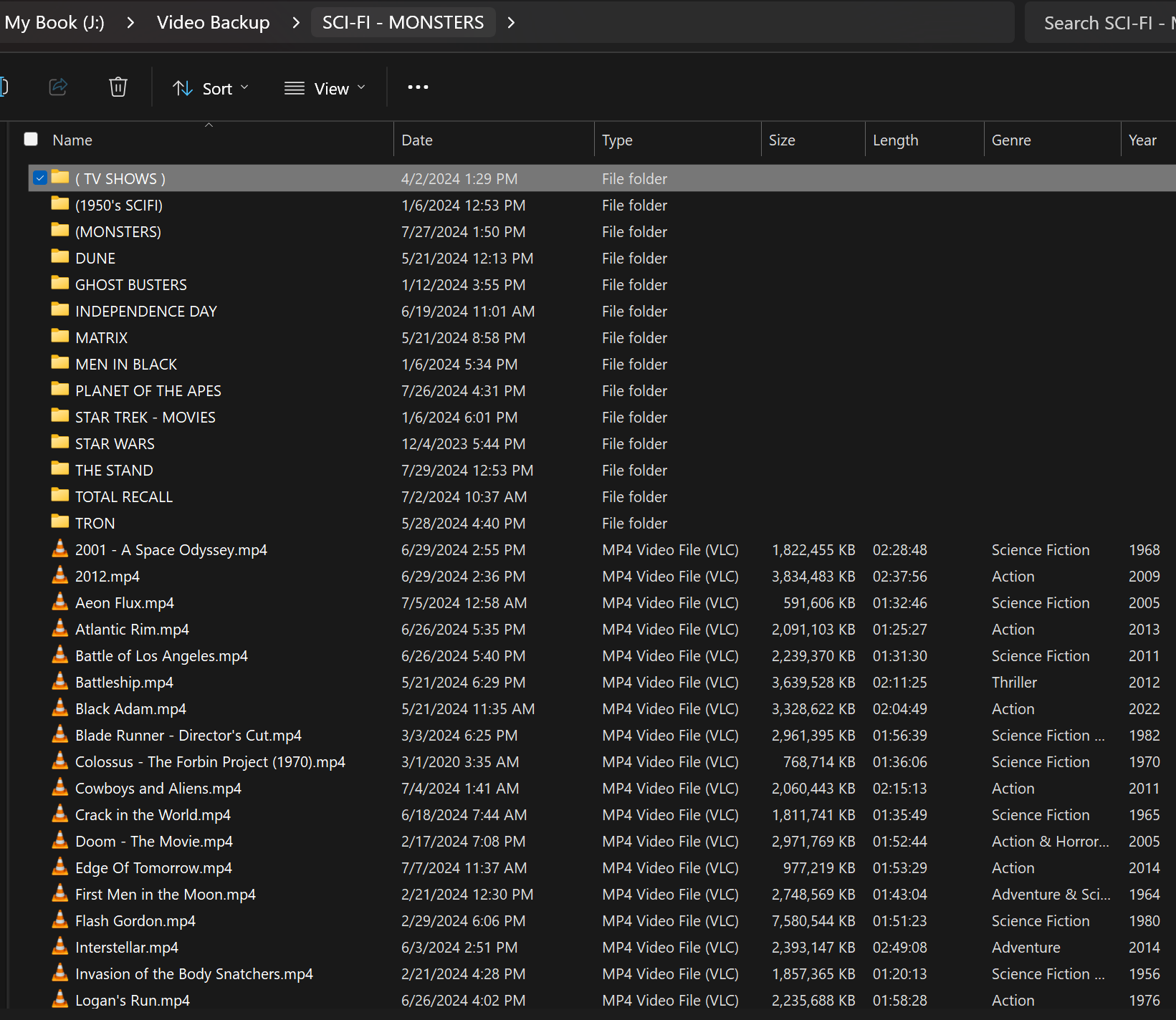
The root folders on the drive are named for different movie genres.   The sub folders under that hold movies and TV shows that fall under that genre.   As you can clearly see, the intent of the database is to virtualize the file and folder structure of my external USB drive.
Gary James OP  @Reply  
      
2 years ago

Gary James OP  @Reply  
      
2 years ago

Gary James OP  @Reply  
      
2 years ago

Gary James OP  @Reply  
      
2 years ago

Gary James OP  @Reply  
      
2 years ago

Kevin Yip  @Reply  
     
2 years ago
I use the DOS command below to list all files in a folder and all its subfolders, then export the result to a text file:

   dir /s /b "C:\MyFolder" /p > "D:\My Documents\filelist.txt"

The result will have all the files and their full paths in one big list.  E.g.:

G:\MyFolder\60mins\60mins_1.wmv
G:\MyFolder\60mins\60mins_2.wmv
G:\MyFolder\60mins\aishletterman.mpg
G:\MyFolder\60mins\cbs60_intro.wmv
G:\MyFolder\60mins\nightline1_218bits.wmv
G:\MyFolder\60mins\nightline2_218bits.wmv
G:\MyFolder\a4\Recovered File 001.avi
G:\MyFolder\aa\01.mpeg
G:\MyFolder\aa\01.mpg
G:\MyFolder\aa\02.mpg
Etc.

You can then import all of this to Access in one go.  If your goal is getting all file paths, this will help you.
Gary James OP  @Reply  
      
2 years ago
Yes, that's exactly how I was planning on importing the full path information into Access.   The question then is how to organize the Access database to let me search for matching file names, or search for files and folders that exist under a specified folder.

My first thought is to save the database in a single table with separate fields for: "Filename No Extension", "Friendly Filename", "Full Path without Filename or Drive Letter".    To search for a file, simply enter the name into a text box and do a query on either the Filename or Friendly Filename.   A continuous form would display all matching names and their path.    To do a path search I envision a large label and an arrow button next to a dropdown combo box.    At first, the combo box is filled with all the folders in the root directory.   Selecting a folder transfers that to the label and fills the combo box with all the folder names that exist under that folder, and also fills the continuous form with all the files that exist in that sub folder.   And so on.   The button would let you back up a level in the displayed path.

Any ideas or suggestions?
Kevin Yip  @Reply  
     
2 years ago
You can again use the DOS command to do all of that.  E.g.:

List all file names among all subfolders that begin with "dvd":     dir dvd* /s /b
List all file names among all subfolders that contain "dvd":     dir *dvd* /s /b
List all folder names among all subfolders that contain "dvd":     dir *dvd* /a:d /s /b

This thread is now CLOSED. If you wish to comment, start a NEW discussion in Access Forum.
 

Next Unseen

 
New Feature: Comment Live View


The following is a paid advertisement
Computer Learning Zone is not responsible for any content shown or offers made by these ads.
 

Learn
 
Access - index
Excel - index
Word - index
Windows - index
PowerPoint - index
Photoshop - index
Visual Basic - index
ASP - index
Seminars
More...
Customers
 
Login
My Account
My Courses
Lost Password
Memberships
Student Databases
Change Email
Info
 
Latest News
New Releases
User Forums
Topic Glossary
Tips & Tricks
Search The Site
Code Vault
Collapse Menus
Help
 
Customer Support
Web Site Tour
FAQs
TechHelp
Consulting Services
About
 
Background
Testimonials
Jobs
Affiliate Program
Richard Rost
Free Lessons
Mailing List
PCResale.NET
Order
 
Video Tutorials
Handbooks
Memberships
Learning Connection
Idiot's Guide to Excel
Volume Discounts
Payment Info
Shipping
Terms of Sale
Contact
 
Contact Info
Support Policy
Mailing Address
Phone Number
Fax Number
Course Survey
Email Richard
[email protected]
Blog RSS Feed    YouTube Channel

LinkedIn
Copyright 2026 by Computer Learning Zone, Amicron, and Richard Rost. All Rights Reserved. Current Time: 6/16/2026 4:12:20 PM. PLT: 1s