
TypeName
Using the TYPENAME Function
In this tutorial you will learn how to use the TypeName Function.
The TypeName function returns a String that provides information about a variable.
=TypeName( varname )
varname is a Variant containing any variable except a variable of a user defined type
If we wanted to check the TypeName of a value we can pass it to the following, say it was the String "Alex"
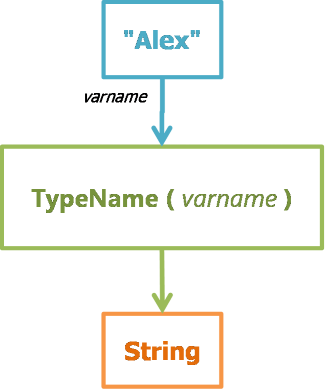
The result is String.
The return values are:
| String Returned | Variable |
| Object type | An object whose type is objecttype |
| Byte | Byte value |
| Integer | Integer |
| Long | Long integer |
| Single | Single-precision floating-point number |
| Double | Double-precision floating-point number |
| Currency | Currency value |
| Decimal | Decimal value |
| Date | Date value |
| String | String |
| Boolean | Boolean value |
| Error | An error value |
| Empty | Uninitialized |
| Null | No valid data |
| Object | An object |
| Unknown | An object whose type is unknown |
| Nothing | Object variable that doesn't refer to an object |
 Query Query
The results using a Query would be
SELECT TypeName("Alex");
 FORM FORM
In a Form you could set the Default Value of a Textbox to
=TypeName("Alex")
 VBA VBA
In a Form add a TEXTBOX control and rename it "txtTypeName", then you could add the following in the Load Event.
	Private Sub Form_Load()
		txtTypeName = TypeName("Alex")
	End Sub
Courses
 Access Expert 25
 Search Search
You can find more about this by searching the website.
 By: Alex Hedley
Click here to sign up for more FREE tips
| 


