|
||||||

|
|
||||||
|
Access Mailing Label Template
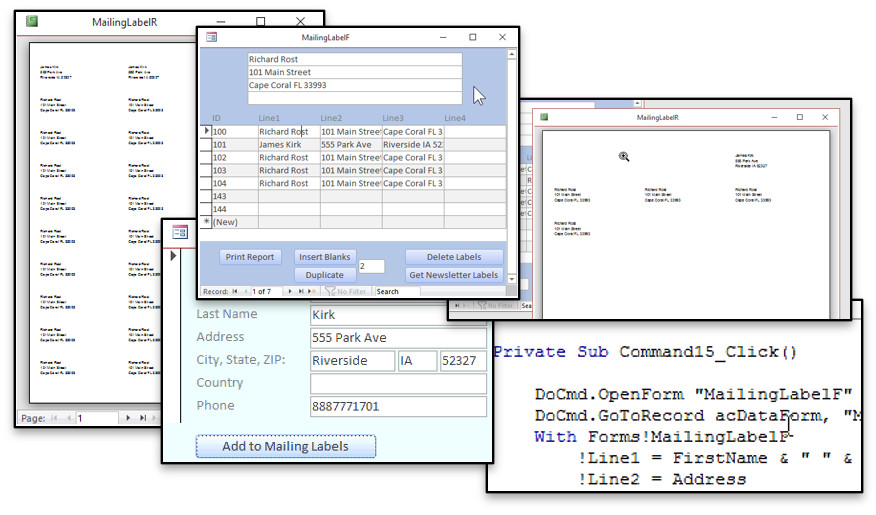
Walk-Thru Video The following video shows all of the features of this template. The database is available as a template only, which is just the database file, or as part of a full Access Mailing Label Seminar which includes 53 minutes of video instruction on how the database was built.
Purchase Now You can purchase your copy of this template by clicking on the Buy Now button below. You get the full editable database template that you can use with your Access projects.
Learn How This Template Was Built You can purchase the template alone without any instruction, or you can purchase the full Mailing Label Seminar which includes 53 minutes of instructional videos on how this database was built, and how to use all of the features to integrate them into your database. Please note that this template does NOT come with any training or instruction. If you email me or post any questions about the template and the answers are covered in the videos, I'm just going to tell you "buy the videos." Student Download Students who have already purchased this template, can download the file here:
Customize For Your Needs If you would like to discuss customizing this database for your needs, please see my consulting page for details on rates and other information.
More InformationTranscriptIntroducing the Mailing Label Seminar brought to you by AccessLearningZone.com. This seminar is all about working with mailing labels. We will create a separate mailing label table, a form, and of course your mailing label reports. I will show you how to leave blank spaces at the top of your page if you're missing mailing labels. That always happens when you print a couple of labels and you've got a whole sheet left with all but two labels on it. I will show you how to get around that problem. I will show you how to delete all the labels in your table with one click, and of course how to add customers to your labels by just putting a button on the customer form that says "Add to Mailing Labels." That is good for doing individual mailings. You will see how to copy a label X number of times. That is good if you are sending one customer three or four packages, for example. Or if you want to print a full sheet of the same label, you can just click on a button and make X copies. I will show you how to make a field in your customer table. We will call it "Active," so that when you want to send your newsletters out, you can simply go through and check all the active customers, click one button, and it adds them all to your mailing label table. That is good for doing your weekly or your monthly mailings. So here is a simple walk-through of the database created in class. I provide you with a basic customer table and a customer form. Those are built in my Customer Database which is a free template you can get from my website. All of the work from this database, though, is done in the mailing label form. Now, the mailing label form is based on the mailing label table which simply is one, two, three, four lines of text that go onto each mailing label. You can type in labels yourself if you want to. Or if you want, you can go to the customer form, click whichever customer you want to add to the mailing label list, and hit "Add to Mailing Labels." And there we go. I have inserted that customer into the mailing labels. If you are sending multiple items to this customer, just click on them. Change this number here to a three, for example, and that will make three extra copies. That is handy if you want to make a full sheet of return labels, for example. Want to see what your labels are going to look like? Hit the "Print Report" button and there are your mailing labels. You can now hit the print button and send them right to the printer. Sometimes you print some labels off and then the next time you've got a sheet of labels with five missing ones on top. No problem. Let's insert five blank records at the top and then hit report again. And there you can see I have got five blanks up top. Done with this sheet? Hit "Delete Labels" and it clears them off for you. Finding a monthly newsletter: just add an "Is Active" field to your customer form. Go through your customers, mark which ones you want to receive it. Then go back to the mailing label form and go get newsletter labels, and that brings in just the customers that are marked active that have all of their address information so they are not missing any name, address, city, state, zip, and that kind of stuff so you can mail to them. So that is a quick run through of everything covered in the Mailing Label Seminar. The seminar includes the database, fully editable in Microsoft Access. You can customize it as you please. It also includes about 53 minutes worth of videos that teach you exactly how everything was built. There is also a template version available if you want just the database and do not need the video instruction. Of course, you can find both versions on my website at AccessLearningZone.com. Check for links in the description below the video. If you have any questions, please feel free to contact me. IntroIn this lesson, you will learn how to create and manage a mailing label template in Microsoft Access. We will build a separate mailing label table, design forms to add and manage labels, generate reports for printing, and handle common challenges like leaving blank label spaces at the top of your sheets. I will show you how to quickly add or delete labels, make multiple copies of a label, and use an Active field for sending newsletters to specific customers. This lesson features a walkthrough using a sample customer database and demonstrates each step in detail. QuizQ1. What is the main focus of the Mailing Label Seminar? A. Creating and managing reports B. Working with mailing labels C. Importing external data D. Designing web applications Q2. What is one problem the seminar addresses regarding label sheets? A. Printing double-sided labels B. Handling blank spaces at the top of the page when labels are missing C. Converting labels to envelopes D. Printing labels in color Q3. How can you delete all the labels in the mailing label table? A. Manually remove them one by one B. Use the "Delete Labels" button for a one-click deletion C. Restart Microsoft Access D. Export the table and re-import it blank Q4. What feature allows you to add a customer to the mailing labels directly from the customer form? A. Automatic import B. Manual data entry C. An "Add to Mailing Labels" button D. A scheduled script Q5. Why would you want to copy a label X number of times? A. To send multiple packages to the same customer B. To fill in test data C. To save disk space D. To change the label design Q6. What is the purpose of adding an "Active" field to the customer table? A. To sort customers alphabetically B. To indicate which customers should receive a newsletter mailing C. To calculate shipping costs D. To track payment status Q7. How can you ensure that only customers with complete address information receive a newsletter? A. Manually check each record before mailing B. Use a filter based on the "Is Active" field and required address fields C. Mail out to everyone regardless of info completeness D. Export to Excel before printing Q8. What happens when you insert blank records at the top of the mailing label sheet? A. The labels are sorted alphabetically B. Blank spaces appear at the top where previously used labels are missing C. Data is deleted from the database D. The report fails to print Q9. What does the seminar provide besides videos? A. A fully editable Microsoft Access database B. An online web application C. Free mailing supplies D. A printable manual only Q10. Where can you find the template or video versions of the seminar? A. Your local bookstore B. AccessLearningZone.com C. Microsoft official website D. Amazon Answers: 1-B; 2-B; 3-B; 4-C; 5-A; 6-B; 7-B; 8-B; 9-A; 10-B DISCLAIMER: Quiz questions are AI generated. If you find any that are wrong, don't make sense, or aren't related to the video topic at hand, then please post a comment and let me know. Thanks. SummaryToday's video from Access Learning Zone introduces the Mailing Label Seminar, which is focused on managing and printing mailing labels efficiently in Microsoft Access. In this seminar, I cover how to build a dedicated mailing label table, create a form for label management, and generate mailing label reports. A common issue when printing labels is ending up with partially used sheets, where several labels have already been removed. I demonstrate a technique that allows you to leave blank spaces at the top of a page so you can use up those remaining labels on a sheet without wasting any. I also show you how to clear all the labels from your mailing label table with a single action, making it simple to start fresh for a new mailing. For handling individual customer mailings, I teach you how to add a button to your customer form so you can easily transfer a customer's details into the mailing labels table with just one click. For situations where you need to send several items to the same customer, I show how you can quickly generate multiple copies of the same label. This is especially useful for printing several of the same label at once, such as when preparing a batch of return address labels. By entering the desired number of copies, you can instantly fill a sheet as needed. To manage regular mailings like newsletters, I demonstrate how to add an "Active" checkbox field to your customer records. This makes it easy to identify which customers should receive the mailing. With a single click, you can then import all active customers into your mailing label table, which is an efficient way to handle monthly or weekly distributions. The demonstration includes a simple walkthrough of the finished database as constructed during the seminar. You start with a basic customer table and a corresponding customer form, based on the free Customer Database template available on my website. All the work involving labels, however, takes place in the separate mailing label form. This form is built on a table designed to hold the individual lines of each label. You have the option to manually enter label information or, more conveniently, to select a customer from your database and use the provided button to add their address directly to the labels list. If you need multiple labels for the same customer, you simply adjust the number of copies you want, and the system handles the rest. Before printing, you can preview your labels and then send them off to the printer once everything looks correct. If you've printed some labels previously and have leftover sheets with spaces at the top, you can add blank entries to align your printing with the unused labels remaining on your sheet. Once you're finished with a particular batch, it's easy to clear out the label table so you can start over for the next job. For recurring mailings like newsletters, you just flag active customers and use another button to import only those with complete address details into your label table. The seminar includes the full Microsoft Access database, which you can tailor to your needs, along with nearly an hour of video instruction explaining how each feature is built and used. For those who only want the database template without the video lessons, that option is also available. You can find the complete video tutorial and all the related resources on my website at the link below. Live long and prosper, my friends. Topic ListCreating a mailing label table in Access Designing a mailing label form Generating mailing label reports Inserting blank spaces for missing labels Bulk deleting mailing labels with one click Adding individual customers to mailing labels with a form button Copying a mailing label X number of times Making a field for active status in the customer table Bulk adding active customers to mailing labels Printing and previewing mailing label reports Inserting multiple blank records at the top of label sheets Clearing all mailing labels with a delete button Filtering customers for newsletter labels using the active field Primary Topicsmailing label table, mailing label form, label reports, adding customers to labels, deleting labels in bulk, duplicating labels, managing active customers, printing labels, inserting blank labels Secondary Topicscustomer table integration, using templates |
||||||||||||||
|
| |||
| Keywords: templates access mailing label template Page Tag: whatsnew PermaLink Microsoft Access Mailing Label Template |