|
|||||
Excel Beginner 5Hyperlinks, Text Boxes, Headers, Comments, TemplatesWelcome to Excel Beginner 5. In this course you will learn how to insert different types of text into spreadsheets, including hyperlinks, text boxes, WordArt, and signature lines. We'll discuss working with headers and footers, handling large sheets using freeze panes and split windows, and adding borders and toggling gridlines. You will see how to merge and center cells, add and manage comments, use research tools like spell check and the thesaurus, and download online templates to help you save time and improve your Excel skills. Lessons
ResourcesLesson SummaryWelcome! Text, Links, Headers, Comments, Templates - Welcome to Excel Beginner Level 5. In this course we will cover a range of topics for new users, including how to insert different types of text into spreadsheets such as hyperlinks, text boxes, WordArt, and signature lines. We will discuss working with headers and footers, techniques for handling large spreadsheets like freezing panes and splitting windows, as well as adding borders and toggling gridlines. The course will also cover formatting tricks like merging and centering cells, using comments, research tools, and downloading templates. This lesson builds on material covered in previous beginner levels.
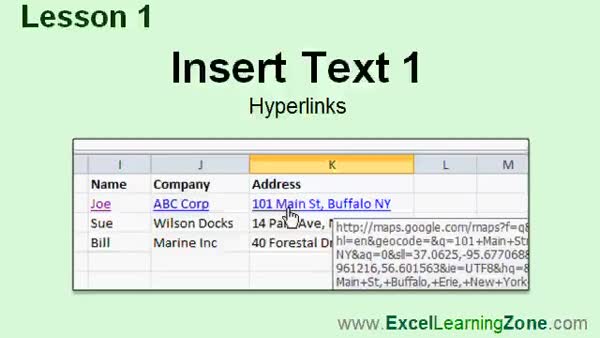
Lesson 1: Add Links to Websites & Maps - In Lesson 1, we will begin working with inserting text in spreadsheets by focusing on hyperlinks. We will walk through how to create hyperlinks to web pages, email addresses, and Google Maps locations. I will show you how Excel automatically converts web URLs and email addresses into hyperlinks, as well as how to manually create custom hyperlinks using the Insert Hyperlink dialog box. We will also briefly discuss other text-related tools in the ribbon, such as text boxes, headers and footers, and WordArt, which we will cover later.
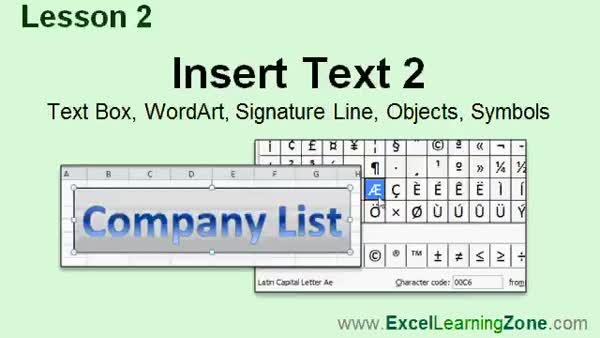
Lesson 2: Text Boxes, WordArt, Signatures & More - In Lesson 2, we continue learning how to insert text in spreadsheets by covering text boxes, WordArt, signature lines, objects, and symbols. I will show you how to add and format text boxes for instructions, insert and customize WordArt, and create a basic signature line. We also walk through embedding different types of objects, such as Word documents, directly into your spreadsheet, and explore how to insert various symbols and special characters. Some topics, like digital signatures and advanced object linking, will be discussed in more detail in future lessons.
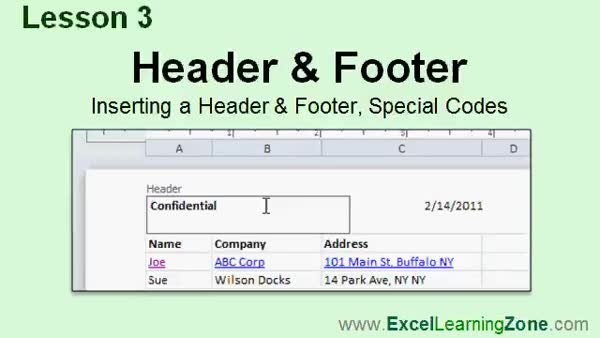
Lesson 3: Headers & Footers with Page #s - In Lesson 3, we will learn how to work with the header and footer in your spreadsheet. I will show you how to insert headers and footers, explain their three sections, and demonstrate how to add special codes such as page numbers, total pages, dates, times, file names, sheet names, and images. We will walk through formatting these areas, moving elements, and using preset header and footer templates. We will also discuss options for having different headers and footers on the first page or odd and even pages.
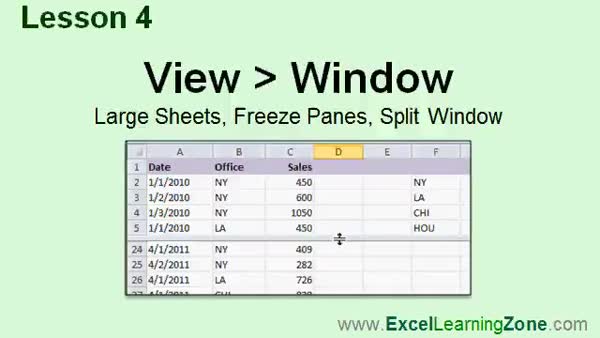
Lesson 4: Freeze Panes & Split Windows - In Lesson 4, we will explore the View window options in Microsoft Excel. We will walk through how to work efficiently with large spreadsheets using features like Freeze Panes (including freezing the top row, first column, or multiple rows and columns), as well as how to use the Split feature to view and edit multiple parts of your sheet at once. I will also show you how to make your data easier to read with simple formatting steps and discuss where to find other options in the Window group that we will cover in more advanced lessons.
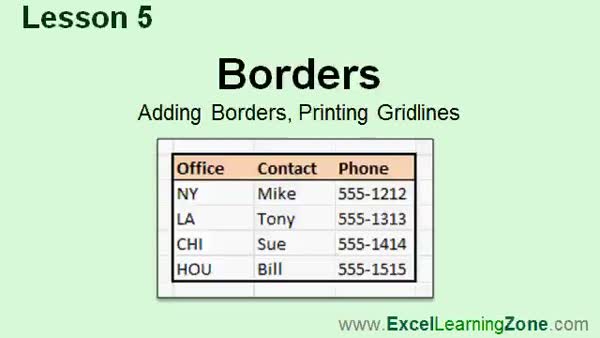
Lesson 5: Borders & Gridlines for Formatting - In Lesson 5, we will walk through how to add borders to spreadsheets and print background grid lines for improved readability. I will show you how to select cell ranges and apply different types of borders using the Home tab, including thick box borders and colored or styled lines. We will discuss how borders differ from grid lines and how to control whether grid lines appear on your printed sheets using Page Layout options. We will also mention more advanced border options, such as drawing and erasing borders, which will be covered in future lessons.
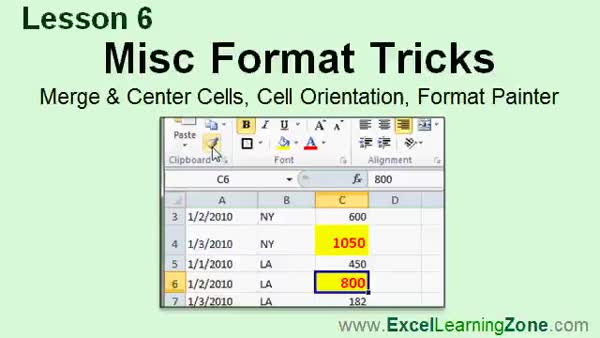
Lesson 6: Merge Cells, Orientation, Format Painter - In Lesson 6, we will look at various misc format tricks in Excel. I will show you how to merge and center cells, adjust cell orientation to rotate text, and use the Format Painter tool to copy and paste formatting from one cell to others. We will discuss the different merge options, demonstrate how to rotate text at custom angles, and walk through using Format Painter for quicker formatting across multiple cells or ranges. We will also briefly mention how Excel handles dates and times as numbers, which will be covered more in the expert classes.
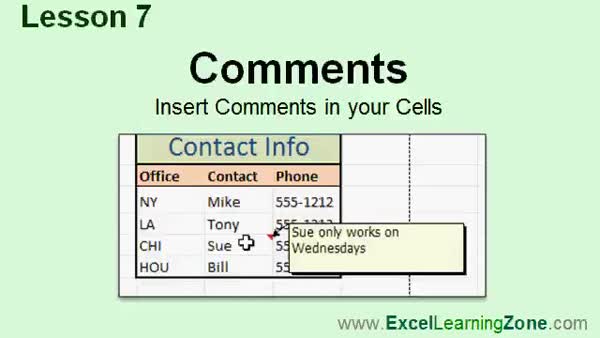
Lesson 7: Add, Edit, Hide & Delete Comments - In Lesson 7, we will walk through how to use comments in your spreadsheet to store extra information inside a cell without cluttering your worksheet. I will show you how to insert, edit, and move comments, as well as adjust their visibility using right-click options or the review tab. We will discuss best practices for using comments, such as when to include your name for shared spreadsheets and how to keep comments visible or hidden. Finally, we will cover how to navigate between multiple comments and delete them if needed.
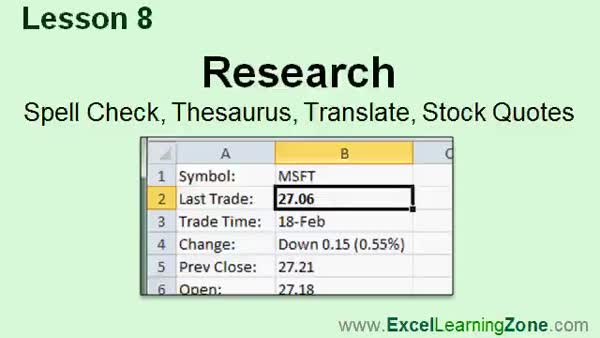
Lesson 8: Spell Check, Thesaurus, Translate, Stocks - In Lesson 8 we will explore some of Excel's research features, including how to use the spell checker, the thesaurus, and the language translator. I will show you the basics of these tools, and we will walk through a method for getting live stock quotes from the web since the older built-in option is no longer available. This lesson will give you an overview of the research options and how to use external data features to bring stock information into your spreadsheet.
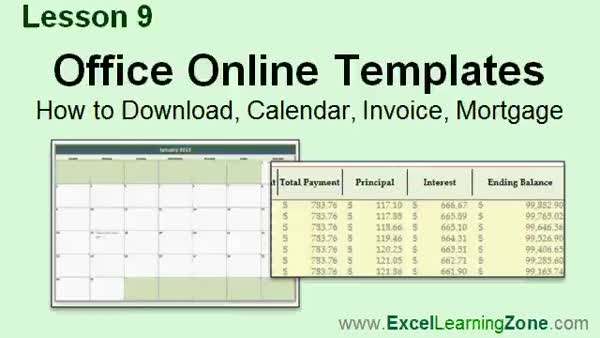
Lesson 9: Free Excel Templates: Calendars & Invoices - In Lesson 9, we will walk through how to find and download templates from Microsoft Office online directly within Excel. We will look at where to access templates for calendars, invoices, and mortgage calculators, discuss what templates are and how they can save you time, and see how to preview, download, and use various templates from Office.com. We will also discuss how to search for specific templates and save them to your system so you do not overwrite your work.
Lesson 10: Hyperlinks, Headers, Borders & More - In this course we learned how to insert various types of text into spreadsheets, work with headers and footers, manage large spreadsheets by splitting sheets and freezing rows or columns, and use borders and gridlines. We practiced formatting techniques such as Merge and Center and Format Painter, added comments to cells, and explored the Research pane features like spell check and the Thesaurus. We also discussed downloading templates from Microsoft Office Online, accessing support and community resources, and ways to provide feedback to improve future lessons.
NavigationKeywordsinsert hyperlinks in Excel, add headers and footers, insert text boxes, Excel WordArt, freeze panes, split windows, merge and center cells, add borders Excel, Excel comments, format painter, spell check Excel, download Excel templates
More InformationTranscriptWelcome to Excel 2010 Beginner, Level 5, brought to you by ExcelLearningZone.com. I am your instructor, Richard Rost. Today's class is going to cover a bunch of different topics. These topics do not necessarily fit into any major categories, but I felt they were important to cover for you, the beginner user. We are going to start out learning how to insert different types of text into our spreadsheets, including hyperlinks, text boxes, Word Art, signature lines, and more. We will learn how to work with headers and footers in our spreadsheets. That is handy if you want to have the same information repeat on the top of each page when you print it, or have things like page numbering or automatic date codes. We are going to learn some techniques for working with large spreadsheets. We will see how we can freeze the header row or column, and how to split the spreadsheet into two. We are going to learn how to add borders to our spreadsheets and turn the gridlines on and off. We are going to learn a lot of different formatting tricks, including merging and centering cells, wrapping the text in a cell, and how to use the Format Painter. We will learn how to add comments to our spreadsheet so we can add notes that will automatically hide or pop up whenever we hover over them. We will learn about Excel's research functions, including the spell check, Thesaurus, language translator, and I will show you how to get live stock quotes off the web. We will learn how to work with templates from Microsoft Office Online. I will show you how to download free templates, including a calendar, an invoice, and a mortgage calculator. This class is designed to be used with Excel 2010, part of Microsoft Office 2010. If you are using an older version of Excel, you should visit my website at ExcelLearningZone.com and look for my older tutorials covering Excel 2000 through 2007. If you are using Excel 2007, you should have little difficulty following along, as most of the topics covered in this course are the same as with 2007. If you are using Excel 2003 or earlier, you really should either upgrade to Excel 2010 or purchase a tutorial for your older version of Excel, which again you can find on my website. This is the Beginner Level 5 course for Microsoft Excel 2010. This class is for the novice user who has little or no experience with Excel outside of my Levels 1, 2, 3, and 4 Excel courses. In today's course, we will cover additional topics building on the lessons learned in the first four classes of the series. Before taking this course, I strongly recommend that you take my Excel Beginner Levels 1, 2, 3, and 4 courses first. Number 4 covers charts and data tables. If any of these concepts seem unfamiliar to you, stop now and take Excel Level 4 before taking this course. My courses are broken up into four groups: Beginner, Expert, Advanced, and Developer. My Beginner courses are for novice users who have little or no experience with Microsoft Excel. They are designed to give you an overview of the basic features of Excel and cover just what you need to know to be productive. When you finish the basics, it is time to move up to the Expert series, which is designed for users who are already comfortable with Excel. Expert classes are designed to teach you more about all the standard features of Excel that people use from day to day, and will go into more depth about each topic than the Beginner classes. You will learn all about the options, alternatives, shortcuts, tips and tricks, and extra features that we might have skipped over in the Beginner lessons. When you have mastered the Expert classes, the Advanced lessons are for Excel power users. You will learn how to record macros, build user forms, create your own templates, and many more advanced features that not everyone will use, but they really add enhanced functionality and professionalism to your spreadsheets. Finally, my Developer level courses are designed to teach you how to program in Visual Basic for Applications with Microsoft Excel. This will allow you to create Excel-based programs for your users, automate your spreadsheets, and to integrate Excel tightly with other Microsoft Office applications. Each of my series is broken down into different levels. For example, the Beginner series started with Levels 1, 2, 3, and 4, which you should have taken previously, and is followed by Level 5. That is this class. Each level teaches you new and different topics in Microsoft Excel, building on the lessons learned in the previous levels. When you finish all the Beginner classes, move up to the Expert series, then Advanced, and finally, Developer. Now, let us take a more detailed look at exactly what we are going to learn in today's class. In Lesson 1, we are going to begin working with inserting text into our spreadsheets. We will start off by learning about hyperlinks. We will see how to create a hyperlink to a web page, a hyperlink to an email address, and I will show you how to create a hyperlink to Google Maps so you can link directly to someone's address, for example. In Lesson 2, we are going to continue inserting text into our spreadsheets. We are going to learn about text boxes, Word Art, signature lines, objects, and symbols. In Lesson 3, we are going to learn to work with the header and footer in our spreadsheets. We will see how to insert a header and footer. We will learn about the three different sections of each header and footer. We will learn how to insert special codes, such as the current page number, the current date and time, and lots more. In Lesson 4, we are going to be looking at the View tab in the Window group. We will learn some tips for working with large sheets, including freezing panes and splitting the spreadsheet window. In Lesson 5, we are going to learn how to add borders to our spreadsheets and we will learn how to print background gridlines. In Lesson 6, we are going to learn some miscellaneous formatting tricks. We are going to learn how to merge and center cells. We will learn about cell orientation and we will see how to use the Format Painter to copy and paste the format of a cell. You can store additional information inside each cell in your spreadsheet and in Lesson 7, we will learn how to do that using something called a comment. In Lesson 8, we are going to learn some of Excel's research features, such as the spell checker, the Thesaurus, language translator, and I am going to show you how to get live stock quotes from the web. In Lesson 9, we are going to learn how to download templates from Microsoft Office Online. Microsoft has thousands of different templates on their website that you can download for free right inside of Excel. We will take a look at how to download them. We will see a calendar template, an invoicing template, and a mortgage calculator template. If you need help with the topics covered in today's lessons, please feel free to post your questions in the Excel Interactive Student Forums. If you are watching this course using my custom video player software or online in my web theater, you should see the student forum for each lesson appear in a small window next to the class videos if you have an active internet connection. Here you will see all of the questions that other students have asked, as well as my responses to them, and any other comments that other students have made. I encourage you to read through these questions and answers as you start each lesson and feel free to post your own questions and comments as well. If you are not watching your lessons online, you can still visit the student forums later by visiting ExcelLearningZone.com/forums. To get the most out of this course, I recommend you sit back, relax, and watch each lesson completely through once without trying to do anything on your computer. Then replay the lesson from the beginning and follow along with my examples. Actually create the same spreadsheet that I make in the video. Build this spreadsheet with me step by step. Try to apply what you are learning right now to other projects until you have mastered the sample spreadsheet. If you get stuck or do not understand something, watch the video again from the beginning or tell me what is wrong in the student forums. Most importantly, keep an open mind. Excel might seem intimidating at first, but once you get the hang of it, you will see that it is really easy to use. IntroIn lesson 5 of the Microsoft Excel 2010 Beginner series, you will learn how to insert different types of text into your spreadsheets, including hyperlinks, text boxes, and Word Art, as well as how to add signature lines and symbols. We will cover working with headers and footers, managing large spreadsheets using freeze and split features, adding borders and printing gridlines, and using various formatting tools like merge and center, wrap text, and Format Painter. You will also see how to add comments, use Excel's research tools, and download templates such as calendars, invoices, and mortgage calculators. QuizQ1. Which of the following is NOT mentioned as a type of text you can insert into an Excel 2010 spreadsheet in this course? A. Flowcharts B. Hyperlinks C. Text boxes D. Word Art Q2. What is the primary purpose of using headers and footers in Excel spreadsheets? A. To hide worksheet data B. To repeat information like page numbers or dates on each printed page C. To increase worksheet security D. To automate calculations Q3. What feature allows you to keep the top row or leftmost column visible while scrolling through a large spreadsheet? A. Split view B. Freeze Panes C. Protect Sheet D. Data Validation Q4. According to the video, which tool lets you copy and paste the format of a cell to another cell? A. Merge & Center B. Thesaurus C. Format Painter D. Data Sorter Q5. In Excel 2010, which function will allow you to add hidden notes that automatically display when you hover over a cell? A. Data Validation B. Footers C. Comments D. Hyperlinks Q6. Which research features are demonstrated in the course? A. Spell checker, Thesaurus, language translator, live stock quotes B. Mail merge, Track Changes, Pivot Tables C. Goal Seek, Solver, Scenario Manager D. Barcode creator, Digital Signature, Data Protection Q7. Where can you download free templates like calendars, invoices, and mortgage calculators as discussed in the class? A. Microsoft Office Online B. Windows Store C. Amazon Marketplace D. Third-party Excel add-ins only Q8. The Beginner Level 5 course is recommended for which group of users? A. Someone who has never used a computer B. Experienced Excel programmers C. Novice Excel users who have completed levels 1 through 4 D. People looking to learn advanced macros Q9. If you have trouble with a lesson or concept in the course, what does the instructor recommend? A. Call Microsoft support B. Watch the video again and use the student forums to ask questions C. Immediately move to the next course level D. Skip the lesson and continue Q10. Which group is aimed at users who want to learn Excel program automation and integration with other Office applications? A. Beginner B. Expert C. Advanced D. Developer Q11. When is it recommended to replay the video and follow along with your own spreadsheet? A. Only if you get everything right the first time B. After watching a lesson completely once C. Never; just watch and try to remember the material D. Before starting any other level Q12. Which lesson focuses on working with borders and gridlines in Excel? A. Lesson 2 B. Lesson 4 C. Lesson 5 D. Lesson 7 Q13. If you are using Excel 2003 or earlier, what does the instructor suggest? A. No action is needed B. Upgrade to Excel 2010 or purchase a tutorial for your version C. Skip directly to the Advanced lessons D. Use Excel Online only Q14. What is one purpose of merging and centering cells in Excel, as taught in this course? A. To perform complex calculations B. To create visually appealing headings or titles across multiple columns C. To lock cells from edits D. To hide extra worksheet rows Answers: 1-A; 2-B; 3-B; 4-C; 5-C; 6-A; 7-A; 8-C; 9-B; 10-D; 11-B; 12-C; 13-B; 14-B DISCLAIMER: Quiz questions are AI generated. If you find any that are wrong, don't make sense, or aren't related to the video topic at hand, then please post a comment and let me know. Thanks. SummaryToday's video from Excel Learning Zone covers Microsoft Excel 2010 Beginner Level 5. In this lesson, I will guide you through a collection of important topics that, while they may not all fit into the same category, are essential for anyone just starting out with Excel. We begin by exploring various ways to insert text into your spreadsheets. This includes adding hyperlinks, text boxes, Word Art, signature lines, and other elements that enhance your documents. We will also go over working with headers and footers, which is especially helpful when you want consistent information or page numbers to appear at the top or bottom of every printed page. Next, I will show you some useful techniques for managing large spreadsheets. You will learn how to freeze header rows or columns so they stay visible as you scroll, and how to split your worksheet into separate panes for easier navigation. I will also demonstrate how to add borders for better readability and how to toggle gridlines on and off for a cleaner printout. Formatting is another area we will focus on. You will learn how to merge and center cells, wrap text within a cell, and use the Format Painter to quickly copy formatting from one section to another. I will also cover how to insert comments into your spreadsheet for adding notes that can be hidden or appear when you hover over a cell. Additionally, we will explore Excel's built-in research tools, including spell check, the Thesaurus, a language translator, and how to retrieve live stock quotes from the internet. We will also spend time on templates. I will teach you how to download free templates from Microsoft Office Online right inside Excel, including calendars, invoices, and a mortgage calculator. This class is designed for users working with Excel 2010, which is part of the Microsoft Office 2010 suite. If you are using an older version of Excel, I have earlier tutorials available on my website. Most of the content in this course will also apply if you are using Excel 2007, but if you are still on Excel 2003 or earlier, I recommend upgrading or seeking a tutorial tailored to those versions. Level 5 is intended for those who are new to Excel and have little experience beyond what is covered in my Levels 1 through 4 courses. We will build on the concepts introduced in the earlier classes, so if there are any areas that you are not familiar with, especially those from Level 4 which covers charts and data tables, I recommend reviewing those first before proceeding with this course. My Excel courses are organized into four series: Beginner, Expert, Advanced, and Developer. The Beginner series provides a solid foundation and introduces you to essential features to help you be productive right away. Once comfortable, the Expert series goes deeper into everyday features and best practices, covering shortcuts, tips, and more advanced options. For power users, the Advanced series teaches you about macros, user forms, creating your own templates, and other high-level functionalities to boost your spreadsheets' capabilities. Finally, the Developer series focuses on programming in Visual Basic for Applications (VBA), enabling you to automate tasks and create custom solutions. These series are split into levels, with each level building on the previous one's material. After completing all foundational Beginner lessons, you can progress to Expert, and then on to Advanced and Developer once you are confident. Now, let's look at the specific lessons covered in this course: Lesson 1 introduces you to inserting text into spreadsheets, with a focus on hyperlinks. You will learn how to create hyperlinks to websites, email addresses, and even mapping services like Google Maps to direct users to specific locations. Lesson 2 continues the theme of adding text, this time showing you how to use text boxes, Word Art, signature lines, insert objects, and symbols. Lesson 3 covers headers and footers, teaching you to add them to your worksheets and use their separate sections. You will discover how to include data such as current page numbers, dates, and times. Lesson 4 focuses on Excel's View tab, where you will find tools for managing large spreadsheets. Here, you will practice freezing panes and splitting windows to make navigation easier. Lesson 5 is about adding borders to spreadsheets and managing how gridlines print with your documents. Lesson 6 highlights advanced formatting options like merging and centering cells, adjusting cell orientation, and using the Format Painter for efficient formatting. Lesson 7 introduces the concept of comments, allowing you to store extra information within your cells. These comments are useful for adding tips, reminders, or explanations that appear only when you need them. Lesson 8 demonstrates Excel's research features, including spell checking, using the Thesaurus and language translator, and connecting to online sources for live stock updates. Lesson 9 teaches you how to access and use templates directly from Microsoft Office Online. You will see how to download and use templates for calendars, invoices, and mortgage calculators to save time and enhance your spreadsheets. If you have questions on any topics from today's lessons, I encourage you to use the Excel Interactive Student Forums. When you participate in the course online, forums appear alongside each video lesson if you have internet access. Here, you can read other students' questions and my answers, as well as add your own questions and comments. If you are watching offline, you can visit the forums later through my website. To get the maximum benefit from this course, I recommend you first watch each lesson without following along in Excel. Then, replay the lesson and work through the examples with me step by step. Build the same spreadsheet shown in the video, and try applying the same ideas in your projects. If you get stuck or need clarification, rewatch the lesson or ask for help in the student forums. Most importantly, approach Excel with an open mind. While it might seem challenging at first, it becomes much easier with practice and you will soon find it is a very user-friendly tool. You can find a complete video tutorial with step-by-step instructions on everything discussed here on my website at the link below. Live long and prosper, my friends. Topic ListInserting hyperlinks to web pages and email addresses Creating hyperlinks to Google Maps addresses Inserting and formatting text boxes Using Word Art in spreadsheets Adding and formatting signature lines Inserting objects and symbols Working with headers and footers Adding page numbers and date codes in headers/footers Freezing panes to keep rows or columns visible Splitting the spreadsheet window Adding and customizing borders Turning background gridlines on and off for printing Merging and centering cells Changing cell orientation Using Format Painter to copy formatting Adding and editing cell comments Using spell check and Thesaurus Using the language translator Getting live stock quotes from the web Downloading templates from Microsoft Office Online Using calendar, invoice, and mortgage calculator templates Primary Topicsinserting hyperlinks, text boxes, Word Art, signature lines, headers and footers, freezing panes, splitting windows, borders, printing gridlines, merging cells, Format Painter, cell comments, research tools, templates Secondary Topicsworking with large spreadsheets, formatting tricks, stock quotes, cell orientation |
||
|
| |||
| Keywords: insert hyperlinks in Excel, add headers and footers, insert text boxes, Excel WordArt, freeze panes, split windows, merge and center cells, add borders Excel, Excel comments, format painter, spell check Excel, download Excel templates PermaLink How To Insert Text, Use Headers and Footers, Formatting Tricks and Templates in Microsoft Excel 2010 |