|
||||||
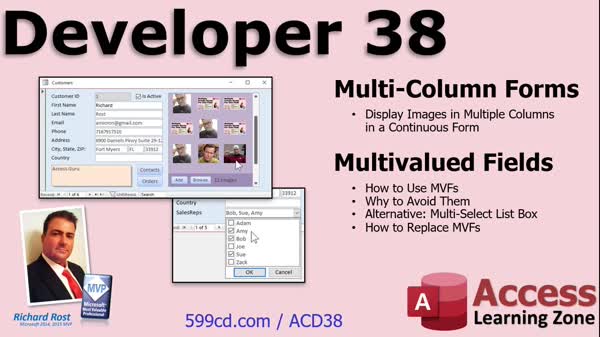
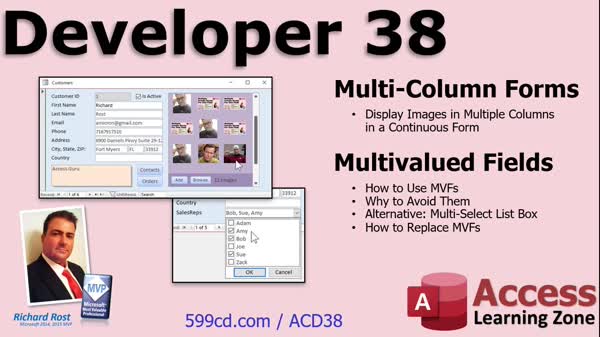
Access Developer 38Multivalued Fields, Junction Tables, Image CatalogsWelcome to Access Developer 38. In this course you will learn how to work with multi-valued fields in Microsoft Access, including why they are not recommended for developers and how to replace them with multi-select list boxes. We will discuss using VBA to read and update multivalued fields, migrating data to a proper junction table, and resolving related errors. You will see how to display multiple columns in forms and reports, set up a customer catalog with multiple images per customer, and configure editing options for images. Lessons
Database FilesResources
Lesson SummaryWelcome! Replace Multi-Valued Fields - Welcome to Microsoft Access Developer Level 38. In this course we will cover multi-valued fields in Microsoft Access, including why you should avoid them as a developer and how to replace them with multi-select list boxes. We will discuss how to read and update multi-valued fields with VBA, migrate data into a proper junction table, and handle related errors. We will also work on creating a multi-select list box interface, setting up a customer catalog with multiple images per customer, and explore how to display multiple columns in forms and reports, including functionality for editing images. Prerequisites are strongly recommended.
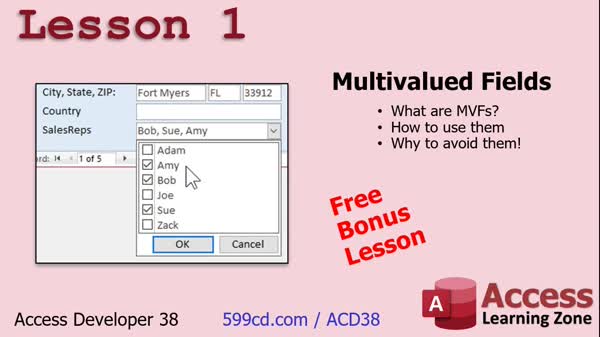
Lesson 1: Multi-Valued Fields & Lookups - In Lesson 1, we will introduce multi-valued fields in Microsoft Access, discussing what they are, how to create and use them, and the reasons why you should generally avoid them in your databases. We will walk through setting up a sample multi-valued field for sales reps, examine how it works in tables and queries, and explore some of the issues and limitations you may encounter, including problems with relationships and normalization. Throughout the lesson, we will emphasize best practices and alternatives to using multi-valued fields, such as many-to-many relationships with junction tables.
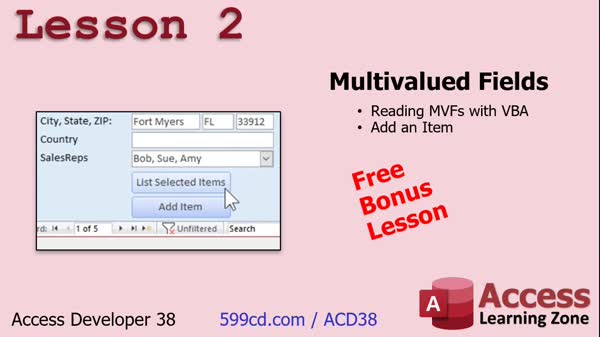
Lesson 2: Edit Multivalued Fields VBA - In Lesson 2, we will work with multivalued fields in Access using VBA. I will show you how to read the data stored in a multivalued field by opening and looping through its internal recordset, as well as how to add an item to the multivalued field programmatically. We will discuss why these fields behave differently from standard fields, handle updates and refreshes on the form, and address potential errors when adding duplicate items. This lesson emphasizes the technical process of accessing and modifying data in multivalued fields, even though using them is generally discouraged.
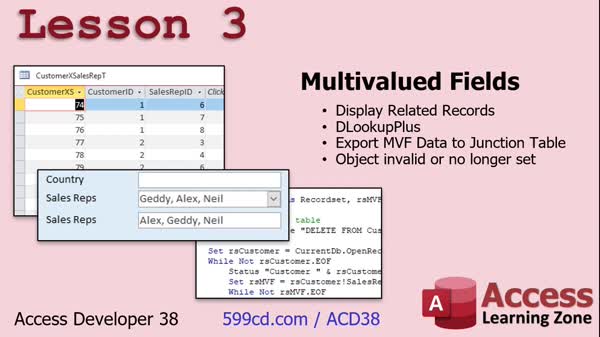
Lesson 3: Convert Multivalued Fields to Junction Tables - In Lesson 3, we will walk through how to extract data from a multivalued field and move it into a properly structured junction table to normalize your database. I will show you how to use the DLookupPlus function to display linked sales rep information on a customer form, build the necessary queries, and write VBA code to loop through customer records and transfer the data. We will also discuss how to handle the "object invalid or no longer set" error that can occur during this process.
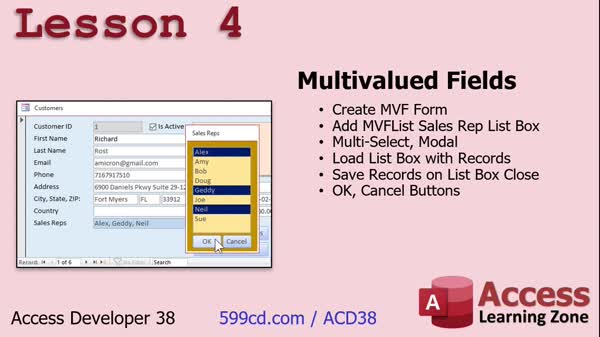
Lesson 4: Replace Multi-Valued Fields - In this lesson, we will walk through creating a multivalued field list box that allows multi-select functionality for sales reps in Microsoft Access. I will show you how to remove the original multivalued field, set up a junction table, design a popup form with a multiselect list box, and write VBA code to load and store selected values tied to each customer. We will also discuss adding OK and Cancel buttons to manage saving or discarding changes, and talk about making the popup modal to improve usability. This lesson demonstrates how to manage multivalued fields properly using Access tools and VBA.
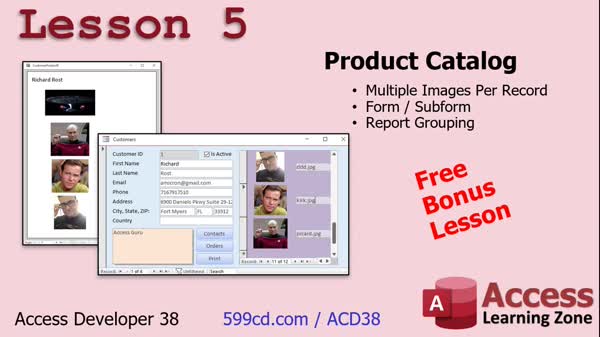
Lesson 5: Product Catalog: Multiple Images - In this lesson, we will set up a product catalog by creating a customer catalog that displays multiple images per customer using Microsoft Access. We will walk through designing a related table for storing image file names, linking it to the main customer or product table, setting up a subform to show multiple images per record, and configuring the image control to display files from a designated folder. We will also discuss how to create a report that groups and prints customers with their associated images, as well as address best practices for handling images and organizing your data.
Lesson 6: Multi-Column Subreports & Catalogs - In Lesson 6, we continue building our product catalog by setting up a subreport with multiple columns to display pictures for each customer. I will walk you through copying and modifying a blank report, binding it to your picture table, adjusting layout and column settings, and placing this as a subreport inside your main customer report. We will discuss common pitfalls with column sizes, setting up formatting options such as Can Grow/Can Shrink, and ensuring you have enough data to fully test your multiple column subreport in your product catalog.
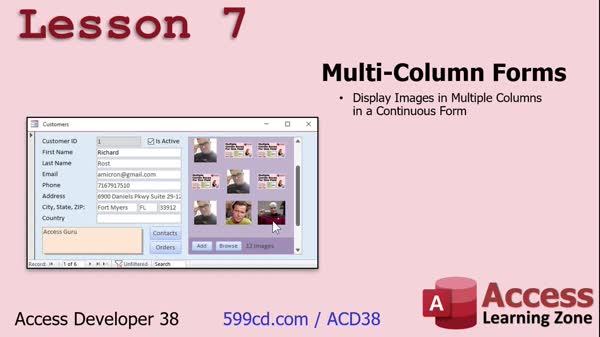
Lesson 7: Multi-Column Forms with Images - In Lesson 7, we explore how to create multi-column forms in Access by displaying multiple images in a subform arranged in columns, similar to a catalog layout. I will show you how to work around Access's lack of built-in multi-column support in forms by creating a temporary table and using VBA to fill it with grouped records for display. We will walk through designing the table, setting up the queries, and handling the process with recordsets and code to display images in rows and columns. In the next lesson, we will discuss enhancements like clicking and editing images.
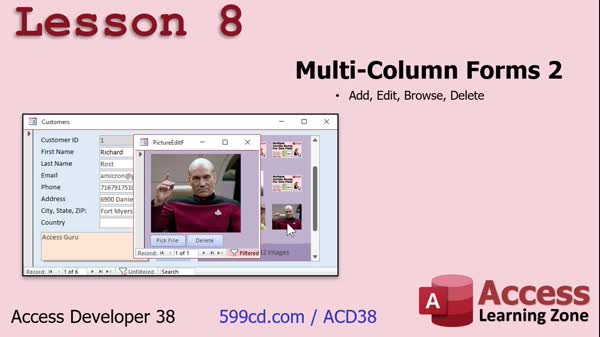
Lesson 8: Multi-Column Picture Forms: Edit/Add/Delete - In Lesson 8, we continue building our multi-column forms by adding the ability to click on a picture to open an editable popup form, where you can select, delete, or add images. I will show you how to set up a single-form picture editor, use hidden transparent command buttons for picture selection, create global functions for opening forms, add functionality for picking image files, and ensure forms refresh appropriately after edits. We'll also discuss ways to count images, handle deletion, and include navigation features for managing images within your multi-column form setup.
Lesson 9: Next Steps: Resources & Forums - In this lesson, we will discuss what's next after Access Developer Level 38, including plans for upcoming classes and a possible lesson on custom configuring ribbons if there is enough interest. I will explain how to use the topic index and search features on the website to find specific Access topics, and encourage you to use the class survey to provide feedback. We will also touch on checking the forums and TechHelp videos for additional help, and invite you to share suggestions for future lessons.
NavigationKeywordsmulti-valued fields, replace multi-valued fields, multi-select list box, junction table, convert multivalued fields, image subform, clickable image form, multi-column forms, DLookupPlus, editing images, remove multi-valued field
More InformationTranscriptWelcome to Microsoft Access Developer Level 38 brought to you by AccessLearningZone.com. I am your instructor, Richard Rost. In today's class, we're going to cover two main topics. First, we're going to cover multi-valued fields. I know they're backwards on the screen. I flipped them around because they fit better that way - the pictures did. Multi-valued fields are first. We're going to learn what multi-valued fields are and why you should avoid them. Like the plague, they're easy to set up. They're there for beginners to be able to pick multiple items, but you don't want to use them as a developer. They're bad. They're bad, bad, bad. I'm going to teach you an alternative using multi-select list boxes. Then we're going to spend some time learning how to replace multi-valued fields if you encounter one in a database that maybe you built earlier or someone else gives you and you have to fix it. Making a multi-valued field is kind of crazy. It requires some code. We're going to go over it in today's lesson. Then we're going to cover multi-column forms. It's getting pictures to display in a subform in multiple columns. You can do it easily in reports, but you can't do it in a form unless you know my trick. It's going to involve some recordset programming and a lot of cool stuff. This was not designed to do it, but we're going to make it do it. That's covered in today's class. This class, of course, has prerequisites. I strongly recommend you've taken all my previous classes - beginner, expert, advanced, developer. I don't recommend you skip levels. If you want to know why, watch this video on skipping levels. I especially suggest you've taken Developer 15 and 16 where I cover recordsets. If you don't know recordsets and how they work, you will be lost in today's class. I'm using Access 365. I got a subscription roughly equivalent to Access 2021 right now. If you have questions pertaining to today's class, feel free to scroll down to the bottom of the page that you're on and post them right on my website. We'll do our best to answer your questions as soon as we can. If you've got other questions that are not particularly pertaining to today's class, but you want to ask them anyways, go ahead and head over to the Access forum. I'll take a quick look at exactly what's covered in today's lessons. In lesson one, we're going to learn about multi-valued fields - what are multi-valued fields, how to use them, and why you should avoid them. This is a free bonus lesson. In lesson two, we are going to learn how to read the data in a multi-valued field with VBA, so you can get at that information that's hidden inside of that multi-valued field. We're going to learn how to read it with a recordset and then how to add an item to it. In lesson three, we're going to be pulling that data out of the multi-valued field and putting it into a proper junction table. We'll use my DLookupPlus function to display the data that should be shown in the sales reps box on the customer form. Then we'll write the code to actually loop through all of the customer records and rip out that data and put it properly in the junction table. We'll see how to deal with the object invalid or no longer set error. In lesson four, we're going to create a multi-valued field list box that's multi-select. So when we double-click on our sales reps text box on the customer form, it pops this guy up. It will automatically select the records that are in the junction table. We can change it if we want to. Then we'll make OK and Cancel buttons. If we hit OK, it saves those records back to the junction table and updates the customer form. Of course, if we cancel, it doesn't do any of that. Lesson five is a free bonus lesson. We're going to set up a product catalog. Instead of product catalog, it's going to be a customer catalog. It's going to basically be a customer with multiple images per customer. I had a TechHelp video where one of my students asked me to do a product catalog where it's a product with multiple pictures of a product. I did it with customers because that's the database that I had available. So lesson five is going to be that and it's going to be a setup for something a little more advanced in lessons six and seven. In lesson six, we're continuing with our product catalog. We're going to set up a subreport along with multiple column reports. You can have multiple columns in your subreport under each customer or a product catalog or whatever you decide to do. Lesson seven has been what the last two lessons have been building up to. I'm going to show you how to build a form with multiple columns in it. In other words, we're going to display multiple images in a subform that look like they're in multiple columns. You'll see what I'm talking about in just a minute. In lesson eight, we are continuing with our multi-column form. We're going to make it so we can click on a picture. It opens up another picture that lets you edit that picture. You can pick a different one. You can delete it. You can add new ones - all that stuff will be covered in lesson eight. IntroIn this lesson, you will learn about multi-valued fields in Microsoft Access, why developers should avoid them, and how to replace them using better alternatives like multi-select list boxes and proper junction tables. I will show you how to read and manipulate data in multi-valued fields with VBA, move that data into normalized tables, and set up user-friendly multi-select list boxes on your forms. We will also cover how to create multi-column forms and subforms to display multiple images per record, including setting up interactive image galleries that let you add, edit, or remove pictures. QuizQ1. What is the primary reason experienced Access developers should avoid using multi-valued fields? A. They are difficult to set up. B. They are not compatible with Access 365. C. They make database design and data retrieval more complicated and less efficient. D. They improve performance but decrease flexibility. Q2. What alternative to multi-valued fields does the instructor recommend? A. Lookup fields B. Multi-select list boxes with a junction table C. Pivot tables D. Using only single-value fields Q3. In lesson two, what does the instructor teach about multi-valued fields? A. How to create complex queries using them B. How to read and add data inside a multi-valued field using VBA and recordsets C. How to import multi-valued fields from Excel D. How to sort forms by multi-valued fields Q4. What is the purpose of moving data from a multi-valued field into a junction table, as covered in lesson three? A. To reduce database size B. To allow more than two values per field C. To properly normalize the database and make the data easier to manage and report on D. To make the user interface simpler Q5. What Access function does the instructor mention for displaying data in the sales reps box on the customer form? A. DSUM B. DCOUNT C. DLookupPlus D. DAvg Q6. What feature is implemented in lesson four to allow users to edit related records? A. A linked spreadsheet B. A multi-select list box that updates a junction table C. A combo box with auto-complete D. An embedded Excel chart Q7. What was the main focus of lesson five? A. Creating a customer catalog with multiple images per customer B. Building an advanced navigation menu C. Implementing security for user logins D. Designing complex macros Q8. In lessons six and seven, what is being achieved with multi-column reports and forms? A. Grouping data into nested queries B. Displaying multiple images per record in subreports and subforms using multiple columns C. Running batch updates on records D. Printing mailing labels Q9. What new functionality is added in lesson eight concerning customer images? A. Ability to export images to Word directly B. Ability to click on an image to edit, delete, or add new ones C. Automating PDF exports for all images D. Sending bulk emails with images attached Q10. What prerequisite knowledge does the instructor say is essential for this class? A. How to use macros in Access B. Recordsets and their use C. Advanced Excel formulas D. Basic understanding of SQL Server Answers: 1-C; 2-B; 3-B; 4-C; 5-C; 6-B; 7-A; 8-B; 9-B; 10-B DISCLAIMER: Quiz questions are AI generated. If you find any that are wrong, don't make sense, or aren't related to the video topic at hand, then please post a comment and let me know. Thanks. SummaryToday's video from Access Learning Zone is Microsoft Access Developer Level 38. I am your instructor, Richard Rost. In this class, I am focusing on two key topics. The first topic covers multi-valued fields in Microsoft Access. These fields are easily set up and are meant for beginners, allowing users to pick multiple items in a field. However, I want to strongly caution you against using them as a developer. Multi-valued fields create problems down the line and should really be avoided. I will explain exactly what multi-valued fields are, why they exist, and why they can lead to trouble. Instead of relying on them, I will show you a much better alternative: using multi-select list boxes. Additionally, we will discuss how to handle situations where you inherit a database that already uses multi-valued fields. I will teach you how to replace them in order to get your database structure in order. Creating and handling a multi-valued field can get complicated, and it involves writing some code. We will walk through this process together. After that, the second major topic I will cover is how to design multi-column forms, specifically how to display images in a subform arranged in multiple columns. While Access makes it easy to create multi-column layouts in reports, doing so in forms requires special techniques. I will share my own trick for accomplishing this, which involves working with recordsets and some extra programming. This functionality is not built into Access by default for forms, but I will show you how you can make it work. This course builds on information from previous levels, so I highly recommend that you have completed all earlier classes in the Developer series, as well as the beginner, expert, and advanced series. Skipping levels is not advised, and if you are curious about why, I explain this in my other video on the topic. In particular, you should be comfortable with recordsets, which I cover thoroughly in Developer Levels 15 and 16. If you are not familiar with recordsets and how to use them, much of this course will be difficult to follow. For reference, I am using Access 365, which is roughly equivalent to Access 2021. If you have any questions about today's material, you can scroll to the bottom of the course page on my website and post them there. My team and I will help as quickly as we can. For general questions not specific to today's lesson, I invite you to visit the Access forum on my site. Let me break down the lessons included in this class: Lesson one is a free bonus lesson on multi-valued fields. I will introduce what multi-valued fields are, how they're used, and why you should stay away from them as a developer. In lesson two, I will show you how you can read the data stored in a multi-valued field using VBA. Access hides this information somewhat, but I will demonstrate how to access it with a recordset, as well as how to add items to a multi-valued field. Lesson three is where we migrate data out of a multi-valued field into a proper junction table, which is the right way to design a database for this kind of relationship. I will use my DLookupPlus function to display related data in the customer form, such as sales reps, and then write the code needed to loop through all customer records, extract the multi-valued field data, and move it into the new junction table. I will also address how to handle errors like object invalid or no longer set. In lesson four, we create a multi-select list box for assigning multiple related records, such as sales reps to a customer. When the user double-clicks a text box on the customer form, a list box will appear with the currently assigned reps selected. You can update the selection, and then either save or discard the changes using OK and Cancel buttons. If you confirm, the records are saved back to the junction table and the customer form is updated. Canceling discards any changes. Lesson five is another free bonus lesson. Here, I will show you how to set up a customer catalog, which is similar to a product catalog, but with multiple images for each customer. One of my students previously asked about displaying multiple pictures per product; I will demonstrate the concept with customers for this course, using the available database. This lesson sets the foundation for more advanced work in the following lessons. Lesson six continues with the catalog theme. I will show you how to set up a subreport with multiple columns so you can display several images for each customer or product in a report layout. Lesson seven brings together what we learned in the previous two lessons. I will cover creating a form that displays multiple images arranged in columns in a subform. While reports handle this easily, forms require a special trick, which I will explain in detail. Lesson eight expands on our multi-column form by adding the ability to interact with images. Clicking on a picture will open a window to edit, replace, delete, or add new images. All those features will be explained step by step. If you want step-by-step video instructions on everything discussed here, you can find the complete video tutorial on my website at the link below. Live long and prosper, my friends. Topic ListWhat are multi-valued fields and why to avoid them Reading data in multi-valued fields with VBA Adding items to multi-valued fields using VBA Extracting data from multi-valued fields to a junction table Using DLookupPlus to display related data Handling "object invalid or no longer set" error Creating a multi-select list box for related records Saving and updating selections in a junction table Building a customer catalog with multiple images per customer Setting up subreports with multiple columns Creating forms to display subform data in multiple columns Clicking images in subforms to open and edit Replacing and deleting images in subform records Adding new images to subforms in multi-column forms Primary Topicsmulti-valued fields, pitfalls of multi-valued fields, VBA to read multi-valued data, junction tables, DLookupPlus function, multi-select list boxes, product/customer catalog with images, multi-column subforms, multi-column reports Secondary Topicsrecordsets, object errors, OK/Cancel UI implementation, image management |
||||||||||||||||||||||||||||||||||||||||||||||||||||||
|
| |||
| Keywords: multi-valued fields, replace multi-valued fields, multi-select list box, junction table, convert multivalued fields, image subform, clickable image form, multi-column forms, DLookupPlus, editing images, remove multi-valued field PermaLink How To Replace Multi-Valued Fields and Create Multi-Column Forms With Images in Microsoft Access |