|
||||||
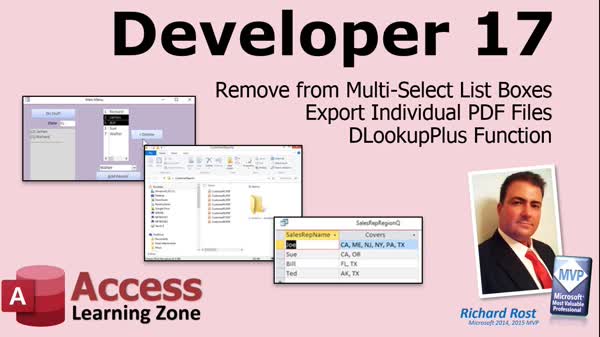
Access Developer 17Multi-Select Lists, PDF Export, DLookupPlusWelcome to Access Developer 17. In this course you will learn how to work with multi-select listboxes, including how to remove items from an unbound listbox using reliable methods, how to export individual PDF reports for each customer using recordsets, and how to create a custom DLookupPlus function that returns a comma-separated list of values from related tables. We will discuss best practices for working with recordsets, organizing your exports, and using advanced lookup functions for more flexible reporting. Lessons
Database FilesNotes
Resources
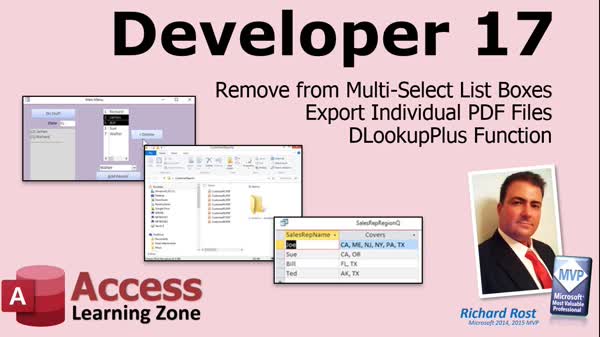
Lesson SummaryWelcome! Remove Listbox Items & Export PDF - Welcome to Microsoft Access Developer Level 17. In this course we will continue working with listboxes and recordsets, including how to remove items from an unbound multi-select listbox. We will discuss exporting PDF reports for individual customers using recordsets, allowing each customer to receive their own report. Finally, we will talk about creating a custom dlookupplus function that can retrieve a list of values, such as compiling a comma-separated list of states for each sales representative. This course builds on previous developer lessons, especially recent classes focused on multi-select listboxes.
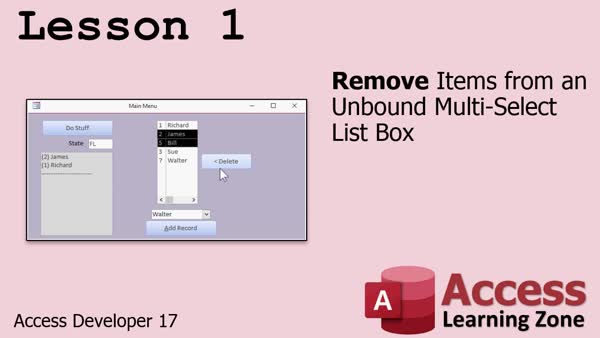
Lesson 1: Remove Items from Multiselect Listbox - In Lesson 1, we will walk through how to remove items from an unbound multi-select listbox in Microsoft Access. I will show you common mistakes found online, explain why directly removing selected items does not work as expected, and demonstrate a reliable solution using a temporary hidden listbox to handle the removal process. We will cover both single-column and multi-column listboxes, discuss the AddItem and RemoveItem methods, and briefly talk about arrays as an alternative approach.
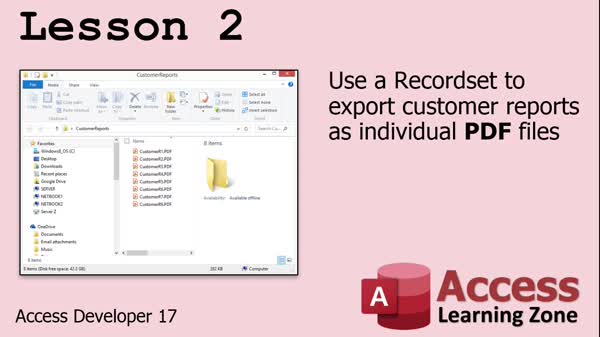
Lesson 2: Export Individual Customer PDFs - In Lesson 2, we will walk through how to export individual PDF files for each customer by looping through customer records in Access using a record set. I will show you how to modify a customer report so it displays only one specific customer's data, use VBA code with DoCmd.OutputTo to export the report, and automate saving each PDF in a dedicated customer reports folder. We will also discuss how to set up criteria for selecting the right customer and manage the file naming, making the export process efficient and hands-free.
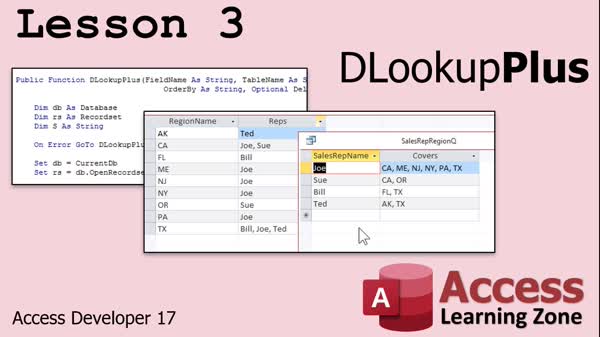
Lesson 3: DLookup Plus: Return Comma Lists - In Lesson 3, we will build a custom function called DLookupPlus that allows you to return a comma-separated list of values from a related table, similar to DLookup but for multiple results. We will walk through how to set up your tables for one-to-many relationships, write the VBA function using recordsets, handle delimiters, and use the function in your queries to show lists like sales reps with their covered regions. We will also discuss error handling considerations, how to adjust the function for different scenarios, and talk about best practices for structuring your database for reporting.
Lesson 4: Remove Items & Export PDFs - In this course we learned how to remove items from multi-select list boxes, export individual PDF files, and create a DLookupPlus function. We also discussed upcoming topics for future lessons, including more work with recordsets, barcoding, arrays, and changes to course structure based on your feedback. Information was provided on how to ask questions, use the website's forum and search tools, access the free Level 1 class, and provide feedback through surveys. We also clarified the difference between TechHelp videos and consulting services, and acknowledged support from Alex in the forums.
NavigationKeywordsmulti select listbox, remove items listbox, unbound listbox, export PDF report, output PDF report, recordset export, customer PDF reports, AddItem method, RemoveItem method, DLookupPlus, comma separated list VBA, custom dlookup function
More InformationTranscriptWelcome to Microsoft Access Developer Level 17, brought to you by AccessLearningZone.com. I am your instructor, Richard Rost. In today's class, we are going to continue working with Listboxes and Record Sets. We are going to remove items from a multi-select Listbox, export individual PDF files from records in our database, and we are going to create a function called dlookupplus. We are going to continue working with multi-select Listboxes, like we have been for the last couple of classes. In the first lesson today, we are going to cover removing items from an unbound multi-select Listbox. That is where you have a list of items in the box, not tied to a table or query. They are just stored in the box, and we are going to learn how to select multiple items and remove them. In lesson two, we are going to continue working with Record Sets, and we are going to see how to export a customer report that is specific to each customer to a folder on your hard drive. So customer one gets his own PDF, customer two gets his own PDF. This is great for sending out statements. You can send these out in email attachments. You can do whatever you want. Each customer gets their own customer report generated by looping through the customers in a Record Set and exporting each one using a report to a PDF file. Finally, in lesson three, we are going to write our own function called dlookupplus. Now the standard dlookup function lets you look up one value from a table or query. Dlookupplus lets you look up a whole list. You can bring back a list of items. For example, in the example here, you have a table that has your sales rep in it, and a list of what states they cover. So you have Joe, California. The next record of course would be Joe, Maine, Joe, New Jersey, Joe, New York. That is how a properly set up relational set of tables would have them. However, for reporting purposes, you might want to bring back a list, a comma separated list of all of the states that Joe covers. So dlookupplus will say go out to the table and look up all of the values that meet a specific set of criteria. That is dlookupplus. This class is recorded to work with either Microsoft 365 or Access 2019, but it should work going back to all versions back to, I think, about 2007. You will be fine with 2016, 2013, and those are all good. You should have, of course, taken my beginner, expert, advanced, and developer classes up to at least Developer One. I strongly recommend taking from Developer 13 on because I do cover some stuff that is reliant upon those lessons. The multi-select list boxes, of course, go back a few lessons. Just take all the developer classes and you will be fine. Now it is time to sit back, relax, and watch Developer 17. IntroIn lesson 17 of the Microsoft Access Developer series, we will continue working with multi-select listboxes and recordsets. You will learn how to remove items from an unbound multi-select listbox, export individual customer reports as PDF files using recordsets, and create a custom function called dlookupplus to return a list of values based on specific criteria. This lesson is compatible with Microsoft Access 365, 2019, and older versions, and builds on topics covered in previous developer classes. QuizQ1. What type of Listbox will you learn to remove items from in this class? A. Unbound multi-select Listbox B. Bound single-select Listbox C. Unbound single-select Listbox D. Bound multi-select Listbox Q2. In the second lesson, what will you be exporting for each customer? A. An individual PDF report B. A CSV data file C. An Excel spreadsheet D. A Word document Q3. What is the main function of dlookupplus as described in the video? A. To look up a list of values that match specific criteria B. To sum numeric fields from a table C. To only count records in a table D. To update records within a form Q4. What is dlookup's limitation compared to dlookupplus? A. It only returns a single value B. It cannot be used in queries C. It only works with text fields D. It requires VBA code Q5. What is an example usage of dlookupplus given in the video? A. Returning a comma separated list of states a sales rep covers B. Updating multiple records at once C. Exporting a batch of emails D. Importing data from Excel Q6. According to the video, for best understanding, which series of classes should you have taken before Developer Level 17? A. Beginner, Expert, Advanced, and Developer 1 through at least Developer 13 B. Only Beginner classes C. Only Advanced classes D. No prior classes are necessary Q7. Can the skills taught in this class be used in Access 2016 and Access 2013? A. Yes, they are compatible B. Only in Access 2019 or later C. Only in Access 2010 D. No, only in Access 2021 Q8. What is one possible use of exporting individual customer reports to PDF as discussed in the video? A. Sending out statements via email attachments B. Generating print labels C. Creating a zip archive of files D. Importing them back into Access Answers: 1-A; 2-A; 3-A; 4-A; 5-A; 6-A; 7-A; 8-A DISCLAIMER: Quiz questions are AI generated. If you find any that are wrong, don't make sense, or aren't related to the video topic at hand, then please post a comment and let me know. Thanks. SummaryToday's video from the Access Learning Zone continues our exploration of Microsoft Access at the Developer Level 17. I am your instructor, Richard Rost. In this class, the focus remains on working with Listboxes and Record Sets. We will cover how to remove items from a multi-select Listbox, export individual PDF files based on records from the database, and develop a new function called dlookupplus. First, we will take a deeper look at multi-select Listboxes. Specifically, we will address how to remove items from an unbound multi-select Listbox. This means having a Listbox that is not connected to any table or query, containing items stored only within the control itself. I will demonstrate how to select multiple items within the box and remove them as needed. Next, we will revisit Record Sets and learn how to automate the process of exporting separate PDF reports for each customer. Each customer in your database will have their own report generated and saved to a folder on your hard drive. This process is perfect for creating and sending customer statements, either as email attachments or through any method you prefer. We will loop through the customers using a Record Set and export the appropriate report for each one as a PDF file. In the final lesson of this class, we will create a function called dlookupplus. The standard Dlookup function is limited to retrieving a single value based on your criteria, but dlookupplus will allow us to bring back a collection of values as a list. For example, suppose you have a table showing each sales rep and the states they cover. While traditionally each entry would pair a sales rep with a single state, there are situations where you want a single comma-separated list of all states covered by a specific rep. That is where dlookupplus comes in, returning a complete list of all relevant values that match your specified criteria. The content in this course is compatible with Microsoft 365 and Access 2019, and it should also work with Access versions as far back as 2007. Users of Access 2016, 2013, and similar versions will be able to follow along without any issues. To follow these lessons successfully, it is important that you have completed the beginner, expert, advanced, and at least the first developer level classes. I highly recommend having taken at least Developer 13 onward, since much of the content builds on those previous lessons, especially when working with multi-select Listboxes. Now, let us get started with Developer Level 17. For a complete video tutorial with step-by-step instructions on everything discussed here, visit my website at the link below. Live long and prosper, my friends. Topic ListRemoving items from an unbound multi-select Listbox Exporting individual PDF files from each record Looping through customers in a Record Set to export reports Creating the dlookupplus function for multi-value lookups Returning comma separated lists using dlookupplus Primary Topicsmulti-select Listbox handling, unbound Listbox item removal, Recordsets, exporting reports to PDFs, custom VBA functions, DLookupPlus, data aggregation, Access VBA programming Secondary Topicsreporting techniques, emailing reports, Access version compatibility, developer course prerequisites |
||||||||||||||||||||||||||||||||||||||||||||||||||||||||||||||||||
|
| |||
| Keywords: multi select listbox, remove items listbox, unbound listbox, export PDF report, output PDF report, recordset export, customer PDF reports, AddItem method, RemoveItem method, DLookupPlus, comma separated list VBA, custom dlookup function PermaLink How To Remove Multi-Select Listbox Items Export PDF Reports and Use DLookupPlus in Microsoft Access |