|
||||||
Access Expert 21Importing Data, Splitting Databases, Record LockingWelcome to Access Expert 21. In this course you will learn how to import and link data between Microsoft Access databases, including moving tables, queries, forms, and reports. We will discuss the theory and setup for multi-user databases, including splitting your database into front end and back end files, setting up network sharing, and record locking to prevent data loss when multiple users edit the same data. You will see how to configure your database for secure access, manage table dependencies, and prepare your system for use on a local area network. Lessons
Resources
Lesson SummaryWelcome! Import, Link, Split, Multiuser - Welcome to Microsoft Access Expert Level 21. In this course we will continue learning how to import data into your Microsoft Access databases, starting with how to import and link objects such as tables, queries, forms, and reports from other Access databases. We will discuss multi-user database theory, setting up your database for sharing on a local area network, and the importance of splitting your database into front-end and back-end files. We will also cover record locking and preventing data loss when multiple users edit the same data. Access Expert Level 20 is a recommended prerequisite for this course.
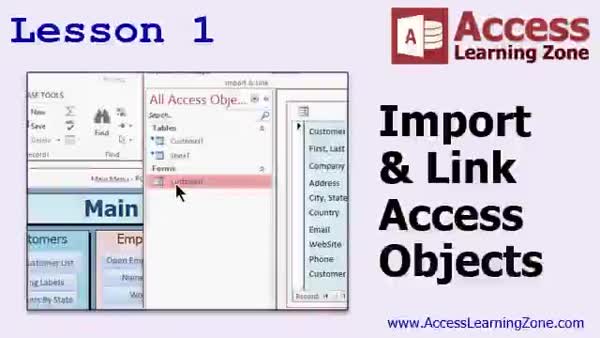
Lesson 1: Import & Link Tables, Queries, Forms - In Lesson 1, we will walk through how to import and link Access objects from one database file to another. I will show you the simplest way to move tables, queries, forms, reports, and other objects between databases, discuss using the External Data menu to import or link tables, and explain important details about how data behaves when imported versus linked. We will also see how to manage dependencies for forms and linked tables, and briefly discuss the benefits and considerations around splitting databases for use on a network.
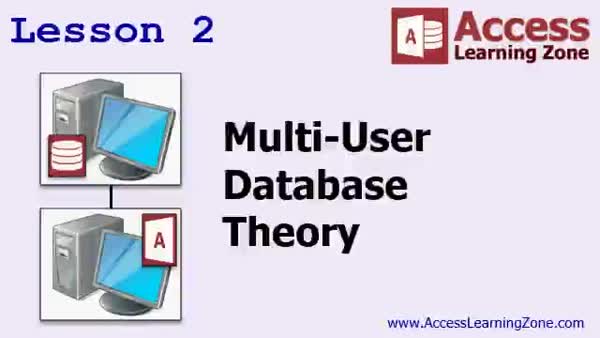
Lesson 2: Set Up Multi-User Split DB - In Lesson 2, we will discuss multi-user database theory, including how to share a database on a network, why splitting your database is important, and the difference between front end and back end databases. We will cover the pros and cons of splitting your database, discuss performance considerations, security issues, and the impact on features like referential integrity. We will also look at scenarios involving multiple users, different front ends, handling large data files, and the challenges you may face when distributing database updates or managing file paths in a multi-user environment.
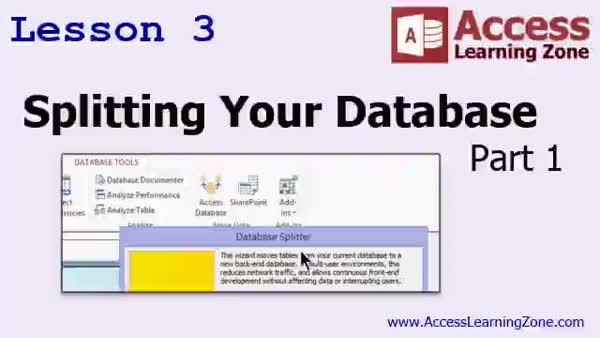
Lesson 3: Split Database for Multi-User Use - In Lesson 3, we will walk through the process of splitting your database into front end and back end files to prepare it for multi-user access on your network. I will show you how to use the Access database splitter wizard, handle errors if tables are open, and how to relink tables if the back end file is moved or renamed. We will also discuss setting up a shared folder on your file server, adjusting permissions for users, using UNC paths versus mapped drive letters, and relocating your back end database so multiple users can access it.
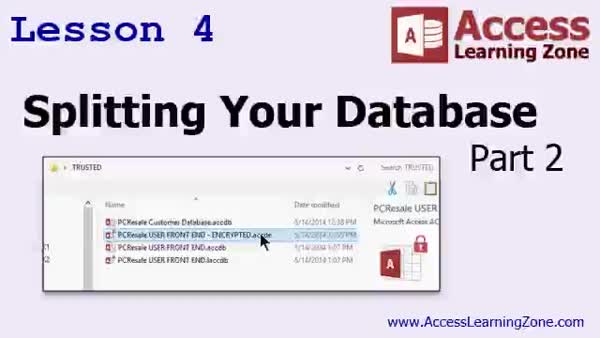
Lesson 4: Split DB, Secure Tables & Distribute Files - In Lesson 4, we continue with splitting your database by moving the back end file to a preferred server location, setting up and removing shared folders, and relinking tables in the front end. I will show you how to separate sensitive tables into multiple back end files to limit access for certain users and demonstrate creating different front end versions for various job roles. We will walk through compiling the front end into an ACCDE file for added security, discuss setting up trusted folders, and talk about basic folder-based database security, shared images, and options for stronger encryption or using SQL Server.
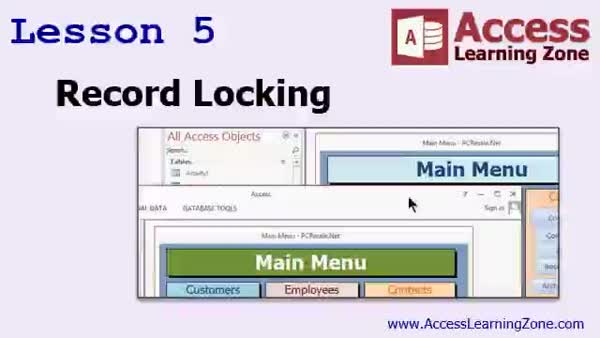
Lesson 5: Prevent Conflicts & Lock Records - In Lesson 5, we will talk about record locking in Microsoft Access, including how it helps prevent conflicts when multiple users edit the same record in a split database. We will discuss the default record locking behaviors, demonstrate how to simulate multiple users, and show the differences between "No Locks," "All Records," and "Edited Record" settings in form properties. I will explain the function of Access lock files, review key options in Access settings, and discuss best practices for minimizing write conflicts and troubleshooting common record locking issues. We will also cover important considerations related to backup and troubleshooting lock files.
Lesson 6: Importing, Multi-User, Locks & Forms - In this course we learned about importing Microsoft Access database objects such as tables, queries, forms, and reports, linking tables between databases, and creating custom forms for different users. We discussed the theory and setup of multi-user databases on a network, splitting databases into front end and back end files, securing sensitive data, and managing record locking. We talked about upcoming lessons on fixing bad data, importing vendor price updates, handling remote data entry, and bringing in XML data like PayPal transactions and live weather. We also covered where to ask questions, request support, and how to provide feedback.
NavigationKeywordsimport data, link tables, split database, front end back end, multi-user setup, record locking, shared folder setup, relink tables, ACCDE file, shared database, secure back end, mapped drive, trusted folders, lock files, database security
More InformationTranscriptWelcome to Microsoft Access Expert, Level 21, brought to you by AccessLearningZone.com. I am your instructor, Richard Rost. In today's class, we are going to continue learning how to import data into our Microsoft Access databases. We are going to start by importing data from other Access databases. We will learn how to import all the different objects: tables, queries, forms, reports, and so on. We will then learn to link to the tables in other Access databases. So, if someone else on your network, for example, has a database - maybe the Accounting Guys - and you want to be able to access one of their tables, you can link to their table and have a real-time connection to work with their data. Once you know how to link to another database, this allows us to start setting up multi-user database solutions. We will learn how to set up your Access database to be used by multiple people on a local area network, your in-house network. We will start off by going over some shared database theory. It is always wise to have a good understanding of databases and how they work in a multi-user setting before you start actually building things. Then we will learn how to split the database using the database splitter wizard, which will create two files for us: a front-end database that has all of your forms, queries, and reports in it, and a back-end database that houses your shared tables. Then we will learn about record locking, how to prevent two users from editing the same record at the same time, and we will see how to properly set up your database to prevent data loss. This class follows Microsoft Access Expert Level 20. Level 20 covered sending mass email from your Access database, but more importantly, it covered importing data from a variety of different data sources, including Excel spreadsheets, text files, XML, Microsoft Outlook, and more. I strongly recommend you watch Level 20 before watching 21. Today's class was recorded using Microsoft Access 2013. Most of the lessons should work just fine, even with 2007 and 2010, but of course if you come across something in these versions that is significantly different, please let me know. Post a message in the forums below, or send me an email. If you are using Access 2003 or earlier, you want to get my Access 308 class, which covers the importing of data, and the split database component is covered in Access 313. My courses are broken up into Beginner, Expert, Advanced, and Developer Level Classes. Beginner level classes are for novices; you should understand all the topics covered in them by the time you get to the Expert level classes, which you are in now. When you finish all the Expert level classes, the Advanced classes will cover event programming and macros, and the Developer classes will cover Visual Basic for Applications. Each group of classes is broken down into multiple levels: Level 1, 2, 3, and so on. In addition to my normal Access classes, I also have seminars designed to teach specific topics. Some of my seminars include building web-based databases, creating forms and reports that look like calendars, securing your database, working with images and attachments, writing work orders and running a service business, tracking accounts payable, learning the SQL programming language, creating loan amortization schedules, and more. You can find details on all of these seminars and more on my website at accesslearningzone.com. If you have questions about the topics covered in today's lessons, please feel free to post them in my student forums. If you are watching this course in the online theater on my website, you should see the student forum for each lesson appear in a small window next to the class video. Here you will see all the questions that other students have asked as well as my responses to them and comments that other students have made. I encourage you to read through these questions and answers as you start each lesson and feel free to join in the discussion. If you are not watching these lessons on my website, you can still visit the student forums later by visiting accesslearningzone.com/forums. To get the most out of this course, I recommend you sit back, relax, and watch each lesson completely through once without trying to do anything on your computer. Then, replay the lesson from the beginning and follow along with my examples. Actually, create the same database that I make in the video, step by step. Do not try to apply what you are learning right now to other projects until you have mastered the sample database from class. If you get stuck or do not understand something, watch the video again from the beginning or tell me what is wrong in the student forum and I will do my best to help you. Most importantly, keep an open mind. Access may seem intimidating at first, but once you get the hang of it, you will see that it is really easy to use. Now, I strongly encourage you to build the database that I build in today's class by following along with the videos. However, if you would like to download a sample copy of my finished database file, you can find it on my website at accesslearningzone.com/databases. Sometimes, if you get stuck, the easiest way to learn is to tear apart someone else's database. One of the ways that I taught myself Access years ago was by tearing apart the Northwind Traders database that comes with Microsoft Access. You will find there is a sample database for each of my courses on my website. Now, let's take a few minutes and go over exactly what we are going to cover in today's class. In lesson one, we are going to learn how to import and link Access database objects from one database file to another. In lesson two, we are going to learn about multi-user database theory, sharing a database on a network, why you want to split your database, the difference between front end and back end databases, and the pros and cons of splitting your database. If you do not like database theory, feel free to skip this lesson. However, I do not recommend it. In lesson two, we talked about all of the multi-user database theory, while in lesson three, we are going to put that theory into practice. I am going to start showing you how to split your database into front end and back end files so that you can set it up for use on your network. In lesson four, we are continuing with splitting your database. In lesson five, we will talk about record locking issues: when two people are in the same database and they start to edit the same record, what happens. IntroIn lesson 21 you will learn how to import and link objects between Microsoft Access databases, including tables, queries, forms, and reports. We will talk about setting up multi-user database solutions by sharing your Access database over a network and introducing front-end and back-end splitting using the database splitter wizard. The class covers key concepts like shared database theory, the pros and cons of splitting databases, and how to handle record locking to prevent editing conflicts. This lesson builds on importing data and email features introduced in Level 20. QuizQ1. What is the main focus of Microsoft Access Expert Level 21? A. Creating advanced Visual Basic applications B. Importing and linking data from Access databases and setting up multi-user solutions C. Building basic forms and reports D. Securing databases with user-level security Q2. What is one benefit of linking to tables in another Access database? A. It allows for real-time access to shared data on your network B. It prevents anyone from seeing the Accounting data C. It automatically creates new forms D. It upgrades the database to the latest version Q3. What is a key concept introduced in the course when working with multiple users? A. Record locking B. Table indexing C. Form customization D. Advanced SQL programming Q4. What is the purpose of splitting a database using the Database Splitter Wizard? A. To compress the database for easier emailing B. To separate forms, queries, and reports from shared tables for multi-user access C. To convert the database to SQL Server D. To backup the database on a cloud server Q5. What are the two parts created when you split an Access database? A. Source and destination B. Internal and external C. Front-end and back-end D. Primary and secondary Q6. Why is it important to understand shared database theory before building multi-user applications? A. To improve database appearance B. To ensure efficient data management and prevent issues in a multi-user setting C. To access new report templates D. To simplify importing from Excel Q7. Which prior course level is recommended before watching Level 21? A. Level 10 B. Level 20 C. Level 1 D. Level 308 Q8. What should students do if a lesson seems different in Access 2007 or 2010 compared to the video? A. Ignore the differences and proceed B. Contact Microsoft Support directly C. Post a message in the forums or send an email to the instructor D. Uninstall and reinstall Access Q9. If you are using Access 2003 or earlier, which classes should you refer to for similar content? A. Access 101 and 105 B. Access 308 and 313 C. Beginner Level 1 D. SQL Seminar Q10. What is the recommended way to get the most out of the course? A. Try to guess your way through assignments B. Watch each lesson through once, then follow along and recreate the examples C. Only read the transcripts D. Focus only on theoretical concepts Q11. How can students interact with the instructor or other students regarding lessons? A. Only via email B. Through student forums on the website C. No interaction is possible D. By making phone calls during office hours Q12. What is discussed in lesson two of this course? A. Advanced VBA programming B. Multi-user database theory, network sharing, and database splitting C. Form design tips D. Creating XML exports Q13. What does record locking help prevent in a multi-user Access database? A. Data loss when two users edit the same record at the same time B. Unauthorized copying of the database C. Automatic updating of records D. Data backup failures Q14. What resource is recommended if you get stuck or do not understand something in the video? A. Skip to the end of the course B. Review the Northwind sample database only C. Watch the video again or ask in the student forum D. Purchase an additional textbook Q15. How can sample databases help you learn Access more effectively? A. By playing games with the database files B. By tearing apart and learning from completed example databases C. By providing answers to all quiz questions D. By storing your personal projects Answers: 1-B; 2-A; 3-A; 4-B; 5-C; 6-B; 7-B; 8-C; 9-B; 10-B; 11-B; 12-B; 13-A; 14-C; 15-B DISCLAIMER: Quiz questions are AI generated. If you find any that are wrong, don't make sense, or aren't related to the video topic at hand, then please post a comment and let me know. Thanks. SummaryToday's video from Access Learning Zone focuses on Microsoft Access Expert Level 21. In this lesson, our emphasis is on importing data into Microsoft Access databases, extending our skills from the prior course. I will walk you through how to import different kinds of objects from other Access databases, including tables, queries, forms, and reports. Next, we will move on to linking tables from other Access databases. For example, if you have a coworker in another department, such as Accounting, who maintains useful data in their own Access database, you can set up a link to one of their tables and work with it in real time. Linking tables allows you to connect and collaborate with live data from multiple sources within your own Access system. Once you understand how to link to other databases, this opens up possibilities for building multi-user database solutions. I will show you how to set up your Access databases for use by several people within your local area network. We will start by reviewing some essential theory behind shared databases. It is important to have a solid grasp of how databases operate when accessed by multiple users before you start implementing these solutions. After covering the theory, we will use the built-in database splitter wizard. This tool helps you create two separate files: a front-end database, which contains your forms, queries, and reports, and a back-end database, which holds your shared tables. This is key to successful multi-user setups in Access. An important challenge with multi-user databases is managing record locking, which refers to preventing two people from editing the same record at the same time. I will demonstrate how to set up your database to minimize the risk of data loss due to simultaneous edits. This class builds directly on Microsoft Access Expert Level 20. In Level 20, you learned how to send emails in bulk from your Access database and how to import data from sources such as Excel files, text files, XML, and Outlook. If you have not already completed Level 20, I highly recommend you do so before proceeding with Level 21. This lesson was recorded using Microsoft Access 2013, but the material should be relevant for Access 2007 and 2010 as well. If you run into any major differences using one of these earlier versions, please reach out to me in the forum or by email. If you are still using Access 2003 or earlier, my Access 308 class covers importing data, and splitting the database is discussed in Access 313. The Access course series is divided into Beginner, Expert, Advanced, and Developer levels. Each tier is broken up into numbered levels, and you should feel comfortable with all topics from the Beginner section before heading into the Expert levels, which this course belongs to. Advanced classes introduce event programming and macros, and Developer classes focus on Visual Basic for Applications. Besides these core courses, I offer seminars that dive into specialized Access topics. For example, you can learn about building web-based databases, designing calendar-style forms and reports, securing your Access database, incorporating images and attachments, managing work orders, handling accounts payable, programming with SQL, and generating loan amortization schedules. Details about all seminars are available on my website. Questions about the material are welcome in the student forums. If you are watching this course via the online theater on my site, a discussion window will display alongside each lesson, so you can view and contribute to questions and answers from fellow students and from me. If you are viewing the lessons elsewhere, you can visit the forums directly at accesslearningzone.com/forums. To get the most benefit from this course, I suggest you watch each lesson all the way through once without following along on your computer. Use the second playthrough to create the sample database step by step as I show in the video. Master the sample database before applying the techniques to your own projects. If you get stuck, either watch the lesson again or ask for help in the student forum and I will do what I can to assist. Remember to keep an open mind. Although Access can appear complex at first, with practice it becomes much easier. I recommend that you follow along and build the sample databases with me as shown in the lesson. If you prefer, you can also download sample databases from my website, which sometimes makes it easier to learn by examining a finished database. Each course comes with its own sample database file. Before we get started, let me outline what we will cover in this class: In lesson one, we will cover how to import and link Access database objects from one file to another. In lesson two, we will discuss shared database theory, database sharing across a network, reasons for splitting your database, the distinction between front-end and back-end databases, and advantages and disadvantages of this approach. While you can skip the theory if you wish, I strongly recommend you stick with it. Lesson three will involve actually putting the multi-user theory into action by showing you how to split your database into front-end and back-end files for use on your network. Lesson four continues our practical splitting work. Lesson five will cover how to handle record locking, what happens when two users try to edit the same record, and strategies to handle it safely. You can find a complete video tutorial with step-by-step instructions on everything discussed here on my website at the link below. Live long and prosper, my friends. Topic ListImporting Access database objects from another database Linking tables from external Access databases Setting up a database for multi-user access Multi-user database theory Sharing a database on a local area network Benefits and drawbacks of splitting a database Differences between front end and back end databases Using the Access Database Splitter Wizard Configuring and managing split databases Understanding and handling record locking issues Primary Topicsimporting Access data, linking Access tables, multi-user database theory, splitting databases, front-end and back-end databases, record locking Secondary Topicsshared database setup, database splitter wizard, network database access, none |
||||||||||||||||||||||||||||||||||||||||||||||
|
| |||
| Keywords: import data, link tables, split database, front end back end, multi-user setup, record locking, shared folder setup, relink tables, ACCDE file, shared database, secure back end, mapped drive, trusted folders, lock files, database security PermaLink Microsoft Access Expert 21 |