|
||||||
Access Expert 22Normalize Data, Update Pricing, Fix Order PricesWelcome to Access Expert 22. In this course you will learn how to fix non-relational data by importing and normalizing spreadsheets into proper Access tables, update vendor pricing automatically using Excel files, and address order entry issues so that changing product details does not affect historical orders. We will also review prerequisites from earlier lessons, discuss available resources and recommended ways to follow along, and explain how to ensure your orders remain accurate when product information changes. Lessons
Resources
Lesson SummaryWelcome! Fix Data, Vendor Prices & Orders - Welcome to Microsoft Access Expert Level 22. In this course we will learn how to fix non-relational data from spreadsheets by splitting and importing it into proper tables, update vendor pricing in the product table using data from Excel sheets, and address a problem with the order entry system where changing product information unintentionally affects previous orders. We will also discuss the prerequisites from earlier Access levels that are important for this class, go over resources available on the website, and review recommended ways to follow along with the lessons for the best learning experience.
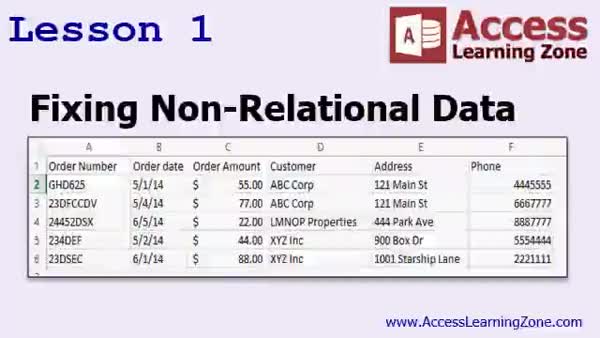
Lesson 1: Import & Normalize Excel Data - In Lesson 1, we will walk through the process of fixing non-relational data, specifically how to separate customer and order information that has been combined into one spreadsheet. I will show you how to import the data into Access, identify and clean up duplicate customer information, and then split the data into properly structured tables for customers and orders. We will use action queries, aggregate queries, and DLookup functions to ensure each customer has their most recent address and phone number, resulting in a normalized, relational database. We will also discuss when it is best to clean data in Excel versus Access.
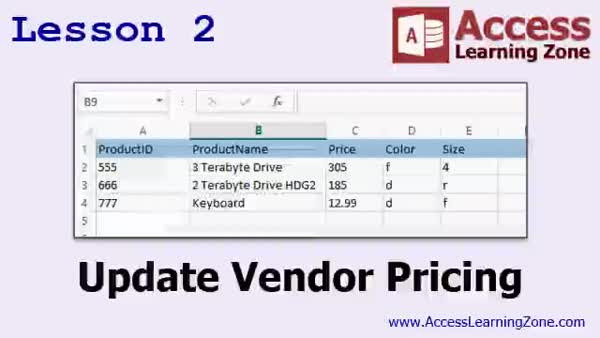
Lesson 2: Auto-Update Vendor Prices from Excel - In Lesson 2, we will walk through how to update vendor pricing in your database using a spreadsheet your supplier provides. We will discuss how to match products between your system and the vendor's file, import the updated pricing data, deal with mismatched formats, and create an update query to modify the unit cost in your VendorXProduct table. I will show you how to automate this process with a button, and address common issues like data type mismatches and query complexity. We will also briefly talk about adding new products and handling discontinued items.
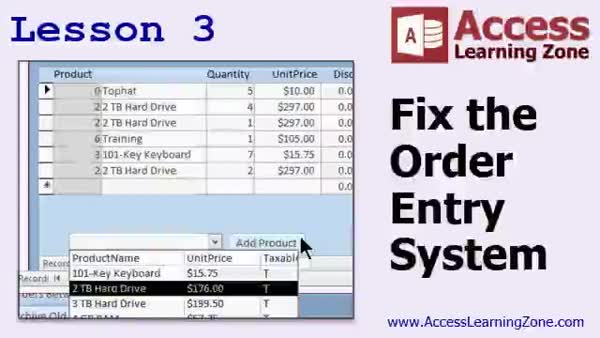
Lesson 3: Fix Price Changes Impacting Old Orders - In Lesson 3, we will fix the main issue with the order entry system: updating a product's price in the product table currently changes all historical orders, which is incorrect. I will show you how to restructure the database so that the order detail table stores the product name and unit price at the time of the order, using a macro to automate copying this data. We will also update queries and forms to reflect these changes, handle sales tax correctly, and ensure past orders remain accurate even if product prices change in the future.
Lesson 4: Fixing Data, Vendor Pricing, Orders - In this course we learned how to fix non-relational data by importing and organizing spreadsheet information into proper tables in Microsoft Access, updating vendor pricing using linked fields like UPC codes, and improving the order entry system so orders are not affected by later product price changes. We also discussed upcoming topics such as remote data entry, importing XML and bank data, and options for learning programming with Access VBA. If you have any questions or feedback about what we covered, you can reach out through the student forums or contact options provided.
NavigationKeywordsnormalize data, import Excel data, split tables, update vendor pricing, action query, aggregate query, DLookup, order price fix, historical order pricing, product table, unit cost update, remove duplicates, sales tax, discontinued products
More InformationTranscriptWelcome to Microsoft Access Expert Level 22, brought to you by AccessLearningZone.com. I am your instructor, Richard Rost. Today's class only has three lessons, but they are three good, long lessons that cover a lot of important topics. First, we're going to learn how to fix non-relational data that someone else may give you. I'm sure it has happened before. You get a spreadsheet with some data in it, and the data has customer data and order data all mixed together in the same spreadsheet. It's a list of orders, perhaps, and each order has customer information, and it's just not relational. It's a big mess. So in lesson one, we're going to learn how to fix that. We're going to split the spreadsheet up into order information and customer information. We're going to import that into our database and put all the information in proper tables. Next, we're going to learn how to update the pricing in our product table based on an updated price sheet from our vendors. You have a vendor or two that you work with. Once a month, they send you an Excel spreadsheet that has updated pricing. We're going to import that pricing into our database, match up each of those products with the products in our product table, and update our unit costs accordingly. Finally, we're going to fix a problem with our order entry system. Way back in the first couple of Access Expert classes, we built the product table, product form, and an order form with order details. The problem was when you picked a product and added it to an order, it was linked back to the product table. So if you made any changes to that product, including the price, it had the side effect of changing the price on all of the orders, which is, of course, bad. At the time, we did not know how to change values across multiple tables, and today I am going to teach you how to do that using a button macro. We're going to pick a product on the order form and then have a macro set the value of that product - the name, the ID, the unit price, and whether it is taxable - into fields in the order detail form. This will fix that problem and give us the side benefit of being able to just type in any value we want if you want to be able to enter manual items into orders. This class follows Access Expert Level 21. Over the last couple of classes, 20 and 21, we spent a lot of time with importing data. The lesson on fixing non-relational data and updating vendor pricing is going to rely heavily upon that information, so I strongly recommend you watch Access Level 20 and 21 before watching this class. The order entry system was primarily built in Access Expert Level 8. Lesson 3 on fixing the order entry system is going to rely on Access Level 8, and Level 8 relies on 1, 2, and 3, where we cover relational database design. More was built in Levels 9 and 10 as well, so really everything from Levels 1 through 10 is important for the order entry system. Once again, my class is really designed to be followed one after the other; skipping around is not recommended. I will be using Access 2013 for this class. All of the lessons should work just fine with 2007 and 2010. If you are using Access 2003, I cover the importing section in Access 308. I cover the material on fixing the order entry system in Access 302, because 301 and 302 start teaching VBA. In the older system, we did not use macros for much. Today I am going to use an embedded form macro which runs right inside of a button. Access 2003 did not really have good macros, so I almost never used them. We used VBA for that. I am going to teach the VBA for this in the Developer series when we get to that point. But for now, the macros work just fine. However, if you want to learn the VBA and jump ahead of the class, you can pick up Access 301 and 302. My courses are broken up into Beginner, Expert, Advanced, and Developer level classes. Beginner level classes are for novices. You should understand all the topics covered in them by the time you get to the Expert level classes, which you are in now. When you finish all the Expert level classes, the Advanced classes will cover event programming in macros, and the Developer classes will cover Visual Basic for Applications. Each group of classes is broken down into multiple levels: Level 1, 2, 3, and so on. In addition to my normal Access classes, I also have seminars designed to teach specific topics. Some of my seminars include building web-based databases, creating forms and reports that look like calendars, securing your database, working with images and attachments, writing work orders and running a service business, tracking accounts payable, learning the SQL programming language, creating loan amortization schedules, and lots more. You can find details on all of these seminars and more on my website at AccessLearningZone.com. If you have questions about the topics covered in today's lessons, please feel free to post them in my student forums. If you are watching this course in the online theater on my website, you should see the student form for each lesson appear in a small window next to the class video. Here you will see all of the questions that other students have asked as well as my responses to them and comments that other students have made. I encourage you to read through these questions and answers as you start each lesson and feel free to join in the discussion. If you are not watching these lessons on my website, you can still visit the student forums later by visiting AccessLearningZone.com/forums. To get the most out of this course, I recommend that you sit back, relax, and watch each lesson completely through once without trying to do anything on your computer. Then, replay the lesson from the beginning and follow along with my examples. Actually create the same database that I make in the video, step by step. Do not try to apply what you are learning right now to other projects until you have mastered the sample database from class. If you get stuck or do not understand something, watch the video again from the beginning, or tell me what is wrong in the student form and I will do my best to help you. Most importantly, keep an open mind. Access may seem intimidating at first, but once you get the hang of it, you will see that it is really easy to use. I strongly encourage you to build the database that I build in today's class by following along with the videos. However, if you would like to download a sample copy of my finished database file, you can find it on my website at AccessLearningZone.com/databases. Sometimes, if you get stuck, the easiest way to learn is to tear apart someone else's database. One of the ways that I taught myself Access years ago was by tearing apart the Northwind Traders database that comes with Microsoft Access. You will find there is a sample database for each of my courses on my website. Now let's take a few minutes and go over exactly what we are going to cover in today's class. In lesson one, we're going to learn how to fix non-relational data. This is useful when someone, for example, gives you a spreadsheet full of data that may contain information that belongs on multiple sheets, but they put it all together in one spreadsheet. We will learn how to use some action queries to break that information up into two or more proper tables. In lesson two, we're going to cover updating vendor pricing in our database. Each month, our supplier gives us a spreadsheet with updated pricing. We are going to make a one-click routine to update our unit costs in our database based on their spreadsheet pricing. In lesson three, we're going to fix a big problem that we have had with our database ever since we created the order entry system. The problem is that if we change the pricing of products in our product table, it affects all of the orders in the database. Of course, that is not good. So in this lesson, we are going to take some time and finally fix that problem. IntroIn lesson 22 of Microsoft Access Expert, you will learn how to fix non-relational data by splitting up a messy spreadsheet into proper tables, update product prices in your database using pricing data from a vendor Excel sheet, and solve a common order entry issue where changes to product prices incorrectly update past orders. Each topic is covered step by step, including importing data, using action queries, and adding a button macro to your order form to store order details correctly. QuizQ1. What is the main focus of Lesson 1 in this class? A. Creating new product tables from scratch B. Fixing non-relational data by splitting combined customer and order data into proper tables C. Building user login forms D. Securing databases with passwords Q2. Why is it important to separate customer data from order data in a spreadsheet before importing it into Access? A. It reduces file size B. It allows for relational database design and easier data management C. It makes reports look better D. It increases network speed Q3. What will Lesson 2 of this class teach you? A. How to secure your database B. How to update product pricing using a spreadsheet from vendors C. How to build a calendar form D. How to import images Q4. What is the problem with linking orders directly to the product table, as explained in this course? A. It limits the number of products B. It changes prices on all orders if the product price changes C. It makes reports slower to generate D. It does not allow printing order forms Q5. How will Lesson 3 address the issue with order prices changing when the product price is changed? A. By deleting and recreating orders B. By storing the product price and details in the order detail table at the time of entry using a button macro C. By disabling price changes in the product table D. By creating a separate price history table Q6. What previous Access Expert Levels does this class heavily rely on for importing data and the order entry system? A. Levels 8, 20, and 21 B. Levels 11, 12, and 13 C. Levels 4, 5, and 6 D. Levels 30 and 31 Q7. What is recommended before trying to apply what you learn from this course to your own projects? A. Memorize the video transcript B. Master the sample database by following all examples in the video C. Create your own project from scratch right away D. Update your Access version Q8. What is the recommended approach if you get stuck or do not understand something in the lesson? A. Skip to the next lesson B. Watch the video again or use the student forums to ask for help C. Close Access and try again another day D. Search for third-party tutorials Q9. What type of macro is introduced to solve the order entry problem? A. Data macro triggered by queries B. Embedded form macro that runs inside a button C. AutoExec macro D. Startup form macro Q10. What is suggested as a helpful way to learn Access, besides following along with the course videos? A. Reading Access manuals B. Tearing apart sample databases like the Northwind Traders database C. Watching unrelated programming tutorials D. Memorizing SQL syntax Q11. Where can you find sample databases and additional resources from the instructor? A. On AccessLearningZone.com B. In the sample files folder on your computer C. In the Microsoft Store D. On random Access forums Q12. What method does the instructor recommend for watching and learning from the lessons? A. Speed-watching all lessons in one sitting B. Watching each lesson through once, then replaying and following along step by step C. Printing out every slide D. Taking only written notes Answers: 1-B; 2-B; 3-B; 4-B; 5-B; 6-A; 7-B; 8-B; 9-B; 10-B; 11-A; 12-B DISCLAIMER: Quiz questions are AI generated. If you find any that are wrong, don't make sense, or aren't related to the video topic at hand, then please post a comment and let me know. Thanks. SummaryToday's video from Access Learning Zone covers Microsoft Access Expert Level 22, and I am your instructor, Richard Rost. This class consists of three lessons, each one addressing important and practical topics for Access users. Although it is a shorter class in terms of the number of lessons, the material is in-depth and highly relevant for working with real-world data. The first lesson focuses on solving the common problem of non-relational data. Many of us have received spreadsheets that mix customer and order data together without following relational database principles. You might see a list of orders, but each row contains repeated customer information alongside the order details. In this lesson, I will show you how to break this kind of spreadsheet into separate customer and order data, import everything into Access, and sort each piece into its appropriate table, making your data properly relational. The second lesson addresses updating your product pricing based on new information from your vendors. Often, suppliers will send you an updated price list in Excel. I'll demonstrate how to take that vendor pricing sheet, import it into your Access database, match up each item, and then automatically update your product table so that the unit costs stay accurate with minimal effort. In the third lesson, we tackle a longstanding issue in the order entry system that dates back to earlier classes. When we first set up the relationship between products and orders, selecting a product for an order linked directly back to the product table. This caused any change to a product's details, such as an updated price, to propagate to all past orders, which is not what you want. We did not have the skills at that point to write macros or VBA that would transfer specific values from one table to another. Now, I will demonstrate how to use a button macro within a form to copy the product's name, ID, price, and taxability into the order details. This not only solves the price change issue but also allows you to manually enter values for custom items when creating orders. This level builds directly on what we covered in Access Expert Level 21, as well as the material on data importing from Levels 20 and 21. Therefore, it is highly recommended that you are comfortable with those earlier lessons before proceeding with this class. The order entry system was originally set up in Access Expert Level 8, and aimed to teach you how to design relational databases. Lessons 8 through 10 further developed those concepts, so familiarity with Levels 1 through 10 is ideal for getting the most out of lesson three in today's class. My curriculum is structured to be followed step by step, and skipping levels can leave gaps in your understanding. For this course, I am using Access 2013, but you will find everything works smoothly with Access 2007 and 2010 as well. If you are still using Access 2003, the related importing techniques are covered in Access 308, and the order entry system updates are explained in Access 302, since the earlier versions relied more on VBA and less on macros. Today, I will be using an embedded form macro, which runs from within a button on a form. Access 2003 lacked robust macro support, so those classes focused on VBA instead. If you wish to learn the VBA approach now, check out Access 301 and 302 from my Developer series, though for our current purposes, macros are more than sufficient. My course catalog is divided into Beginner, Expert, Advanced, and Developer levels. The Beginner classes are ideal for those new to Access, and you should be comfortable with everything from those before moving to the Expert track. Once you finish the Expert titles, Advanced classes cover event programming, and the Developer series moves into working with Visual Basic for Applications. Within each group, there are multiple courses, each building on the knowledge of the previous levels. Aside from these core Access courses, I also offer in-depth seminars on topics such as building web-based databases, designing custom calendar-like forms, securing your databases, working with images and attachments, handling work orders and service tracking, managing accounts payable, learning SQL, creating loan amortizations, and much more. More information about these seminars is available on my website. If you have questions about any topic in this class, make use of the student forums. If you are watching the class in my online theater, the forum for each lesson appears next to the video, where you can read questions and comments from other students along with my responses. I encourage you to participate in these discussions. If you are viewing the courses elsewhere, you can always visit the forums later on my website. To get maximum benefit from this class, I recommend first watching each lesson all the way through without pausing to try the actions yourself. On your second viewing, follow along and build the same example database step by step. Work through the sample before attempting to adapt the information to your own projects. If you run into trouble, either watch the lesson again or reach out with your question in the student forum, and I will help you out. Remain patient and open-minded as you learn. Microsoft Access may seem complex, but with consistent practice, you will see it is quite manageable. I encourage you to construct the same database I make in the videos. For those interested, sample databases corresponding to each class can be downloaded from my site. Sometimes, examining or experimenting with a finished file is the quickest way to learn, much as I did years ago with Microsoft's Northwind database. Each class has its own sample database available for download. Here is an overview of the specific lessons in this class: Lesson one focuses on transforming non-relational data, especially for those situations where you receive a single spreadsheet containing data that really belongs in separate tables. I will show you how to use action queries to split and organize this data. Lesson two demonstrates how to efficiently update your database's product costs with the latest pricing from your suppliers' spreadsheets. We will set up a routine that performs the update with a single action. Lesson three will finally resolve a major concern with product pricing in our order entry system, ensuring that updates to a product's price no longer change past orders. You can find a complete video tutorial with step-by-step instructions on everything discussed here on my website at the link below. Live long and prosper, my friends. Topic ListFixing non-relational data from spreadsheets Splitting customer and order information into separate tables Importing non-relational data into Access Using action queries to separate and organize data Updating product pricing from vendor spreadsheets Importing updated vendor pricing into Access Matching imported product records with existing data Automatically updating unit costs based on vendor data Correcting the order entry system to prevent historical price changes Using button macros to set order detail values Copying product data to order details at entry time Allowing manual entry of order item values in orders Primary Topicsnon-relational data cleanup, importing Excel data, table normalization, updating product pricing, action queries, order entry form fixes, Access macros, maintaining historical order pricing Secondary Topicslearning sequence prerequisites, differences in Access versions, importance of database design |
||||||||||||||||||||||||||||||||||||||||||||||||||||||||||||||||||||||||||||||||||||||||||
|
| |||
| Keywords: normalize data, import Excel data, split tables, update vendor pricing, action query, aggregate query, DLookup, order price fix, historical order pricing, product table, unit cost update, remove duplicates, sales tax, discontinued products PermaLink Microsoft Access Expert 22 |