|
|||||
Excel Expert 9Advanced Sorting, Custom Lists, Filters, RibbonWelcome to Excel Expert 9. In this course you will learn how to use advanced sorting and advanced filtering techniques in Microsoft Excel, including custom sorts, custom lists, and filtering large data sets. We'll discuss how to organize your data with multi-level sorts, sort by color and conditional formatting, filter by various criteria, and customize the interface by modifying the ribbon and Quick Access Toolbar. You will also see strategies for sorting unique data types and learn how to participate in student forums to get help or ask questions. Lessons
ResourcesLesson SummaryWelcome! Advanced Sorting & Ribbon Tips - Welcome to Excel Expert Level 9. In this course we will focus on advanced sorting, advanced filtering, and customizing the Excel interface, including the ribbon and Quick Access Toolbar. We will discuss topics such as creating custom lists, sorting by Roman numerals, and using advanced filter features. This course is designed for experienced users who have completed previous beginner and expert levels. You will also learn about the course structure, recommendations for getting the most out of the lessons, and how to participate in student forums to get help or ask questions.
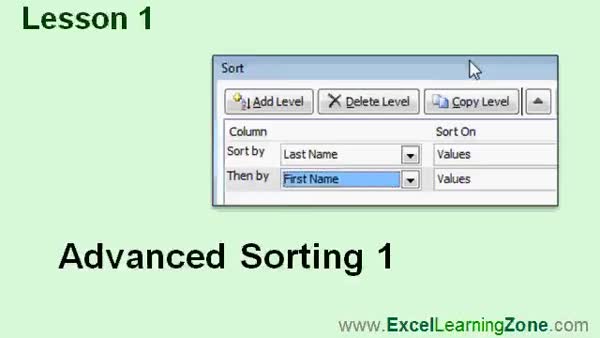
Lesson 1: Custom Sort & Conditional Formatting - In Lesson 1, we will begin learning advanced sorting techniques in Excel, focusing on how to use custom sorts to better organize your data. I will show you how to sort by different columns, apply multi-level sorts, and use options like sorting by cell color, font color, or icons, especially when working with conditional formatting. We will also discuss settings such as case sensitivity and sorting left to right. Throughout this lesson, you will see the different ways advanced sorting can help keep your data organized and easy to work with.
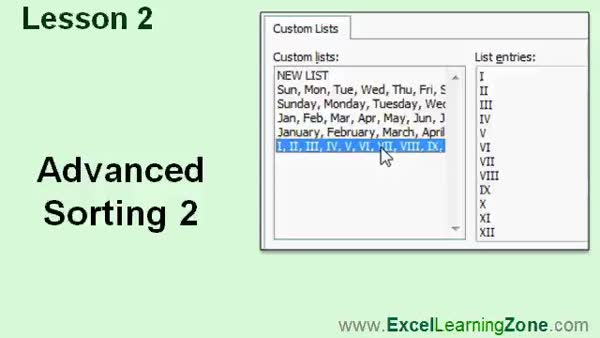
Lesson 2: Custom Lists & Sorting Tips - In Lesson 2, we are continuing with advanced sorting techniques in Excel, focusing on custom lists and sorting unique fields like birth months and Roman numerals. I will show you how to use built-in custom lists for sorting, create your own custom lists, and even import lists from spreadsheet cells. We will also discuss important tips for preserving the original order of your data, examine how Excel sorts various characters and numbers, and explore recommended strategies for properly sorting combinations of letters and numbers.
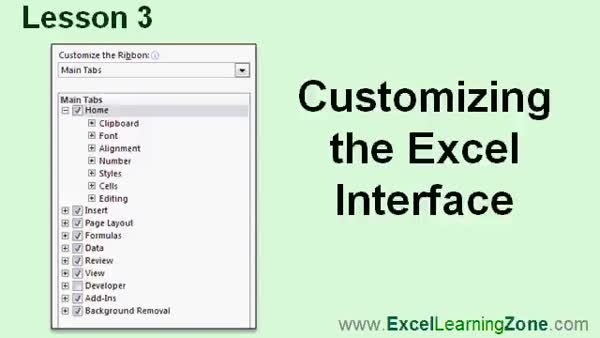
Lesson 3: Customize Toolbar & Ribbon Tabs - In Lesson 3, we are going to learn more about customizing the interface in Excel. We will review how to personalize the Quick Access Toolbar by adding, removing, and organizing commands, as well as adjusting its location, importing, exporting, and resetting customizations. I will also show you how to customize the ribbon, including modifying existing tabs, adding or removing groups, revealing hidden tabs like Developer, and creating your own custom tabs with groups and commands for easier access to tools you use frequently. We will discuss options for customizing the interface for specific workbooks as well.
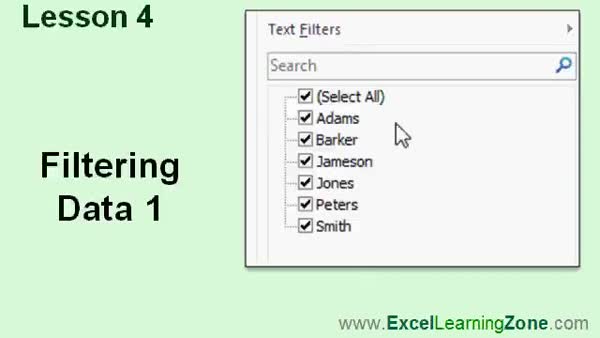
Lesson 4: Filter & Analyze Data with Drop-Downs - In Lesson 4, we will take a closer look at filtering data in spreadsheets. I will show you how to download the sample data for this lesson, and then walk through the steps to apply filters in Excel, including how to view data for specific stores or managers and how to filter multiple columns at once. We will also discuss some basic options available in the filter menu, and explain how filtering hides rows you do not want to see, helping you focus on specific information within larger datasets.
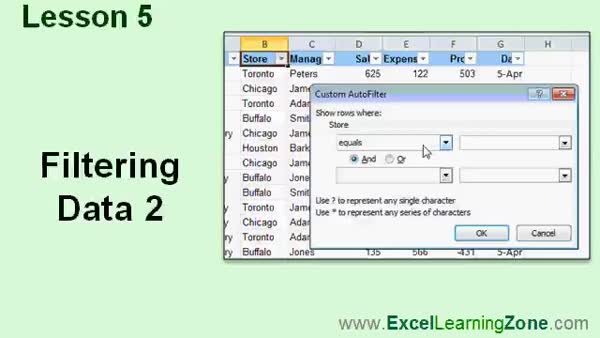
Lesson 5: OR & AND Filters: Text, Dates, #s - In Lesson 5, we continue exploring filtering data, focusing on how filters operate as OR conditions within a single column but as AND conditions across multiple columns. I will show you how to use text, number, and date filters, including options like equals, does not equal, begins with, wildcard characters, top and bottom values, above or below average, and between two values. We will also discuss filtering blanks, using the Reapply button, filtering by cell value or color, and some basics about managing filter buttons when adding new columns. Advanced filters will be mentioned but not covered in detail here.
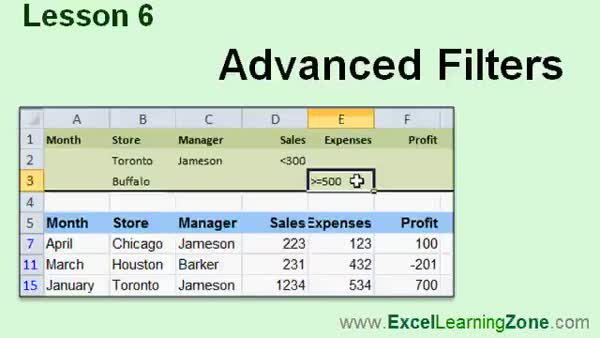
Lesson 6: Advanced Filters: And/Or, Criteria - In Lesson 6, we will explore advanced filters in Excel, starting with a quick review of basic equality and inequality operators. I will show you how to set up and use advanced filtering directly on your worksheet, create specific filter regions, and demonstrate filtering by multiple criteria, including using and/or conditions and between conditions. We will also discuss how criteria ranges work, how to use named ranges, and tips for organizing your filters for easy use by others. Finally, I will point out some important considerations and potential issues when working with advanced filters.
Lesson 7: Sorting, Lists, Filters & Ribbon - In this course we learned advanced sorting techniques in Microsoft Excel, including creating custom sorts, sorting by color or conditional formatting, sorting left to right, case sensitive sorts, and more. We discussed custom lists, sorting by birth month, number-letter pairs, and customizing the Excel interface such as the Quick Access Toolbar and the Ribbon. We reviewed filtering data with various options, using wildcards, top filters, and advanced filter methods for flexible data management. We also noted resources for additional questions or support, and encouraged providing feedback to help improve future classes.
NavigationKeywordsadvanced sorting, advanced filtering, custom lists, sort by color, sort by icon, conditional formatting, sort by month, sort by roman numerals, multi-level sort, custom ribbon, quick access toolbar, filter by criteria, advanced filter, filter by blanks
More InformationTranscriptWelcome to Excel 2010 Expert Level 9, brought to you by ExcelLearningZone.com. I am your instructor, Richard Rost. Today's class focuses on three main topics: advanced sorting, advanced filtering, and customizing the Excel interface, including the ribbon. The last class was designed for use with Microsoft Excel 2010. The lessons on sorting and filtering are the same for pretty much all versions of Excel. Customizing the interface, especially the ribbon, is specific to Excel 2010, but that's only one lesson. If you're here for the sorting and filtering, you'll be just fine, even if you're going all the way back to Excel 2000. This is an expert level class from Microsoft Excel 2010. I strongly recommend that you take all of my beginner classes first, levels 1 through 5, and the other expert classes, levels 1 through 8, before taking this class. I've covered basic sorting and filtering in some of the previous classes, and it would be very helpful if you had those classes first before getting into the advanced sorting and filtering. My courses are broken up into four different groups: beginner, expert, advanced, and developer. The beginner courses are for novice users with little or no experience with Excel. The expert series, which is what you're watching right now, is designed for more experienced users who are already comfortable with Excel. Expert classes go into a lot more depth about each topic than the beginner classes did, and we'll cover more functions, features, tips, and so on. When you've mastered the expert classes, move up to the advanced lessons. You'll learn how to build macros, build user forms, create your own templates, and many more advanced features that not everyone will use, but they really add enhanced functionality and professionalism to your spreadsheets. Finally, my developer series is designed to teach you how to program in Visual Basic for Applications with Microsoft Excel. This will allow you to create Excel-based programs for your users, automate your spreadsheets, and integrate Excel tightly with the other Office applications. Each of my series is broken down into different levels. For example, the beginner series contained five different levels, which you should have taken previously. This is level nine of the expert series. Each level teaches you new and different topics in Microsoft Excel, building on the lessons learned in the previous levels. When you finish all of the expert classes, move up to the advanced series, and then finally the developer series. Now let's take a more detailed look at exactly what we're going to learn in today's class. In lesson one, we'll begin by learning some advanced sorting techniques. In lesson two, we're continuing with advanced sorting techniques, including creating custom lists and sorting based on things like Roman numerals. In lesson three, we're going to learn more about customizing the Excel user interface. We're going to review customizing the Quick Access Toolbar, and I'll show you a couple of new tricks with that. We're going to learn how to customize the ribbon by modifying the existing tabs and creating our own custom tabs. In lesson four, we're going to take a closer look at filtering data in our spreadsheets. In lesson five, we're continuing our look at filtering data. In lesson six, we're going to take a look at advanced filtering, which will allow you to create filters right on your sheet and filter the data in place. If you need help with the topics covered in today's lessons, please feel free to post your questions in the Excel Interactive Student forums. If you're watching this course using my custom video player software, or online at my web theater, you should see the student forum for each lesson appear in a small window next to the class videos if you have an active internet connection. Here you'll see all the questions that the other students have asked as well as my responses to them and the comments that some of the other students may have made. I encourage you to read through these questions and answers as you start each lesson. Feel free to post your own questions and comments as well. If you're not watching your lessons online, you can still visit the student forums later by visiting ExcelLearningZone.com/forums. To get the most out of this course, I recommend you sit back, relax, and watch each lesson completely through once without trying to do anything on your computer. Then replay the lesson from the beginning and follow along with my examples. Actually create the same spreadsheet that I make in the video. Build the spreadsheet with me step by step. Don't try to apply what you're learning right now to other projects until you've mastered the sample spreadsheet. If you get stuck or don't understand something, watch the video again from the beginning or tell me what's wrong in the student forum. Most importantly, keep an open mind. Excel might seem intimidating at first, but once you get the hang of it, you'll see that it's really easy to use. IntroIn lesson 9 of the Microsoft Excel 2010 Expert series, you will learn advanced sorting techniques, including how to create custom lists and sort by unique formats like Roman numerals. We will also cover advanced filtering methods to help you manage and analyze your data more effectively. Additionally, I will show you how to customize the Excel interface, including personalizing the Quick Access Toolbar and modifying the ribbon to suit your workflow. This lesson builds on concepts from earlier courses and is designed for users already comfortable with Excel. QuizQ1. What are the three main topics covered in this Excel 2010 Expert Level 9 course? A. Basic formulas, charting, and printing B. Advanced sorting, advanced filtering, and customizing the Excel interface C. Data validation, workbook protection, and file management D. Macros, pivot tables, and collaboration tools Q2. Which lesson in this course is specific to Excel 2010 and not necessarily to other versions? A. Advanced Sorting B. Filtering Data C. Customizing the Ribbon D. Basic Sorting Q3. Which prerequisite does the instructor recommend before taking this expert-level class? A. Only expert level 1 B. Beginner classes levels 1 through 5 and expert levels 1 through 8 C. Only beginner level 1 D. No prerequisites are needed Q4. What does the expert series focus on, compared to the beginner series? A. Fewer topics, more introduction B. The same topics as beginner series C. More depth about each topic and more functions and tips D. Only developer-related items Q5. What is the purpose of the advanced series in ExcelLearningZone.com courses? A. Teach how to record basic macros only B. Introduce basic spreadsheet formatting C. Teach advanced features like macros, user forms, and custom templates D. Focus solely on chart creation Q6. What programming language is taught in the developer series? A. JavaScript B. C# C. Visual Basic for Applications (VBA) D. Python Q7. In lessons one and two of this course, what main topic is explored? A. Filtering data in spreadsheets B. Advanced sorting techniques and custom lists C. Protecting worksheets D. Building macros Q8. Which of the following is a recommended way to use the lessons for maximum benefit? A. Only read the lesson text B. Complete unrelated projects during the video C. Watch the lesson once, then replay and build the same spreadsheet step-by-step D. Skip to the advanced series immediately Q9. If you need help or have questions about the topics in this course, what does the instructor suggest? A. Wait for an email response B. Use the Excel Interactive Student forums C. Call the instructor directly D. Ask questions in social media only Q10. Why does the instructor suggest you should not try to immediately apply new concepts to other projects? A. It is not allowed by course rules B. Sample spreadsheets are too complicated C. To gain mastery by first building the sample spreadsheet step by step D. To save time Answers: 1-B; 2-C; 3-B; 4-C; 5-C; 6-C; 7-B; 8-C; 9-B; 10-C DISCLAIMER: Quiz questions are AI generated. If you find any that are wrong, don't make sense, or aren't related to the video topic at hand, then please post a comment and let me know. Thanks. SummaryToday's video from Excel Learning Zone focuses on advanced techniques in Excel 2010, including sorting, filtering, and customizing the Excel interface. I'm Richard Rost, your instructor for this expert-level tutorial. This lesson is part of the Microsoft Excel 2010 Expert series. Even though I use Excel 2010 for demonstration, the sorting and filtering techniques I cover apply to almost any version of Excel, even as far back as Excel 2000. The only material that's specific to Excel 2010 is customizing the interface, particularly the ribbon, and that's limited to just one lesson. If you're mainly interested in sorting and filtering, you'll be able to follow along regardless of your Excel version. Before starting this expert-level course, I recommend working through my beginner classes (levels 1 through 5) as well as the earlier expert courses, levels 1 through 8. Basic sorting and filtering were handled in those earlier lessons, which are important foundations for the advanced concepts you'll learn in this session. My entire curriculum is divided into four groups: beginner, expert, advanced, and developer. Beginners are for those completely new to Excel. This expert series is intended for those who already have a solid working knowledge and want a deeper understanding. In these expert classes, I go beyond the basics and introduce more complex functions, features, and techniques. Once you finish all expert lessons, move on to the advanced courses, where you'll learn about macros, user forms, template creation, and other features that let you bring more sophistication and polish to your spreadsheets. The developer classes are dedicated to programming Excel using Visual Basic for Applications, so you can automate tasks, create powerful Excel-based applications, and link Excel with other Office programs. Each group is organized into levels that build on each other. The beginner series had five levels, and this is level nine in the expert series. With each new level, I introduce different topics that expand on your knowledge from previous lessons. When you've finished all the expert lessons, you'll be ready for the advanced and then developer courses. Here's a summary of today's class topics: Lesson one covers advanced sorting techniques, while lesson two continues this discussion with a look at custom lists and how to sort by specialized criteria, such as Roman numerals. Lesson three moves on to customizing the Excel user interface. You'll learn more about personalizing the Quick Access Toolbar and discover some new tricks for productivity. I also explain how to modify the ribbon, including tweaking existing tabs and building your own custom tabs. In lesson four, we focus on filtering data in spreadsheets. Lesson five continues this theme, and lesson six goes deeper into advanced filtering, showing you how to set up filters directly on your worksheet and filter your data in place. If you have questions about today's topics, feel free to post them in the Excel Interactive Student forums. If you're using my custom video player or accessing this series through my web theater, you'll find the forum for each lesson alongside the videos, provided you're connected to the internet. In these forums, you'll see questions and answers from other students as well as my responses. I suggest reviewing these discussions before starting each lesson, and you're encouraged to add your own questions and feedback. If you're not watching online, you can always access the forums by visiting ExcelLearningZone.com later. To get the most out of this course, I recommend that you watch each lesson in full before trying to follow along on your own computer. Once you've watched the lesson, replay it from the beginning and work through the examples, building the spreadsheet step by step with me. Only after you've mastered the sample spreadsheet should you try applying these new skills to your own projects. If you run into any trouble, re-watch the lesson from the start or share your issue in the student forum. Most importantly, keep an open mind. While Excel might seem complicated at first, once you've practiced these techniques, you'll find that it becomes much easier to use. You can find a complete video tutorial with step-by-step instructions on everything discussed here on my website at the link below. Live long and prosper, my friends. Topic ListAdvanced sorting techniques in Excel 2010 Creating custom sort lists Sorting data based on Roman numerals Customizing the Quick Access Toolbar Modifying existing ribbon tabs Creating custom ribbon tabs Filtering data in spreadsheets Advanced filtering with in-place filters Primary Topicsadvanced sorting, advanced filtering, customizing Excel interface, customizing ribbon, custom lists, Quick Access Toolbar Secondary Topicslevels of Excel courses, learning strategy, user forums |
||
|
| |||
| Keywords: advanced sorting, advanced filtering, custom lists, sort by color, sort by icon, conditional formatting, sort by month, sort by roman numerals, multi-level sort, custom ribbon, quick access toolbar, filter by criteria, advanced filter, filter by blanks PermaLink How To Use Advanced Sorting, Custom Lists, Filters, and Ribbon Customization in Microsoft Excel 2010 |