|
|||||
Excel Expert 10Custom Views, Subtotals, Data Validation, Drop DownsWelcome to Excel Expert 10. In this course you will learn how to use custom views for quick data filtering and navigation, apply the SUBTOTAL function with filters and hidden rows, and create as well as manage outline subtotals with grouping features. We will discuss how to manually group and ungroup data using outlines, explore a range of data validation techniques such as input messages, error alerts, and drop down lists, and walk through building cascading drop down lists and lookups. You will also see guidance on using student forums for additional help and collaboration. Lessons
ResourcesLesson SummaryWelcome! Custom Views, Subtotals, Data Tools - Welcome to Excel Expert Level 10. In this course we will focus on topics including custom views, the subtotal function, creating outlines, data validation, and drop down lists. We will discuss manual and outline subtotals, grouping and ungrouping data, and explore a range of data validation techniques such as custom rules, formatting, and creating drop down and cascading drop down lists. This course builds on material taught in previous beginner and expert levels and is designed to help experienced users become more comfortable with advanced Excel features. Guidance for participating in student forums is also provided.
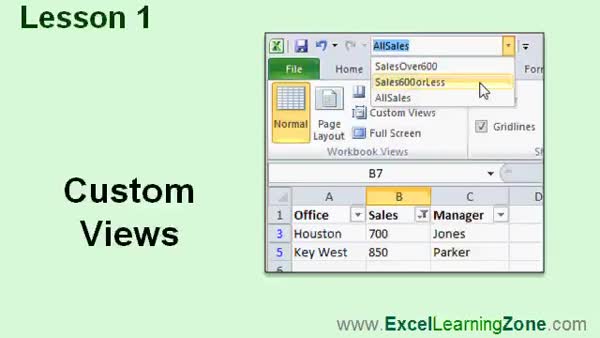
Lesson 1: Custom Views for Quick Data Filters - In Lesson 1, we will walk through how to use custom views in spreadsheets to quickly switch between different sets of filtered data. After entering sample sales figures, I will demonstrate how to apply filters to view data above or below certain amounts, and then show how to save these filters as custom views that can be easily accessed and managed. We will also discuss how to add custom views to the Quick Launch toolbar for faster access and create views for all records, making it easier to jump between multiple filtered sets throughout your workday.
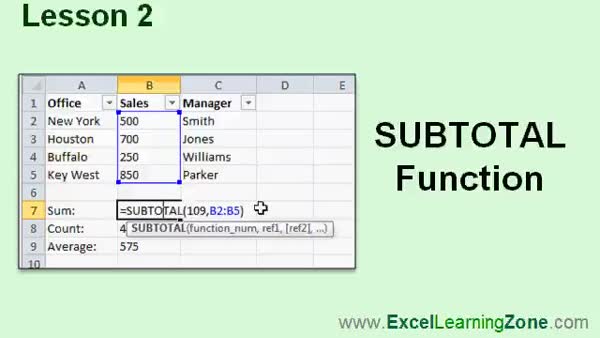
Lesson 2: SUBTOTAL with Filters & Hidden Rows - In Lesson 2, we will explore the SUBTOTAL function in Excel and learn how it enables calculations that accurately reflect filtered data. I will show you how standard functions like SUM, COUNT, and AVERAGE do not update when filters are applied, while SUBTOTAL does, and we will walk through the differences between the two sets of function numbers available in SUBTOTAL - one for filtered data and another for hidden rows. We will also discuss how SUBTOTAL only works with vertical columns, and you will see how Excel automatically substitutes SUBTOTAL when using AutoSum with filtered data for sums.
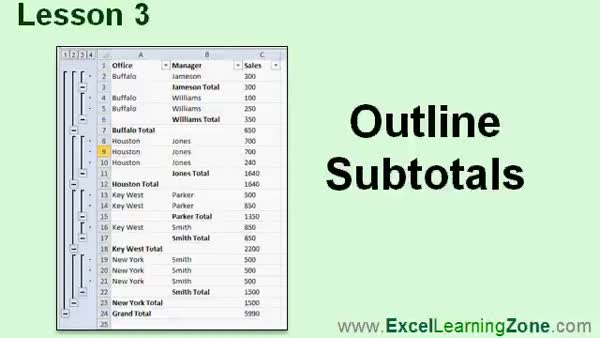
Lesson 3: Outline Subtotals & Grouping - In Lesson 3, we will walk through how to use outline subtotals in Excel to calculate totals for groups within your data, such as by office or by manager. We will sort our data, use the Subtotal command on the Data tab, and explore options like sum, count, and grouping controls. I will demonstrate how to remove existing subtotals, add multiple subtotal types, and properly sort data for more complex subtotaling situations. We will also discuss outline grouping features and briefly mention how similar results can be achieved with a pivot table.
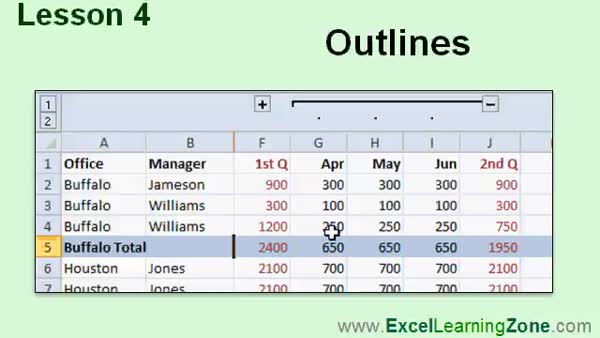
Lesson 4: Group & Ungroup Data, Subtotals - In Lesson 4, we will learn how to create manual outlines in spreadsheets by grouping and ungrouping data. I will show you how to organize your data with custom columns for months and quarterly totals and demonstrate how to use the manual group and ungroup features in Excel to collapse and expand specific sections. We will also discuss managing outline controls, maximum grouping levels, limitations of outlines per worksheet, and how to clear or auto outline your sheet. Additionally, I will mention using custom views to display different levels of your grouped data.
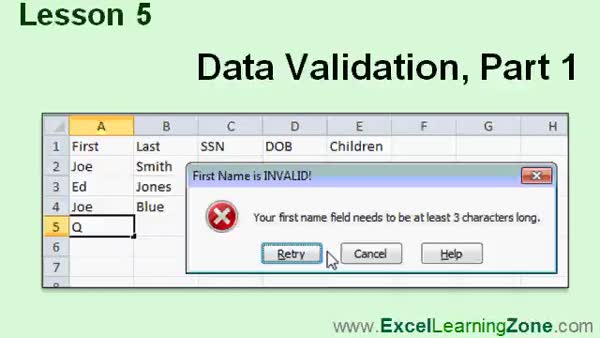
Lesson 5: Control Input, Messages & Errors - In Lesson 5, we will start exploring data validation in your spreadsheet, focusing on how to control the type and format of data users can enter. I will show you how to set up rules such as minimum text length, and demonstrate the use of input messages and error alerts to guide users and handle invalid entries. We'll also discuss options for detecting invalid data already present in your sheet, and review the different error alert styles, including stop, warning, and information. This lesson will help you ensure accurate and consistent data entry using data validation.
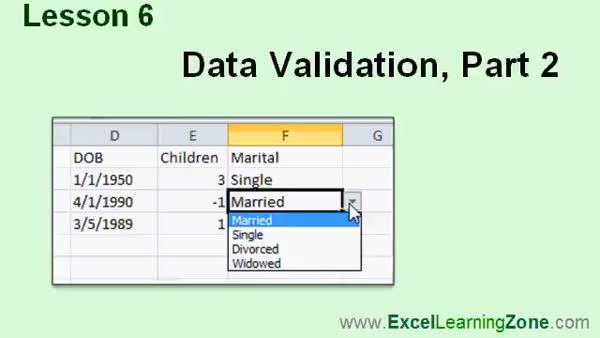
Lesson 6: Validating Dates, Times, Numbers, Lists - In Lesson 6, we continue working with data validation by exploring custom range formats, setting up date and time restrictions, and using formulas for dynamic validation rules in Excel. We will walk through how to validate dates of birth, limit appointment dates to specific ranges based on other cells, and restrict times for scheduling. I will show you how to restrict whole numbers, set up drop-down lists for fields like marital status, and briefly discuss using conditional formatting and error warnings to highlight or handle invalid data.
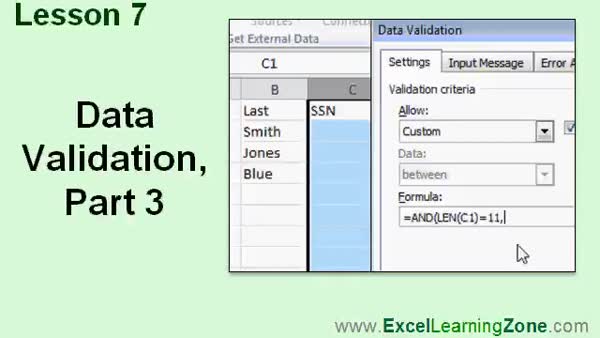
Lesson 7: Custom Data Validation Rules & SSN Format - In Lesson 7, we continue working with data validation by discussing how to use custom rules and logic functions to ensure fields contain only text values. We will walk through setting up a data validation rule for a social security number field, making sure the format is correct by checking length and dash placement. Additionally, I will show you how to apply custom validation for budget tracking, where actual spending cannot exceed the budget by a certain percentage. This lesson covers how to use custom formulas in data validation to enforce specific entry requirements.
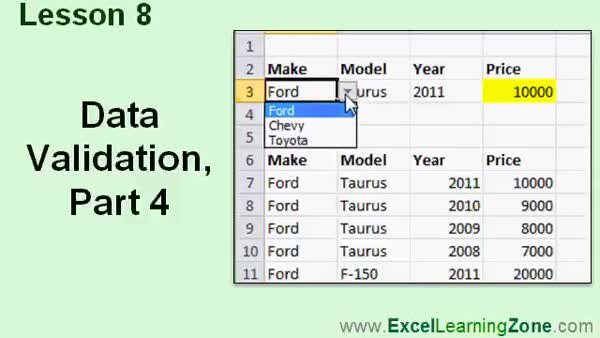
Lesson 8: Cascading Dropdowns & DGET Validation - In Lesson 8, we will finish data validation by walking through how to create cascading drop down lists in Excel, allowing users to select a car make and then only see the models for that manufacturer. I will show you how to use named ranges and the INDIRECT function to set up these dependent lists, add a year selection, and then use the DGET function to look up a car's price based on the selected make, model, and year. We will also discuss the advantages and limitations of this approach compared to database solutions.
Lesson 9: Views, Subtotals, Validation, Drop-Downs - In this course we learned how to create and switch between custom views, work with subtotals and outlines, set up manual grouping and auto outlines, and use data validation rules including specific text length, date, time, whole numbers, and drop-down lists. We also discussed creating cascading drop-down lists, using functions for custom validation, and setting up conditional formatting for invalid data. Additionally, we discussed how to use the DGET function to look up data based on multiple selections. Guidance was provided on where to get help, submit feedback, and find additional Microsoft Excel tips and resources.
NavigationKeywordscustom views, subtotal function, outlines, data validation, drop down lists, grouping data, ungrouping data, cascading drop downs, data filtering, error alerts, input messages, conditional formatting, DGET function, INDIRECT function, named ranges
More InformationTranscriptWelcome to Excel 2010 Expert Level 10, brought to you by ExcelLearningZone.com. I am your instructor, Richard Rost. Today's class is going to focus on custom views, the subtotal function, creating outlines, data validation, and drop-down lists. Today's class was designed for use with Excel 2010. Most of the material covered in today's class will work with previous versions of Excel. This is an expert level class for Excel 2010. I strongly recommend that before taking this class, you have taken all of my beginner classes 1 through 5, and the expert classes levels 1 through 9. I will be using some functions and other techniques in today's class that were covered in previous lessons, so knowing those functions will help you with today's class. My courses are broken up into four different groups: beginner, expert, advanced, and developer. The beginner courses are for novice users with little or no experience with Excel. The expert series, which is what you are watching right now, is designed for more experienced users who are already comfortable with Excel. Expert classes go into a lot more depth about each topic than the beginner classes did, and we will cover more functions, features, tips, and so on. When you've mastered the expert classes, move up to the advanced lessons. You'll learn how to build macros, build user forms, create your own templates, and many more advanced features, which not everyone will use, but they really add enhanced functionality and professionalism to your spreadsheets. Finally, my developer series is designed to teach you how to program in Visual Basic for Applications with Microsoft Excel. This will allow you to create Excel-based programs for your users, automate your spreadsheets, and integrate Excel tightly with the other Office applications. Each of my series is broken down into different levels. For example, the beginner series contained five different levels, which you should have taken previously. This is the tenth level of the expert series classes. Each level teaches you new and different topics in Microsoft Excel, building on the lessons learned in the previous levels. When you've finished all the expert classes, move up to the advanced series, and then finally, the developer series. Now let's take a more detailed look at exactly what we are going to be covering in today's class. In lesson one, we are going to learn about custom views, which allow us to quickly jump between different sets of filtered data in our spreadsheets. In lesson two, we are going to learn about the subtotal function so that our calculations work with filtered data. In lesson three, we are going to learn about another type of subtotal, called an outline subtotal. In lesson four, we will be learning how to create a manual outline, which is grouping and ungrouping data in our spreadsheets. In lesson five, we are going to begin taking a look at data validation, where we can control what the users type into the cells. In lesson six, we are continuing with data validation. We will look at some custom range formats, and we will learn how to create drop-down lists for your data. In lesson seven, we are continuing with data validation. We are going to learn more about custom rules, and I will show you how to create a data validation rule for a social security number field. In lesson eight, we are going to finish data validation. We will see how to make cascading drop-down lists, so you can pick a make of a car, and then only see a list of models for that manufacturer. Then we will see how to use the DGET function to look up the price of that car based on the selected make and model in here. If you need help with the topics covered in today's lessons, please feel free to post your questions in the Excel Interactive Student forums. If you are watching this course using my custom video player software, or online on my web theater, you should see the student forum for each lesson appear in a small window next to the class videos, if you have an active internet connection. Here, you will see all the questions that the other students have asked, as well as my responses to them, and the comments that some of the other students may have made. I encourage you to read through these questions and answers as you start each lesson. Feel free to post your own questions and comments as well. If you are not watching your lessons online, you can still visit the student forums later by visiting ExcelLearningZone.com/forums. To get the most out of this course, I recommend you sit back, relax, and watch each lesson completely through once without trying to do anything on your computer. Then, replay the lesson from the beginning, and follow along with my examples. Actually, create the same spreadsheet that I make in the video. Build the spreadsheet with me step by step. Do not try to apply what you are learning right now to other projects until you have mastered the sample spreadsheet. If you get stuck, or do not understand something, watch the video again from the beginning, or tell me what is wrong in the student forum. Most importantly, keep an open mind. Excel might seem intimidating at first, but once you get the hang of it, you will see that it is really easy to use. IntroIn lesson 10 of the Microsoft Excel Expert series, you will learn how to use custom views, the subtotal function, outline subtotals, and manual outlines for grouping and ungrouping data. We will also cover data validation techniques including creating drop-down lists, setting up custom validation rules, and making cascading drop-down menus. You'll see how to use data validation for fields like social security numbers and learn how to look up values with the DGET function. This class is designed for users already comfortable with Excel and builds upon concepts from previous expert lessons. QuizQ1. What is the primary focus of Excel 2010 Expert Level 10? A. Data visualization only B. Macros and VBA C. Custom views, subtotal function, outlines, data validation, and drop-down lists D. Charts and graphs Q2. Which function is introduced to work with filtered data calculations? A. SUMIF B. SUBTOTAL C. VLOOKUP D. COUNTIF Q3. What feature allows you to quickly switch between different sets of filtered data in a spreadsheet? A. Conditional Formatting B. AutoFilter C. Custom Views D. PivotTables Q4. What will you learn about outlines in this class? A. How to create pivot charts B. How to create and use outline subtotals and manual outlines (grouping and ungrouping) C. How to format cells with outlines D. How to remove all outlines Q5. What is data validation in Excel used for? A. Formatting cells B. Filtering data automatically C. Controlling what users can enter into cells D. Creating pivot tables Q6. Which advanced data validation feature is mentioned as being covered in this class? A. Chart validation B. Data validation for hyperlinks C. Cascading drop-down lists D. Conditional formatting with validation Q7. What is the DGET function used for in the context of this class? A. To sum values in a filtered list B. To create drop-down lists in data validation C. To look up the price of a car based on selected make and model D. To encrypt worksheet data Q8. According to the video, what is the best way to learn from each lesson? A. Read the transcript only B. Watch the lesson without doing any exercises C. Watch the lesson through once, then replay and follow along step by step D. Try to apply the lessons to unrelated projects immediately Q9. If you have questions about the lesson, what should you do? A. Ignore them and continue B. Ask a friend outside the course C. Post your questions in the Excel Interactive Student forums D. Email Microsoft Support Q10. What is recommended after mastering all of the expert classes? A. Repeat the same course again B. Start taking the advanced series lessons C. Begin learning programming languages D. Take a break from learning Excel Answers: 1-C; 2-B; 3-C; 4-B; 5-C; 6-C; 7-C; 8-C; 9-C; 10-B DISCLAIMER: Quiz questions are AI generated. If you find any that are wrong, don't make sense, or aren't related to the video topic at hand, then please post a comment and let me know. Thanks. SummaryToday's video from Excel Learning Zone focuses on a variety of advanced features in Excel 2010. I will be covering custom views, the subtotal function, creating outlines, data validation, and how to set up drop-down lists. While this class is designed for Excel 2010, many of the topics apply to earlier versions of Excel as well. This is an expert level course, so I strongly recommend that you have completed my beginner courses (levels 1 through 5) and all previous expert levels, up through level 9. I will be building on knowledge and techniques that were taught in those earlier lessons. Being familiar with those skills will help you follow along more easily with today's material. My courses are organized into four main groups: beginner, expert, advanced, and developer. The beginner series is intended for those who are new to Excel, while the expert series (which this lesson is part of) is aimed at users who are already comfortable with the basics and want to dig deeper into Excel's features. Expert courses go into much more detail on each topic and introduce additional functions, features, and tips that go beyond what was covered in the beginner lessons. Once you have finished all of the expert classes, you can progress to the advanced series. In those classes, I will show you how to create macros, build user forms, develop your own templates, and explore several other powerful features that can enhance the professional quality and functionality of your spreadsheets. Finally, the developer series focuses on programming in Visual Basic for Applications (VBA) within Excel, which enables you to create custom applications, automate tasks, and integrate Excel with other Office programs. Each group of courses is broken down into different levels. For example, the beginner series consists of five levels, and you should have completed those before moving on to this expert level course, which is level 10 in the expert series. Each level builds upon the previous ones, introducing new topics and deepening your understanding of Excel as you go. Let me give you a quick overview of what we will cover in today's lessons. In the first lesson, I will demonstrate custom views, which are a useful way to switch quickly between different filtered and formatted versions of your spreadsheets. The second lesson focuses on the subtotal function and how it enables calculations that work specifically with filtered data. Next, in the third lesson, I will explain outline subtotals, another method for summarizing data. The fourth lesson guides you through creating a manual outline, which allows you to group and ungroup rows of data for easier navigation and organization. Starting with lesson five, I introduce data validation, showing you how to manage and control what users are able to enter into specific cells. In lesson six, I continue with data validation and cover custom range formats along with the creation of data entry drop-down lists. Lesson seven explores more advanced data validation, including how to set up rules for specific types of entries. I will also show you how to create a validation rule for social security numbers. Finally, in lesson eight, we finish up the data validation section by learning how to build cascading drop-down lists. For example, you will see how to select the make of a car and have the second list show only the related models for that manufacturer. This lesson also demonstrates how to use the DGET function to retrieve the price based on the selected make and model. If you have questions about any of the topics covered, you are welcome to post them in the Excel Interactive Student forums. If you are using my custom video player software or watching online in my web theater, you should see the relevant student forum for each lesson next to the video, provided you have an internet connection. There you can browse other students' questions, see my answers, and read comments from your fellow users. I highly recommend looking through these discussions as you go through each lesson, and feel free to contribute your own questions and comments. If you are not watching these lessons online, you can always visit the student forums later by going to the forums section at ExcelLearningZone.com. To get the most out of this course, I suggest watching each lesson all the way through once without pausing to try things out yourself. After your first viewing, replay the lesson from the beginning, this time following along and creating the example spreadsheet with me, step by step. Do not try to adapt today's content directly to your own projects until you have mastered the lesson's sample files. If you run into difficulties or something is unclear, watch the lesson again or use the student forum to let me know where you are having trouble. The most important thing is to keep an open mind. Even though Excel may seem complex or intimidating at first, it becomes quite easy to use as you become more familiar with it. You can find a complete video tutorial with step-by-step instructions on everything discussed here on my website at the link below. Live long and prosper, my friends. Topic ListCustom views for filtered data Using the SUBTOTAL function with filtered data Creating outline subtotals Manual outlining with grouping and ungrouping Basic data validation to control cell input Creating drop-down lists with data validation Custom data validation rules Validating social security number input Creating cascading drop-down lists Using DGET to look up dependent data Primary Topicscustom views, subtotal function, outline subtotals, manual outlines, data validation, drop-down lists, cascading drop-downs, DGET function Secondary TopicsExcel 2010 navigation, applying previous Excel functions |
||
|
| |||
| Keywords: custom views, subtotal function, outlines, data validation, drop down lists, grouping data, ungrouping data, cascading drop downs, data filtering, error alerts, input messages, conditional formatting, DGET function, INDIRECT function, named ranges PermaLink How To Use Custom Views, Subtotal Function, Outlines, and Data Validation in Microsoft Excel 2010 |