|
|||||
Excel Expert 11Time Conversion, XLOOKUP, Combo BoxesWelcome to Excel Expert 11. In this course you will learn how to convert video time strings using Excel text functions like FIND, LEFT, and MID, use the XLOOKUP function for advanced lookups including multiple values, match modes, and wildcard searches, and see how to add combo boxes to your spreadsheets by enabling the Developer tab. We'll also discuss prerequisites and forum resources to help you get the most from these expert Excel topics. Lessons
Resources
Lesson SummaryWelcome! Video Time, XLOOKUP & Combo Box - Welcome to Microsoft Excel Expert Level 11. In this course we will cover video time conversion using text functions like FIND, LEFT, RIGHT, MID, and division to reformat time data, and we will discuss the new XLOOKUP function, including its features that replace VLOOKUP and HLOOKUP, as well as how to use XLOOKUP for multiple values, match modes, wildcard searches, and two-way lookups. We will also look at enabling the Developer tab and adding combo boxes to your spreadsheets for user selections. Prerequisites and forum resources are also discussed.
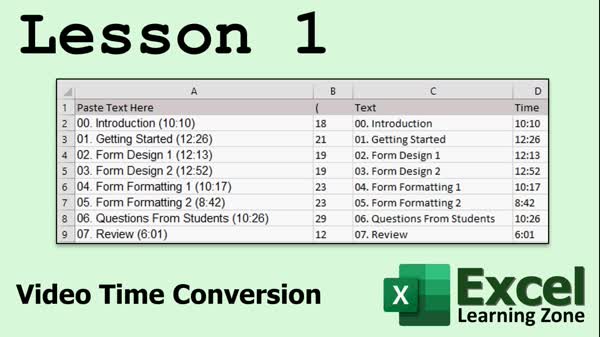
Lesson 1: Convert Video Times & Indexes - In Lesson 1, we will cover video time conversion by using Excel functions to convert text strings with time values into a format suitable for YouTube time indexes. We will walk through how to extract and manipulate parts of a lesson list, break out hours, minutes, and seconds, add time values together, and reformat them for linking to specific points in a combined video. Along the way, we will discuss using functions like FIND, MID, LEFT, RIGHT, LEN, TEXT, QUOTIENT, and MOD, and address handling special cases, such as converting time beyond 60 minutes into proper hour format.
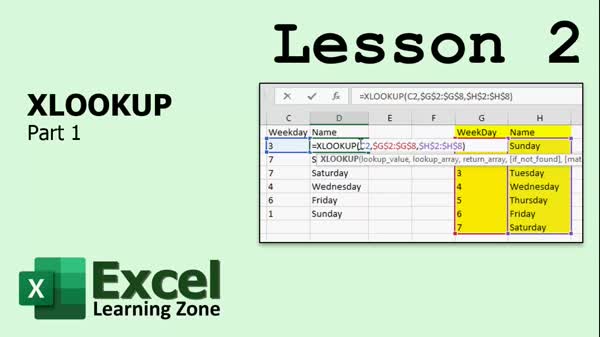
Lesson 2: XLOOKUP: Replace VLOOKUP & HLOOKUP - In Lesson 2, we begin exploring the XLOOKUP function in Excel as a replacement for VLOOKUP and HLOOKUP. We will review how VLOOKUP works and its limitations, then walk through basic examples using XLOOKUP, including looking up weekday names and assigning letter grades based on exam scores. We will also discuss how XLOOKUP improves on older functions, such as allowing searches in both directions, returning multiple results, supporting wildcards, and specifying exact or approximate matches. Along the way, I will point out important details like using absolute references when filling formulas.
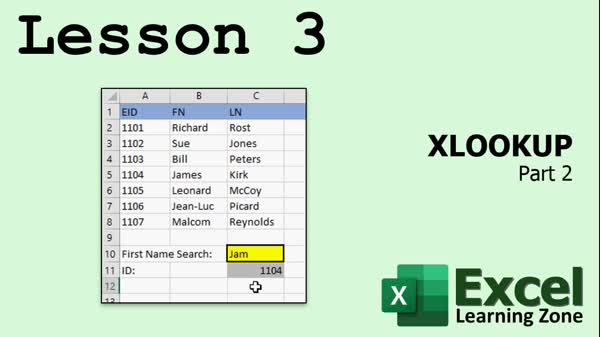
Lesson 3: XLOOKUP: Multiple & Wildcards - In Lesson 3, we are continuing with XLOOKUP and will walk through how to return multiple values using one function, set up the "if not found" option, and use absolute references properly. We will also discuss match mode, wildcard searches for flexible lookups, and the search mode to control search direction and performance. Finally, we'll talk about the XMATCH function, which can return an item's position in a list.
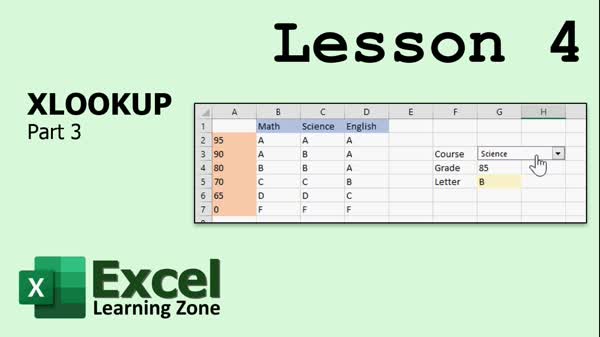
Lesson 4: Two-Way XLOOKUPs & Combo Boxes - In Lesson 4, we will finish up with XLOOKUP by exploring how to perform a two-way, or double, XLOOKUP to retrieve values from a matrix based on both row and column criteria. We will walk through examples, including looking up prices based on clothing type and size, and determining letter grades in different courses with varying standards. I will also show you how to turn on the Developer tab in Excel and create a combo box for easier data selection in your spreadsheet. These techniques demonstrate the power of XLOOKUP for complex lookups and enhance usability with form controls.
Lesson 5: Excel X Review & Next Steps - In this course we learned various topics in Excel X for 11, and I hope you found the lessons informative. We discussed key features and updates in Excel, talked about areas like charting and new interface elements, and addressed common questions. I also shared information on how to ask for more topics or help through the forums and email, and briefly mentioned plans to cover macro programming, VBA coding, and user form controls in upcoming Excel developer lessons. We wrapped up by highlighting additional resources and support available through my website and the new Learning Connection membership.
Navigation
KeywordsXLOOKUP, video time conversion, combo box, time string to YouTube index, FIND function, MID function, LEFT function, RIGHT function, TEXT function, XMATCH, two-way lookup, absolute references, wildcard search, match mode, Developer tab
More InformationTranscriptWelcome to Microsoft Excel Expert Level 11 brought to you by ExcelLearningZone.com. I am your instructor, Richard Rost, author of the Complete Idiots Guide to Excel 2010. In today's class, we are going to talk about a couple of different topics. First, we are going to go over something I call video time conversion. I have got a list of videos with times in basically a text file and I am going to teach you how to break them up and convert them into a different format. This is just a simple example that takes a lot of different things that we learned over the last bunch of classes and puts them all together. You will see what I mean when we get into that lesson. There is find, left, right, mid, division, all kinds of different functions. Then the big topic is xlookup. This was recently added to Excel 2019. It was actually added in March of 2020. If you have not updated Excel, you may or may not have this yet. It is a great function. It replaces both vlookup and hlookup and it has lots of new features. You will see what those are in just a few minutes. As a bonus feature, I am going to break open the Developer tab and I am going to teach you how to put combo boxes in your spreadsheet so your users can pick from a list of options and store the value that is selected in a cell in your spreadsheet. I normally cover that in my Developer lessons because it is a little more advanced. But I will show you today because it fits with the class. I am using Microsoft Excel 2019 and lesson one will work with pretty much any version of Excel. The xlookup stuff especially only works in 2019. I have Office 365 which is a subscription. I strongly recommend that. That way you always have the latest version of Excel automatically installed, downloaded, and set up on your computer for you. The prerequisite to this course is my Excel 2010 Expert Level 10 class. I know it says Excel 2010, but it has been a while since I have released a new Excel class. However, up until recently Excel really has not changed much. There is a lot of new stuff that has come out in 2019 including some feature changes. They did some modifications with charting and other features that I am going to go over. I am going to make a series of upgrading lessons to cover some of the differences. If you have got 2007 and later, you should be able to figure out most of the changes, with the exception of xlookup, which is new. If you have never taken any of my classes before, I have Excel beginner, expert, and developer lessons. Beginner, I believe there were five levels, expert, there are now eleven, and pretty soon I am going to be starting the Developer series. Developer focuses on macros and VBA programming. I strongly recommend you check the Excel forums. Depending on where you are watching this video, you may see the forum for this class appear below the video. If not, go to my website, find nincd.com/forums and you will find the Microsoft Excel forum there. Check the forum for this class specifically because there may be updates or notifications or other things, and you can post any questions that you have there. Either myself, one of the forum admins, or even some of the other students might answer your questions for you. Let's get started and talk about what is covered in today's class. Lesson 1 is going to talk about video time conversion. I have got a list of videos, basically files that have a time index next to them, for example, 12 minutes, 13 seconds, and I am going to flip them over to a different format. I have to dissect that string, pull the time portion out, and do some math and other steps with it. The intro to Lesson 1 will explain in a lot more detail what this covers. Lesson 2 is going to begin looking at xlookup, the new function in Excel 2019. xlookup has gotten rid of a lot of the limitations of vlookup and we will talk about what those are. We will do some simple x lookups. In Lesson 3, we are continuing with xlookup. We are going to learn about returning multiple values, match mode, wildcard searches, and more. Lesson 4 concludes our look at xlookup with a look at two-way lookups, also called double lookups because it is an xlookup inside of another xlookup. I am also going to break open the Developer tab which is in Excel but is hidden. We will turn that on and I will show you how to use a combo box, which you can see right there on the screen, where the user can pick from a drop-down list and that value is saved in a cell which you can then use for your calculations. IntroIn lesson 11 of the Microsoft Excel Expert series, you will learn how to convert video time data from text to a usable format, using string and math functions like find, left, right, and mid. We will also cover the new xlookup function introduced in Excel 2019, showing how it improves on vlookup and hlookup, with examples of simple lookups, returning multiple values, match modes, and wildcard searches. The lesson wraps up with a look at two-way (nested) xlookups and an introduction to using combo boxes from the Developer tab to create interactive drop-down lists in your spreadsheets. QuizQ1. What is the first topic covered in this class? A. Advanced charting features B. Video time conversion C. Pivot tables D. Macro recording Q2. Which Excel functions are mentioned as part of the video time conversion example? A. Sum, Count, Average B. Find, Left, Right, Mid, Division C. Match, Index, Concatenate D. Sumif, Vlookup, Offset Q3. What new function, introduced in Excel 2019, is highlighted in this class? A. Hlookup B. Vlookup C. Xlookup D. Sumproduct Q4. What does the xlookup function replace? A. Only vlookup B. Only hlookup C. Both vlookup and hlookup D. Sumif and Countif Q5. What is a requirement for using the xlookup function? A. Excel 2013 or later B. Only available in Excel 2010 C. Excel 2019 or newer/Office 365 D. Any version of Excel Q6. What advanced tool from the Developer tab is demonstrated in this class? A. Pivot Table Wizard B. Data Validation C. Combo Box D. Goal Seek Q7. Which of the following is NOT a topic included in this particular class? A. Returning multiple values with xlookup B. Wildcard searches with xlookup C. Creating macros with VBA D. Two-way lookups with xlookup Q8. What is recommended to automatically stay up to date with the latest Excel features? A. Buying Excel 2010 CD B. Using Office 365 subscription C. Downloading updates annually D. Avoiding updates Q9. If students have questions or want to see updates, where should they look? A. Excel's built-in Help B. The forum for this class C. The Microsoft Store D. Their email only Q10. In which lesson is the combo box covered? A. Lesson 1 B. Lesson 2 C. Lesson 3 D. Lesson 4 Q11. Which area of Excel education does the Developer series focus on? A. Data entry B. Macros and VBA programming C. Printing spreadsheets D. Formatting cells Q12. What is a prerequisite for this course? A. Excel Beginner Level 1 B. Excel 2010 Expert Level 10 C. No previous Excel knowledge D. VBA programming course Answers: 1-B; 2-B; 3-C; 4-C; 5-C; 6-C; 7-C; 8-B; 9-B; 10-D; 11-B; 12-B DISCLAIMER: Quiz questions are AI generated. If you find any that are wrong, don't make sense, or aren't related to the video topic at hand, then please post a comment and let me know. Thanks. SummaryToday's video from the Excel Learning Zone covers several advanced topics in Microsoft Excel, and I am excited to share them with you. My name is Richard Rost, and I'm the author of the Complete Idiots Guide to Excel 2010. In this lesson, you'll learn a couple of new skills. First up is something I call video time conversion. I have a list where each video is matched with a time entry, but the times are in plain text and not in a user-friendly format. I will show you how to extract the relevant information and convert these time entries into a format that is easier to work with. This example brings together several concepts we've discussed in previous classes, including functions and text manipulation, so you will get to see ideas like FIND, LEFT, RIGHT, MID, and division all being used together in a practical way. The main feature of this lesson is Excel's new xlookup function. Introduced in March 2020 as part of Excel 2019, xlookup serves as a replacement for both vlookup and hlookup. It comes with improved capabilities and some really helpful new features, which I'll demonstrate for you. If you do not have a recent version of Excel, you may not have access to xlookup yet, but it is included with Office 365, which I highly recommend since it ensures your Excel is always up to date. As an additional bonus, I'm going to walk you through enabling the Developer tab in Excel. With this feature, I'll demonstrate how you can insert combo boxes into your spreadsheet, making it possible for users to select from a drop-down menu and have their choice recorded in a cell. Usually, topics like this are found in my more advanced Developer lessons, but I'm including it here because it fits well with today's discussion. To get the most out of this course, you should have already completed my Excel Expert Level 10 class. Even though that course is based on Excel 2010, most of the material is still very relevant, since Excel did not change much until some of the new features were added in 2019. I will soon be releasing a set of lessons about how to upgrade and adjust to these newer changes, such as some charting updates and of course xlookup. If you're new to my courses, I offer beginner, expert, and soon a developer series of Excel tutorials. There are five levels in the beginner series and eleven in expert, with more Developer courses coming that will be focused on macros and VBA. I highly encourage you to participate in the Excel forums. Depending on where you are viewing this lesson, the forum for this class may be directly below the video. If not, you can reach the Microsoft Excel forum on my website. The forum is a great place to check for updates or ask questions, and you may get answers from myself, forum administrators, or other students. Here's a breakdown of what we will cover today: In Lesson 1, we will focus on video time conversion. You will see how to work with a list containing file names and time data, such as "12 minutes, 13 seconds," and convert those plain text entries into a more useful time format. I'll show you how to pull out the necessary information, perform the required calculations, and apply the techniques we've been building on. Lesson 2 introduces the xlookup function in Excel 2019. We'll look at how this function has removed many of the old limitations that made vlookup and hlookup more challenging to use and start with some straightforward examples. Lesson 3 builds on that foundation, exploring additional features of xlookup like returning multiple values, using match mode, working with wildcard searches, and more. In Lesson 4, we'll wrap up our look at xlookup by exploring two-way lookups, also known as double lookups, which involve nesting one xlookup inside another. In this lesson, I'll also reveal how to turn on Excel's Developer tab and demonstrate how to add a combo box to your sheet so users can select from a drop-down and the result is saved into a cell for further use in your calculations. If you want to see a detailed, step-by-step demonstration of everything I covered here, you can find the complete video tutorial on my website at the link below. Live long and prosper, my friends. Topic ListVideo time conversion from text strings Extracting minutes and seconds from a string Converting extracted time into different formats Using string functions: LEFT, RIGHT, MID, FIND Performing math calculations with time values Introduction to xlookup function Replacing vlookup and hlookup with xlookup Performing simple xlookup searches Using xlookup to return multiple values Setting match mode in xlookup Wildcards in xlookup Two-way (double) lookups with nested xlookup Enabling the Developer tab in Excel Adding a combo box to a worksheet Configuring combo box drop-down options Linking combo box selection to a cell Primary Topicsstring parsing, time data conversion, Excel formulas, XLOOKUP, two-way lookups, Developer tab, combo box controls Secondary Topicscharting updates, feature changes in Excel 2019, version compatibility |
||||||||||||||||||||||||||||||
|
| |||
| Keywords: XLOOKUP, video time conversion, combo box, time string to YouTube index, FIND function, MID function, LEFT function, RIGHT function, TEXT function, XMATCH, two-way lookup, absolute references, wildcard search, match mode, Developer tab PermaLink How To Convert Video Times, Use XLOOKUP, and Create Combo Boxes in Microsoft Excel 2019 |