Very Hidden
By Richard Rost

 4 years ago
How to Make a Sheet Tab Very Hidden in Excel
In this Microsoft Excel tutorial, I'll show you how to make your worksheets "very" hidden so that people can't view them. This is one step above just plain hidden, and you have to know how to use the VBA editor to unhide them.
Recommended Course
Links
 Keywords Keywords
excel 2021, excel 2016, excel 2019, excel 365, microsoft excel, ms excel, ms excel tutorial, #msexcel, #microsoftexcel, #help, #howto, #tutorial, #learn, #lesson, #training, #database, #fasttips, hide, unhide, very hidden, hide tabs, hide worksheet, xlVeryHidden, unviewable, visible property
 Subscribe to Very Hidden
Get notifications when this page is updated
More InformationTranscript Welcome to another Fast Tips video brought to you by ExcelLearningZone.com. I am your instructor Richard Rost.
In today's video, I am going to show you how to make a sheet tab very hidden in Microsoft Excel.
Here is a trick to keep people from poking around in places that you do not want them poking around in your Excel sheets.
We have all got that shared Excel sheet on the network that everybody can play with. You have stuff the user can see and play with, and you have another sheet that you do not want anybody messing with. You can go through and protect it with a password and put protection on the cells, and so on. But there is a really quick way that you can just hide it so that people cannot find it.
The regular way to hide it is to simply right-click and go to Hide. That sheet tab is hidden. But anybody who has taken even my beginner classes knows all you have to do is right-click and go to Unhide and then it is right back again.
What a lot of people do not know is that there is a way you can make a sheet tab very hidden. That involves a little more work. First, you have to make sure you have your Developer tab on. If not, turn it on. How do you turn it on? You right-click, customize the ribbon, and make sure you turn on the Developer tab.
On the Developer tab, click on Visual Basic. That will bring up your Visual Basic Editor. If you do not see these two things over here, you have your VBA Project Explorer and your Property sheet. Go up here and turn them on: Project Explorer and Properties window.
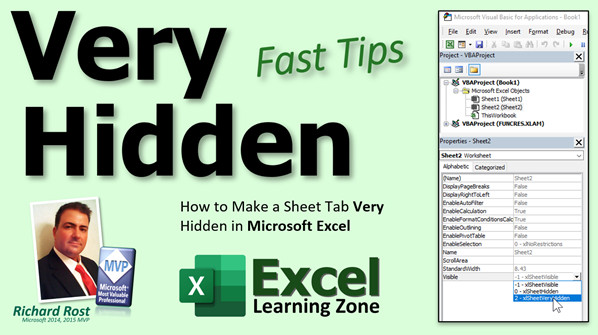
Click on the sheet that you want to make hidden. Come down to where it says Visible. There are three properties. There is Visible, there is Hidden, and there is Very Hidden. Click on that and go to Very Hidden.
What that does is it hides it. The only way to get it back is if you know how to get in here. If you have just your average Excel users and they do not even know where the Developer tab is, they will never find this. It is just one more level of things you can do to keep your users from poking around where you do not want them to be.
There you go, that is it.
If you want to learn more Excel, be sure to like this video and subscribe to my channel. Stop by my website to watch my free Excel Level 1 course. It is over 90 minutes long and covers all the basics.
If you want me to post more Excel videos, I need to hear from you. About 90 percent of what I do is Microsoft Access, but I am also a published Excel author and I love Excel. If you want to see me post more free Excel videos, post a comment below and let me know. Say, "Hey, I want more Excel.\ Intro In this video, I will show you how to make a worksheet "very hidden" in Microsoft Excel so users cannot easily access or unhide it. You will learn the differences between hiding and very hiding a sheet, how to enable the Developer tab, open the Visual Basic Editor, and set a sheet's Visible property to Very Hidden. This is a simple trick to protect sensitive sheets from casual users in shared Excel workbooks. Quiz Q1. What is the main purpose of making a sheet tab "very hidden" in Excel?
A. To prevent users from easily finding or accessing certain sheets
B. To delete the sheet permanently from the workbook
C. To make the sheet visible only when printing
D. To change the color of the sheet tab
Q2. What is the usual method for hiding a sheet tab in Excel?
A. Double-click the sheet tab to hide it
B. Use the Hide option by right-clicking the sheet tab
C. Drag the tab off the screen
D. Rename the sheet with a period
Q3. Why is the standard "Hide" feature not very secure?
A. Hidden sheets can still be seen in the task manager
B. Unhiding sheets requires a password
C. Any user can right-click and select Unhide easily
D. The hidden sheet cannot be worked with in formulas
Q4. Which tab must be enabled to access the Visual Basic Editor in Excel?
A. Data
B. Review
C. Developer
D. Insert
Q5. How do you turn on the Developer tab in Excel?
A. Go to File, select Options, and turn on the Developer tab
B. Right-click the ribbon, choose Customize the Ribbon, and enable Developer
C. It is turned on by default in every Excel installation
D. Double-click the Home tab
Q6. Where do you change the visibility property of a worksheet to "Very Hidden"?
A. In the Home tab under Format
B. In Page Layout settings
C. In the VBA Project Explorer via the Properties window
D. By right-clicking the worksheet tab and selecting Advanced Hide
Q7. What are the three visibility options available for an Excel worksheet in the Properties window?
A. Shown, Hidden, Ultra Hidden
B. Visible, Hidden, Very Hidden
C. Open, Closed, Restricted
D. Displayed, Non-displayed, Invisible
Q8. Who is unlikely to discover or unhide a "very hidden" sheet?
A. Average Excel users unfamiliar with the Developer tab
B. Anyone using Excel with administrator rights
C. Users with password access only
D. Microsoft Excel power users
Q9. What is required to undo the "Very Hidden" property set in the Visual Basic Editor?
A. Right-click and select Unhide from any sheet tab
B. Use a third-party utility
C. Go back to the Visual Basic Editor and change the property to Visible
D. Save and reopen the workbook
Answers: 1-A; 2-B; 3-C; 4-C; 5-B; 6-C; 7-B; 8-A; 9-C
DISCLAIMER: Quiz questions are AI generated. If you find any that are wrong, don't make sense, or aren't related to the video topic at hand, then please post a comment and let me know. Thanks. Summary Today's video from Excel Learning Zone is focused on teaching you how to make an Excel worksheet tab very hidden, a useful technique to keep certain sheets in your workbook out of reach from users who should not see or modify them.
If you are working with a shared Excel file, especially one saved on a network, you might have noticed there are often some worksheets that should remain private or untouched by other users. While it is common to use passwords and cell protection for security, there is also a straightforward method you can use to make a sheet much less accessible: make it very hidden.
Normally, you can right-click on a tab and choose Hide, which removes it from the tab bar. However, anyone with basic Excel knowledge can just unhide it by right-clicking and selecting Unhide. That means the sheet is not really secure from curious users.
To make a sheet much harder to access, you need to use the 'Very Hidden' property. This requires a couple of extra steps. Begin by making sure the Developer tab is enabled in your ribbon. If you do not see it, right-click on the ribbon, choose to customize it, and enable the Developer tab.
Once the Developer tab is available, open the Visual Basic Editor from it. Inside the editor, make sure you can view both the Project Explorer and the Properties window. If they are not visible, use the View menu to turn them on.
Now, click on the worksheet you want to hide in the Project Explorer. In the Properties window, look for the Visible property. There are three options here: Visible, Hidden, and Very Hidden. Change the setting to Very Hidden. This makes the sheet disappear, and it will not show up on the list of sheets to unhide using normal Excel commands. Only someone who knows how to access the Visual Basic Editor and adjust this property will be able to find or restore the sheet, making it effectively invisible for most regular users.
That is the quick and easy way to improve the privacy of certain worksheets in your Excel files.
If you want to further your Excel skills, visit my website and check out my free Excel Level 1 course, which runs for over an hour and a half and walks you through the essentials.
I primarily work with Microsoft Access, but I am also an experienced Excel instructor and enjoy teaching it. If you would like to see more Excel tutorials from me, leave a comment letting me know.
You can find a complete video tutorial with step-by-step instructions on everything discussed here on my website at the link below. Live long and prosper, my friends. Topic List Hiding sheet tabs the regular way in Excel
Limitations of standard hidden sheets
Enabling the Developer tab in Excel
Accessing the Visual Basic Editor
Opening Project Explorer and Properties window
Setting a sheet to Very Hidden using VBA properties
Understanding the differences between Visible, Hidden, and Very Hidden
Restoring a Very Hidden sheet Primary Topics Excel sheet security, hiding sheets, Developer tab, Visual Basic Editor, worksheet properties, very hidden property
Secondary Topics customizing Excel ribbon, user access control, sheet protection alternatives
|




