TextSplit
By Richard Rost

 3 years ago
Using the Excel TextSplit Function to Separate Data
In this Microsoft Excel tutorial, I will teach you how to use the TextSplit function to separate data into multiple cells. Been around for almost a year now, but only for Office Insiders. It's now generally available for everyone with a Microsoft 365 subscription.
Pre-Requisite
Recommended Courses
Learn More Excel
- There's a lot more you can do with TextSplit. If you want to see me cover more options with TextSplit, or you want to see more Excel training in general, make sure you post a comment down below.
Access Users
- I know a lot of you are Microsoft Access users, so in the next video, I'm going to show you how to use the Split function in Access VBA and, for the members, how to create a function to use Split in queries as well. Coming Soon!
Keywords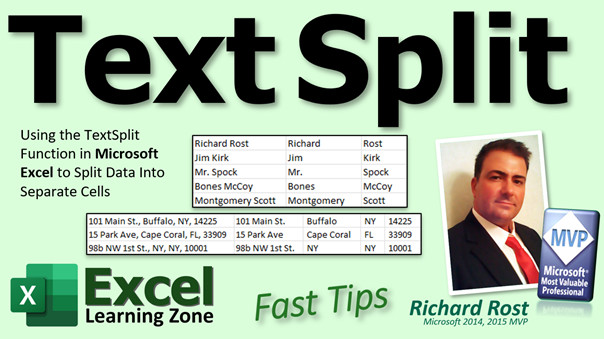
excel 2021, excel 2016, excel 2019, excel 365, microsoft excel, ms excel, ms excel tutorial, #msexcel, #microsoftexcel, #help, #howto, #tutorial, #learn, #lesson, #training, #database, #fasttips, Excel TEXTSPLIT function, split cells, split text strings by delimiter, Best Way to Split Text in Excel
 Subscribe to TextSplit
Get notifications when this page is updated
More InformationTranscript Welcome to another Fast Tips video brought to you by ExcelLearningZone.com. I am your instructor Richard Rost. In today's video, we are going to talk about one of the newer functions added to Excel recently called Text Split. You can use it to split the data in a cell up into multiple cells to get the component parts.
Text Split has been around for about a year now, but it has only been available to people in the Office Insider program. It is now generally available for anyone with a Microsoft 365 subscription. If you have an older version of Excel, like Excel 2013 or 2016, sorry, but you will not be able to use this. You will have to get yourself a subscription, which I strongly recommend.
Alright, so here I am in Excel. I have a list of names here. First name, last name. I want to split those so that first name goes in column B and last name goes in column C.
Now yes, under Data, there is the Text to Column feature and I do have separate videos available on that, but Text Split is basically that in function format. So we are going to say equals text split and then open parentheses. Where is your text? Right there: A1, comma, and what is your delimiter? What are you using to break up that cell data into multiple bits? Well, in this case, it is just a space character. So I am going to put that inside double quotes: double quote, space, double quote, close parentheses, and press Enter. And look at that. It created an array, basically, to put the first name here in B1 and the last name in C1.
Now if I autofill that down, click on B1. That is where your actual function is. Click there, drag that down, and you can see there you go.
The only problem with this is if you get another person like Jean-Luc Picard, who actually has three separate names there, if you click and drag it down now, you are going to get your array spilling over into three different columns there. So just keep that in mind.
Let us take a look at another example. I have some addresses here. I have the address, city, state, and zip code. And they are separated by commas.
So once again, equals text. Now you can just type in text s. And then once you get the text split in there, tab. Your text is right there, comma. Now this time our delimiter is a comma. So inside quotes, put a comma like that, close your parentheses, press Enter, and there you go. Over here, drag this down, and now it is nicely separated out into all four columns there.
Now if you look closely, right in front of Buffalo and in front of New York and in front of that zip code there, you will see there are actually some spaces in there. So you could, if you want, change the delimiter to comma space and then press Enter, and that will get rid of it. See? Or you could wrap this whole thing inside the trim function if you want to, whichever works better for you. It does not matter.
And there we go.
Now, there are a lot more options and things you can do with Text Split. I am just scratching the surface right here. You can break data between rows and columns. You can specify multiple delimiters, like if you have commas and periods, for example. All kinds of stuff you can do with it.
So if you would like to see me cover the Text Split function in more detail, post a comment down below. And if you would like to see more Excel videos in general, let me know.
Now, I know a lot of my subscribers are Microsoft Access users, as you should be. So in the next video, I am going to show you how to use the Split function in Access VBA. And for the members, we will create a function to use Split in queries as well. So that is coming up soon.
But that was your fast tip for today. I hope you learned something and I will see you next time.
So that is it. Want to learn more Excel? Be sure to like this video and subscribe to my channel. Stop by my website to watch my free Excel Level 1 course. It is over 90 minutes long and covers all the basics.
And if you want me to post more Excel videos, I need to hear from you. About 90 percent of what I do is Microsoft Access, but I am also a published Excel author and I love Excel. So if you want to see me post more free Excel videos, post a comment below and let me know. Say, hey, I want more Excel. Intro In this video, we will talk about the new Text Split function in Microsoft Excel, which lets you easily break apart cell contents into multiple columns using a delimiter like a space or comma. I will show examples of how to use the function to separate names and addresses, explain how array results spill into columns, and discuss tips like using TRIM to clean up extra spaces. This video focuses on what you can do with Text Split in Microsoft Excel if you have a current Microsoft 365 subscription. Quiz Q1. What is the main purpose of the Text Split function in Excel?
A. To split data within a cell into multiple cells based on a specified delimiter
B. To combine the data from multiple columns into a single cell
C. To automatically format text as numbers
D. To find and replace text within a cell
Q2. Who can use the Text Split function in Excel?
A. Only users with an older version of Excel, like 2013 or 2016
B. Anyone using Microsoft 365 with the latest update
C. Only users in the Office Insider program as of now
D. Anyone with any version of Excel
Q3. When using the Text Split function, what does the delimiter do?
A. It combines data from different cells
B. It breaks up the data in a cell wherever the delimiter occurs
C. It sorts the data alphabetically
D. It summarizes the data into one value
Q4. If you use the formula =TEXTSPLIT(A1," ") on a cell with "Jean-Luc Picard", what will happen?
A. It will return an error
B. It will keep the cell unchanged
C. It will split the data into two columns only
D. It will spill "Jean-Luc" into one cell, "Luc" into the next, and "Picard" into the following cell
Q5. How can you remove leading spaces that appear after splitting text by a comma using Text Split?
A. Change the delimiter to just a comma
B. Ignore the spaces, as they cannot be removed
C. Use a delimiter of comma and space, or wrap the function inside a TRIM function
D. Only use the Text to Columns feature under the Data tab
Q6. What alternative function or feature was mentioned for splitting text in older versions of Excel?
A. CONCAT function
B. FILTER function
C. Text to Columns feature
D. Sort feature
Q7. Which of the following is NOT an option mentioned for customizing how Text Split works?
A. Specifying multiple delimiters
B. Breaking data between rows and columns
C. Setting a formula password
D. Wrapping with TRIM to remove whitespace
Q8. If you autofill the Text Split formula down a column and a cell contains more than two pieces split by the delimiter, what will happen?
A. An error message will display
B. The data will stay in one column
C. The array will "spill" into as many columns as needed
D. Excel will ignore the extra values
Q9. What function was suggested to nest around Text Split to remove unwanted spaces?
A. ROUND
B. LEFT
C. TRIM
D. SUM
Q10. According to the video, which users are most likely to have access to Text Split right now?
A. Microsoft 365 subscribers
B. Microsoft Access users
C. Users with Excel 2010
D. Users with no Microsoft subscription
Answers: 1-A; 2-B; 3-B; 4-D; 5-C; 6-C; 7-C; 8-C; 9-C; 10-A
DISCLAIMER: Quiz questions are AI generated. If you find any that are wrong, don't make sense, or aren't related to the video topic at hand, then please post a comment and let me know. Thanks. Summary Today's video from Excel Learning Zone focuses on a relatively new Excel function called Text Split. I am Richard Rost, your instructor, and I'll guide you through how Text Split can be used to break apart the contents of a single cell into separate cells, which is handy for organizing data.
Text Split has been part of Excel for roughly a year, but it was previously only accessible to users enrolled in the Office Insider program. Now, it is generally available to anyone with a Microsoft 365 subscription. If you're still using older versions of Excel, like 2013 or 2016, you unfortunately will not have access to this function. For those on the fence, I recommend upgrading to Microsoft 365 to take advantage of the latest features.
Imagine you have a list of names all together in one column, such as both first and last names in a single cell. What if you want to separate them into two different columns, placing the first name in one and the last name in another? While there is a built-in Text to Columns feature under the Data tab, which I have covered in separate lessons, the Text Split function provides a much more streamlined way to accomplish the same thing directly in your worksheet formulas.
To use Text Split, you tell Excel which cell contains the text you want to separate and specify the delimiter, or dividing character, to split the text. For names separated by a space, you indicate the space as your delimiter. When you enter the function, Excel automatically splits the first name into one column and the last name into the next. If you copy the formula down, each name follows this pattern.
One thing to keep in mind is that this function creates an array, so if you run across a case where someone has three names, for instance, it will fill three columns instead of just two. Make sure your worksheet layout can accommodate these variations.
Text Split also comes in handy for addresses or any list where data is divided by something like a comma. For example, if you have an address, city, state, and zip code all in one cell and separated by commas, you can use Text Split with a comma as the delimiter. The formula then separates each component into its respective column. If you notice unwanted spaces before certain values, you can refine your delimiter to include both a comma and space, or use the Trim function to clean them up.
These are just introductory examples. Text Split has many features that allow for more complex splitting, such as dividing data into both rows and columns and using multiple delimiters. There is much more that can be done with this function.
If you are interested in a more in-depth lesson on Text Split, let me know by posting a comment. I am happy to make more detailed videos on Excel topics if there is interest. Let me know your suggestions and requests.
I am aware that many of you prefer Microsoft Access, and that is what I mainly cover. My next video will demonstrate how to use the Split function in Access VBA, and for the members, I will show you how to use Split in queries as well, so stay tuned for that.
That covers today's fast tip. If you want to learn more about Excel, visit my website where you will find my free Excel Level 1 course, which runs over 90 minutes and covers all of the basics. If you would like to see more Excel videos, please leave a comment and let me know. Most of my content focuses on Microsoft Access, but I also enjoy teaching Excel, and your feedback will help decide what topics I cover next.
You can find a complete video tutorial with step-by-step instructions on everything discussed here on my website at the link below. Live long and prosper, my friends. Topic List Using the TEXTSPLIT function to separate first and last names
Splitting cell data into multiple columns by delimiter
Autofilling TEXTSPLIT results down a column
Handling multi-part names with TEXTSPLIT
Using TEXTSPLIT to separate address data by commas
Choosing the correct delimiter for TEXTSPLIT
Removing extra spaces after splitting with TEXTSPLIT
Combining TEXTSPLIT with TRIM for cleaner output Primary Topics Excel TEXTSPLIT function, splitting cell data, delimiters, array formulas, autofill
Secondary Topics handling extra spaces, TRIM function, Office versions compatibility, Text to Columns feature
|




