Select Objects
By Richard Rost

 12 months ago
Select and Move Multiple Shapes and Objects Together In this Microsoft Excel tutorial I will show you how to quickly select and move multiple shapes or objects at the same time, including using the Select Objects tool, keyboard shortcuts to select all objects, moving and resizing objects with the keyboard, and grouping and ungrouping shapes for easier editing. Miriam from Bakersfield, California (a Platinum Member) asks: I use Excel to make diagrams, flowcharts, and even org charts. I know there are better tools out there for this kind of thing, but I like sticking with Excel because it's simple and familiar. The only problem is that when I need to move several shapes or objects around at once, it's a real pain to click on each one individually. Is there a way to select a bunch of them at the same time so I can move or resize them together? PrerequisitesRecommended CoursesLearn More!
Questions?
Please feel free to post your questions or comments below. Thanks.
Keywords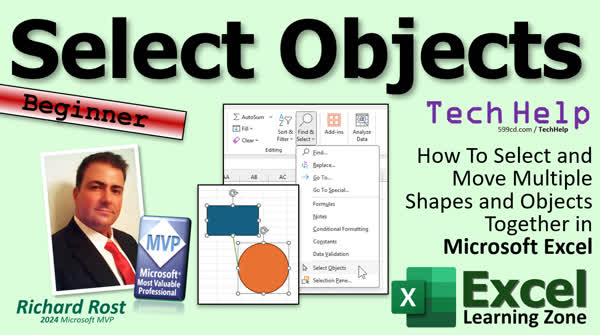 TechHelp Excel, select and move multiple shapes Excel, select multiple objects Excel, move shapes together Excel, Select Objects tool Excel, Find and Select Excel, select all shapes Control A, group objects Excel, ungroup shapes Excel, move objects with arrow keys, resize shapes with Shift key, rotate shapes with Alt key, Excel flowcharts, Excel diagrams
 Subscribe to Select Objects
Get notifications when this page is updated
More InformationTranscript In today's video, I'm going to show you how to select and move multiple shapes and objects together at the same time in Microsoft Excel.
Today's question comes from Miriam in Bakersfield, California, one of my platinum members. She says, I use Excel to make diagrams, flow charts, and even org charts. I know there are better tools out there for this kind of thing, but I like sticking with Excel because it's simple and familiar. Me too.
The only problem is that when I need to move several shapes or objects around at once, it's a real pain to click on each one individually. Is there a way to select a bunch of them at the same time so I can move or resize them together?
Yes, of course there is. You just have to know the trick and I'm going to show you the trick.
But first, if you want to learn how to create objects and make things like flow charts and stuff like that in Excel, go watch this video. I'll put a link to it down below. It's free. It's on my website. It's on my YouTube channel and it'll get you started.
All right. So here I am in Excel. I'm in a brand new sheet. If I insert some objects, let's insert some basic shapes in here. Like put a square and let's do a circle over here. Maybe a line to join them together. Shapes, we'll do a line. We'll draw from maybe this one to that one, and then one more thing out of inserts. Let's do, where is he? Let's do a smiley. All right, over here.
We got a bunch of objects. Now, this is nothing with just - what do we got - four objects here? Normally, to select multiple objects, you just hold down the Shift key or the Control key and you can click on multiple objects like that. And then you can move them. You can resize them. You can do all kinds of stuff.
But let's say you got 50 objects. And yes, I've made some pretty complicated sheets myself with really big diagrams. I did a whole floor plan for my house before I moved in, like where everything is going to go, where the stuff in the yard is going to be, and there are probably a couple hundred objects on that sheet. So how do you select a bunch of stuff at once?
Well, it's really easy. On the Home tab, you're going to go over to the Editing group. You're going to go Find and Select and you're going to pick Select Objects. Now, what this does is it makes it so that you can now click on individual objects, or you can draw a box around multiple objects like that. Now I've got them all selected. I can move them all at once.
Or if you want to, you can just click on one - this is what I do - and then you hit Control+A and that selects all of your objects, you see. Then you can click off of it. When you're done, just hit Escape and it puts you back in normal editing mode. That's pretty straightforward. Find and Select. Select Objects. Select your stuff.
It will not select the stuff in the background, by the way. The stuff that is actually in regular cells. While you've got these guys selected, you can also move them with the arrow keys. See, I'm holding down the arrow keys. Move them to the left, or to the right there, see, down. You can move them just a little bit.
That's handy when you want to drag on your map. You want to drag a little door icon or a little fire hydrant or something, whatever you've got on your little map there. You just want to move it a little bit. And you can do things like resize them with the Shift key. Hold down Shift and go to the right arrow. It will make them wider that way. Up arrow will make them taller, like that. You can use the Alt key the same way to rotate them.
There are all kinds of things you can do. Notice also sometimes that will break your connections that you might have in here. You're going to click and drag this guy and drop it back into connections.
Also, you can select multiple objects and group them together. For example, click on this guy, click on this guy, right-click, and there's a Group option right here. You can group them together. So now those will be treated as one group in the future. So if you click off of it, even if you go back to regular editing mode - I'm back in regular spreadsheet mode now - I'll hit Escape. If I click on this guy and then drag it, see, these are grouped. And yes, that line stays connected. If you want to ungroup them, just right-click, Group, and then Ungroup.
If you like learning about stuff like this, check out my Excel course on my website. You'll find it right there. I'll put a link down below.
I hope that answers your question and I hope you guys learned something. That is going to be your TechHelp video for today. Live long and prosper, my friends. I'll see you next time.
I'm excited to announce that I'm creating a brand new series of lessons focused on programming in Microsoft Excel VBA. If you've been looking to take your Excel skills to the next level and learn how to automate tasks, write custom macros, and unleash the full power of Excel VBA, these lessons are for you. Sign up now on my website at the link shown. You'll find a copy in the description down below the video window. I'll send you more information on this exciting new series.
If you'd like to see me make more Excel TechHelp videos, post a comment down below and say, I want more Excel. The vast majority of my videos are for Microsoft Access, the database program, because that's been my forte for the past three decades or so. However, I love Excel and I'm more than happy to make more videos for Excel and Word and PowerPoint and all the other topics that I teach. As you know, the squeaky wheel gets the grease, so make your voice heard and let me know you want more Excel videos.
TOPICS:
Inserting multiple shapes and objects in Excel
Selecting multiple objects with Shift or Control
Using Select Objects from the Find and Select menu
Drawing a selection box to select multiple objects
Selecting all objects with Control A in Select Objects mode
Moving selected objects using the mouse
Moving selected objects using the arrow keys
Resizing multiple objects with Shift and arrow keys
Rotating objects using the Alt key
Grouping selected objects together
Ungrouping grouped objects
Maintaining connections between shapes when moving or grouping
COMMERCIAL:
In today's video, we're learning how to select and move multiple shapes and objects together at the same time in Microsoft Excel. I'll show you easy ways to pick several shapes, lines, or icons without having to click each one individually. You'll see how to use the Find and Select tool, how to group and ungroup objects, and even how to nudge or resize items with your keyboard. If you've ever made a diagram or chart in Excel and found it frustrating to move things around, this is for you. You'll find the complete video on my YouTube channel and on my website at the link shown. Live long and prosper my friends. Intro In this video, I will show you how to select and move multiple shapes and objects at once in Microsoft Excel. We'll cover different ways to pick several objects together, including using the Select Objects tool, drawing a selection box, and keyboard shortcuts like Control and Shift. I'll also demonstrate how to move, resize, and group selected objects, as well as tips for keeping connected shapes aligned. If you've struggled with arranging diagrams or charts in Excel, this tutorial will help make things much easier. Quiz Q1. What is the main benefit of using the "Select Objects" tool in Excel when working with diagrams or flow charts?
A. It allows you to draw or insert more shapes automatically.
B. It makes it easier to select and manipulate multiple shapes or objects at the same time.
C. It changes the color of all objects automatically.
D. It locks the position of objects on the worksheet.
Q2. Where can you find the "Select Objects" option in Excel?
A. On the Insert tab under the Shapes dropdown.
B. On the Home tab in the Editing group under Find and Select.
C. On the View tab under Freeze Panes.
D. On the Page Layout tab under Arrange.
Q3. What is one way to select several shapes or objects at once, according to the video?
A. Hold down Alt and click each object one by one.
B. Hold down the Shift or Control key while clicking on each object.
C. Use the Format tab to select all shapes.
D. Press F4 and click on objects.
Q4. If you want to select all inserted shapes and objects at once after choosing the "Select Objects" tool, what can you do?
A. Double click anywhere on the worksheet.
B. Click and drag to draw a box around all the objects.
C. Hold down Shift and press Tab.
D. Press Control+A.
Q5. According to the video, what does hitting Escape after using "Select Objects" do?
A. Deletes all selected objects.
B. Switches you back to normal spreadsheet editing mode.
C. Groups the objects automatically.
D. Saves your spreadsheet.
Q6. Which method lets you move selected shapes slightly in any direction without using the mouse?
A. Use the arrow keys while the shapes are selected.
B. Enter new coordinates in the formula bar.
C. Right click and select "Move Slightly."
D. Use the scroll bars.
Q7. Which key combination did the video say to use to resize selected objects while keeping proportions constrained?
A. Alt plus arrow keys
B. Shift plus arrow keys
C. Control plus L
D. F2 plus arrows
Q8. How do you rotate selected shapes or objects in Excel, as shown in the video?
A. Hold down the Alt key and use the arrow keys.
B. Use the Format tab and click Rotate.
C. Shift+R key combination.
D. Drag the corner handles with the mouse.
Q9. What does grouping multiple objects together allow you to do in Excel?
A. Merge the shapes into one uneditable object.
B. Treat all the grouped objects as a single unit for moving and resizing.
C. Change all their colors at once but not move them.
D. Lock them so they cannot be selected or edited.
Q10. How can you ungroup objects in Excel after grouping them together?
A. Use the Format Painter tool.
B. Right click, choose Group, then Ungroup.
C. Press Control+U.
D. Use the Delete key.
Q11. When you use "Select Objects" mode, what cannot be selected using the box selection method?
A. Objects from external sources.
B. Pictures imported from the web.
C. Regular cell contents like text and numbers.
D. Objects in hidden worksheets.
Q12. What is one limitation mentioned in the video regarding the movement of grouped shapes or objects and connected lines?
A. Lines always disconnect from shapes.
B. Grouping automatically duplicates all objects.
C. Sometimes connections may break and need to be reconnected.
D. You cannot resize a group.
Answers: 1-B; 2-B; 3-B; 4-D; 5-B; 6-A; 7-B; 8-A; 9-B; 10-B; 11-C; 12-C.
DISCLAIMER: Quiz questions are AI generated. If you find any that are wrong, don't make sense, or aren't related to the video topic at hand, then please post a comment and let me know. Thanks. Summary Today's TechHelp tutorial from Excel Learning Zone focuses on how to select and move multiple shapes and objects together at the same time in Microsoft Excel.
I received a question from a student who regularly uses Excel to create diagrams, flow charts, and even organizational charts. Although there are specialized tools available for this, she prefers Excel because it is simple and familiar, and honestly, I feel the same way. However, one challenge is moving several shapes or objects as a group rather than having to click each one individually. That process can get tedious fast, especially if you have complex diagrams with lots of objects.
Fortunately, there is a straightforward way to select and manipulate groups of objects in Excel, and I'd like to walk you through that process.
If you are interested in learning more about how to create objects such as shapes, flow charts, and similar elements in Excel, I have a free video on my website and YouTube channel that covers the basics. I encourage you to check that out if you want to get started with diagrams in Excel.
Let me now explain how to work with multiple objects. Suppose you have inserted several shapes in your worksheet, such as squares, circles, and lines, maybe even a smiley face just for fun. With a small number of objects, you can simply hold down the Shift key or the Control key and select each shape by clicking on them. After selecting, you can move, resize, or otherwise modify these objects together.
However, this method becomes impractical if you have dozens or even hundreds of shapes, which can happen with floor plans or complex diagrams. Fortunately, Excel offers a tool to make this easier.
On the Home tab, look for the Editing group. Within that group, select Find and Select and then choose Select Objects. This tool changes your cursor so you can either click on individual objects or drag a selection box around multiple objects at once. Once you have selected the objects you want, you can move or resize them all together.
Another convenient shortcut is to select any object and then press Control+A. This selects all the shapes in your worksheet, which is especially useful when you have many objects and want to move or align everything as a group.
When you are finished selecting objects, simply press Escape to return to regular editing mode. Keep in mind that this tool only selects objects like shapes, lines, and icons, not the contents of individual cells.
When working with selected objects, you can also use the arrow keys to nudge them around the worksheet for precise placement. For finer control, holding the Shift key while using the arrow keys will resize the shapes, for example making them wider or taller. Additionally, the Alt key can be used to rotate objects in some cases.
Keep in mind that moving shapes around may break some connections between them, such as lines linking boxes. If that happens, you can reposition the connections as needed.
If you want to keep objects together permanently, Excel allows you to group them. Select the items you want, right-click, and choose the Group option. Grouped objects behave as a single item, so moving or resizing the group will affect all the objects in it. You can easily ungroup them at any time by right-clicking and selecting Ungroup.
If you are interested in more Excel tips like this, consider checking out my Excel course, which is available on my website.
In closing, I hope this tutorial helped answer your question and provided some useful techniques for working with multiple shapes and objects in Excel. For a complete, step-by-step video demonstration with all the details covered here, visit my website at the link below.
Live long and prosper, my friends. Topic List Inserting multiple shapes and objects in Excel
Selecting multiple objects with Shift or Control
Using Select Objects from the Find and Select menu
Drawing a selection box to select multiple objects
Selecting all objects with Control A in Select Objects mode
Moving selected objects using the mouse
Moving selected objects using the arrow keys
Resizing multiple objects with Shift and arrow keys
Rotating objects using the Alt key
Grouping selected objects together
Ungrouping grouped objects
Maintaining connections between shapes when moving or grouping Article If you often use Microsoft Excel to create diagrams, flowcharts, or organizational charts, you might run into the challenge of moving several shapes or objects at once. Selecting each shape individually can quickly become tedious, especially if your worksheet features dozens or even hundreds of items. Fortunately, Excel provides a few straightforward ways to select and manipulate multiple objects together.
To get started, insert a few shapes onto your worksheet. For example, you might add a rectangle, a circle, a connecting line, and perhaps an additional icon such as a smiley face. Once you have multiple objects on your sheet, you can select more than one at a time by holding down the Shift key (or the Control key) and clicking each object individually. This lets you move or resize all selected objects together.
However, this approach can be cumbersome if you have a large number of objects to select. For a faster method, Excel offers a tool called Select Objects. You'll find this feature on the Home tab, within the Editing group, by choosing Find and Select, then Select Objects. When you enable this mode, your cursor changes, and you can simply click and drag a rectangle over the area of the worksheet that contains the objects you want to select. Every object that falls within the rectangle gets selected, making it much easier to manage multiple items at the same time.
You can also use keyboard shortcuts while in Select Objects mode. If you want to select every shape on the sheet, click one object and press Control+A. This selects all objects at once. When you're finished selecting, press the Escape key to return to the normal editing mode in Excel.
Keep in mind that using Select Objects will target only graphic items like shapes or images. It will not select regular cell content or values in the background. Once you have your shapes selected, you can move them as a group. You can also nudge the selection using the arrow keys on your keyboard, which makes it easy to position items precisely. For more controlled resizing, hold down the Shift key and use the arrow keys to adjust the width or height of the selected shapes. The Alt key can be used as well for certain actions, such as rotating objects.
Another handy feature is grouping. When you have several objects selected, right-click and choose Group from the context menu. This combines the selected objects into a single group, so they act as one unit from that point on. If you move or resize this group, all the included objects adjust together. Grouping is especially helpful if you want to ensure the alignment and spacing between items stays consistent as you make changes to your diagram. If you later wish to edit an individual object within the group, simply right-click and choose Ungroup to split the group apart.
It's important to note that moving shapes and lines together can sometimes affect their connections, so if any lines or connectors become disconnected, you might have to reconnect them afterward. This can be done easily by dragging and dropping the connector back to the appropriate shape.
Using Excel's Select Objects tool and grouping feature streamlines the process of creating and editing complex diagrams, whether you are planning a layout, designing a flowchart, or organizing a chart. While dedicated diagramming tools exist, Excel remains a practical and familiar solution for many users, and becoming comfortable with these selection techniques can save you a lot of time.
If you're interested in automating tasks or exploring more advanced customization, Excel also allows you to write VBA code to handle shapes and objects programmatically, but for most users, mastering the built-in selection and grouping features will cover the majority of everyday needs.
With these methods, you no longer have to wrestle with selecting and moving shapes one by one. You can select, move, resize, and group multiple objects quickly, making your Excel diagrams more manageable and efficient to create. Primary Topics selecting multiple objects, moving shapes, grouping and ungrouping, Select Objects tool, keyboard shortcuts, resizing and rotating objects, Excel diagrams Secondary Topics maintaining connections between shapes, using Control+A, shifting and nudging with keyboard |




