|
|||||
|
|||||
|
|||||
|
|||||
Excel Expert 8Worksheet Protection, Paste Special, Data FormsWelcome to Excel Expert 8. In this course you will learn how to protect worksheets and workbooks by controlling access and locking cells, use advanced copy and paste options including Paste Special and the Office Clipboard, work with fill and series features to efficiently copy patterns and data, and set up data entry forms to simplify entering and managing records in Excel. We will also discuss the structure of the lesson series, ways to interact with other students, and practical tips for getting the most out of these advanced Excel features. Lessons
Updates
ResourcesLesson SummaryWelcome! Protect Sheets, Paste Tips & Data Forms - Welcome to Excel Expert Level 8. In this course we will cover topics like protecting worksheet data and workbooks, using advanced copy and paste methods including Paste Special and the Office clipboard, exploring fill and series fill options, and setting up data entry forms in Microsoft Excel. We will also discuss the structure of my course series, how you can interact with other students in the forums, and tips for getting the most out of these lessons. This level builds on prior lessons, and is designed for experienced Excel users preparing to move toward more advanced and developer topics.
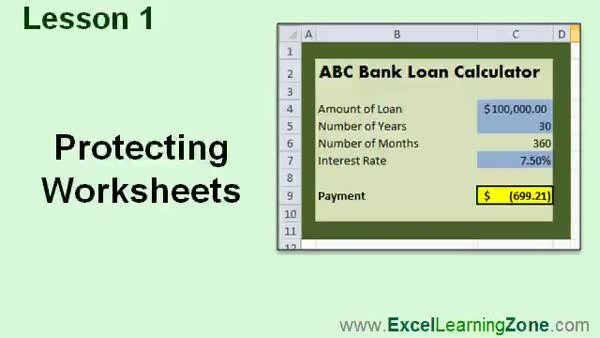
Lesson 1: Lock or Unlock Cells & Sheets - In Lesson 1, we will learn how to protect worksheets in Excel by controlling which cells users can modify. I will show you how to lock a worksheet to prevent unwanted changes, set a password, specify exactly what users are allowed to do, and unlock individual cells for editing. We will also walk through using the hidden option to keep formulas from being visible in the formula bar. We will discuss additional protection and sharing features that will be covered in future lessons.
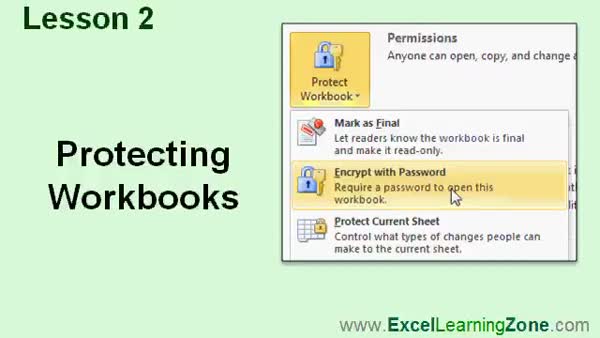
Lesson 2: Protect Structure & Set Passwords - In Lesson 2, we will explore several ways to protect a workbook in Excel, including locking the workbook structure to prevent changes like adding or deleting sheets, setting windows protection to fix the size and position of workbook windows, and using passwords to open or modify the workbook file. We will also discuss additional protection options such as marking as final, restricting permissions by user, adding a digital signature, and using file sharing passwords. More advanced topics like restricting macro code visibility and digital signatures will be covered in future lessons.
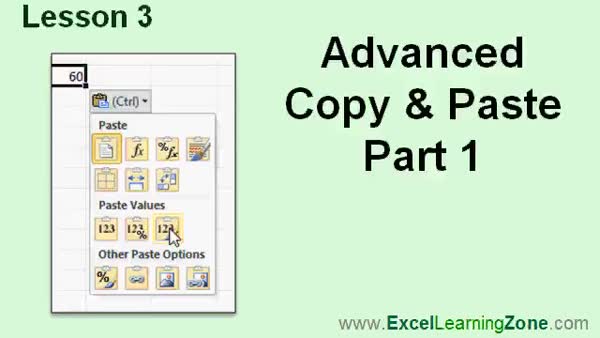
Lesson 3: Advanced Copy & Paste Tips - In Lesson 3, we will cover advanced copy and paste techniques in Microsoft Excel. We will review basic methods using the Ribbon, right-click menu, and keyboard shortcuts, then explore options like copying with the Control key, using the Smart Tag, and understanding different paste options such as formulas, values, formatting, and transposing data. I will show you how to paste as a picture, create linked pictures, and use Paste Special for tasks like performing mathematical operations as you paste. We will also discuss scenarios where these advanced copy and paste options are useful when working with your data.
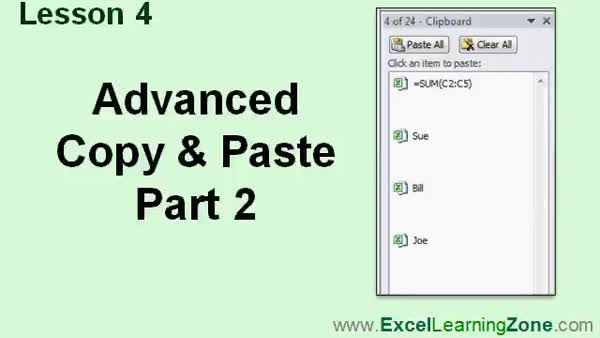
Lesson 4: Office Clipboard: Advanced Copy-Paste - In Lesson 4, we are continuing with advanced copy and paste by exploring the Office Clipboard and its features. We will walk through how the Office Clipboard lets you collect and manage up to 24 items, copy and paste multiple items in any order, and how it works across different Microsoft Office applications. We will discuss options for displaying the Office Clipboard, how to paste or clear items, and tips for managing clipboard content. I will also show you some important differences between copying values and formulas when using advanced copy paste in Excel.
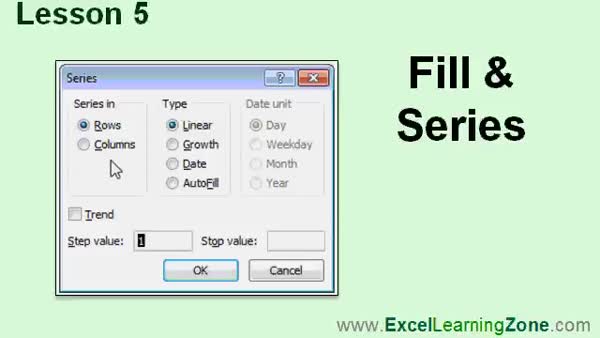
Lesson 5: Fill & Series: Copy, Pattern, Date - In Lesson 5 we are going to learn about Excel's Fill and Series features. We will walk through how to use the Fill button to copy values or patterns into adjacent cells in any direction, and I will show you how to use the Series option to create linear, growth, and date sequences with customizable step and stop values. We will also discuss the Trend feature, which lets Excel continue patterns it detects, and look at how to fill data across multiple worksheets. Cautions, such as overwriting existing data, will also be mentioned.
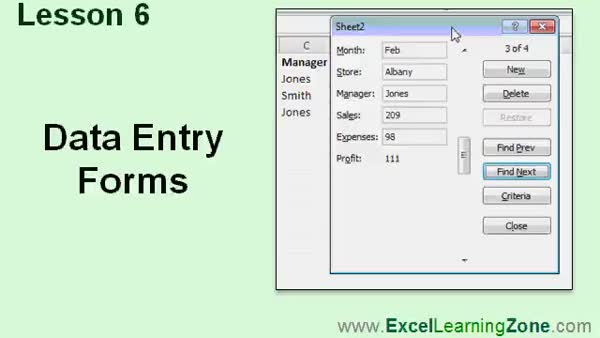
Lesson 6: Data Entry Forms on Quick Access - In Lesson 6, we will walk through how to set up data entry forms in Microsoft Excel, which provide an easier interface for entering data, especially for users who may not be experienced with spreadsheets. I will show you how to add the Form button to the Quick Access Toolbar, prepare your data with headers, and use the data entry form to add, edit, search, and delete records. We will also discuss field formatting issues, copying previous values, working with calculated fields, using basic search criteria, and best practices to help others safely enter data into your spreadsheets.
Lesson 7: Worksheet Protection & Data Forms - In this course we learned how to protect worksheets by locking and unlocking cells, setting sheet protection with passwords, and controlling allowed actions. We covered workbook protection, advanced copy and paste techniques including smart tags, and how to use the Office clipboard for collecting and pasting multiple items. We also explored using fill and fill series tools, and how to create data entry forms for users. We briefly discussed where to find additional help, resources for questions, customer service, and how to give feedback about the course.
NavigationKeywordsprotect worksheet, lock cells, unlock cells, protect workbook, workbook password, restrict editing, advanced copy paste, paste special, office clipboard, fill series, date patterns, data entry form, add form button, excel formulas hidden
More InformationTranscriptWelcome to Excel 2010 Expert Level 8, brought to you by ExcelLearningZone.com. I am your instructor, Richard Rost. Today's class covers several different topics. We will begin with protecting worksheet data and protecting your workbook files. We will learn some advanced copy and paste techniques and all the paste special options. We will learn about the Office clipboard. We will learn about fill and series fill. And we will learn how to make data entry forms for our workbooks. This course was designed for Microsoft Excel 2010. However, most of the material covered in today's class is valid for any version of Excel. This is an expert level class for Microsoft Excel. I strongly recommend that you take all of my beginner classes 1 through 5, plus my other expert classes 1 through 7, before taking this course. Today's class does build on some of the techniques covered in those earlier classes. My courses are broken up into four different groups: beginner, expert, advanced, and developer. The beginner courses are for novice users with little or no experience with Excel. The expert series, which is what you are watching right now, is designed for more experienced users who are already comfortable with Excel. Expert classes go into a lot more depth about each topic than the beginner classes did, and we will cover more functions, features, tips, and so on. When you have mastered the expert classes, move up to the advanced lessons. You will learn how to build macros, build user forms, create your own templates, and many more advanced features that not everyone will use, but they really add enhanced functionality and professionalism to your spreadsheets. Finally, my developer series is designed to teach you how to program in Visual Basic for Applications with Microsoft Excel. This will allow you to create Excel-based programs for your users, automate your spreadsheets, and integrate Excel tightly with the other Office applications. Each of my series is broken down into different levels. For example, the beginner series contains five different levels, which you should have taken previously. This class is level eight of the expert series. Each level teaches you new and different topics of Microsoft Excel, building on the lessons learned in the previous levels. When you have finished all the expert classes, you will move up to the advanced series and finally the developer series. Now, I will take a more detailed look at what you are going to learn in today's class. In lesson one, we are going to learn how to protect the cells in our worksheets so that users can only change specific information. In lesson two, we are going to learn how to protect workbook files as a whole, protecting the structure of the workbook, setting a password to open or modify your workbook, and more. In lesson three, we are going to learn some advanced copy and paste techniques. In lesson four, we are continuing our look at advanced copy and paste. In this lesson, we are going to look at the Office clipboard and some of its options. In lesson five, we are going to learn about Auto Fill's cousin, Fill, and I will show you how to fill a series. In lesson six, we will see how to set up a data entry form, which is a nice, pretty interface for someone to enter data into your spreadsheet who may or may not have a lot of Excel experience. You can set them up with a data entry form. If you need help with the topics covered in today's lessons, please feel free to post your questions in the Excel Interactive Student forums. If you are watching this course using my custom video player software or online in my web theater, you should see the student forum for each lesson appear in a small window next to the class videos if you have an active internet connection. Here, you will see all the questions that other students have asked, as well as my responses to them and the comments that some of the other students may have made. I encourage you to read through these questions and answers as you start each lesson. Feel free to post your own questions and comments as well. If you are not watching your lessons online, you can still visit the student forums later by visiting excellearningzone.com/forums. To get the most out of this course, I recommend you sit back, relax, and watch each lesson completely through once without trying to do anything on your computer. Then, replay the lesson from the beginning and follow along with my examples. Actually, create the same spreadsheet that I make in the video. Build the spreadsheet with me step by step. Do not try to apply what you are learning right now to other projects until you have mastered the sample spreadsheet. If you get stuck or do not understand something, watch the video again from the beginning, or tell me what is wrong in the student forum. Most importantly, keep an open mind. Excel might seem intimidating at first, but once you get the hang of it, you will see that it is really easy to use. IntroIn lesson 8 of the Microsoft Excel 2010 Expert series, you will learn how to protect worksheet data and workbook files, use advanced copy and paste techniques including all the paste special options, and work with the Office clipboard. We will also cover fill and series fill features and show you how to set up data entry forms for easier spreadsheet input. This lesson builds on previous expert classes and is designed for experienced Excel users looking to expand their skills. QuizQ1. What is the first topic covered in this Excel 2010 Expert Level 8 course? A. Creating pivot tables B. Protecting worksheet data C. Importing data from Access D. Printing worksheets Q2. Which feature allows you to restrict users so they can only modify specific data in the worksheet? A. Worksheet sharing B. Cell protection C. Data validation D. Conditional formatting Q3. What is the focus of lesson two in the course? A. Chart creation B. Protecting workbook files and structure C. Advanced formulas D. Mail merge Q4. What does the course recommend regarding the sequence of taking classes? A. Randomly select classes as needed B. Start with advanced, then expert, then beginner courses C. Complete all beginner and expert classes in order before this course D. Begin directly with this course Q5. What is the Office clipboard discussed in lesson four? A. A template gallery B. An area that stores multiple copied items for use in Excel C. A setting for print margins D. A password management tool Q6. Which Excel feature will you learn about in lesson five? A. Conditional formatting B. Table styles C. Fill and series fill D. Chart templates Q7. What is the benefit of using a data entry form, as discussed in lesson six? A. It generates automatic graphs B. It provides a user-friendly interface for data entry C. It manages VBA code D. It imports external databases Q8. According to the video, what should you do to get the most out of this course? A. Immediately apply lessons to all active projects B. Skip to the end of the lessons for summaries C. Watch each lesson all the way through, then follow along and recreate the sample spreadsheets D. Only post questions after finishing the entire course Q9. Where can students post questions about the lessons? A. Only via email B. In the Excel Interactive Student forums C. On social media D. By calling customer support Q10. After completing the expert series, what is the next series recommended for students? A. Developer series B. Advanced series C. Beginner series D. Data analysis series Q11. What is the focus of the developer series in ExcelLearningZone courses? A. Document formatting tips B. Creating complex charts C. Programming with Visual Basic for Applications (VBA) D. Data import/export methods Answers: 1-B; 2-B; 3-B; 4-C; 5-B; 6-C; 7-B; 8-C; 9-B; 10-B; 11-C DISCLAIMER: Quiz questions are AI generated. If you find any that are wrong, don't make sense, or aren't related to the video topic at hand, then please post a comment and let me know. Thanks. SummaryToday's video from Excel Learning Zone focuses on several advanced Excel topics that will help you become more proficient with your spreadsheets. As your instructor, I will be guiding you through content that is particularly relevant for users of Microsoft Excel 2010, but you will find that almost all of what we cover applies to other versions of Excel as well. This expert-level class builds on concepts taught in my earlier courses. If you have not already completed my beginner classes (levels 1 through 5) and previous expert level courses (1 through 7), I highly recommend doing those first. We will expand on some of the skills learned in those lessons. My curriculum is divided into four groups: beginner, expert, advanced, and developer. Beginner classes provide a solid foundation for new users. The expert courses, such as this one, cater to those who are already comfortable working with Excel and want to explore its features in more detail. In these expert classes, you will encounter more advanced functions, detailed options, and practical tips for getting the most out of the software. Once you complete the expert series, you can move on to my advanced lessons. These focus on more complex tasks, such as creating your own macros, developing user forms, making templates, and other specialized techniques that can help bring additional functionality and a more professional feel to your spreadsheets. For those interested in programming, my developer series teaches you how to use Visual Basic for Applications with Excel. With VBA, you can create powerful custom solutions, automate tasks, and fully integrate Excel with other Office programs. Each of these groups is structured into levels, and each level covers new topics, building on your existing knowledge step-by-step. This particular course is level eight in the expert series. Let me walk you through what to expect in today's class. First, we will explore how to protect cells in a worksheet, allowing users to edit only specific data while keeping the rest secured. Next, we will cover methods to protect your entire workbook, including safeguarding its structure and using passwords to control access and modifications. In our third lesson, I will show you advanced copy and paste approaches. Following that, we will continue with more copy and paste features, taking a closer look at the Office clipboard and what it can do for you. We will then examine the Fill feature, going beyond Auto Fill to see how you can fill a series efficiently. Finally, I will demonstrate how to set up a user-friendly data entry form. This can be especially helpful if you need someone without much Excel experience to input data into your spreadsheet. If you feel uncertain about any of the subjects we're covering, remember that you can always ask questions in the Excel Interactive Student forums. Students watching with my custom video software or through the online web theater can view the forum related to each lesson in a sidebar as long as you are connected to the internet. This is a great place to review previous questions and answers and to participate in discussions with me and your fellow students. Even if you are not watching online, you can access the forums any time at the excellearningzone.com website. To make the most of this course, I suggest you watch each lesson all the way through first without trying to follow along in Excel. Once you have a sense of the material, play the lesson again and go through the examples with me, step by step. It's best to recreate the demonstrated spreadsheets before trying to apply these techniques to your own projects. If you get stuck, watch the lesson again or post your questions in the forum for help. Above all, approach Excel with an open mind. Although it might seem complex at first, you will find that it becomes much easier and even enjoyable as you gain experience. You can find a complete video tutorial with detailed, step-by-step instructions on everything discussed here on my website at the link below. Live long and prosper, my friends. Topic ListProtecting worksheet cells to restrict editing Protecting the workbook structure Setting workbook passwords to open or modify files Advanced copy and paste techniques Using the Office clipboard in Excel Using Fill and Series Fill for data entry Creating data entry forms in Excel Primary Topicsworksheet protection, workbook protection, advanced copy and paste, paste special, Office clipboard, fill and series fill, data entry forms Secondary Topicscourse structure, prerequisites, Excel versions |
||
|
| |||
| Keywords: protect worksheet, lock cells, unlock cells, protect workbook, workbook password, restrict editing, advanced copy paste, paste special, office clipboard, fill series, date patterns, data entry form, add form button, excel formulas hidden PermaLink How To Protect Worksheets Workbooks Advanced Copy Paste Fill Series And Data Entry Forms In Microsoft Excel |