Tax Brackets
By Richard Rost

 4 years ago
Calculate Your Federal Income Tax w Excel Using
Tax season is coming up. In this Microsoft Excel tutorial, I'll teach you how to calculate your federal income tax based on your taxable income. We'll learn how a graduated (progressive) tax bracket system works, and how to calculate the total amount of tax you'll owe.
Pre-Requisite
Links
Recommended Courses
Keywords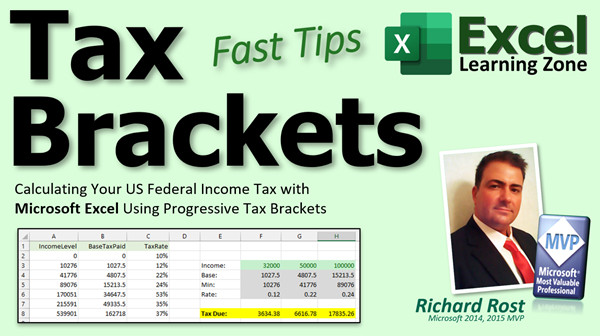
excel 2021, excel 2016, excel 2019, excel 365, microsoft excel, ms excel, ms excel tutorial, #msexcel, #microsoftexcel, #help, #howto, #tutorial, #learn, #lesson, #training, #database, #fasttips, calculating tax brackets, Tax Calculation, Income Tax Brackets, 2022, 2023, XLookup
 Subscribe to Tax Brackets
Get notifications when this page is updated
More InformationTranscript Welcome to another Fast Tips video brought to you by ExcelLearningZone.com. I am your instructor, Richard Rost.
In today's video, I am going to teach you how to calculate your US federal income tax with Microsoft Excel using progressive tax brackets. Even if you are outside the United States, as I know a lot of you are, many countries also use a graduated or progressive tax system like this. So if you want to learn how this stuff is calculated, stay tuned.
Before we get started, we are going to use the XLOOKUP function in Excel. It was added in 2019, I believe. If you are not familiar with XLOOKUP, go watch this video. We will put a link down below. You can click go watch it.
XLOOKUP is a new relative, a distant cousin, I guess you could say, of VLOOKUP and HLOOKUP. If you have not used VLOOKUP, it is very similar, but XLOOKUP is a lot more powerful. So go watch this video first.
So, what are tax brackets? The United States and a lot of other countries use what is called a progressive tax bracket system, which means that each level of your income is taxed differently. For example, up to, let's say, $10,275, you are just taxed at 10 percent of your taxable income.
Taxable income does not include things like deductions, which can bring down your taxable income. We are not going to get into deductions today.
A bit of a disclaimer: I am not an accountant. I am a computer nerd. I just want to show you the math behind this. Do not construe this as legal or tax advice. I am just showing you how to do some basic calculations.
So, anything you make beyond $10,275 up to $41,775 is taxed at 12 percent. The more you make, each level gets taxed differently.
If you do make, let's say, $600,000, the whole thing is not taxed at 37 percent. The first $10,275 is taxed at 10 percent, then the next $30,000 or so is taxed at 12 percent, and so on up the list. That is how that works. So even though you are making $600,000, your effective tax rate is lower because the lower portions are taxed at a lower rate.
There is something called the marginal tax rate, which is the rate on your last dollar. So your marginal tax rate would be called 37 percent, but your effective tax rate is lower. There are, of course, deductions. There are all kinds of other ways to get around paying all that tax, but this is just the basic calculation.
I am showing the 2022 federal income tax brackets for people who are filing single. There are different brackets available for people who are married filing jointly, filing separately, and the head of household.
Here is a link where I got this information. You can just Google it. You can find all kinds of details. I will put a link to this down below as well. This is from NerdWallet. I come here all the time. I like NerdWallet.
Here are the single filers, married filing jointly, and the brackets are all slightly different. They give you benefits if you are married or if you are head of household, and so on. To keep things simple, we are going to calculate for single filers.
Let us open up our handy dandy Excel and put those income brackets in the spreadsheet. I have already done the work of typing all this in. I am not going to make you sit here and watch me do it, so we are going to copy and paste it from my other sheet.
Here is the income level. That is the minimum amount of income that you need to make to fall into that bracket. So if you make $50,000, you fall into this bracket here.
Where did I get that? This chart right here. Straight from the IRS. If you make $50,000, you fall into that bracket.
So your income level, the minimum amount to fall into that bracket, is $41,776. If you make that much, then you pay a base tax amount of $4,807.50, plus 22 percent of the amount over $41,776. Basically, you take your actual income, let's say $50,000, subtract $41,776, and then you pay 22 percent of that amount plus this base amount. See how that works?
If you made $100,000 of taxable income last year, you would fall into this bracket. You would pay a base amount of $15,213, plus 24 percent of the difference between $100,000 and $86,375. That is how you calculate that.
Here is each bracket. Here is the minimum amount of income that you need to fall into that bracket. There is the base amount of tax that you are going to pay, plus the tax rate that you are going to pay on the difference between what you actually made and that lower income bracket level.
As long as we are on the same page, now we are going to come over here and put in "Income," and here is where we will type in your income. Let's start with $32,000.
The first step is to find the bracket that you fall in. We are going to get the base amount that you have to pay using XLOOKUP.
It is going to be equals XLOOKUP. The first thing is the lookup value. What value are you looking up in that table? That value is right there. That is our lookup value.
Lookup array: Where is the list of data that you are trying to look up that value in? I am looking it up over here in this income level column. So I will select those cells, for example, B2 to B8.
What is the return array? The return array says matching this list here, what value do you want to bring back? That is the base tax. I want to start with that base tax.
In other words, it is going to try to find the value in that lookup array. Let's say it finds the appropriate cell, and then it brings back the matching value in the return array, in the same row.
If not found is the value that can be returned if the value is not found in the array. Do not worry about that for this example.
Again, you want the match mode. We do not want an exact match because that number is not going to exactly fall in there. We want to find the next smaller item, the one we fall underneath. That is match mode -1.
We do not need to worry about search mode. Close the parentheses and then press Enter.
What did XLOOKUP do here? It looked up to try to find this number, $32,000, in this list and wanted to find the value that is smaller than that. That is the option we picked.
The function finds the income level that is not greater than $32,000, and it brings back the value that is in the same row as that. That is where I got that number from.
That is how XLOOKUP works. I explain it a lot better in the XLOOKUP video if you want to learn more about how XLOOKUP works.
Next, we are actually going to bring back that minimum income level number. So I am going to just put "Minimum" over here, and it is very similar to what we just did: equals XLOOKUP.
What value are we looking up? The same value. The lookup array: same spot. This time, I want to return the actual value from that column, so I will select this a second time.
Match mode: exact match or next smaller item, and then enter. So it looked up this value again in this column, and this time it returns the income level, which we need to do the subtraction.
Next, we need the tax rate from that row. So, the rate: same thing, equals XLOOKUP. What value are we looking up? That value. Lookup array: in that table right there, same column as before. Return array: this time, it is the tax rate. Match mode: exact match or next smaller item, and then enter. So you are in the 12 percent bracket.
Now we have all the data we need to actually calculate the tax due. This is going to be equals the base tax that we have to pay, plus the difference between what we actually made (our income) minus that minimum value, times the tax rate. Then press Enter, and there is the amount that you owe.
You can change this value. Let's put $50,000 in there. Press Enter, all the XLOOKUPs change, and your new amount of tax due is $6,616. The IRS only really cares about dollar amounts, so you can actually ROUND that value to zero decimal places. There you go.
If you want to figure out a bunch more, you can put something in here like $75,000. Can we just autofill all this stuff over? Now it does not look right. Why? Because autofill is changing our references up here. In order to do that, we have to use absolute references for those arrays or named arrays, whichever you prefer.
I am going to come up here and press F4 on each of these references. See that? That way, it says "do not move that box - always keep it in that same spot." The actual cell F4 can slide over, but the arrays stay fixed. That is relative versus absolute references. I will put a link down below to a video where I talk about that.
Same thing for this one here. F4 on each reference. Same thing for the rate. This basically just tells Excel, "hey, if I autofill this, do not move that reference - leave it right there." That one is all fine.
Now I should be able to grab these, slide it over, and there you go. If I do another one, say $100,000, I can slide it over again. There we go, because those F4s keep that reference in the same spot. That is called an absolute reference.
Add a splash of color, and you can see everything is working just fine.
That is how you calculate your progressive tax rates. That is your Fast Tip for today for Excel.
If you do not know me, my specialty is actually Microsoft Access database development. Yes, I love Excel, but Access is where the real power is. I have a Fast Tip to show you how to do the same thing in Microsoft Access. I will put a link to that down below as well.
So, that is it.
Want to learn more Excel? Be sure to like this video and subscribe to my channel. Stop by my website to watch my free Excel Level 1 course. It is over 90 minutes long and it covers all the basics.
If you want me to post more Excel videos, I need to hear from you. About 90 percent of what I do is Microsoft Access, but I am also a published Excel author and I love Excel. If you want to see me post more free Excel videos, post a comment below and let me know. Say, "Hey, I want more Excel."
Thank you. Intro In this video, you will learn how to calculate US federal income tax using progressive tax brackets in Microsoft Excel. I will show you how to set up a tax bracket table for single filers, use the XLOOKUP function to find your income bracket, and calculate the amount of tax owed based on your income. We will also talk about the difference between marginal and effective tax rates, and cover tips for working with absolute references in Excel when copying formulas. Quiz Q1. What is the main topic of this video tutorial?
A. Calculating progressive income tax in Excel using XLOOKUP
B. Creating a pie chart in Excel
C. Using Excel to track expenses
D. Automating payroll in Excel
Q2. What type of tax system does the United States use?
A. Flat tax system
B. Regressive tax system
C. Progressive tax bracket system
D. Sales tax system
Q3. What Excel function is primarily used in this tutorial to identify tax brackets?
A. VLOOKUP
B. HLOOKUP
C. XLOOKUP
D. MATCH
Q4. What does the "lookup value" represent when using XLOOKUP for tax brackets?
A. Tax rate
B. Income amount to find the correct bracket
C. Taxable deductions
D. The highest tax bracket
Q5. When setting up the tax bracket table in Excel, what value is returned by the XLOOKUP function for calculating the base tax?
A. The tax rate for the highest bracket
B. The minimum income for the bracket
C. The base tax value for the bracket
D. The standard deduction amount
Q6. What does the "match mode" set to -1 do in the XLOOKUP function when finding tax brackets?
A. Finds the exact match only
B. Finds the next larger value
C. Finds the next smaller item (value less than or equal to the lookup value)
D. Searches in reverse order
Q7. How is the total tax due calculated once you have found the bracket?
A. Base tax plus the full income amount
B. Income times the tax rate for that bracket
C. Base tax plus tax rate times (income minus minimum bracket amount)
D. Only the base tax is due
Q8. What must you do in Excel to ensure the reference ranges in XLOOKUP do not change when copying the formulas across cells?
A. Use named ranges only
B. Use absolute references with F4
C. Use only numbers in the ranges
D. Manually type each value
Q9. Why would the calculated tax due not change correctly when autofilling the formula to new cells before making any adjustments?
A. XLOOKUP cannot be autofilled
B. Excel moves the array references as you copy unless you use absolute references
C. Autofill only works for numbers
D. Tax calculations must be done manually
Q10. What Excel function is suggested to round the final tax amount to whole dollars?
A. TRUNC
B. CEILING
C. ROUND
D. INT
Q11. What is the difference between marginal tax rate and effective tax rate as described in the video?
A. Marginal is the average, effective is for the last dollar earned
B. Marginal is for deductions, effective is before deductions
C. Marginal is the rate on the last dollar earned, effective is the average rate paid over all income
D. There is no difference
Q12. Why are deductions excluded from this Excel tax calculation?
A. Deductions are too complex for Excel
B. The video is focused only on the math for taxable income
C. Deductions make no difference in tax owed
D. IRS disallows deductions in Excel
Answers: 1-A; 2-C; 3-C; 4-B; 5-C; 6-C; 7-C; 8-B; 9-B; 10-C; 11-C; 12-B
DISCLAIMER: Quiz questions are AI generated. If you find any that are wrong, don't make sense, or aren't related to the video topic at hand, then please post a comment and let me know. Thanks. Summary Today's video from Excel Learning Zone focuses on how to calculate US federal income tax in Microsoft Excel using progressive tax brackets. Many countries use similar graduated tax systems, so even if you are not in the United States, the principles behind these calculations may be useful to you.
To work through this problem in Excel, I will be using the XLOOKUP function, which was added to Excel in 2019. If you are not already familiar with XLOOKUP, I recommend learning that first, as it is a more powerful and flexible alternative to VLOOKUP and HLOOKUP. I have a separate video dedicated to XLOOKUP, and I suggest watching it before proceeding.
Let me explain how tax brackets work in the United States. The system is considered progressive, meaning that different portions of your income are taxed at different rates. For example, if your taxable income is up to $10,275, that portion is taxed at 10 percent. Anything you earn between $10,276 and $41,775 is taxed at 12 percent. Importantly, only the money that falls within each bracket is taxed at that rate, rather than your entire income being taxed at the highest rate you reach.
For example, if you earn $600,000, only the top portion of your income is taxed at 37 percent, while the lower portions are taxed at the lower rates. This system is the reason why your effective tax rate is much lower than your highest marginal bracket. The marginal tax rate is the rate you pay on your last dollar of income, but your effective tax rate, or average rate, is lower due to the way brackets work. Today, I will not be discussing deductions or tax avoidance strategies. These calculations are intended as a basic example, and you should not take them as legal or tax advice.
The tax bracket numbers I am working with are from the 2022 US federal tax tables for single filers. There are different brackets for married filers or heads of household, and you can find the official information from the IRS or from financial sites like NerdWallet.
Once you have the tax bracket table, you can enter it into your Excel spreadsheet. Each bracket includes the minimum income required to reach that bracket, the base tax amount owed from all lower brackets, and the tax rate you will pay for any income above the minimum for that bracket. For example, if your taxable income is $50,000, you would find the bracket with the minimum threshold just below $50,000, and your tax would include a base amount plus a percentage of the income that exceeds that minimum.
To determine which bracket applies to a specific income value, start by entering the income you want to test in one cell. The first task is to identify the right bracket using XLOOKUP. With XLOOKUP, look up your income within the list of bracket thresholds. You will want to find the largest bracket minimum that is less than or equal to your income, so you can use the match mode that returns the next smaller item.
Once you have found the correct bracket, use XLOOKUP to pull in the base tax associated with that bracket, as well as the minimum income for the bracket and the applicable tax rate. You need all three pieces of information to calculate the tax due. The calculation involves adding the base tax to the tax rate multiplied by the difference between your income and the bracket's minimum threshold.
You can test different income values to see how the tax calculation changes, and you can round the result to remove any cents if you want to match the way the IRS typically deals with these amounts. If you want to test the calculation for several income values at once, you can create a small table, but be mindful of how Excel handles cell references when you copy or autofill formulas. To keep your lookup ranges from shifting, use absolute references (for example, by pressing F4 to lock in the cell reference).
Adding some formatting and colors is optional, but it can make your spreadsheet easier to read.
This method provides a quick way to see how progressive taxes are calculated using Excel. If you are interested, I also have a Fast Tip video that shows how to do the same type of calculation in Microsoft Access, which is my primary specialty.
If you enjoyed this tutorial and want to expand your knowledge of Excel, be sure to visit my website to watch the free Excel Level 1 course, which covers all the essential basics. If you would like to see more Excel content in the future, let me know in the comments. Most of my content is focused on Access, but I am happy to create more Excel videos if there is interest.
You can find a complete video tutorial with step-by-step instructions on everything discussed here on my website at the link below. Live long and prosper, my friends. Topic List Using XLOOKUP to find tax bracket information
Building a US federal income tax bracket table in Excel
Understanding base tax amounts and marginal rates
Calculating base tax using XLOOKUP
Finding minimum income for a tax bracket with XLOOKUP
Retrieving tax rates with XLOOKUP
Calculating total tax due with base plus percentage
Applying the tax calculation formula in Excel
Changing income value to auto-update tax calculation
Rounding tax values using Excel's ROUND function
Using absolute references in Excel with F4
Using autofill with absolute references for multiple calculations
Troubleshooting autofill reference issues
Formatting the tax calculator worksheet for clarity Primary Topics US federal income tax, progressive tax brackets, Excel formulas, XLOOKUP function, tax calculation method, single filer brackets, absolute vs relative references Secondary Topics tax rates, taxable income, autofill, base tax amount, effective vs marginal tax rate, none |




