Free Lessons
Courses
Seminars
TechHelp
Fast Tips
Templates
Topic Index
Forum
ABCD
 
Home   Courses   TechHelp   Forums   Help   Contact   Merch   Join   Order   Logon  
 
Back to Access Forum    Comments List
Upload Images   @Reply   Bookmark    Link   Email   Next Unseen 
Combo Box Alphabetizing
Lee Shastid 
    
12 months ago
I have created a combo box with the wizard. However I did not choose the option for Ascending, or Descending. I chose to enter the values myself and not get it from another source. Is there a way after the fact of doing this that I can tell it to put the values in numerical or alphabetical order? I am not familiar with writing code but not opposed to it. Any help is appreciated.DISCLAIMER: Newbie
Julie Bennett  @Reply  
     
12 months ago
I use a SORT field in the table that provides the values for the Combo Box.  As you chose to enter the values while creating the Combo Box, usually only used if you have 4 or 5 items in the List, I would suggest using a Table to hold your values:  ComboID, ComboSort, Title, Description.  Then you can add future items to Combo by just re-organising your Sort Code field.
Sami Shamma  @Reply  
             
12 months ago
Hi, Lee

If you enter the value yourself, there is no option for that information to be sorted. Therefore, the only thing you can do is to enter this data already sorted in the order that you want.
Sami Shamma  @Reply  
             
12 months ago
Julie this is a good technique to use. Unfortunately, Lee was entering the values by hand and not reading them from a table.
Lee Shastid OP  @Reply  
    
12 months ago
Thank you all for helping. Sami I understand but I am entering the values as I come across them as they are not all listed out. Thank you
Kevin Robertson  @Reply  
          
12 months ago
You could loop through the items in the Combo Box and add them to an Array. Then sort the Array and rebuild the Row Source of the Combo Box.

Add this code to a Global Module (so the entire database can use it).
DetailsPublic Sub SortComboBoxItems(cbo As ComboBox)

    Dim itemCount As Integer
    Dim i As Integer
    Dim arr() As String
    
    ' Get item count
    itemCount = cbo.ListCount
    If itemCount = 0 Then Exit Sub
    
    ' Load items into array
    ReDim arr(0 To itemCount - 1)
    For i = 0 To itemCount - 1
        arr(i) = cbo.ItemData(i)
    Next i
    
    ' Sort array alphabetically (simple bubble sort)
    Dim j As Integer
    Dim temp As String
    For i = 0 To UBound(arr) - 1
        For j = i + 1 To UBound(arr)
            If arr(i) > arr(j) Then
                temp = arr(i)
                arr(i) = arr(j)
                arr(j) = temp
            End If
        Next j
    Next i
    
    ' Rebuild RowSource
    Dim newRowSource As String
    For i = 0 To UBound(arr)
        newRowSource = newRowSource & ";" & arr(i)
    Next i
    newRowSource = Mid(newRowSource, 2) ' remove leading semicolon

    cbo.RowSourceType = "Value List"
    cbo.RowSource = newRowSource
    
End Sub


Then in the Load event of your Form call the above Sub Routine:

Private Sub Form_Load()

    SortComboBoxItems YourComboName
    
End Sub


Drop the Combo Box down and the items should be sorted in ascending order.
Sami Shamma  @Reply  
             
12 months ago
As you can see from Kevin's answer, it's far easier to put these values in a table that will always come out sorted no matter what you add and when you add it.
Lee Shastid OP  @Reply  
    
12 months ago
Sami, yes I can see that. Kevin I am not that familiar with writing any type of code. That dont seem complicated but the steps you are talking about I have no idea how to do them or where to start or what comes first. Thank you
Lee Shastid OP  @Reply  
    
12 months ago
The Big Issue I have is I am having to go through numerous files (300-400) to get this data so that's why I didn't do a table.
John Davy  @Reply  
         
12 months ago
Hi Lee
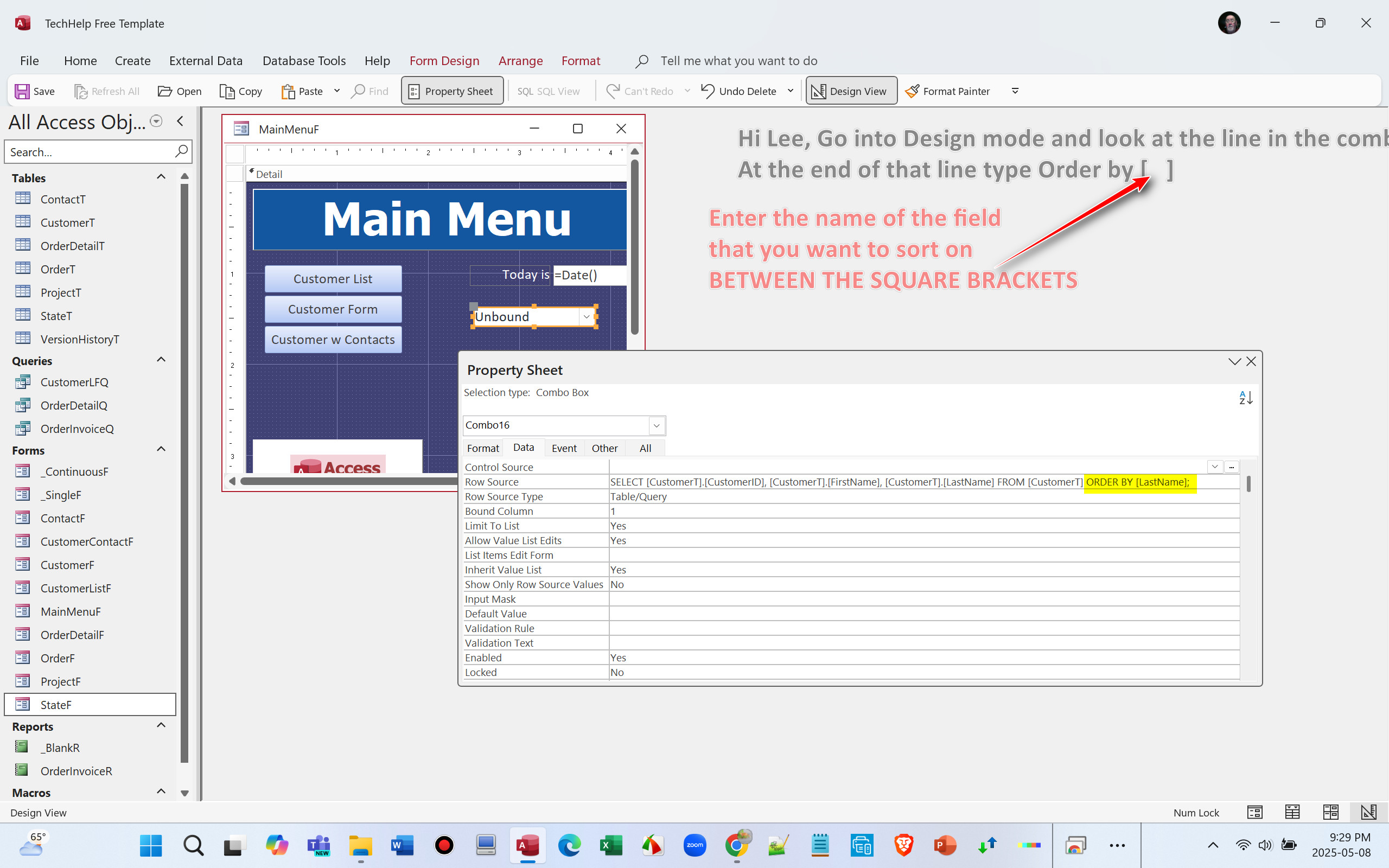
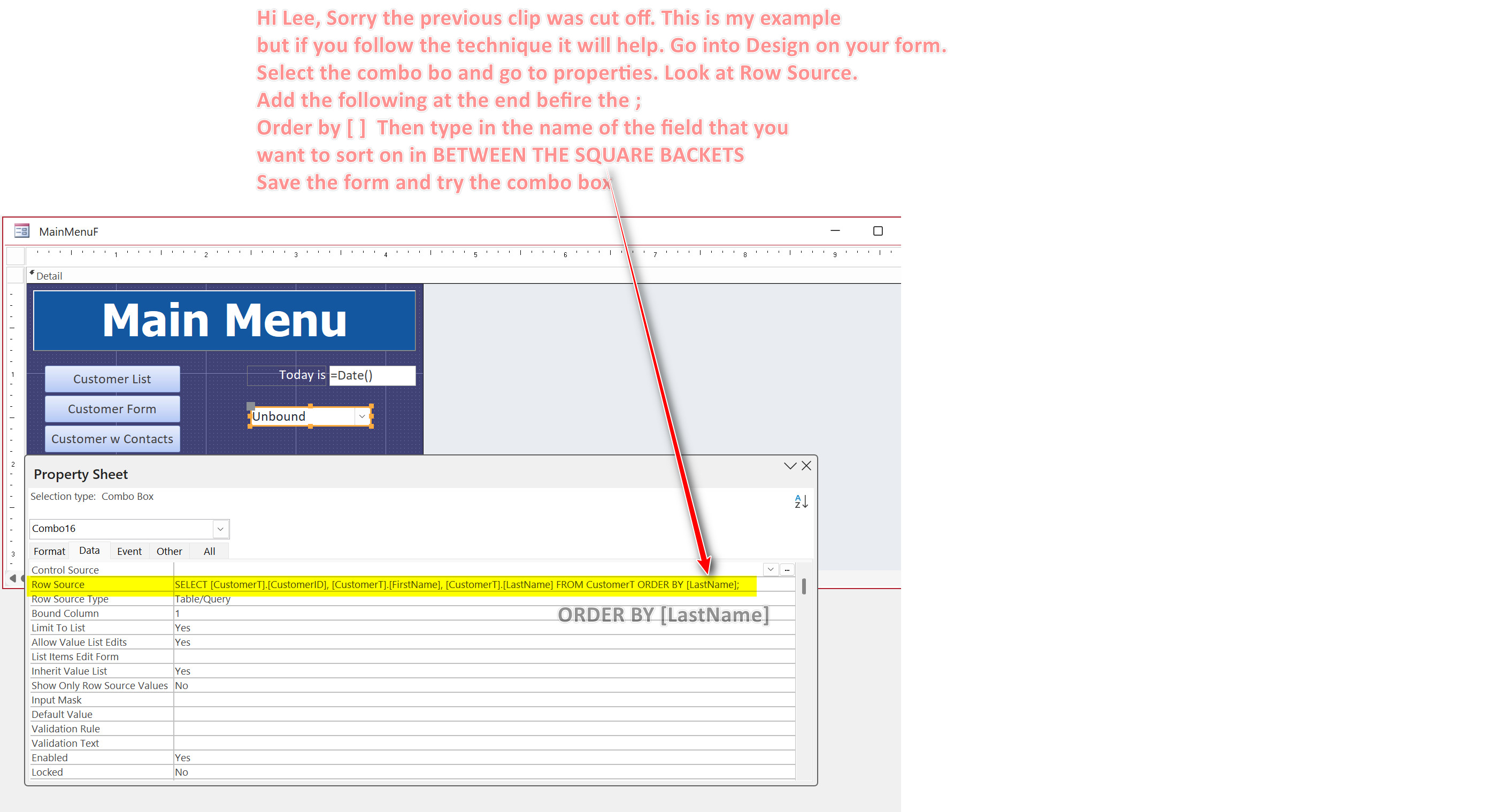
Take a look at the screen clip that I just uploaded. John
John Davy  @Reply  
         
12 months ago

John Davy  @Reply  
         
12 months ago
Hi Lee, New Screen Clip  John
John Davy  @Reply  
         
12 months ago

Kevin Robertson  @Reply  
          
12 months ago
John Lee is using a Value List not a Table/Query.
Lee Shastid OP  @Reply  
    
12 months ago
Thank you John. I thought of that but realized I wasn't using a Table/query as Kevin stated. That's alright I should have asked sooner or thought it out a little better. I am accomplishing what I wanted. Just so ya'll know what I am doing. I have a Home Inventory DB. I been using a commercial one, but it is squirrely at times and it is hard to get any tech help from a one man show that created it. Mine is no where as complex as the commercial one but it will what I want it to do. That's why I been having so many questions. I really appreciate all ya'lls help & patience with a newbie.
Martin Fairbairn  @Reply  
    
12 months ago
If you have a value list combo box, the easy way to keep it sorted is to make it Limit to List but can edit.  then, when you edit it, just enter the new item in the right place alphabetically!!
Lee Shastid OP  @Reply  
    
12 months ago
Here's a follow up question then since the majority says it should be a table. If I delete this field and recreate it and then use a table as the source will it corrupt anything?
Lee Shastid OP  @Reply  
    
12 months ago
Also when I am creating these new forms I am getting something new. When in the design view, in the header I get a field that has a picture that looks like a form. what is this and is it okay to just delete it? Sorry hadn't been able to cut & paste for some reason
Kevin Robertson  @Reply  
          
12 months ago
You are clicking on 'Form' instead of 'Form Design'
Lee Shastid OP  @Reply  
    
12 months ago
Gotcha Kevin. Guess I didn't catch that. Did you see the above post about corrupt data and if i could make that change?
Kevin Robertson  @Reply  
          
12 months ago
You can delete any field or control you want. It should be fine, just make sure nothing refers to that field otherwise you will get errors.
Lee Shastid OP  @Reply  
    
12 months ago
thank you. you been a great help.
John Davy  @Reply  
         
12 months ago
Thanks Kevin,  John
Lee Shastid OP  @Reply  
    
12 months ago
Thank you everybody. With all the input I received I was able to switch over to having tables in several fields. It will save time for sure. Thanks again.
Lee Shastid OP  @Reply  
    
12 months ago
Okay got all the value list boxes converted over to tables with you all helping me. I have created another issue I cant seem to fix but was working before I did all this.
I have a search feature on my main menu form. If I hit the run query button it runs the query and brings up the query search that I created.

If I go into the query and enter search criteria such as   =Forms!MainMenuForm!SearchBox2
or Like "*" & Forms!MainMenuForm!SearchBox2 & "*"    it dont pull any data? What am I missing
Lee Shastid OP  @Reply  
    
12 months ago
SQL from the wildcard query search
SELECT ItemTable.Description, ItemTable.Manufacturer, ItemTable.Brand, ItemTable.Model, ItemTable.SerialNumber, ItemTable.Color
FROM ItemTable
WHERE (((ItemTable.Manufacturer) Like "*" & [Forms]![MainMenuForm]![SearchText] & "*")) OR (((ItemTable.Brand) Like "*" & [Forms]![MainMenuForm]![SearchText] & "*"));
Julie Bennett  @Reply  
     
12 months ago
You need to have Main Menu loaded and the Search criteria entered before you run the query otherwise Access doesn't know what you are searching for and will give a blank screen.  Also, I found replacing * with % sometimes fixes this issue.  Whilst % symbol is used in a different type of database, Access sometimes glitches for me if I use * in Like functions.
Lee Shastid OP  @Reply  
    
12 months ago
Thank you

This thread is now CLOSED. If you wish to comment, start a NEW discussion in Access Forum.
 

Next Unseen

 
New Feature: Comment Live View


The following is a paid advertisement
Computer Learning Zone is not responsible for any content shown or offers made by these ads.
 

Learn
 
Access - index
Excel - index
Word - index
Windows - index
PowerPoint - index
Photoshop - index
Visual Basic - index
ASP - index
Seminars
More...
Customers
 
Login
My Account
My Courses
Lost Password
Memberships
Student Databases
Change Email
Info
 
Latest News
New Releases
User Forums
Topic Glossary
Tips & Tricks
Search The Site
Code Vault
Collapse Menus
Help
 
Customer Support
Web Site Tour
FAQs
TechHelp
Consulting Services
About
 
Background
Testimonials
Jobs
Affiliate Program
Richard Rost
Free Lessons
Mailing List
PCResale.NET
Order
 
Video Tutorials
Handbooks
Memberships
Learning Connection
Idiot's Guide to Excel
Volume Discounts
Payment Info
Shipping
Terms of Sale
Contact
 
Contact Info
Support Policy
Mailing Address
Phone Number
Fax Number
Course Survey
Email Richard
[email protected]
Blog RSS Feed    YouTube Channel

LinkedIn
Copyright 2026 by Computer Learning Zone, Amicron, and Richard Rost. All Rights Reserved. Current Time: 5/2/2026 9:57:00 AM. PLT: 1s