Free Lessons
Courses
Seminars
TechHelp
Fast Tips
Templates
Topic Index
Forum
ABCD
 
Home   Courses   TechHelp   Forums   Help   Contact   Merch   Join   Order   Logon  
 
Back to Access Forum    Comments List
Upload Images   @Reply   Bookmark    Link   Email   Next Unseen 
Combo Box 3rd Cascade
Kim Boren 
      
10 months ago
Hello, I have three combo boxes on my form. I enter a value in the first combo box and it will drop down the selections for the second combo box. Works great. However when I select the second value the third combo box drops down with nothing to select from. The VBA for combo box two and three are worded the same with different combo box names. I add a column count to the third combo box and it shows up but all of the columns are blank, nothing to select. Any help would be appreciated.
Kim
John Davy  @Reply  
         
10 months ago
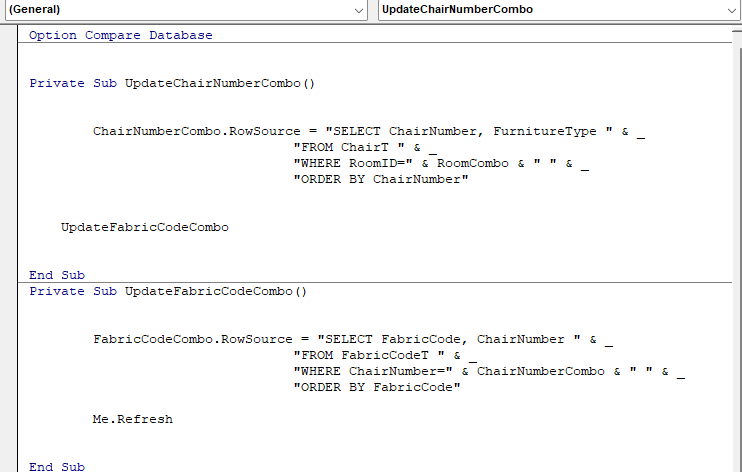
Hi Kim, You need to show us the details. VBA in the combobox, names of the comboboxes etc.  John
Kim Boren OP  @Reply  
      
10 months ago

Kim Boren OP  @Reply  
      
10 months ago
Room Combo box after value entered opens and drops down ChairNumber Combo box. Once selected value of chair number FabricCode Combo box opens with drop down. But there is nothing to select from in the FabricCode combo box.
Kim Boren OP  @Reply  
      
10 months ago
Ok John
Thanks for the help. Although I still have the problem of nothing to select from in combo box number three.
Kim
Raymond Spornhauer  @Reply  
          
10 months ago
Hello Kim,

It looks like you created subroutines for updating the combo boxes, but you need to either move this code into the AfterUpdate Event on the Combo boxes, or have the AfterUpdate Event for the combo boxes call these subroutines.  


You should have something like this:

Private Sub ComboBox1_AfterUpdate ()

     'If ComboBox1 is not valid, then Exit Sub
     If ComboBox1=0 OR ComboBox1 IsNull Then Exit Sub

     ComboBox2.RowSource = "Select.......WHERE Combo2ID="&ComboBox1
     ComboBox2.SetFocus
     ComboBox2.Dropdown

     'This will get rid of any previously set data in ComboBox3.  You do not want the wrong data to be an option.
     ComboBox3.RowSource = "Select.... where 1=0"
End Sub

Private Sub ComboBox2_AfterUpdate ()

     'If ComboBox2 is not valid, then Exit Sub
     If ComboBox2=0 OR ComboBox2 IsNull Then Exit Sub

     ComboBox3.RowSource = "Select.......WHERE Combo3ID="&ComboBox2
     ComboBox3.SetFocus
     ComboBox3.Dropdown
End Sub

The Me.Refresh is also a refresh for the Form... I would not put this in this code.

Hope this helps.

Raymond
Kim Boren OP  @Reply  
      
10 months ago

Kim Boren OP  @Reply  
      
10 months ago
Raymond,
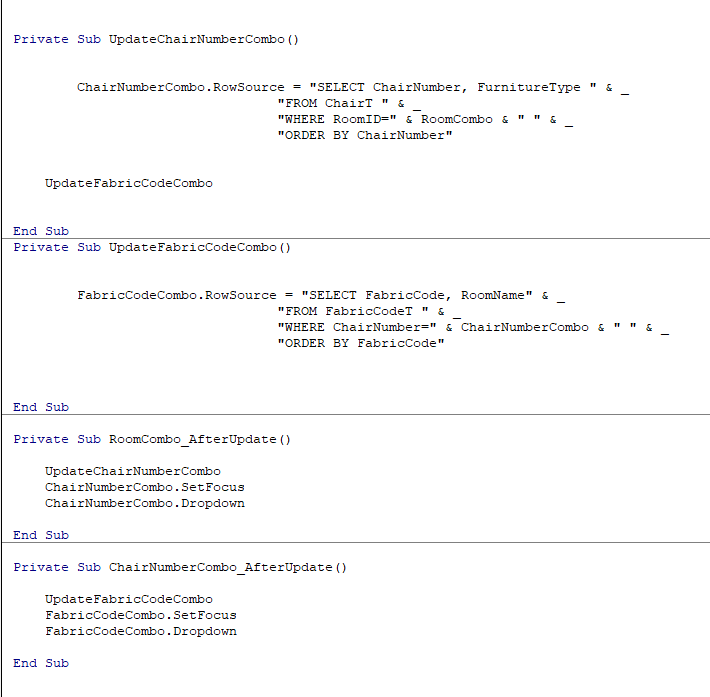
Thank you for your time. This is what I have come up with per your instructions, however I get the same results nothing to pick from in combo box 3. Perhaps you could help me understand what I am missing?
Kim
Donald Blackwell  @Reply  
       
10 months ago
Hi Kim,

I noticed that in your second screenshot, you changed the second field name in the FabricCodeCombo.RowSource. However, you also omitted the space after the new field name:

FabricCodeCombo.RowSource = "SELECT FabricCode, RoomName" & _
                                              "FROM FabricCodeT " & _
                                              "WHERE ChairNumber=" & ChairNumberCombo & " " & _
                                              "ORDER BY FabricCode"


If you add a msgbox before the end sub it will likely show:

msgbox FabricCodeCombo.RowSource

SELECT FabricCode, RoomNameFROM FabricCodeT  WHERE ChairNumber=# ORDER BY FabricCode


# would be replaced by the value from the previous combobox as expected, but it likely can't determine the fields to show or what table because of the missing space
Raymond Spornhauer  @Reply  
          
10 months ago
Kim,

Combo Boxes Properties:
- Make sure your Column Count = is correct (looks like it should be 2)
- Column Width 1st field can be changed to see the value of the ID field while testing, then set it back to 0" after it works.
- Make sure the Control Source is the Correct ID Field
- Make sure the Row Source Type is 'Table/Query"
- Make sure the Bound Column is 1 (In the Data tab)

Make sure you're including the correct ID  Fields for the query in your Combo Boxes:
-RoomCombo needs to have it's ID Field first.
-ChairNumberCombo needs to have it's ID Field first.
-FabricCodeCombo needs to have it's ID Field first.

This is why it's usually good to add 'ID' to the names of your Key Fields.  It's hard to tell if you're using the correct Key fields from the queries you are using.

Remove the 'UpdateFabricCodeCombo' from the 'UpdateChairNumberCombo' code.  The ChairNumberCombo does not have a value, so the FabricCodeCombo will not have any data.  Your 3rd Combo Box should not have data until the 2nd Combo Box is updated. (based on your code)

As mentioned by Donald, insert this  code:

At the end of UpdateChairNumberCombo Subroutine:
MsgBox "SELECT ChairNumber, FurnitureType FROM ChairT WHERE RoomID= " & RoomCombo  & " ORDER BY ChairNumber"

At the end of UpdateFabricCodeCombo Subroutine:
MsgBox "SELECT FabricCode, RoomName FROM FabricCodeT WHERE ChairNumber= " & ChairNumberCombo & " ORDER BY FabricCode"

You can also check your actual tables based on the results you should get and verify you have data that actually works.

-Raymond
Raymond Spornhauer  @Reply  
          
10 months ago
Kim,

The RowSource for these combo boxes is set during your AfterUpdate Event.  When you change records, you will also need to add  code to the Form's OnCurrent Event.  Keep in mind, these combo boxes could have Null Values, so you will need to have code to determine what these values will be if the combo box is Null.
Kim Boren OP  @Reply  
      
10 months ago
Donald, Raymond
Thank each of you for your help. I have been using data from a third party imported from an excel file. After setting up my data to reference the way you said, I have been able to get it to work. Thank you again.
Kim
Raymond Spornhauer  @Reply  
          
10 months ago
Kim

Great Job!

It's one thing to create your own database and know how everything is setup and how it works....

It's another thing to reverse engineer a database or dataset to get it working the way you need.  You learn a lot about how Access works and makes you better at creating your own databases.  :)

-Raymond

This thread is now CLOSED. If you wish to comment, start a NEW discussion in Access Forum.
 

Next Unseen

 
New Feature: Comment Live View


The following is a paid advertisement
Computer Learning Zone is not responsible for any content shown or offers made by these ads.
 

Learn
 
Access - index
Excel - index
Word - index
Windows - index
PowerPoint - index
Photoshop - index
Visual Basic - index
ASP - index
Seminars
More...
Customers
 
Login
My Account
My Courses
Lost Password
Memberships
Student Databases
Change Email
Info
 
Latest News
New Releases
User Forums
Topic Glossary
Tips & Tricks
Search The Site
Code Vault
Collapse Menus
Help
 
Customer Support
Web Site Tour
FAQs
TechHelp
Consulting Services
About
 
Background
Testimonials
Jobs
Affiliate Program
Richard Rost
Free Lessons
Mailing List
PCResale.NET
Order
 
Video Tutorials
Handbooks
Memberships
Learning Connection
Idiot's Guide to Excel
Volume Discounts
Payment Info
Shipping
Terms of Sale
Contact
 
Contact Info
Support Policy
Mailing Address
Phone Number
Fax Number
Course Survey
Email Richard
[email protected]
Blog RSS Feed    YouTube Channel

LinkedIn
Copyright 2026 by Computer Learning Zone, Amicron, and Richard Rost. All Rights Reserved. Current Time: 5/6/2026 4:39:34 AM. PLT: 0s