Free Lessons
Courses
Seminars
TechHelp
Fast Tips
Templates
Topic Index
Forum
ABCD
 
Home   Courses   TechHelp   Forums   Help   Contact   Merch   Join   Order   Logon  
 
Back to Access Developer Forum    Comments List
Upload Images   @Reply   Bookmark    Link   Email   Next Unseen 
Color in Comboboxes
Michael Duncan 
     
7 months ago
Hi guys,

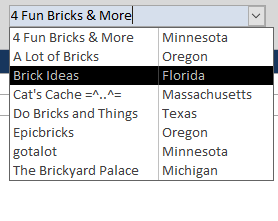
I was using by database and found that it would be cool if I could change the color of the combo box when the field has focus. I used the field has focus event in conditional formatting to visually tell me what field I am on. I will attach a picture to show what I mean.

Thank You
Michael Duncan OP  @Reply  
     
7 months ago

John Davy  @Reply  
         
7 months ago
Hi Michael, You could (with some work)
1. Simulate a Combo Box with a List Box

If you want control over how the "current item" looks, you can:

Use a List Box instead of a Combo Box.

Format it with the Conditional Formatting feature.

Highlight the current row using VBA (e.g., track the selected item and apply formatting)  John
Alex Hedley  @Reply  
            
7 months ago
Thomas Gonder  @Reply  
      
7 months ago
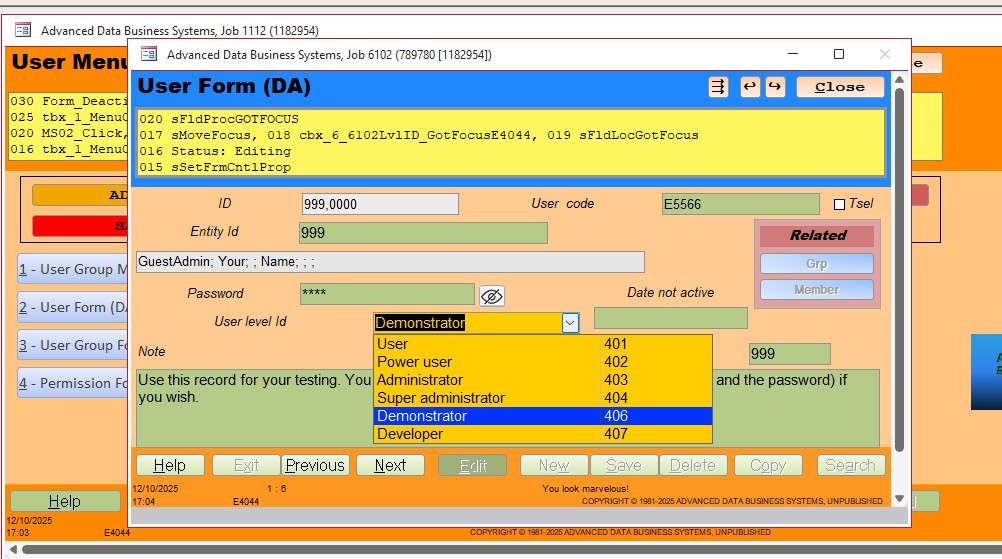
Michael Do you mean like this? Or did I misunderstand?
(image next msg)
Thomas Gonder  @Reply  
      
7 months ago

Michael Duncan OP  @Reply  
     
7 months ago
That looks like what I want. Are you changing the field back color, or are you using the field has focus event in conditional formatting. As you move from field to field? I would like to have the combo box change color when the field has the focus.
Thomas Gonder  @Reply  
      
7 months ago
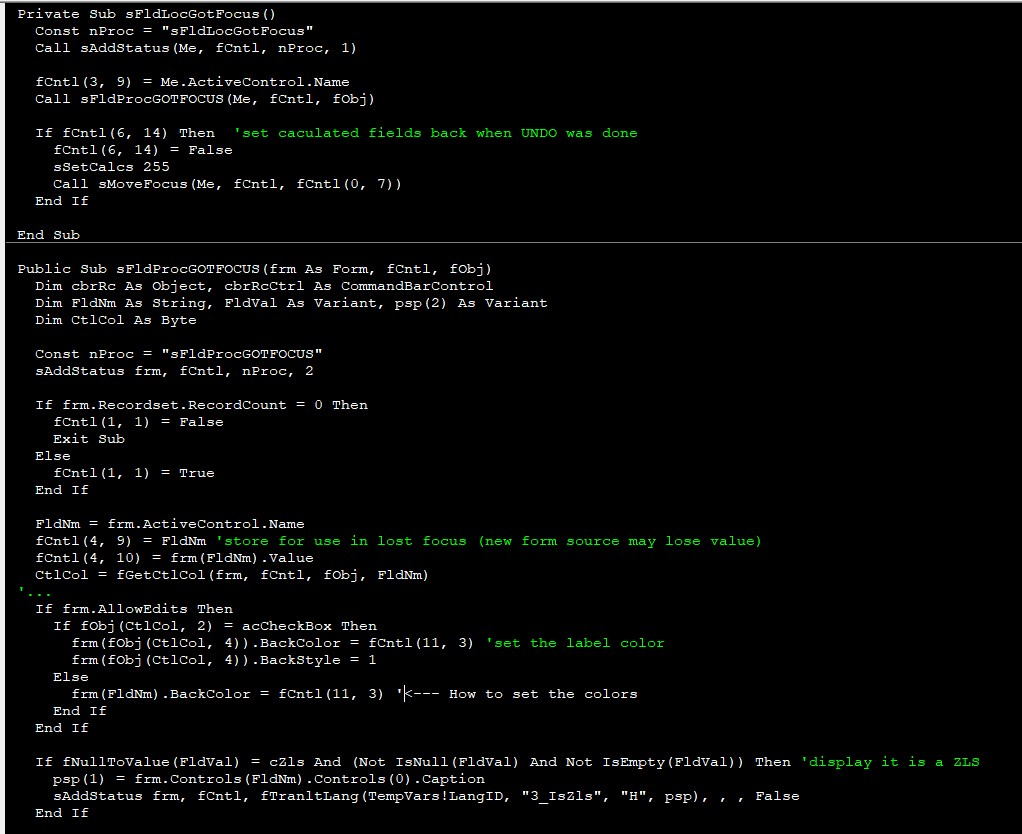
I tried conditional formatting. It fell apart with continuous forms. I resorted to VBA code when getting/losing focus. For my designs, I only change colors when editing, and not while previewing. I also change colors when leaving a control to show how the data might have changed. The active control has one color (goldenrod) while the nonedited show a different one (green) and edited fields or errors show yet another variety of colors. All of this is called from the form's class module to a helper form module. Of course, you could make a much simpler version of all the code I created.
Thomas Gonder  @Reply  
      
7 months ago

Thomas Gonder  @Reply  
      
7 months ago

Thomas Gonder  @Reply  
      
7 months ago

Michael Duncan OP  @Reply  
     
7 months ago
Thanks for the help and ideas. I will give it a try.
Richard Rost  @Reply  
          
7 months ago

Richard Rost  @Reply  
          
7 months ago
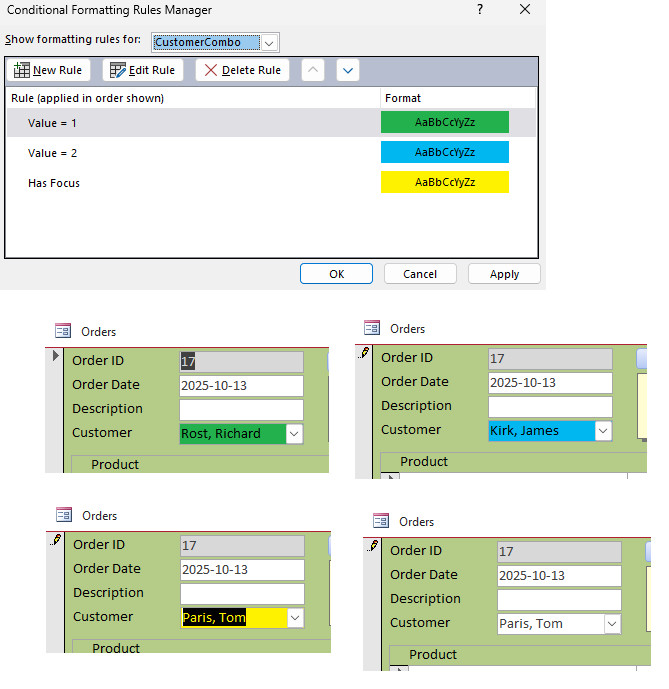
The field has focus conditional formatting should work fine as long as you do not have any other conditional formatting in that combo box.

For example, here I created three rules:

1. If the combo box value equals 1, make it green. That is me.
2. If it is 2, make it blue. That is Jim Kirk (CustomerID 2). Remember, the combo box is bound to the ID, not the text.
3. For anyone else, if the field has focus, make it yellow. If it does not have focus, leave it white.

You should not need VBA for this. The only time I have ever needed VBA is to create custom color controls or new conditional formatting options that are not built into the form design.
Thomas Gonder  @Reply  
      
7 months ago
Richard The problem I had, if I remember correctly from three years ago was that for continuous forms, if I wanted to make the active control change colors when it had focus, all of the combo boxes would change color, not just the one I was currently entering in. It took some very tricky VBA (and days of refining/testing) to overcome that.

Now one might ask, why go to all that work when it's simple in a simple form? Well, I like to do things one way across all forms, all controls, put all the code in a helper module, and not worry about it again (at least until I break it with some modification).
Richard Rost  @Reply  
          
7 months ago
Yeah, continuous forms are a whole different beast.
Thomas Gonder  @Reply  
      
7 months ago
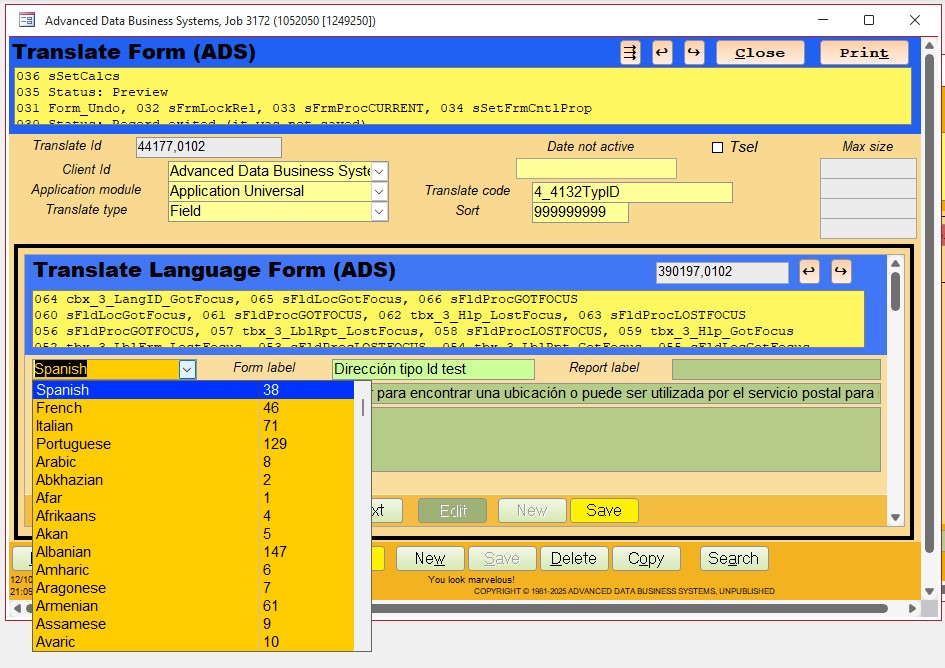
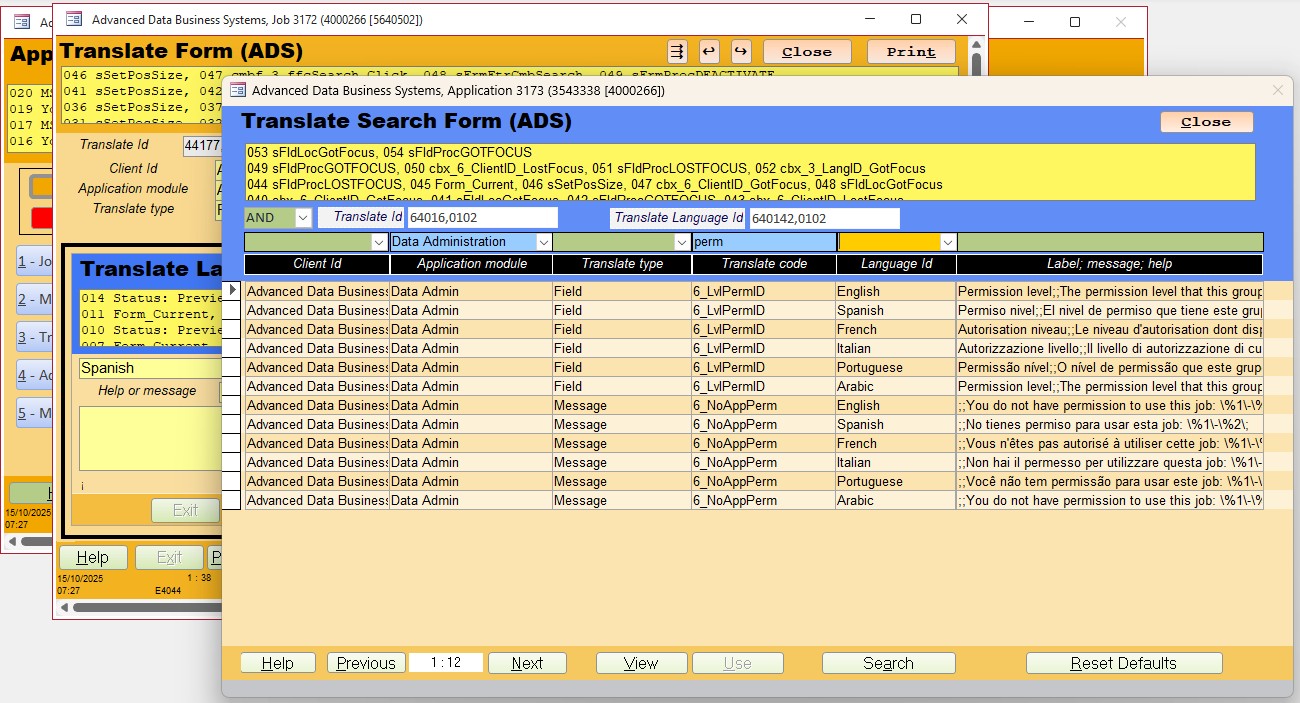
Richard Continuing with continuous forms, I'm not a fan of using them for data entry. The controls are too crammed together if everything is all in one row. But they can be useful, as can be seen in my Translate Language Form shown above, which allows for multiple records (tied to a parent record), with decent spacing (hence the problem with color control). I do like continuous forms for displaying a row for a record when it's for selection, as in the search form for translates. Here it functions kind of like a big combo box, but for records instead of entry fields. The form below should look very familiar, since the concept was taken from you Search Form Seminar/Template/(whatever it was).
Thomas Gonder  @Reply  
      
7 months ago

Thomas Gonder  @Reply  
      
7 months ago
Back to Michael D.'s original question, the combo box above the label "Language Id" is golden rod color (control with focus). Looking in the Status area (yellow rectangle at the top) of the search form, 052-054 are the procedures that were called to, among other things, change the color of the control's background. To the left, the controls with a light blue color show that an entry was made and validated. Green shows controls that can receive an entry, but so far haven't. You can't do all that with conditional formatting. At least not easily and you would have to do it for every entry control throughout an application to be consistent.

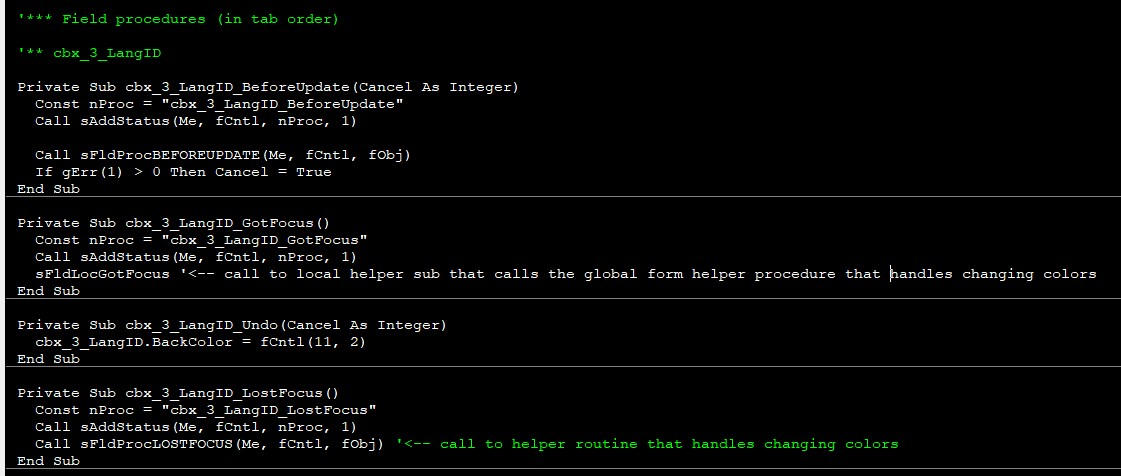
But, isn't it a lot of work in VBA to do that? Not really; in the form's class module, one would copy in the four field procedures shown above for a new control and bulk rename the control's name. At most 30 seconds of work. How long would it take to setup conditional formatting to do all I described? And you would get lots of extra features for entry fields besides the simple background color change.
Lars Schindler  @Reply  
     
7 months ago
Thomas
"The problem I had, if I remember correctly from three years ago was that for continuous forms, if I wanted to make the active control change colors when it had focus, all of the combo boxes would change color, not just the one I was currently entering in. It took some very tricky VBA (and days of refining/testing) to overcome that."

However, there is also a solution that requires almost no VBA and uses conditional formatting:
If we add another field to the relevant table (e.g. blnMarked), we can give the conditional formatting an expression (blnMarked = True) that also works in a continuous form.
A small subroutine then executes two CurrentDb.Executes:
CurrentDb.Execute [...] SET blnMarked = False
and
CurrentDb.Execute [...] SET blnMarked = True WHERE ID = ID.
This subroutine currently fires in Form_Current and Form_Click.
At least in my relatively small and local database, this works quite stably and quickly.
Thomas Gonder  @Reply  
      
7 months ago
Lars Good idea, and it's a parallel to what I ended up doing on the first pass, instead of putting a field in the table, I put a hidden control in the form. And I got it to work pretty good for just the background color on continuous forms.

But then, I added a whole lot more to the got focus and lost focus form class procedures, to return the original color if no change was made on this entry pass (there may have been in a prior control entry), and then validations that return an ok or error color, and the Zls color. As I said, I didn't want to go through every entry control, enter the conditional formatting over and over again. I prefer to copy a few lines of code and get 100% function and compatibility without every control maybe being a little different because of a mouse click error.

For me, I need VBA to get the things I want done. VBA easier for me than to try and construct obscure expressions (that don't have debugging tools). So, I've bypassed a lot of Access standard features (like defaults, changing sizes and formats, validations, etc.) to allow a more flexible and user-friendly interface.

This thread is now CLOSED. If you wish to comment, start a NEW discussion in Access Developer Forum.
 

Next Unseen

 
New Feature: Comment Live View


The following is a paid advertisement
Computer Learning Zone is not responsible for any content shown or offers made by these ads.
 

Learn
 
Access - index
Excel - index
Word - index
Windows - index
PowerPoint - index
Photoshop - index
Visual Basic - index
ASP - index
Seminars
More...
Customers
 
Login
My Account
My Courses
Lost Password
Memberships
Student Databases
Change Email
Info
 
Latest News
New Releases
User Forums
Topic Glossary
Tips & Tricks
Search The Site
Code Vault
Collapse Menus
Help
 
Customer Support
Web Site Tour
FAQs
TechHelp
Consulting Services
About
 
Background
Testimonials
Jobs
Affiliate Program
Richard Rost
Free Lessons
Mailing List
PCResale.NET
Order
 
Video Tutorials
Handbooks
Memberships
Learning Connection
Idiot's Guide to Excel
Volume Discounts
Payment Info
Shipping
Terms of Sale
Contact
 
Contact Info
Support Policy
Mailing Address
Phone Number
Fax Number
Course Survey
Email Richard
[email protected]
Blog RSS Feed    YouTube Channel

LinkedIn
Copyright 2026 by Computer Learning Zone, Amicron, and Richard Rost. All Rights Reserved. Current Time: 5/6/2026 3:11:16 AM. PLT: 0s