Free Lessons
Courses
Seminars
TechHelp
Fast Tips
Templates
Topic Index
Forum
ABCD
 
Home   Courses   TechHelp   Forums   Help   Contact   Merch   Join   Order   Logon  
 
Back to Access Forum    Comments List
Upload Images   @Reply   Bookmark    Link   Email   Next Unseen 
Random Password Generator Db
Bj Schroeder 
     
7 months ago
I am interested in building a database that would create random PASSWORDS. Is there a database or one close to it that Richard has created? I watched Richard's "Random" video and would like to incorporate it into a Password generator.
Bj Schroeder OP  @Reply  
     
7 months ago

Richard Rost  @Reply  
          
7 months ago
You know, over the last couple of years, several people have asked me this. This would make a great video. I haven't done something like it just yet, but it would definitely be a fun project. I've personally always used Google's password manager, so I wouldn't use this myself, but I could see it being a fun programming lesson.
Alex Hedley  @Reply  
           
7 months ago
Use Kevin's Password Manager
Bj Schroeder OP  @Reply  
     
7 months ago
That is the way that I would look at (a fun lesson).
Bj Schroeder OP  @Reply  
     
7 months ago
Alex Thanks Alex! That is exactly like what I'm looking for. I am just playing around with building databases and thought that passwords would be fun and very useful to keep track of all my passwords.
Raymond Spornhauer  @Reply  
          
7 months ago
Alex

How do we get Kevin's Password Manager?

-Raymond
Alex Hedley  @Reply  
           
7 months ago
Kevin Robertson  @Reply  
          
7 months ago
You can download a copy by clicking on the link below.

Password Manager

This is my first time file sharing so let me know if there are any problems.
Dave Clark  @Reply  
           
7 months ago
Hey Kevin, Looks like you need to grant folks access!
Kevin Robertson  @Reply  
          
7 months ago
Dave Try it now.
Dave Clark  @Reply  
           
7 months ago
Hey Kevin, Sorry for the delay! You know  sometimes work gets in the way! Working Good! maybe I misunderstood is there a random password generator component to your database?
Kevin Robertson  @Reply  
          
7 months ago
No. I never thought of it.
Kevin Yip  @Reply  
     
7 months ago
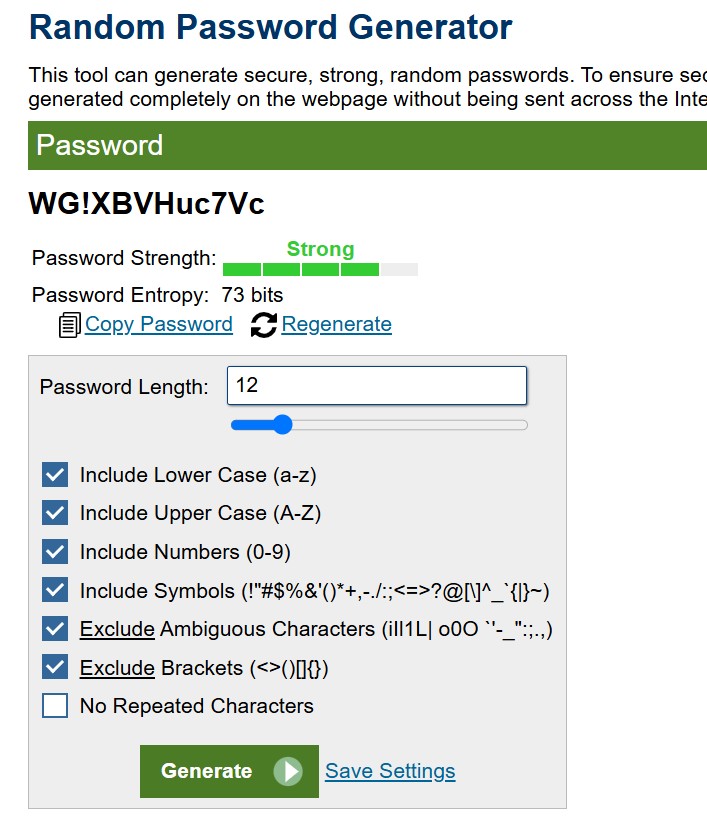
Bj  The formula for "entropy" shown in your picture is as follows:

     ln (C^L)

C is the number of possible different characters.  E.g. if your password is composed of lowercase letters, then C is 26.  If both lower and uppercase letters are used, C is 52, and so on.

L is the length of your password.

ln is natural log, i.e. log to the base of 2.  Log or ln is the inverse of exponent.  E.g. 2 the power of 10 is 1024, and ln 1024 equals 10, and so on.

If your password is 20 characters in length, and is composed of 26 lowercase letters, 26 uppercase letters, and 30 special characters, then your entropy is:

     ln (26+26+30)^20 = ln (82^20) = 88
Kevin Yip  @Reply  
     
7 months ago
A strong password should also have great "randomness," and that means no actual words, proper nouns, etc., should be used.  For instance, this 30-character password, even though it has lower/uppercase letters, special characters, and numerals:

     AccessOrSQLServer,What2choose?

is a lot weaker (by an order of hundreds of trillions) than:

     ,7feLwN[y(i6XGyqhtvwh9'm%tL1.x

because it is a lot more random.
Alex Hedley  @Reply  
           
7 months ago
Aren't 3 random words a preferred way to creating a password now?
Raymond Spornhauer  @Reply  
          
7 months ago
Kevin

Thanks Kevin.

-Raymond
Kevin Yip  @Reply  
     
7 months ago
Alex Actual words are still too "predictable" compared to strings of random characters because there are only a small finite number of actual words (maybe tens or hundreds of millions in all languages combined), whereas random characters can compose trillions and trillions of unique strings.
Richard Rost  @Reply  
          
7 months ago
All I have to say is if someone really wants my password to the Star Trek fan club website that badly, they can just ask me for it. No, just kidding, I guard that with my life.
Debbie Heaney  @Reply  
     
6 months ago
I made a password generator in Excel. You can set the length of the password, up to 36 characters.
You can set complexity requirements like the amount of uppercase/lowercase letters, the amount of numbers and the amount of symbols.
No VBA coding, it's all done by functions/formula.
I never thought of doing it in Access. Curiosity might see me seek out how it's done?
Dave Clark  @Reply  
           
6 months ago
Thanks Everyone!
Barbara Scutt  @Reply  
      
6 months ago
Very cool project to try
Sandra Truax  @Reply  
         
6 months ago
Bj  
This is the random password generator I use. Just specify which characters you want included and it will make sure it has at least on of each type.

DetailsPrivate Sub PasswordBtn_Click()
    Dim Password As String
    Password = GenerateStrongPassword()
    StatusBox = ""
    Status Password
End Sub

Function GenerateStrongPassword(Optional ByVal Length As Integer = 10) As String
    Dim upperChars As String
    Dim lowerChars As String
    Dim numChars As String
    Dim specialChars As String
    Dim allChars As String
    Dim Password As String
    Dim i As Integer
    
    upperChars = "ABCDEFGHIJKLMNOPQRSTUVWXYZ"
    lowerChars = "abcdefghijklmnopqrstuvwxyz"
    numChars = "0123456789"
    specialChars = "!@#$&()_+-;:,./?"
    allChars = upperChars & lowerChars & numChars & specialChars
    
    Randomize
    
    ' Ensure at least one of each requirement
    Password = Mid(upperChars, Int(Rnd() * Len(upperChars)) + 1, 1)
    Password = Password & Mid(lowerChars, Int(Rnd() * Len(lowerChars)) + 1, 1)
    Password = Password & Mid(numChars, Int(Rnd() * Len(numChars)) + 1, 1)
    Password = Password & Mid(specialChars, Int(Rnd() * Len(specialChars)) + 1, 1)
    
    ' Fill the rest randomly
    For i = Len(Password) + 1 To Length
        Password = Password & Mid(allChars, Int(Rnd() * Len(allChars)) + 1, 1)
    Next i
    
    ' Shuffle the password so the first 4 aren't always in order
    GenerateStrongPassword = ShuffleString(Password)
End Function

Private Function ShuffleString(S As String) As String
    Dim i As Long, j As Long
    Dim temp As String
    Dim arr() As String
    
    ReDim arr(1 To Len(S))
    For i = 1 To Len(S)
        arr(i) = Mid(S, i, 1)
    Next i
    
    For i = 1 To UBound(arr)
        j = Int(Rnd() * UBound(arr)) + 1
        temp = arr(i)
        arr(i) = arr(j)
        arr(j) = temp
    Next i
    
    For i = 1 To UBound(arr)
        ShuffleString = ShuffleString & arr(i)
    Next i
End Function
Bj Schroeder OP  @Reply  
     
6 months ago
Sandra Thanks Sandra! I will try it out.
Dave Clark  @Reply  
           
6 months ago
Thanks Sandra, I'm with BJ can't wait to try it out!
Kevin Yip  @Reply  
     
6 months ago
There is a movie (which I don't recall the name of) about an undercover cop whose true identity is stored in a password-protected computer database, and the password happens to be the word "undercover" in Morse code.  That is actually a pretty strong password:

     ..- -. -.. . .-. -.-. --- ...- . .-.

Even though it only has dots and dashes, it is 30 characters in length.  I was tempted to use such a method to create my passwords, but sadly a lot of websites don't accept passwords longer than 20 characters.
Richard Rost  @Reply  
          
6 months ago
I used to use a scheme for every website that was:

Start with the first 3 characters of the domain name of the website. First letter capitalized. Then take those three letters and get their numerical equivalents. If they were numbers, use the first letter of the spelled-out number. Then add symbols from the "number row" symbols on the keyboard lining up with the first 3 letters of the name. For steps 2 and 3, wrap around for values higher than 10 (so 13 becomes 3).

So for example:

AmericanExpress.com would be: Ame135!#%
Publix.com would be: Pub612^!@
599cd.com would be: Fnn599%(( - and yes that was my actual password for a while. LOL

That usually worked pretty well. I haven't used that system in about 10 years now, ever since Google released its password manager which is built into Chrome.
Richard Rost  @Reply  
          
6 months ago
The point of the above comment was that it was an algorithm I could use on ANY site and not have to remember passwords or store them anywhere and it worked on almost any site. I think I had trouble with one website that didn't allow # in the password. Can't remember which one.
Matt Hall  @Reply  
          
6 months ago
I was checking out Kevin's password manager and got curious.  I decided that I only want to use ASCII codes 32-126 for my characters.  This left a count of 95 characters for use and I used the Rnd function to select them, one at a time.  Once selected, I added back the 31 + 1 more to shift the number back to the correct ASCII code number range.  I also use constant PWExclude for excluded characters like " and '.  Finally I test each character for exclusion.  If it is excluded, I just try again.  It is a little rough and ready but it seem to work.

Private Sub GeneratePWBtn_Click()
    Dim PWLen As Long, PWChar As Long, X As Long, PWord As String
    Const PWExclusion As String = """" & "'" & "EXCLUDED"   'Replace 'EXCLUDED' with characters you want excluded from PW
    PWLen = 12
    PWord = ""
    For X = 1 To PWLen                                      'Run for each character of the password
        PWChar = Int((Rnd * 95) + 32)
        If InStr(1, PWExclusion, Chr(PWChar), 0) > 0 Then   'Test for excluded characters
            X = X - 1                                       'Rerun for this character
        Else
            PWord = PWord & Chr(PWChar)                     'Keep this character
        End If
    Next
    txtPassword = PWord
    If lblShowPassword.Caption = "Show" Then ShowPassword   'Make password visible
End Sub

This thread is now CLOSED. If you wish to comment, start a NEW discussion in Access Forum.
 

Next Unseen

 
New Feature: Comment Live View


The following is a paid advertisement
Computer Learning Zone is not responsible for any content shown or offers made by these ads.
 

Learn
 
Access - index
Excel - index
Word - index
Windows - index
PowerPoint - index
Photoshop - index
Visual Basic - index
ASP - index
Seminars
More...
Customers
 
Login
My Account
My Courses
Lost Password
Memberships
Student Databases
Change Email
Info
 
Latest News
New Releases
User Forums
Topic Glossary
Tips & Tricks
Search The Site
Code Vault
Collapse Menus
Help
 
Customer Support
Web Site Tour
FAQs
TechHelp
Consulting Services
About
 
Background
Testimonials
Jobs
Affiliate Program
Richard Rost
Free Lessons
Mailing List
PCResale.NET
Order
 
Video Tutorials
Handbooks
Memberships
Learning Connection
Idiot's Guide to Excel
Volume Discounts
Payment Info
Shipping
Terms of Sale
Contact
 
Contact Info
Support Policy
Mailing Address
Phone Number
Fax Number
Course Survey
Email Richard
[email protected]
Blog RSS Feed    YouTube Channel

LinkedIn
Copyright 2026 by Computer Learning Zone, Amicron, and Richard Rost. All Rights Reserved. Current Time: 5/6/2026 12:09:26 PM. PLT: 1s