Free Lessons
Courses
Seminars
TechHelp
Fast Tips
Templates
Topic Index
Forum
ABCD
 
Home   Courses   TechHelp   Forums   Help   Contact   Merch   Join   Order   Logon  
 
Back to Access Developer Forum    Comments List
Upload Images   @Reply   Bookmark    Link   Email   Next Unseen 
Alternate List Box Between None and Simple
Sandra Truax 
         
4 months ago
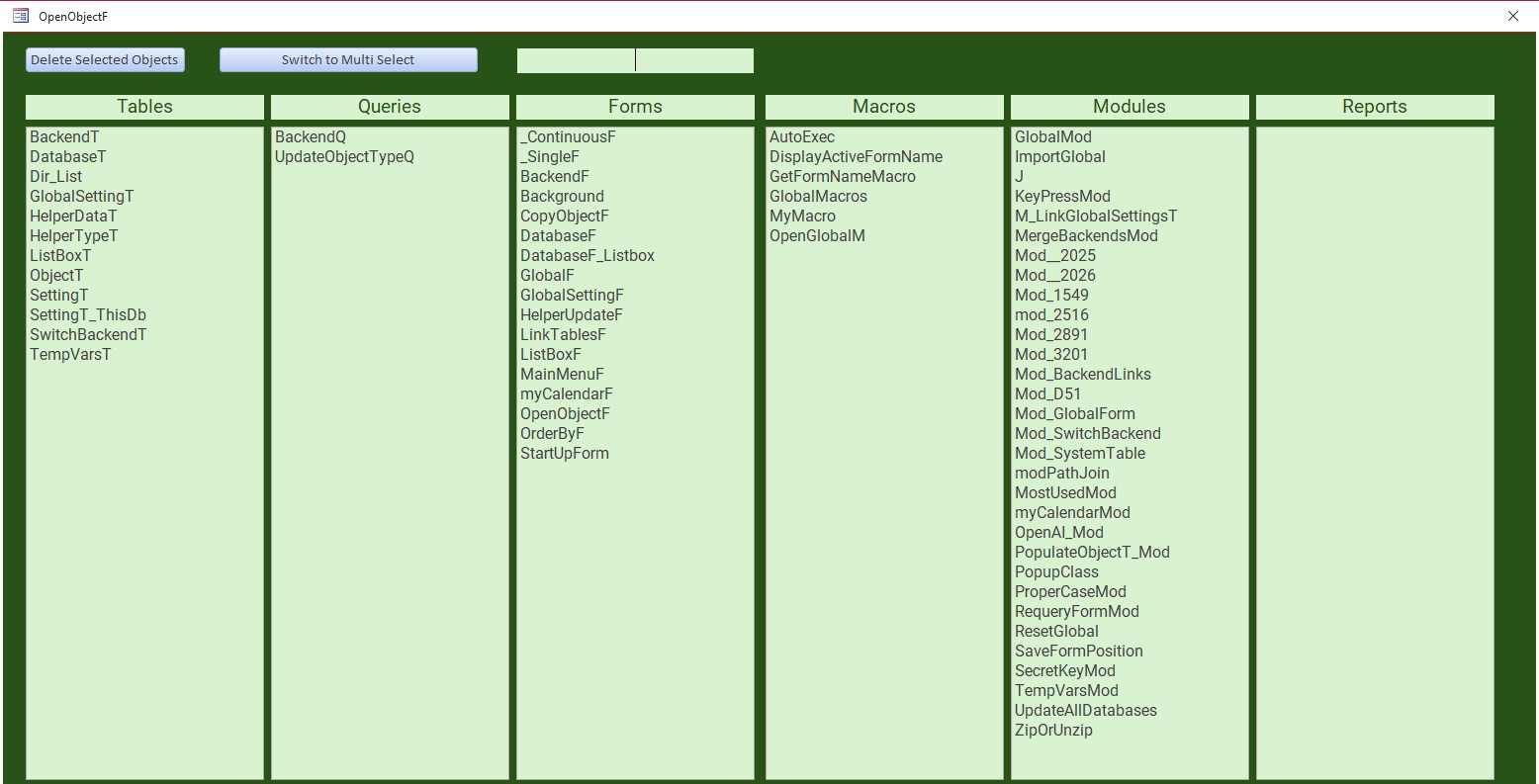
I use the following form to open my tables: Forms, Queries, and Design View, etc. It pulls the information from the database, so that I don't have to update it manually. For things that are no longer used, I can hold down the shift key and select one at a time per list box and delete it using the delete button. What I want is be able to click the switch to multi-select so that I can select multiple tables and then hit the delete button instead of having to do them one at a time. When I am done deleting, I would like to be able to click the button again and have it switch back to the normal list box (Multi Select property: None) where a single click will just to open the selected object.

I've tried myself, ChatGPT has tried, and Copilot has tried. So far, nothing works. Hoping somebody knows how to do this.
Sandra Truax OP  @Reply  
         
4 months ago

Kevin Robertson  @Reply  
          
4 months ago
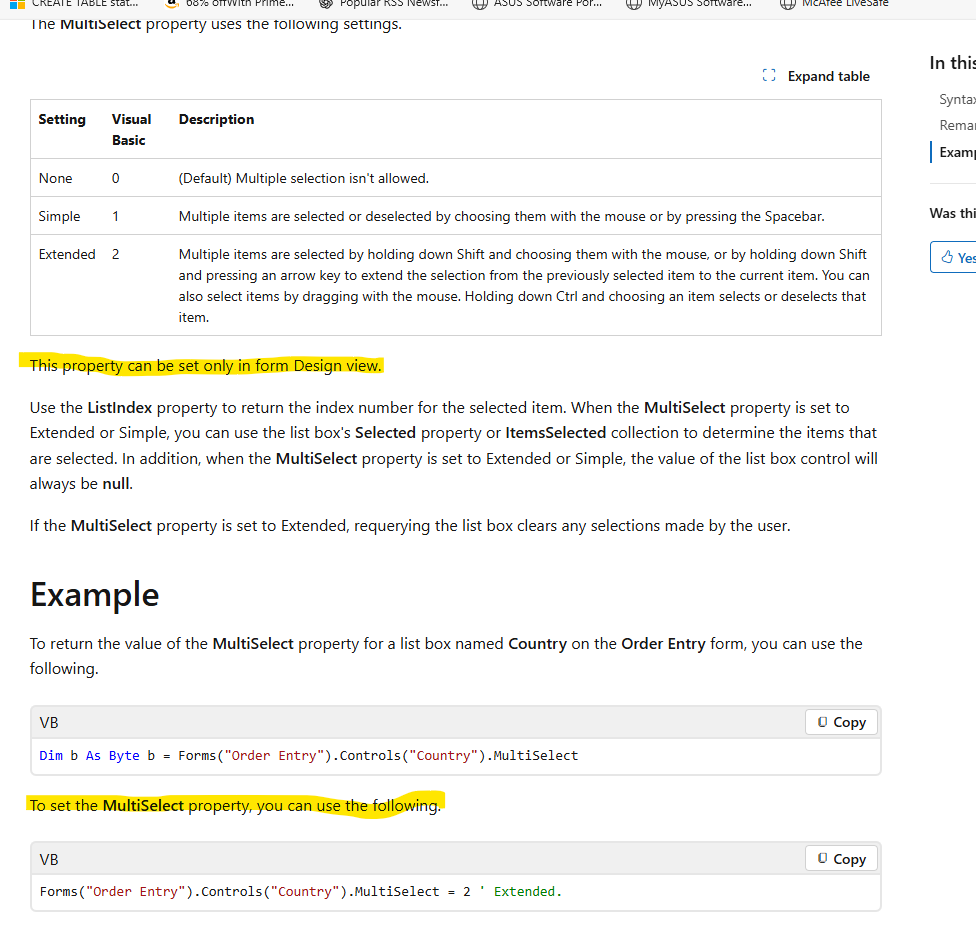
The MultiSelect property of a List Box cannot be changed at runtime. It is a design-time-only property.
You could have two list boxes (one single select, one multi select) and control their visibility in code.
Remember you would always have both list boxes to maintain for each action you want to perform.
Kevin Robertson  @Reply  
          
4 months ago
You could use a subform (Continuous Form) and use check boxes to simulate multi-select.
Thomas Gonder  @Reply  
      
4 months ago
Once again, the Microsoft documentation comes up short in understanding. But if you can multi-select, why not just use that since you can select just one (or many) if you need only one?
Thomas Gonder  @Reply  
      
4 months ago

Thomas Gonder  @Reply  
      
4 months ago

Thomas Gonder  @Reply  
      
4 months ago
Then I would just change your "Switch to Multi Select" button to an "Open Selected Objects" button.
If you don't want all the objects to open, you could just stop after the first one.
I'm curious, is this to allow select users to get to objects when the Navigation Pane has been disabled?
Alex Hedley  @Reply  
           
4 months ago
What's great about MS is that you can contribute to the docs, so by all means suggest some changes:

https://github.com/MicrosoftDocs/VBA-Docs/blob/main/api/Access.ListBox.MultiSelect.md

ListBox.MultiSelect property (Access)
https://learn.microsoft.com/en-us/office/vba/api/access.listbox.multiselect#example

Top right,  ... then Edit
Thomas Gonder  @Reply  
      
4 months ago
Alex Microsoft isn't paying me enough to write/fix their documentation for them. Besides, not being the actual developer of the product, with no access to source code, I would probably be just as wrong as the last volunteer.
Alex Hedley  @Reply  
           
4 months ago
Given the size of their team it's a trade off to help the community.
Alex Hedley  @Reply  
           
4 months ago
You could raise an Issue instead.
Kevin Robertson  @Reply  
          
4 months ago
The MultiSelect property is evaluated when the list box control is created and cannot be changed at runtime in Access.
Richard Rost  @Reply  
          
4 months ago
I agree with Kevin. There is no clean way to toggle single vs multi-select at runtime because the MultiSelect behavior is set when the control is created.

A practical workaround is to use two list box controls and just swap which one the user interacts with. For example, keep your multi-select list box as-is, then create a second single-select list box with the same RowSource and size, place it directly on top of the first one, and toggle which one is visible with your button. That gives you a true single-select experience when you want it, and true multi-select when you want it, without fighting the control.
Richard Rost  @Reply  
          
4 months ago
And then, of course, you'll have to adjust your code. Any other buttons (like delete tables or whatever) will have to know which list box is visible, but that's easy to do with a variable or a hidden check box.
Thomas Gonder  @Reply  
      
4 months ago
Imagine, when Access first came out, there were offline helps, and they weren't too shabby.
There were also options as to what components you wanted to install (like the helps).
Sandra Truax OP  @Reply  
         
4 months ago
Thank you, everyone. I started to switch everything to the two styles and then switch back and forth by making the other one visible, but I was afraid I'd have to change too much code.

99% of the time I'm using just a single click to open the forms, reports, etc. It's just when I've been experimenting and trying to make changes and decide I don't like it that I'd actually delete stuff, so it's not something that gets used a lot. Again, thank you. I was just hoping there was a way to do it without having duplicate list boxes.

One more quick question: Is there a way to loop through the list boxes in the buttons on click event, and if it ends in multi, make them visible to true and at the same time if it does not end in multi set visible to false? Or do I have to list each listbox individually?
Donald Blackwell  @Reply  
       
4 months ago
You could loop through the controls on the form and check first if the controltype is a listbox and then if it is , if the right 5 characters are "Multi"  make them visible.

I would make your "Switch to Multi Select" button a toggle button if it isn't already so that you could just set the visibility of your listboxes to be equal (or opposite) it's state.

Example next post
Donald Blackwell  @Reply  
       
4 months ago
Private Sub ToggleName_AfterUpdate()

     Dim C as Control

     For Each C In Me.Controls
          if C.ControlType = acListBox then
               if Right(C.Name,5) = "Multi" then
                    C.Visible = ToggleName
               Else
                    C.Visible = not ToggleName
               End If
          End If
     Next

End Sub
Sandra Truax OP  @Reply  
         
4 months ago
Thank you Donald!!!!!!!!  It works Perfect!
Matt Hall  @Reply  
          
4 months ago
Another approach might be to set the listbox to multi select and use the multi/single button to set a tempvar.  When the tempvar is set to single, just clear previously selected items in the onclick event, so it acts like a single select.

You might need something like mouse down or before update so selected items are cleared before the new item is selected.   I am not at home and haven't tried this though.
Sandra Truax OP  @Reply  
         
4 months ago
Matt I'll have to play with that and see if I can get it to work. The other works perfect, but I'm always looking to something new to try.
Richard Rost  @Reply  
          
4 months ago
So many options, so little time. :)
Thomas Gonder  @Reply  
      
4 months ago
A lot of times I need to open multiple tables to see what's going on between them. If I didn't have the Navigation pane or macros, I would like Sandra's form to do that. Also, selected users (that know what they are doing) could also get to tables or queries. A create query button (maybe even reports) would allow those special users to get to Nav pane things.

I just hide the Navigation pane, and let the "special" users out of the menu form to do their stuff. They then press F11.

The menu program allows users, based upon their permissions, to select either tables, queries or macros (along with forms and reports). This comes in handy until I have time to create a new form for a new table and keeps them out of the NavPane for simple tasks.
Thomas Gonder  @Reply  
      
4 months ago

This thread is now CLOSED. If you wish to comment, start a NEW discussion in Access Developer Forum.
 

Next Unseen

 
New Feature: Comment Live View


The following is a paid advertisement
Computer Learning Zone is not responsible for any content shown or offers made by these ads.
 

Learn
 
Access - index
Excel - index
Word - index
Windows - index
PowerPoint - index
Photoshop - index
Visual Basic - index
ASP - index
Seminars
More...
Customers
 
Login
My Account
My Courses
Lost Password
Memberships
Student Databases
Change Email
Info
 
Latest News
New Releases
User Forums
Topic Glossary
Tips & Tricks
Search The Site
Code Vault
Collapse Menus
Help
 
Customer Support
Web Site Tour
FAQs
TechHelp
Consulting Services
About
 
Background
Testimonials
Jobs
Affiliate Program
Richard Rost
Free Lessons
Mailing List
PCResale.NET
Order
 
Video Tutorials
Handbooks
Memberships
Learning Connection
Idiot's Guide to Excel
Volume Discounts
Payment Info
Shipping
Terms of Sale
Contact
 
Contact Info
Support Policy
Mailing Address
Phone Number
Fax Number
Course Survey
Email Richard
[email protected]
Blog RSS Feed    YouTube Channel

LinkedIn
Copyright 2026 by Computer Learning Zone, Amicron, and Richard Rost. All Rights Reserved. Current Time: 5/6/2026 7:04:08 AM. PLT: 0s