Free Lessons
Courses
Seminars
TechHelp
Fast Tips
Templates
Topic Index
Forum
ABCD
 
Home   Courses   TechHelp   Forums   Help   Contact   Merch   Join   Order   Logon  
 
Back to Access Developer Forum    Comments List
Upload Images   @Reply   Bookmark    Link   Email   Next Unseen 
Changing Button Backcolors When Tabing!
Werner Mildt 
      
2 days ago
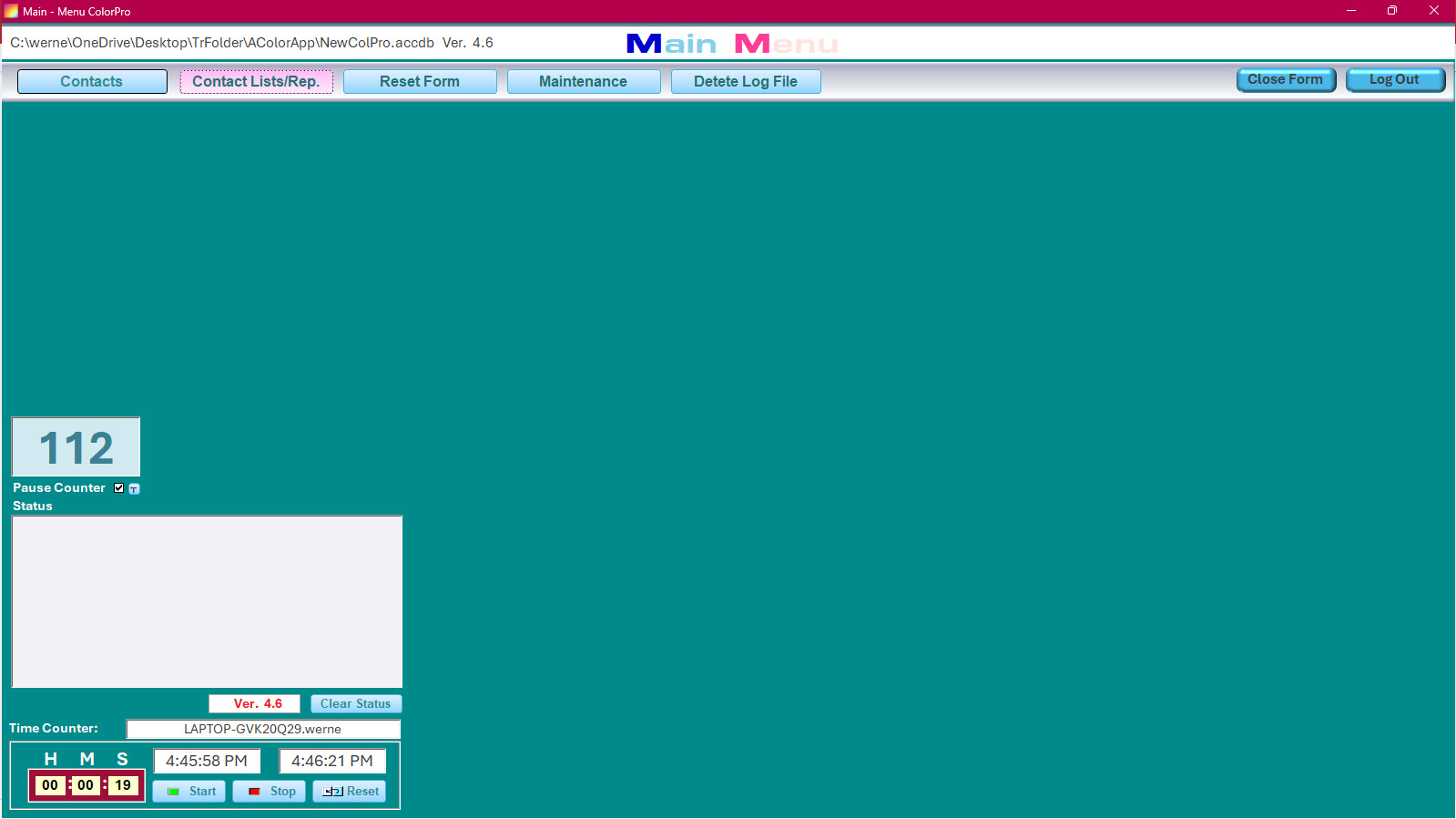
When tabbing true Buttons, it's very hard to see which Button is selected.
I have created a Combo Box to change the Back Colors at at runtime.
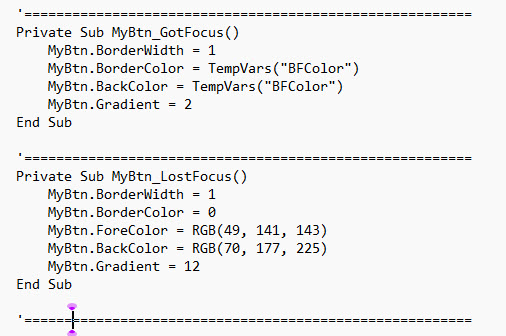
Everythink works perfect, but the code below
needs to be put in every Button.
So, if you have a lot of Buttons in your application it is a
lot of recurring work.
It would be nice to have a function to do the job.
If I could get any help with this, I would appreciate.
I don't have enough knowledge to create functions.
Thangs

Werner Mildt OP  @Reply  
      
2 days ago

Werner Mildt OP  @Reply  
      
2 days ago

Alex Lewis  @Reply  
       
2 days ago
Put the following code in a global module so your entire database can use it:

Public Function SetBtnColor(Btn as Control, R as Long, G as Long, B as Long)

TempVars(“BFColor”) = HexToRGB(R, G, B)

With Btn
.BackColor = TempVars(“BFColor”)
.BorderColor = TempVars(“BFColor”)
End With

End Function

Rick’s Hex to RGB function is in the code vault.
John Davy  @Reply  
         
2 days ago
Hi Werner, you might also want to look at the properties of the button to see whether adjusting the properties: Under Format: Hover Color, Hover fore Color, Pressed Color.  That's what I do to make it pop when I am on the button.  HTH John
Matt Hall  @Reply  
          
2 days ago
Do you use the same colors and behavior for each button?
Werner Mildt OP  @Reply  
      
26 hours ago

Werner Mildt OP  @Reply  
      
25 hours ago
Good morning, Alex
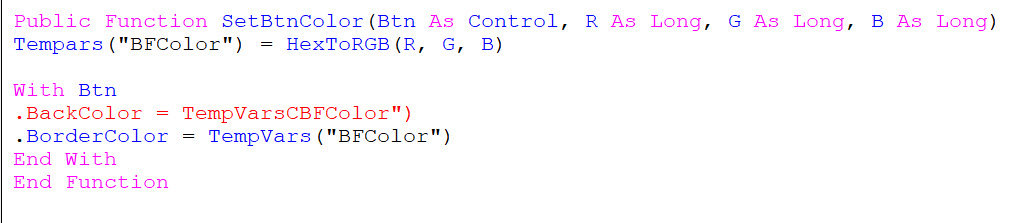
Thanks for your reply. I entered the code as is. Butt there is an error (line 4) .
Am I missing something?
Thanks

To John, the hover colors are just when you use your mouse. Thanks

To Matt, yes same colors however I can change the button colors at runtime
and saved to a file. Thanks

Alex Lewis  @Reply  
       
25 hours ago
You have a C where the “(“ should go.

TempVars(“BFColor”)
Werner Mildt OP  @Reply  
      
25 hours ago
Alex, I just fund the error in the TenpVars
I had used a Text Capture Utility.
That shows, you need to check every think.
Alex Lewis  @Reply  
       
25 hours ago
Werner I usually don’t rely on those Text Capture Utilities. They can be good for simple things, but sometimes they just won’t import text properly.

It’s just like AI, it behaves when it wants to. LOL
Werner Mildt OP  @Reply  
      
25 hours ago
Hi Alex, I think I am Lost again.
How and where do I implement the function.
Darrin Harris  @Reply  
     
24 hours ago
You guys sure that code works, I thought HexToRGB takes a String value?

Public Function SetBtnColor(Btn As Control, R As Integer, G As Integer, B As Integer)

    With Btn
        .BackColor = RGB(R, G, B)
        .BorderColor = RGB(R, G, B)
    End With

End Function

or

Public Function SetBtnColor(Btn As Control, Hex As String)

    TempVars("BFColor") = HexToRGB(Hex)

    With Btn
        .BackColor = TempVars("BFColor")
        .BorderColor = TempVars("BFColor")
    End With

End Function
Donald Blackwell  @Reply  
       
24 hours ago
An alternative approach that would make it so you only need to do 2 things in each form you want to run this in:

1) In the form event properties, set "KeyPreview" to "Yes"
2) In the form's KeyUp event add:
     If KeyCode = vbKeyTab Then AdjustButtonColors

3) In a Global Module add the AdjustButtonColors function:

Public Function AdjustButtonColors()

    Dim Prev As Control, Act As Control
    
    ' Set the previous and active controls to variables
    If Not Screen.PreviousControl Is Nothing Then Set Prev = Screen.PreviousControl
    If Not Screen.ActiveControl Is Nothing Then Set Act = Screen.ActiveControl
    
    ' Check if the previous control was initialized
    If Not Prev Is Nothing Then
        With Prev
            ' Check if the Previous control is a button and
            ' If so, set it's properties
            If .ControlType = acCommandButton Then
                .BorderWidth = 1
                .BorderColor = 0
                .ForeColor = RGB(49, 141, 143)
                .BackColor = RGB(70, 177, 225)
                .Gradient = 12
            End If
        End With
    End If
    
    ' Check if the Active control is initialized
    If Not Act Is Nothing Then
        With Act
            ' Check if the Active controls is a button and
            ' If so, set it's properties
            If .ControlType = acCommandButton Then
                .BorderWidth = 1
                .BorderColor = TempVars!BFColor
                .BackColor = TempVars!BFColor
                .Gradient = 2
            End If
        End With
    End If
    
    On Error Resume Next
    Set Prev = Nothing
    Set Act = Nothing
    On Error GoTo 0
    
End Function


Also, If you wanted to save the TempVars, you could also set the HoverColor in each button's properties and then instead of calling the TempVar, you could have:

.BorderColor = .HoverColor
.BackColor = .HoverColor


For the Active Control
Darrin Harris  @Reply  
     
24 hours ago
Donald That will do the job.
Werner Mildt OP  @Reply  
      
24 hours ago
Hi Darrin and Alex, I tried all three functions: Button on Focus:  =SetBtnColor()  
Error The expression you entered has a function
        containing the wrong number of arguments.
Werner Mildt OP  @Reply  
      
23 hours ago
Thanks Donald, I will try it now.
Darrin Harris  @Reply  
     
23 hours ago
Hi Werner For starters the function needs the btn and the color.

So On Got Focus would be =SetBtnColor(Btn As Control, 24, 141, 143) thats if its the first Function

I was just testing Donald's code but am having problems getting it to work still working on it, help Donald lol
Darrin Harris  @Reply  
     
23 hours ago
Sorry Werner thats =SetBtnColor(your button name?, 24, 141, 143)

Donald Blackwell  @Reply  
       
23 hours ago
The main thing with my approach is making sure you're putting the AdjustButtonColors call in the KeyUp event of the form and not of each button and you have to make sure to turn KeyPreview on

That way, every time you press tab, it will look at the control you left, if it's a button, it will restore it's colors and if it's not, it won't do anything. The same for the control you land on; if it's a button, it will change the settings to the chosen colors.

Also, you'll have to make sure that you're setting the TempVar "BFColor" if you're using that, otherwise, it won't do anything. From Werner's initial post, I was going on the thought that that was being set elsewhere.
Darrin Harris  @Reply  
     
23 hours ago
Donald the buttons are staying one color, thay only change once?
Darrin Harris  @Reply  
     
23 hours ago
Donald Doh I put it on the keydown on the button lol working now, but the color only changes after I tab off the button.
Donald Blackwell  @Reply  
       
23 hours ago
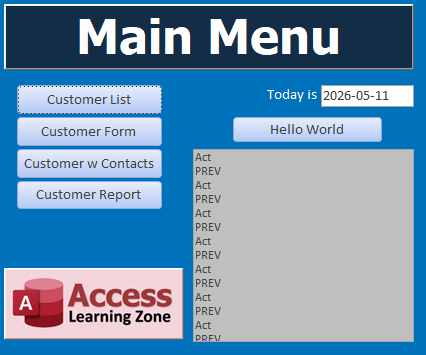
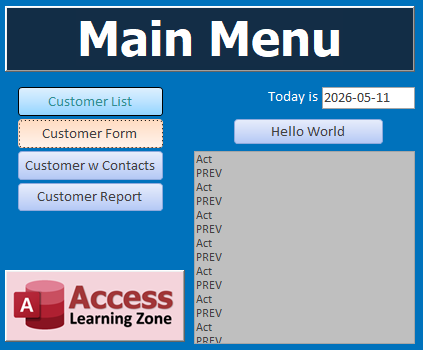
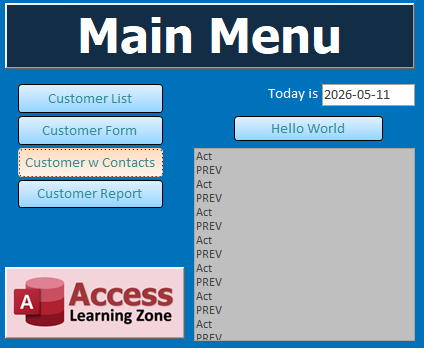
Nope, I copied that code out of a copy of Richard's TechHelp Template I put it into. The Public function in a global mod and then in the form's keyup event the call to that function and have keypreview turned on. I can continuously tab through the form and the color will change from the default to an orange-ish color when they receive focus and then to whatever color is set in the Tempvar when focus is lost.

I tried it with the Main Menu. I'll attach some screen shots:
Donald Blackwell  @Reply  
       
23 hours ago

Darrin Harris  @Reply  
     
23 hours ago
Sorry Donald I messed up, I made two mistakes KeyDown and the button.
Donald Blackwell  @Reply  
       
23 hours ago

Donald Blackwell  @Reply  
       
23 hours ago

Donald Blackwell  @Reply  
       
23 hours ago
Yeah, I only did it to respond to the tab. Would need to add to modify a little to get the initial state. Will work on it.
Darrin Harris  @Reply  
     
23 hours ago
Your awesome Donald, I should go to bed nearly 3am here lol
Donald Blackwell  @Reply  
       
23 hours ago
OK, the quickest I came up with:

1) In Adjust Button Colors, Add "On Error Resume Next" before the lines setting "Prev" and "Act" and add "On Error Goto 0" after

Details    On Error Resume Next
    If Not Screen.PreviousControl Is Nothing Then Set Prev = Screen.PreviousControl
    If Not Screen.ActiveControl Is Nothing Then Set Act = Screen.ActiveControl
    On Error GoTo 0


2) In the Form_Current() event, add:

Details[FIRSTBUTTON].SetFocus
AdjustButtonColors


Example from Richard's Template:

DetailsPrivate Sub Form_Current()
    
    CustomerListBtn.SetFocus
    AdjustButtonColors

End Sub
Donald Blackwell  @Reply  
       
23 hours ago
If the first control to get focus when you open the form isn't a button, you shouldn't need to do anything as the original code should kick in as you tab through the form.
Darrin Harris  @Reply  
     
22 hours ago
I'm sure Werner happy with that thankyou Donald.
Werner Mildt OP  @Reply  
      
22 hours ago
Hi Donald, Ater fixing a few text capture errors I got it finally working.
You hit right on the nail it works perfectly.
Thanks for your support, I really appreciate it.
With best regards
Werner
Donald Blackwell  @Reply  
       
22 hours ago
Glad it works for you. Sorry on the original posts I should have "Detail"'d the code like I did later to make it easy to just copy to clipboard.
Alex Lewis  @Reply  
       
2 hours ago
Darrin You’re right, I was thinking of the original RGB function.
Add a Reply Upload an Image
Next Unseen

 
New Feature: Comment Live View


The following is a paid advertisement
Computer Learning Zone is not responsible for any content shown or offers made by these ads.
 

Learn
 
Access - index
Excel - index
Word - index
Windows - index
PowerPoint - index
Photoshop - index
Visual Basic - index
ASP - index
Seminars
More...
Customers
 
Login
My Account
My Courses
Lost Password
Memberships
Student Databases
Change Email
Info
 
Latest News
New Releases
User Forums
Topic Glossary
Tips & Tricks
Search The Site
Code Vault
Collapse Menus
Help
 
Customer Support
Web Site Tour
FAQs
TechHelp
Consulting Services
About
 
Background
Testimonials
Jobs
Affiliate Program
Richard Rost
Free Lessons
Mailing List
PCResale.NET
Order
 
Video Tutorials
Handbooks
Memberships
Learning Connection
Idiot's Guide to Excel
Volume Discounts
Payment Info
Shipping
Terms of Sale
Contact
 
Contact Info
Support Policy
Mailing Address
Phone Number
Fax Number
Course Survey
Email Richard
[email protected]
Blog RSS Feed    YouTube Channel

LinkedIn
Copyright 2026 by Computer Learning Zone, Amicron, and Richard Rost. All Rights Reserved. Current Time: 5/12/2026 11:21:28 AM. PLT: 1s