Free Lessons
Courses
Seminars
TechHelp
Fast Tips
Templates
Topic Index
Forum
ABCD
 
Home   Courses   TechHelp   Help   Contact   Merch   Join   Order   Logon   Forums   
 
Back to Access Forum    Comments List
Upload Images   @Reply   Bookmark    Link   Email   Next Unseen 
First Post - Question
Paul Jack Higginbotham 
    
34 days ago
Hi, I bought a lot of Richard's courses and they're outstanding. I'm at Beginner 8, Lesson 1 right now. I'm doing as he said, just watching and not trying to create my own database yet.

I do have a question though about what I want to create, will my database have too many tables?

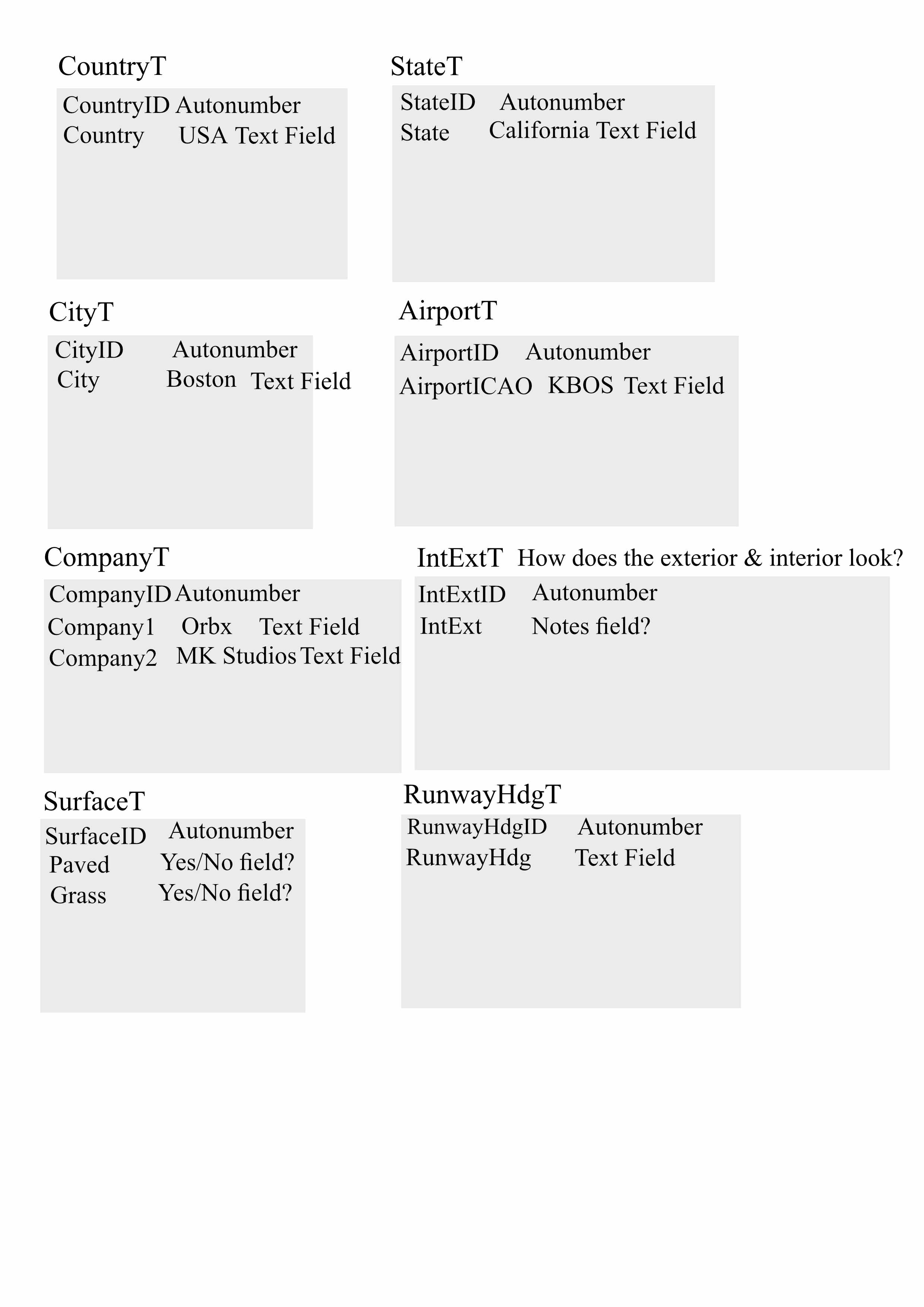
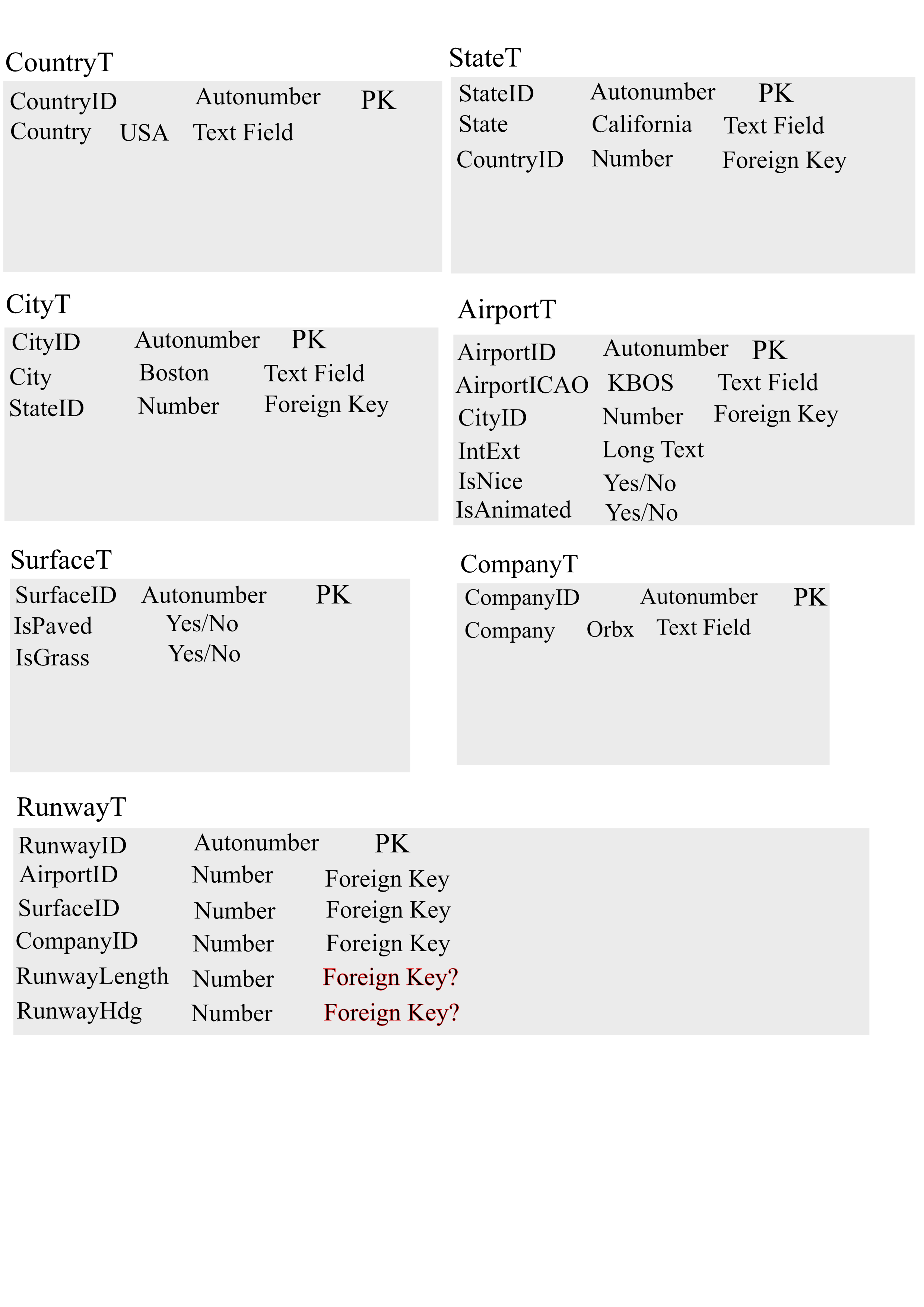
My goal is to create an aviation related database that contains information such as Country, State, City, ICAO (airport code), Company where I bought the airport from (this is for Microsoft's Flight Sim), a Notes table that describes if the airport is detailed on the exterior and interior, the surface of the runway, and runway heading.

I use Postimages.org to post screenshots so I'm going to try to post a graphics file I created in Affinity 3 which shows what I'd like, again, too many tables?

I'm not sure if this question I'm asking is even allowed and if it isn't then I apologize.

Much appreciated and Go Forth and Prosper.
Paul Jack Higginbotham OP  @Reply  
    
34 days ago

Richard Rost  @Reply  
          
34 days ago
Hi Paul, and welcome aboard! First, thanks for posting this here in the forums. This is exactly what they're for. Chances are if you've got a question, someone else either has the same one now or will in the future, so your post can help other students too.

From what you've shown, I don't think you have too many tables at all. In fact, this is a good start. Country -> State -> City -> Airport is a perfectly reasonable hierarchy if you want to be able to organize and search your data that way. Having separate tables for companies, runway headings, runway surfaces, and so on is exactly the kind of normalization we want to do.

One small naming convention I use personally: for Yes/No fields, I like to start them with "Is", so instead of Paved or Grass, I'd probably use IsPaved and IsGrass. That's just my own preference. It makes those fields read more naturally in code and queries, but it's certainly not a requirement.

The biggest piece of advice I'd give you is don't get too far ahead of yourself just yet. I see you're only up to Beginner 8. I'd recommend finishing the Beginner series and then at least Access Expert 1 and Expert 2 before you spend a lot of time building your database. Those classes cover relationships, normalization, lookup tables, combo boxes, and other topics that will make designing something like this much easier.

For now, keep fleshing out your ideas. It's much easier to adjust a design on paper than after you've entered thousands of records.

Overall, though, I like where you're headed. Keep asking questions here in the forums as they come up, and we'll help you build it the right way. Live long and prosper!
Paul Jack Higginbotham OP  @Reply  
    
34 days ago
Thanks Richard! Your advice is very good and much appreciated.
Raymond Spornhauer  @Reply  
          
32 days ago
Keep going.... eventually you'll get to Helper Data which will show you how to reduce the number of tables.

-Raymond
Paul Jack Higginbotham OP  @Reply  
    
30 days ago
Raymond Helper Data? Where is this? Do you think I have too many tables?
Paul Jack Higginbotham OP  @Reply  
    
30 days ago

Paul Jack Higginbotham OP  @Reply  
    
30 days ago
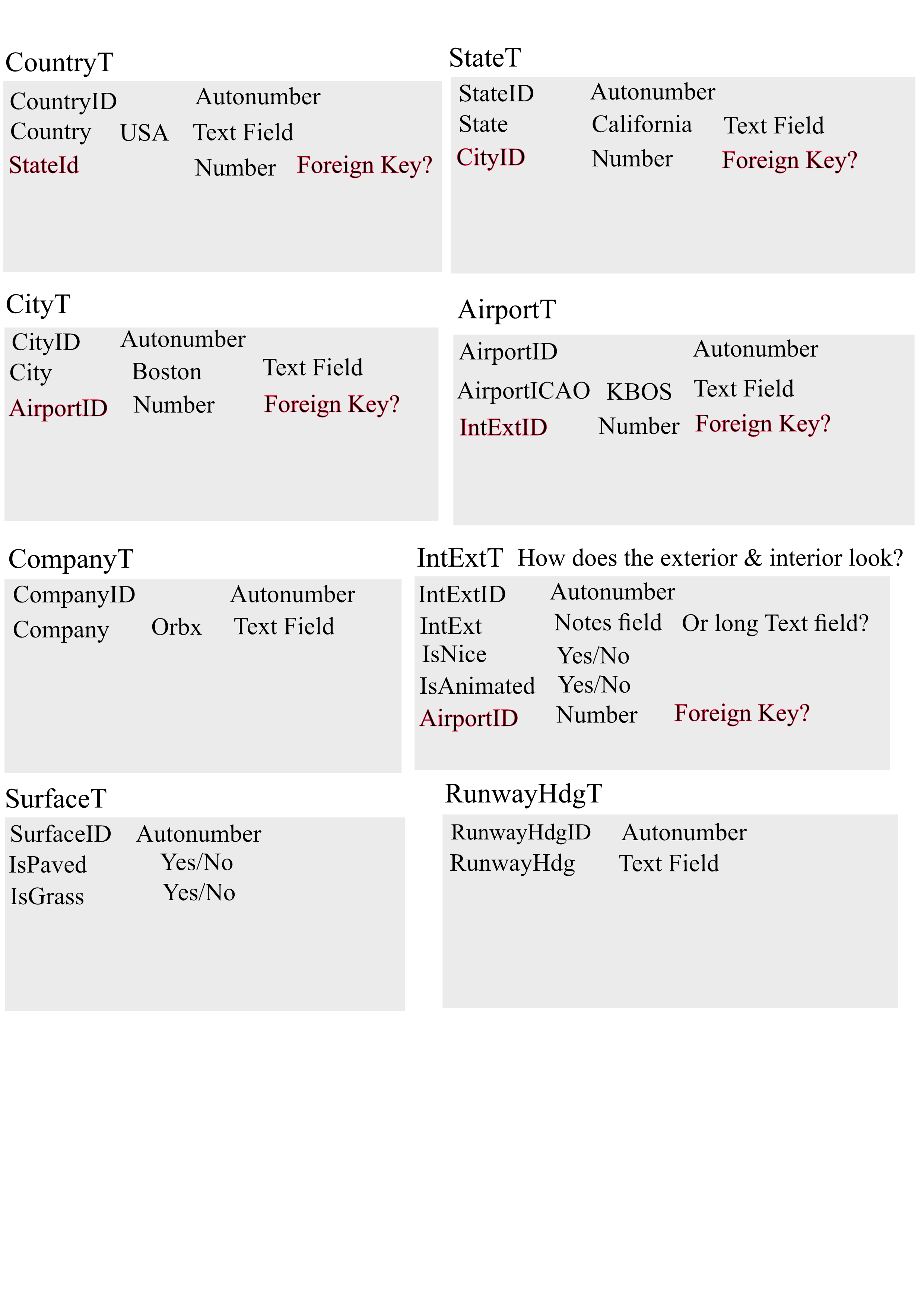
I'm just trying to design it on paper. I'm now at the point where I need to figure out what Foreign Keys to use.
Richard Rost  @Reply  
          
30 days ago
The topmost table won't have a foreign key, so your country table, if that's the top, won't have a foreign key. Now, under that, the next level would be state. In the state table, the StateID is the primary key. The CountryID would be the foreign key in the StateT table. Based on your screenshot that you posted, you're going backwards.

This video might help you. It's got some developer-level stuff in it, but the concepts are the same: Cascading Combo Boxes
Richard Rost  @Reply  
          
30 days ago
Also watch Relational Combo
Raymond Spornhauer  @Reply  
          
30 days ago
Paul Jack

I linked the video in my post.  Just click on it.

-Raymond
Paul Jack Higginbotham OP  @Reply  
    
30 days ago
Raymond Thanks, I did and it looks like it'll be a lot of help, I just have to find the time.
Paul Jack Higginbotham OP  @Reply  
    
30 days ago
Richard Richard Why do you call it the top most table? Aren't all tables alike? Ok, I'm confused, sorry, Why would CountryID be a foreign key? And why do you say I'm going backwards? I'll post a screenshot of my Word document and a description of whatI want to do.
Paul Jack Higginbotham OP  @Reply  
    
30 days ago
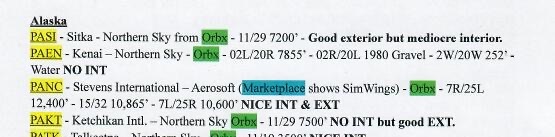
Ok, I'm going to upload an image. What I'd like to do is use the relations between tables to do this, not a flat file: Say I want to make a query when I say, I want to know every airport in Alaska that is made by Orbx and the runway is over 8000' long. Or, give me a list of all the airports in Italy that are paved, or tell me all the airports in the world (my airports list is 14 pages long in Word) where the heading is 7R.

What I'm really looking for is how many tables do I need? My list above, do I need to delete some of them and place those fields into the leftover tables?

Many thansks in adavnce for any help, I appreciate it.
Paul Jack Higginbotham OP  @Reply  
    
30 days ago

Matt Hall  @Reply  
           
29 days ago
The "Top" table refers to the top in hierarchy, like in a tree diagram or an outline.  For location, the order would be something like Country ==> State ==> City ==> Airport.  Country is the top of that hierarchy.

The foreign key should be descriptive of the table's subject.  For StateT, the foreign key should be CountryID - to describe the country in which the state is located.  As an example, for the state of Texas United States describes the location of Texas.  Houston does not describe the location of Texas as Houston is found in Texas, Missouri, and Alaska.

Does that make sense?
Matt Hall  @Reply  
           
29 days ago
Looking at your image, it looks as if the airport locations are located by state, with city as an airport description.  That may make your Hierarchy more like Country ==> State ==> Airport ==> City.  If that is how the source data is organized, it may make sense to maintain that organization.
Richard Rost  @Reply  
          
29 days ago
Matt's explanation of what the Top Table refers to is exactly correct. Yes, all tables are created equal, but they don't all have equal functionality, kinda like humans. LOL. I would probably still go Country, State, City, Airport, just because an airport is inside a city, and the city is inside a state, and the state is inside the country. If you want to have a designation as to which cities a specific airport service is in, then that could be a different relationship. You would just use a different junction table to match airport by city serviced, but that's getting really complicated. That'd be like if you had multiple cities that were serviced by the same big airport. For example, you've got Metropolis, Gotham City, and Central City, and they're all serviced by the Bruce Wayne Memorial Airport that's between all three of those cities.

This would actually make a really good video to show beginners how to do it once they finish adding the built-in cascading combo boxes into the new version of Access. I already cover how to do this with existing cascading combo boxes, but it requires VBA programming, which may be a little bit beyond your skill level right now. The Access team is currently working on adding that functionality to Access as a default simple feature. Once that's done, I will make a video out of this.

Now, as far as your other question goes about being able to see the paved airports in Alaska, all that's just a matter of bringing together all the relevant data into a query and adding criteria. Once you got all the relationships set up, then everything else becomes easy.
Paul Jack Higginbotham OP  @Reply  
    
29 days ago
Matt Matt Hi Matt, yes, this is as how I wish it to be. Country ==> State ==> City ==> Airport.
Paul Jack Higginbotham OP  @Reply  
    
29 days ago
Richard Thanks Richard.
Question 1: Why do I not get email notifications that someone here in this forum has answered?

Question 2: Do I have too many table or does it look okay to you? I'd like to start entering sample data.

Thanks guys, I appreciate your help.
Matt Hall  @Reply  
           
29 days ago
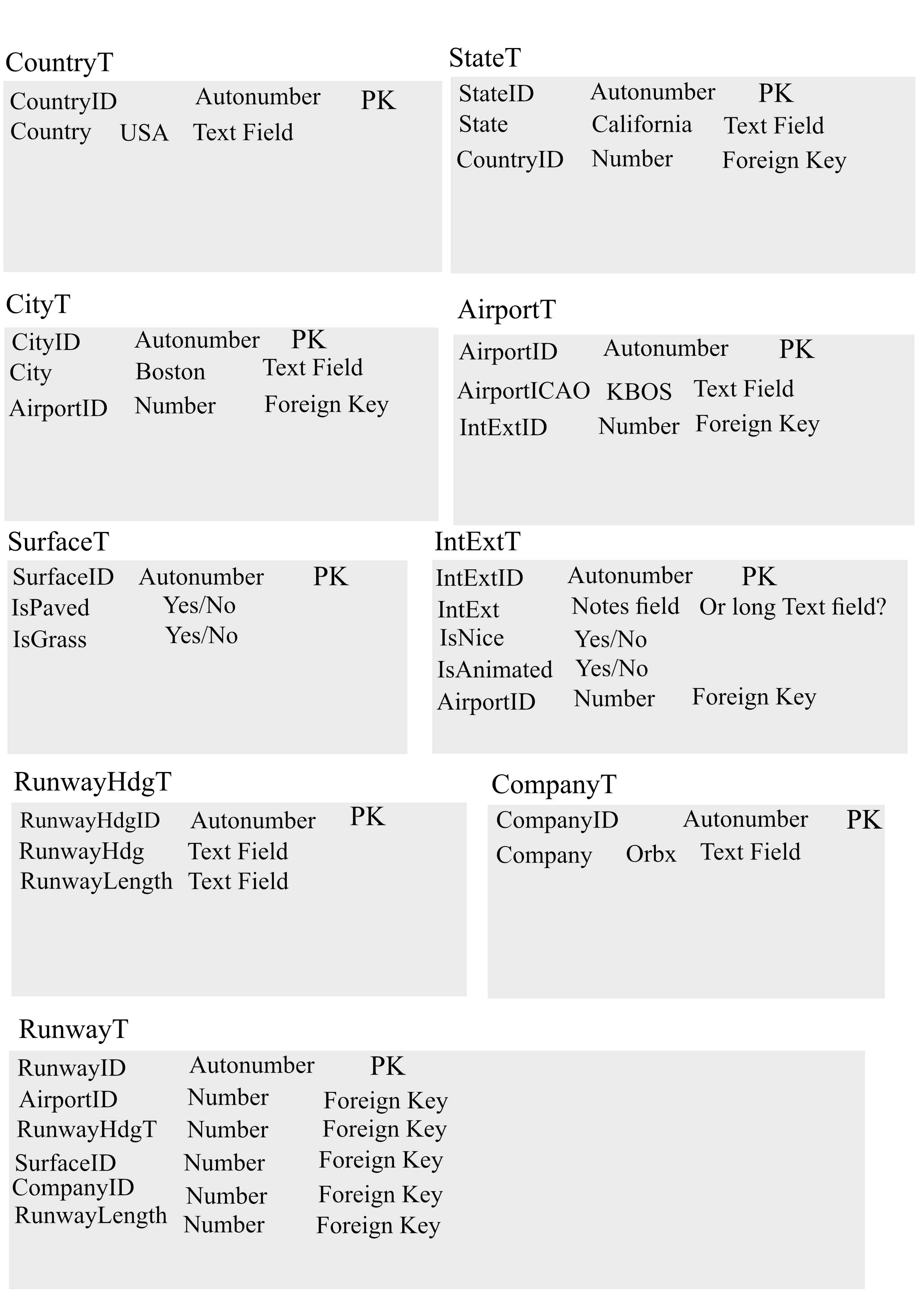
Answer 2:  Once you have the relationships sorted out, you might be able to use a table "RunwayT" with fields like RunwayID, AirportID, RunwayHeadingID, SurfaceID, CompanyID, OperationalName, Length, and Alias.  Other than that, it looks like about the correct number of tables.  Getting sample data in them is a great way to verify relationships and function.
Paul Jack Higginbotham OP  @Reply  
    
29 days ago
Matt Thanks Matt for verifying the amount of tables looking good. And that’s a terrific idea about those fields, so AirportID and CompanyID would be relational as they’d be Foreign Keys?
Richard Rost  @Reply  
          
29 days ago
Answer 1: check your Communications settings. The default for email notifications is once per day, but you can set it to "as it happens" to get them more frequently.
Paul Jack Higginbotham OP  @Reply  
    
29 days ago
Richard Thanks Richard! Hey, I bought your beginner book from Amazon, it's quite impressive!
Paul Jack Higginbotham OP  @Reply  
    
29 days ago
Matt Hi Matt, I made some changes, I do this in Affinity as I'm a graphics artist with my comics. I just want to make sure I have all the tables I need and the correct relationships. From the courses I've been watching you need a Primary Key (Autonumber) and the Foreign Key has to be a number field? So I made all my FK's number fields. Attaching the latest graphic, please let me know if this looks ok? I honestly appreciate you taking the time to help me.
Paul Jack Higginbotham OP  @Reply  
    
29 days ago

Paul Jack Higginbotham OP  @Reply  
    
29 days ago
I goofed, In the RunwayT y=table, I do not need the "T" after RunwayHdg.
Matt Hall  @Reply  
           
29 days ago
Based on earlier comments, I noticed a few items:

CityT would have StateID
CityT would not have AirportID
AirportT would have CityID

IntExtT would have AirportID OR AirportT would have IntExtTID OR maybe the fields in IntExtT could be included in AirportT, which would eliminate IntExtT.

Runway length is not a foreign key, should be in RunwayT, and not in RunwayHdgT.  You might also be able to put RunwayHdg into RunwayT, which would eliminate RunwayHdgT.

I offer this with the understanding that I have limited knowledge of airport things and you may have valid reasons for organizing differently than I am thinking.
Richard Rost  @Reply  
          
28 days ago
Paul Jack thanks. I appreciate that. I'm glad you liked it.
Paul Jack Higginbotham OP  @Reply  
    
28 days ago
Matt Thanks again Matt. Your reasons are perfectly logical, I like them. I just made the change in my Affinity document and will post it in a second, only questions I have now are in the RunwayT. RunwayLength and RunwayHdg wouldn't be a foreign key would they because they don't relate to any other tables? So would I just make them as a Text field instead of a number since I'm not going to be doing any math on them.
Paul Jack Higginbotham OP  @Reply  
    
28 days ago

Matt Hall  @Reply  
           
28 days ago
Yes, RunwayLength and RunwayHdg are just fields and not foreign keys, since they won't refer to other tables.  Would you ever need to convert RunwayLength from feet to meters or meters to feet?

Really, either way (Text or Number) would work.  Text has more flexibility when storing formatted numbers like SSN, telephone numbers, serial numbers, etc.  Numbers prevent letters, symbols, and spaces from being accidently entered as well as allowing for calculations.  To start off, I would just pick one and go with it.  I wouldn't get too hung up on it as you can change it later if you  want to.
Paul Jack Higginbotham OP  @Reply  
    
28 days ago
Matt Thanks Matt. No plans at all to convert to meters. I’ll go with Text then. Now I think I can watch Richard’s lessons again from the beginning and work on my own database. This will be the first of three I want to create.
John Williams  @Reply  
     
28 days ago
Paul Jack For your RunwayT, you may want a text field for a Runway name and Description. McKinney (TX) National Airport (TKI) has 1 runway, two designations, RUNWAY 18 and RUNWAY 36 depending on approach.  Other airports with multiple runways will need additional information.  Your Length can be a number, and Heading could be a short text with a dropdown list of headings.
https://www.airnav.com/airport/KTKI
Paul Jack Higginbotham OP  @Reply  
    
28 days ago
John Hi John, thanks, I spent my life in aviation, worked them and flew them. Hence this database. Good points on what you mentioned. So a drop down as in Combo box? Also, RunwayLength and RunwayHdg would not be a Foreign key right? I really appreciate all the excellent advice I've been receiving here, ya'll are very smart!
John Williams  @Reply  
     
24 days ago
Paul Jack Both RunwayLength and RunwayHdg would be integer values and not foreign keys.  I rethought my RunwayHdg, as it should be an Integer (0-360 degrees), my original thought was compass N,E,S,W.... would work well with a ComboBox dropdown limiting the number of entries.  A foreign key is used when the value is referenced back a record in another table.
Paul Jack Higginbotham OP  @Reply  
    
24 days ago
John Hi John and thanks. Now we're getting into something quite over my head.

I started the database the other night and it has so far caused an untold amount of confusion, and frustration.

As for the compass headings I need the real headings, like 11/29 or 02L/20R.

But some airports have so many runways I have to figure out how to just create a table for them. Do I create a table with tons of runway fields like Runway1, Runway2, Runway3, etc?

You see, in the last screenshot of the Table concept I created the RunwayT is all just a bunch of ID's, so then I'd first have to create all the airports and then manually look in that table for the ID's for those fields, like SurfaceID, CompanyID, etc.

It's a lot to juggle in my head.

Then there's some very basic stuff, like this:

I figured out how to align Left the fields in Form View but no matter what I do I can't get the Fields to align left in Query View.

Paul Jack Higginbotham OP  @Reply  
    
24 days ago
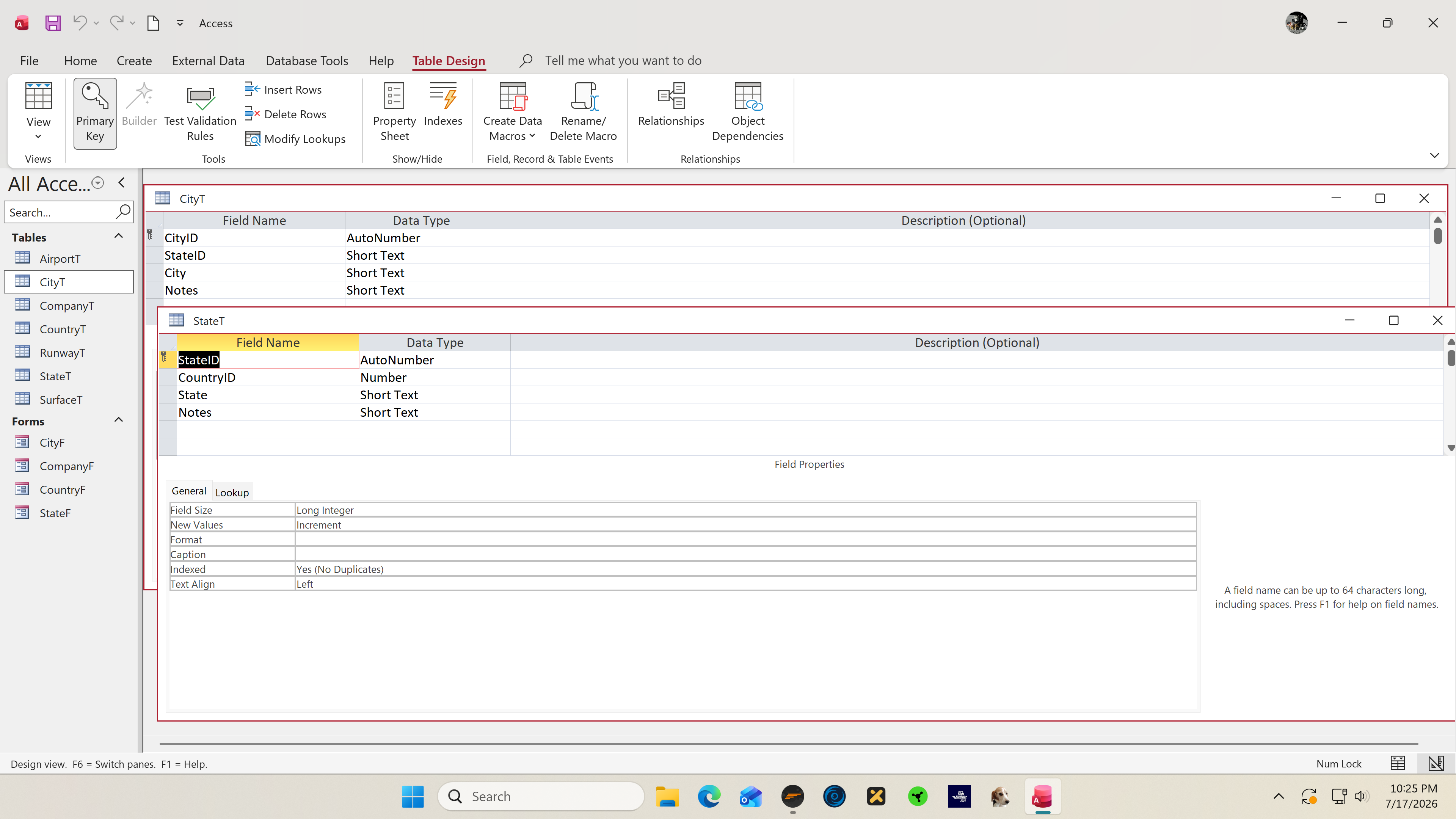
Also, when I have say three table on the screen, a 60" screen, and I try to bunch them up the Field Properties bunches up the Fields so I can't see them, screenshot to follow.
Paul Jack Higginbotham OP  @Reply  
    
24 days ago

Donald Blackwell  @Reply  
       
24 days ago
Hi Paul, there are two ways to adjust field alignment in query view if you really need it there.

1. In the table definition set the field alignment property to the alignment you want

2. In the query definition you could format the value as text but doing this means if you ever need it to function like a number you'll have to convert it later.
Paul Jack Higginbotham OP  @Reply  
    
24 days ago
Donald Thank you Donald. #1 will probably work well. I have to try it. Right now as I type this I'm becoming more and more frustrated so I'm going to go make sawdust in my wood shop. I'm just going to have to sit down at the PC with the iPad and watch each and every one of the courses from Beginner 1 and try to use Richard's information and incorporate it into my database.
John Williams  @Reply  
     
24 days ago
Paul Jack Your RunwayT should be related to your AirportT.  You have 1 Airport, but multiple Runways at the airport. The RunwayT will have a DESCRIPTION field which is the name like "11/29" or "02L/20R".  Your heading should be your compass reading for TKI above Runway headings: for RUNWAY 18 is 179 magnetic, 182 true ; for RUNWAY 36 is 359 magnetic, 002 true.  Pick whether you want either Magnetic or True, or add fields MagneticHeading, TrueHeading to keep both.  You correctly have an AirportID field in your RunwayT to keep them together.  You will a line (Record) at an airport for each runway.
Paul Jack Higginbotham OP  @Reply  
    
19 days ago
Hi John, sorry I didn't get back to you, I spent the week in the hospital.

Anyway, I like what you're saying but I'd delete the magnetic true, it's not important to what I need. The question I have is complicated, so far RunwayT is just a bunch of boxes where I'd somehow have to manually enter each airport's ID, maybe with a form? And I'd have to make sure get each airport's ID from the AirportT? And I'd need a drop-down combo box. I guess I'll have to try to post a shot of what it looks like in the program. It's very confusing to me.
Kevin Robertson  @Reply  
          
19 days ago
Rick Rost  @Reply  
      
18 days ago


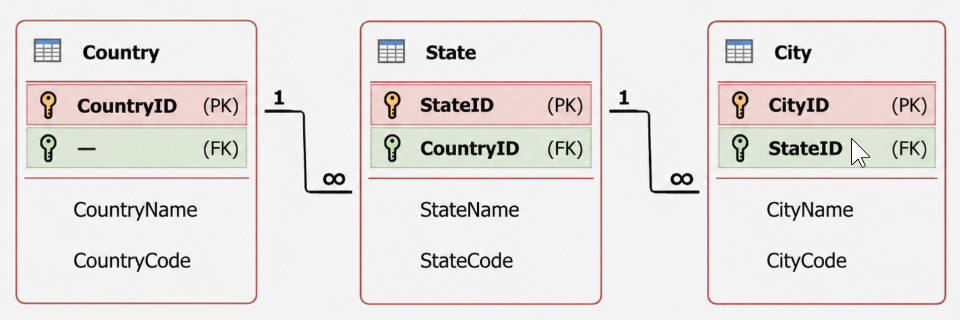
Graphic used in QQ 101. Congrats. You're in a video now! Soon to be world famous. :)

Paul Jack Higginbotham OP  @Reply  
    
17 days ago
Thanks Richard! In country, what is the blank green field?
And in the StateT I now have to add the CountryID field?
And finally, the joins, do they point to the green fields?
Thanks.
Paul Jack Higginbotham OP  @Reply  
    
17 days ago
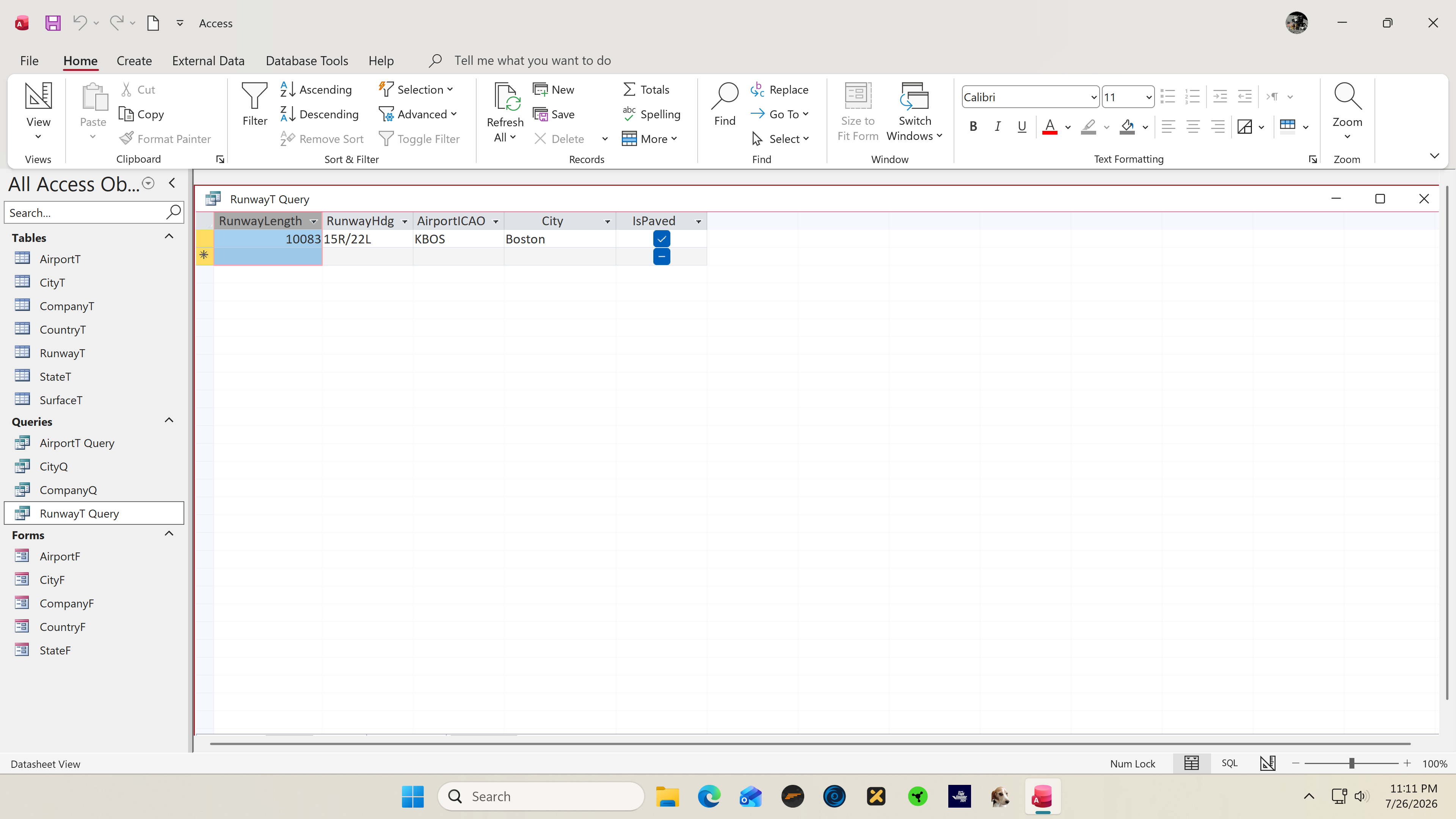
Now, no matter what I do I can't get some fields to Align Left in a Query. It's driving me crazy.
Paul Jack Higginbotham OP  @Reply  
    
17 days ago

Kevin Robertson  @Reply  
          
17 days ago
Numeric fields (including Currency) and Date fields align to the right. This is normal.
Paul Jack Higginbotham OP  @Reply  
    
17 days ago
Kevin Thanks Kevin, so there's no way to align that first field to the left? I wonder why they did that?
Kevin Robertson  @Reply  
          
17 days ago
Build a Continuous Form to display the results. You will have full control over the alignment of all your fields.
Paul Jack Higginbotham OP  @Reply  
    
17 days ago
Kevin Thanks Kevin, I'll have to review the lessons to try to find which one it's in. Appreciate it.
Add a Reply Upload an Image
Next Unseen

 
New Feature: Comment Live View


The following is a paid advertisement
Computer Learning Zone is not responsible for any content shown or offers made by these ads.
 

Learn
 
Access - index
Excel - index
Word - index
Windows - index
PowerPoint - index
Photoshop - index
Visual Basic - index
ASP - index
Seminars
More...
Customers
 
Login
My Account
My Courses
Lost Password
Memberships
Student Databases
Change Email
Info
 
Latest News
New Releases
User Forums
Topic Glossary
Tips & Tricks
Search The Site
Code Vault
Collapse Menus
Help
 
Customer Support
Web Site Tour
FAQs
TechHelp
Consulting Services
About
 
Background
Testimonials
Jobs
Affiliate Program
Richard Rost
Free Lessons
Mailing List
PCResale.NET
Order
 
Video Tutorials
Handbooks
Memberships
Learning Connection
Idiot's Guide to Excel
Volume Discounts
Payment Info
Shipping
Terms of Sale
Contact
 
Contact Info
Support Policy
Mailing Address
Phone Number
Fax Number
Course Survey
Email Richard
[email protected]
Blog RSS Feed    YouTube Channel

LinkedIn
Copyright 2026 by Computer Learning Zone, Amicron, and Richard Rost. All Rights Reserved. Current Time: 8/13/2026 1:40:08 AM. PLT: 1s