Free Lessons
Courses
Seminars
TechHelp
Fast Tips
Templates
Topic Index
Forum
ABCD
 
Home   Courses   TechHelp   Help   Contact   Merch   Join   Order   Logon   Forums   
 
Back to Access Forum    Comments List
Upload Images   @Reply   Bookmark    Link   Email   Next Unseen 
Combo Box Issue
Kenneth A Thomas 
       
3 hours ago
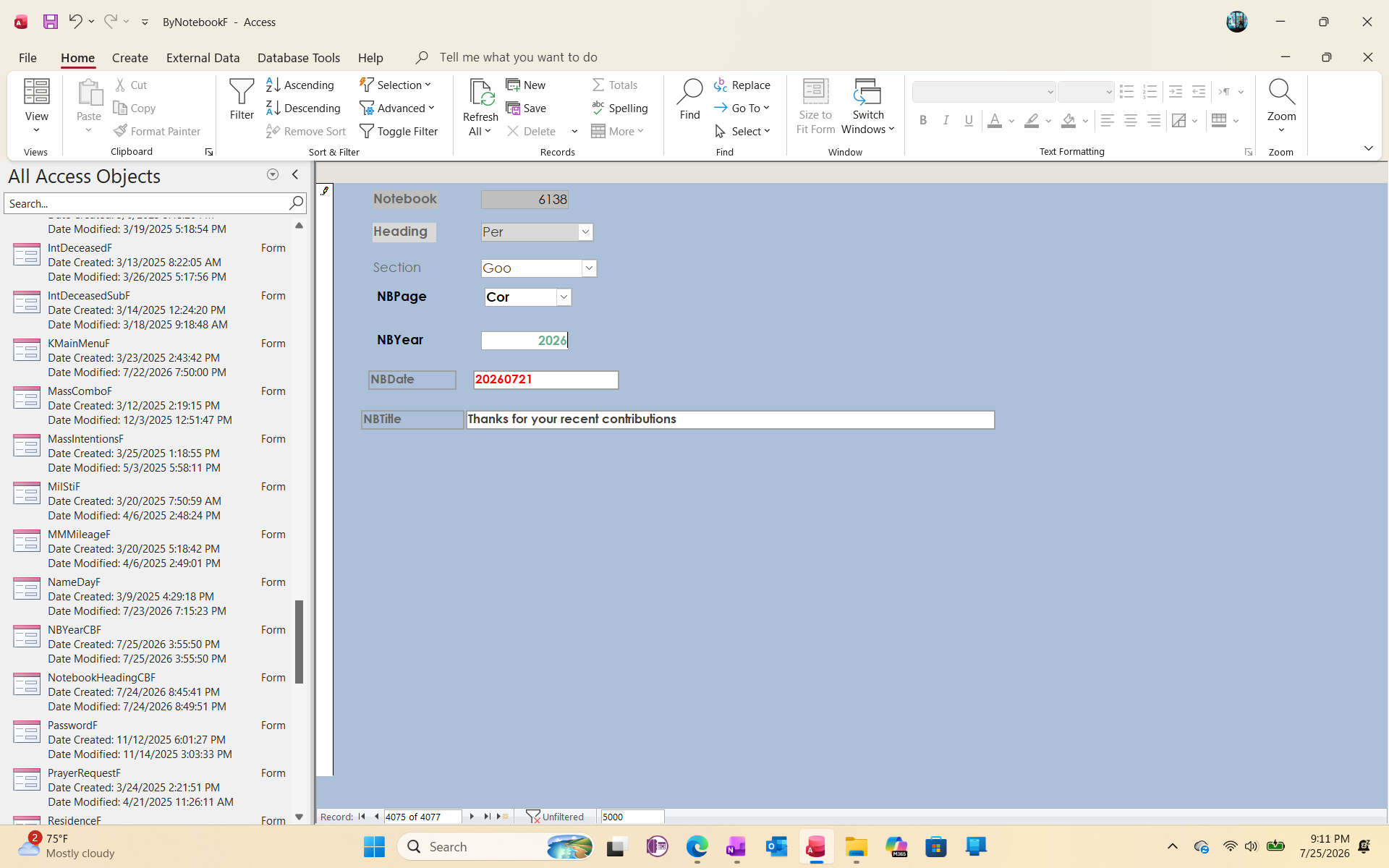
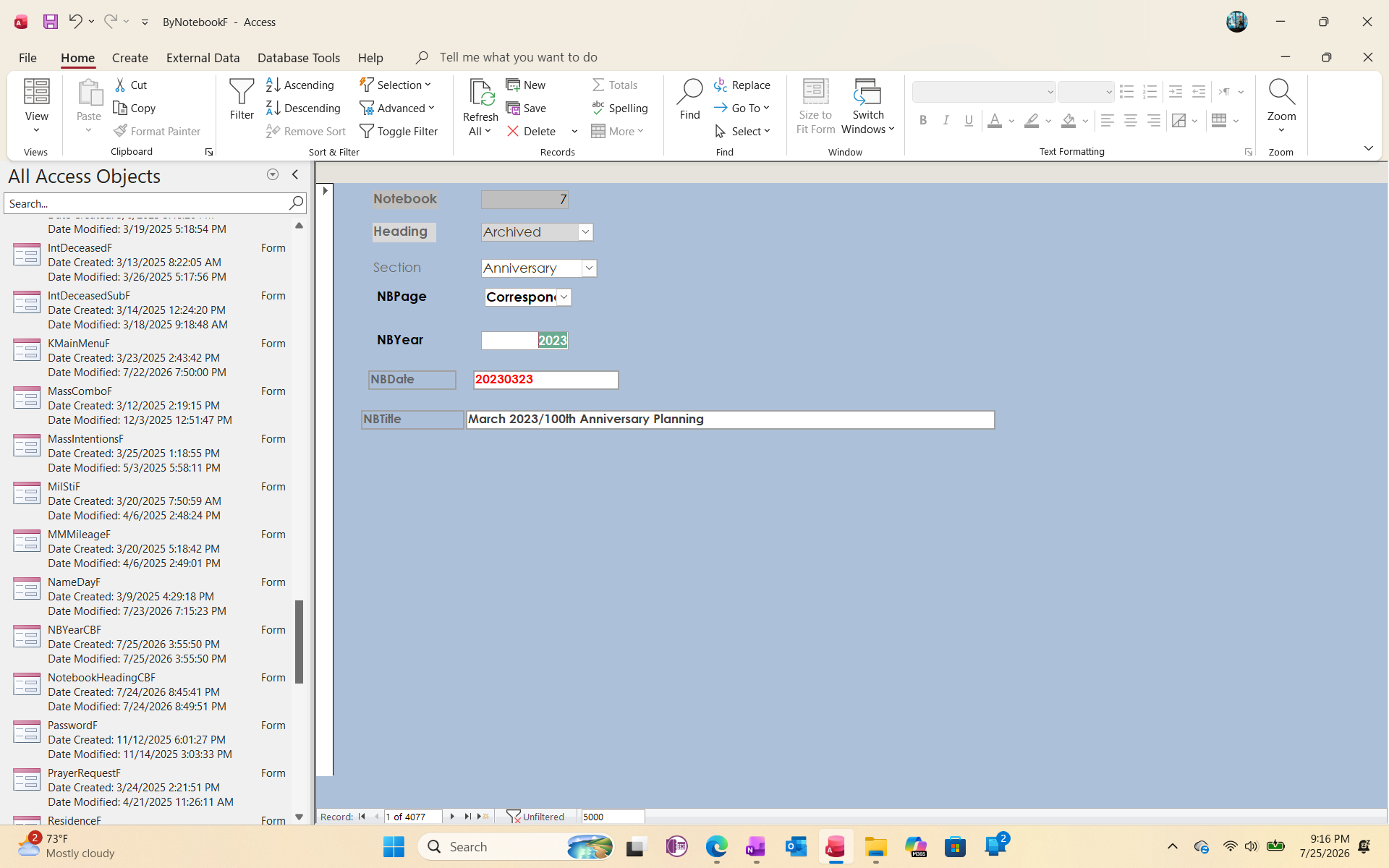
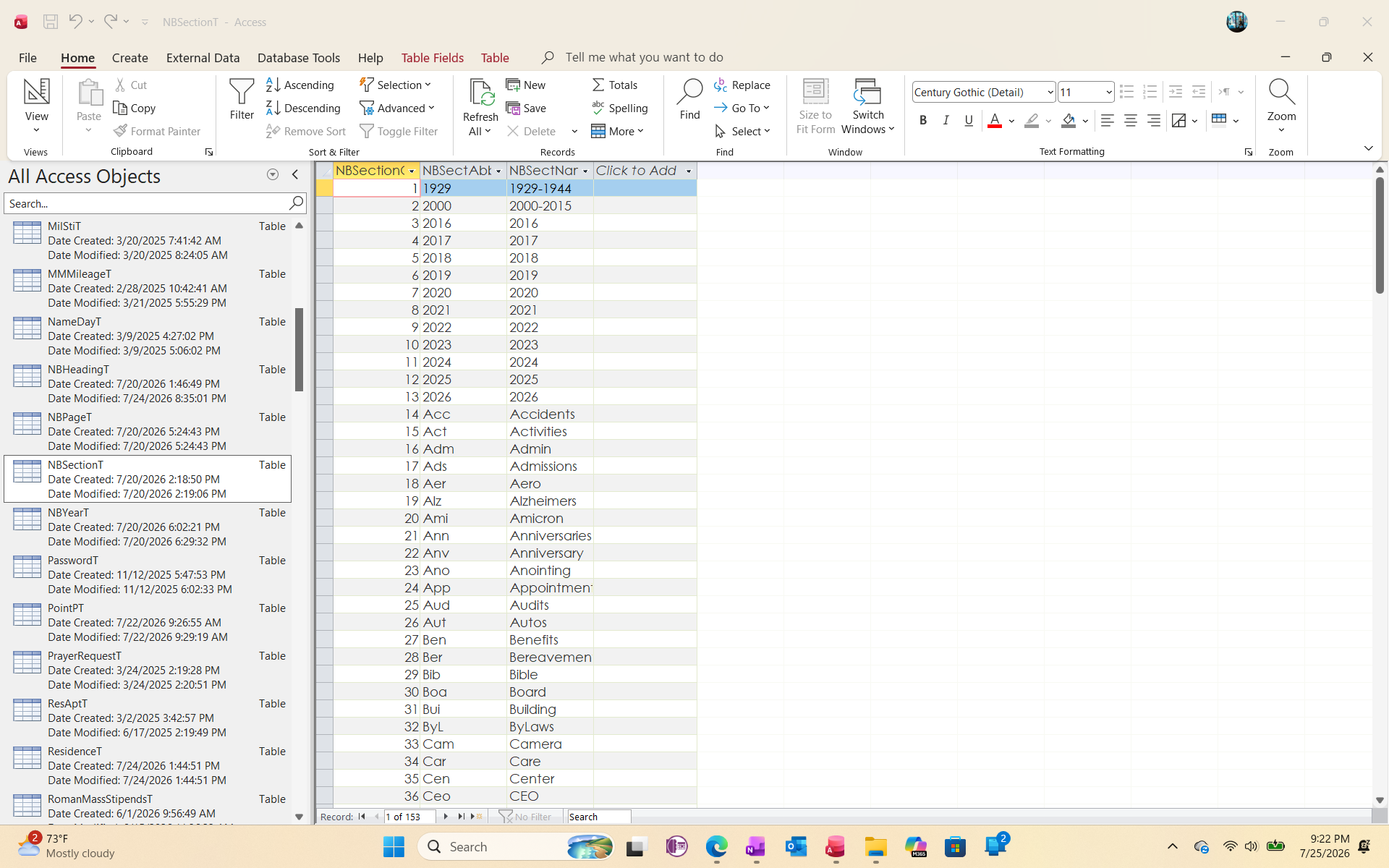
After routinely using Microsoft Access for over 18 months, I decided to start converting fields in some of my forms from Plain Text to Combo Boxes.  ByNotebookF is the first form I tried to convert.  I understand and have successfully developed 3 Combo Boxes in this form.  However, in the separate Combo Box Table/Form that I have developed in each field, I made a judgement error not selecting the field that I would like to use for the Combo Box Selections.  Example, I use 3 columns; IS, abbreviation and Description.  Although I have wanted the Combo Boxes to display the Description Column, I have selected either the ID or Abbreviation Columns by mistake.  Is there a way I can change this?  Thank you.
Kenneth
Kenneth A Thomas OP  @Reply  
       
3 hours ago

Kenneth A Thomas OP  @Reply  
       
3 hours ago

Kenneth A Thomas OP  @Reply  
       
3 hours ago

Kenneth A Thomas OP  @Reply  
       
3 hours ago
Please advise and thank you.
Donald Blackwell  @Reply  
       
2 hours ago
If you go to the "Data" tab in the properties box for the control, you can go to the Rowsource field. If you click on that field, you'll see the three ellipses appear to the right of the field. If you click on those, it will open the query editor.

Once the query editor opens, you can easily see which fields are selected. The first should be your "ID" column which you need to relate the combo to the records. After that, if you have only 1 other field, it will probably be the "NBSectAbbr" field. If you have all three fields, and you want both the abbreviation AND the Name to display in the drop down, you'll need to move the abbreviation to the right of the Name column.

If all you want is to see the Name/Description and you're not concerned with seeing the abbreviation in the drop down, then you can either delete the abbreviation field from the grid at the bottom and then double click on the description/name field in the table at the top to add it or, you can click on the name of the abbreviation field in the grid, a drop down arrow will appear, click that and select the name of the description field.

Close the query editor saving changes and you should be seeing what you're hoping to.
Richard Rost  @Reply  
           
2 hours ago
Donald has you on the right track. The Row Source determines which fields are available in the combo box and their order.

One important detail: changing the Row Source alone may not change what is displayed. Check these properties on the Data tab / Format tab as well:

- Bound Column: Usually 1, so Access stores the ID value.

- Column Count: Make sure it includes all of the fields in your Row Source.

- Column Widths: This controls which columns you see. For example, if your Row Source is ID, Abbreviation, Description, you might use:

0";0";2"

That hides the ID and abbreviation columns and displays only the Description, while still storing the ID in the underlying table.

If you want to display both abbreviation and description, use something like:

0";1";2"

The first zero hides the ID, and the other two widths show the abbreviation and description.
Add a Reply Upload an Image
Next Unseen

 
New Feature: Comment Live View


The following is a paid advertisement
Computer Learning Zone is not responsible for any content shown or offers made by these ads.
 

Learn
 
Access - index
Excel - index
Word - index
Windows - index
PowerPoint - index
Photoshop - index
Visual Basic - index
ASP - index
Seminars
More...
Customers
 
Login
My Account
My Courses
Lost Password
Memberships
Student Databases
Change Email
Info
 
Latest News
New Releases
User Forums
Topic Glossary
Tips & Tricks
Search The Site
Code Vault
Collapse Menus
Help
 
Customer Support
Web Site Tour
FAQs
TechHelp
Consulting Services
About
 
Background
Testimonials
Jobs
Affiliate Program
Richard Rost
Free Lessons
Mailing List
PCResale.NET
Order
 
Video Tutorials
Handbooks
Memberships
Learning Connection
Idiot's Guide to Excel
Volume Discounts
Payment Info
Shipping
Terms of Sale
Contact
 
Contact Info
Support Policy
Mailing Address
Phone Number
Fax Number
Course Survey
Email Richard
[email protected]
Blog RSS Feed    YouTube Channel

LinkedIn
Copyright 2026 by Computer Learning Zone, Amicron, and Richard Rost. All Rights Reserved. Current Time: 7/26/2026 12:09:58 AM. PLT: 0s