Free Lessons
Courses
Seminars
TechHelp
Fast Tips
Templates
Topic Index
Forum
ABCD
 
Home   Courses   TechHelp   Help   Contact   Merch   Join   Order   Logon   Forums   
 
Back to Access Forum    Comments List
Upload Images   @Reply   Bookmark    Link   Email   Next Unseen 
Year Combo Box Not Populating
Kenneth A Thomas 
       
2 months ago
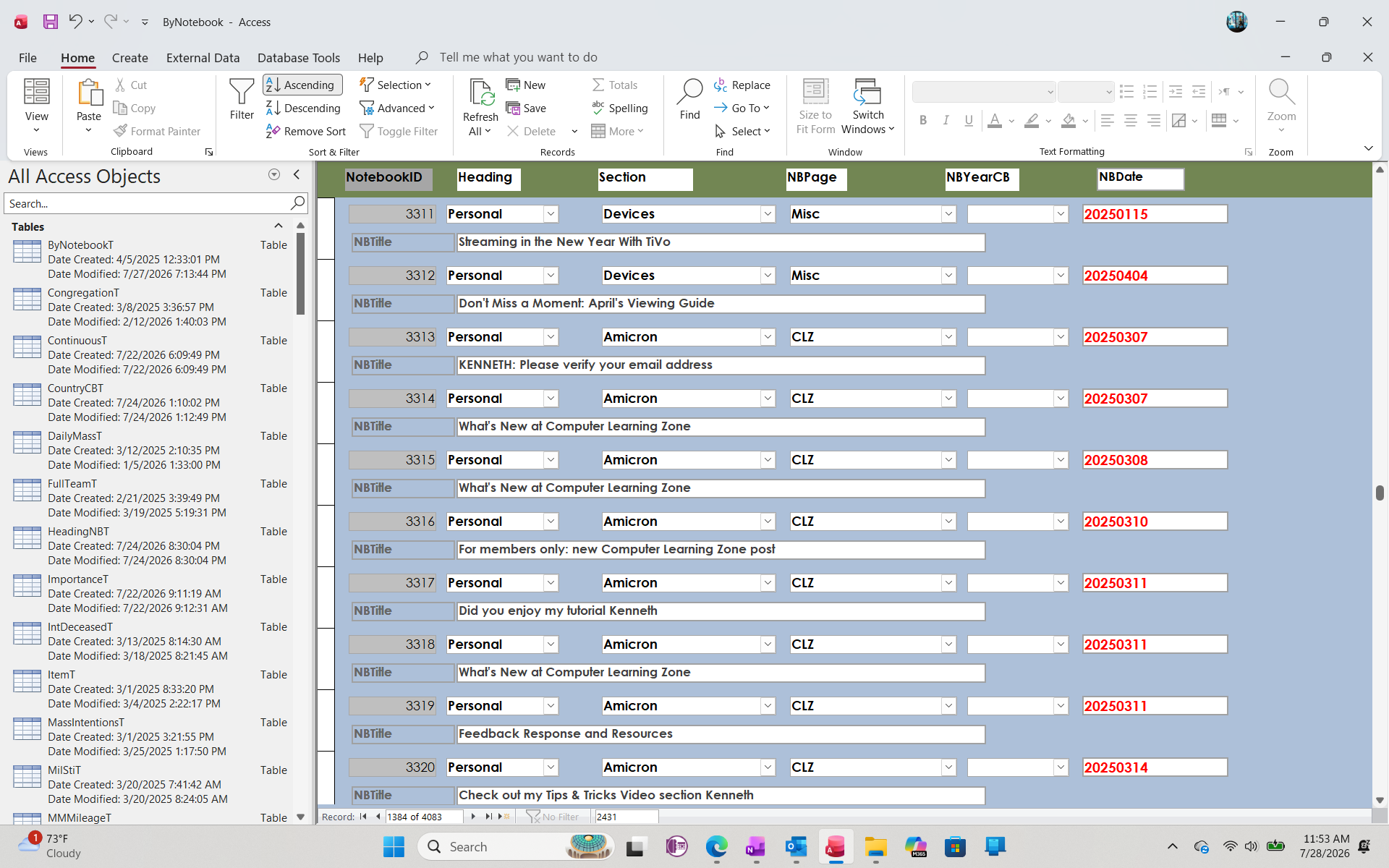
As I mentioned a few days ago, I recently converted 4 fields (Heading, Section, Page and Year) from plain Data fields to Combo boxes.  As you will by the Screen Shot, all fields self-populated except for the Year field.  Any idea what I did wrong or settings I forgot to change?  Thank you
Kenneth A Thomas OP  @Reply  
       
2 months ago

Richard Rost  @Reply  
           
2 months ago
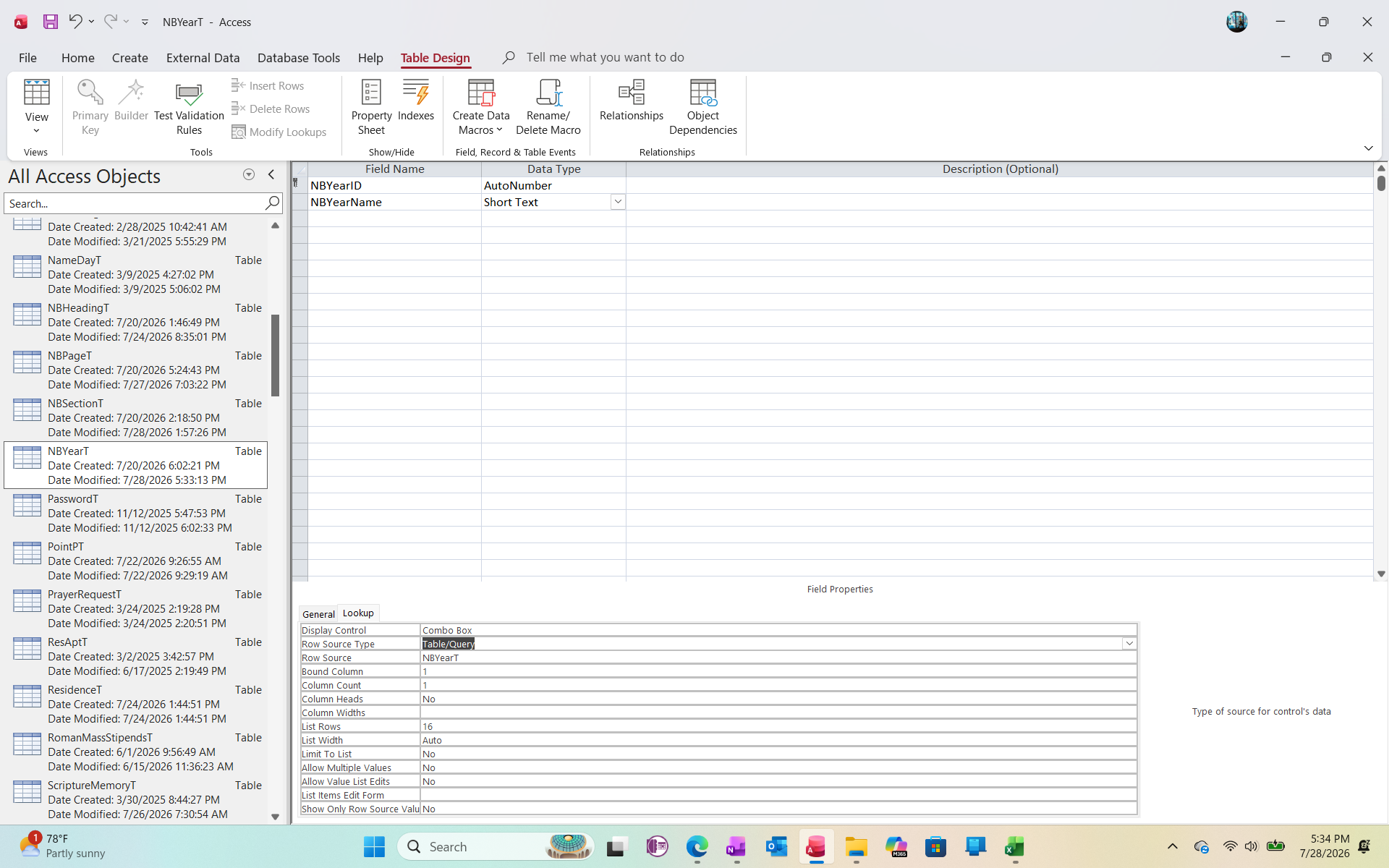
All I can see from the screenshot is an empty combo box. Please show me the combo box's properties, especially its Control Source, Row Source, Bound Column, and Column Count. Also show me the table/query it is bound to and the code or process you use to populate the Year values.
Kenneth A Thomas OP  @Reply  
       
2 months ago
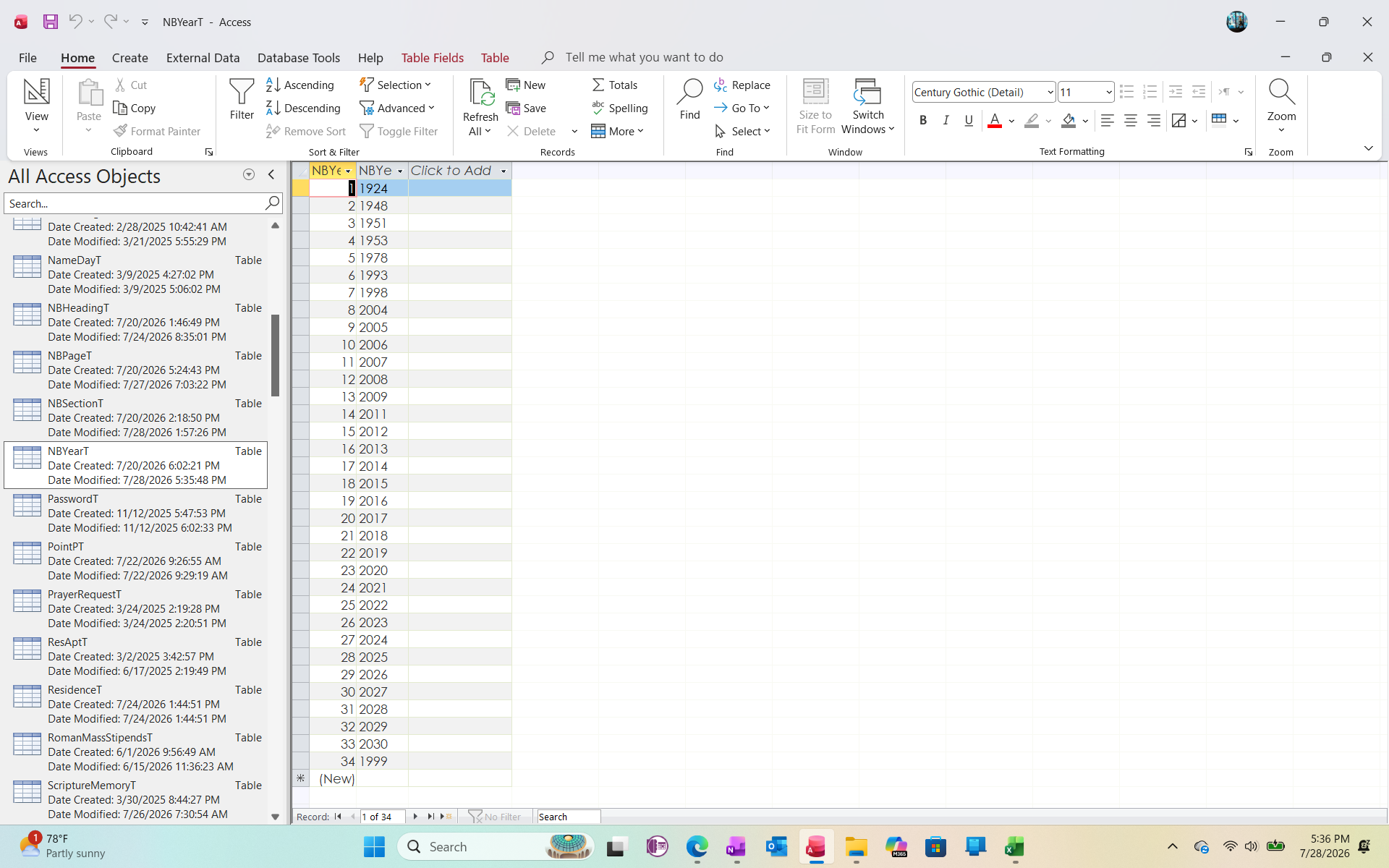
Richard, here are the screen shots that you requested.  I just deleted one of the Combo Box's columns because I decided that it was unnecessary.  However, that might have been the column that was setup to populate the ByNotebookF.  I want to use the column titled NBYearBame.
Kenneth A Thomas OP  @Reply  
       
2 months ago

Kenneth A Thomas OP  @Reply  
       
2 months ago

Kenneth A Thomas OP  @Reply  
       
2 months ago
FYI, I just made a change to the ByNotebookF, to make the desired data come from the NBYearName (not Bame).  Now I still need rto get it to populate.
Raymond Spornhauer  @Reply  
          
2 months ago
Your column count is 1, should be 2, which also means your columns widths are also wrong.

I would recommend deleting the combo box you have there and re-add it using the Wizard.

-Raymond
Kenneth A Thomas OP  @Reply  
       
2 months ago
Raymond, I just did that exact thing, but thank you for the response.  I iwill go back and check my settings.
Richard Rost  @Reply  
           
2 months ago
Is there a reason why you're manually typing in a list of years? Do you want just specific years, or can that data be gotten from your database somewhere else?

In other words, if I have a bunch of orders in a database and, let's say, the orders range from 2005 to today, I wouldn't make a separate table and just type in 2005, 2006, 2007. I would generate something called an aggregate query where I could compile a list of those years for someone to select from the data that's already in my database. If that's the case, maybe you should make an aggregate query instead of typing in all those years.
Kenneth A Thomas OP  @Reply  
       
2 months ago
Raymond, I corrected the Column Count and also checked the Column Width, which was empty.  How do you suggest that I correct the Column Width?
Richard Rost  @Reply  
           
2 months ago
Raymond is right. With two columns, the Column Widths property needs two values, one for each column, separated by a semicolon.

For example, if the first column is the ID/key and the second column is NBYearName, use:

0";1"

That hides the first column and displays the second column. Make sure the Bound Column is 1 if the first column contains the value you want saved in the underlying field. If you actually want to save the year text/value itself, then set the Bound Column to the column containing that year.

However, if your Row Source now contains only NBYearName, then you only need one column. In that case, set Column Count to 1, Bound Column to 1, and Column Widths to something like:

1"

The important part is that the Control Source must be the field in ByNotebookF where you want the selected year saved.
Kenneth A Thomas OP  @Reply  
       
2 months ago
Richard, up until last week, the form had plain fields instead of Combo Boxes because I didn't think I would need to the Combo Boxes.  Last week I decided to change certain fields to combo boxes.  My intent is to pull up the year from the Combo Box.
Richard Rost  @Reply  
           
2 months ago
Right, but my question is, where are you getting the list of years from? Is that from data that's already in one of your other tables?
Raymond Spornhauer  @Reply  
          
2 months ago
Your combobox on the Form needs to be bound to the Table or Query used on the Form.

It's Rowsource will be the NBYear.

-Raymond
Kenneth A Thomas OP  @Reply  
       
2 months ago
Richard, I made the list of years when I developed the Combo box.
Kenneth A Thomas OP  @Reply  
       
2 months ago
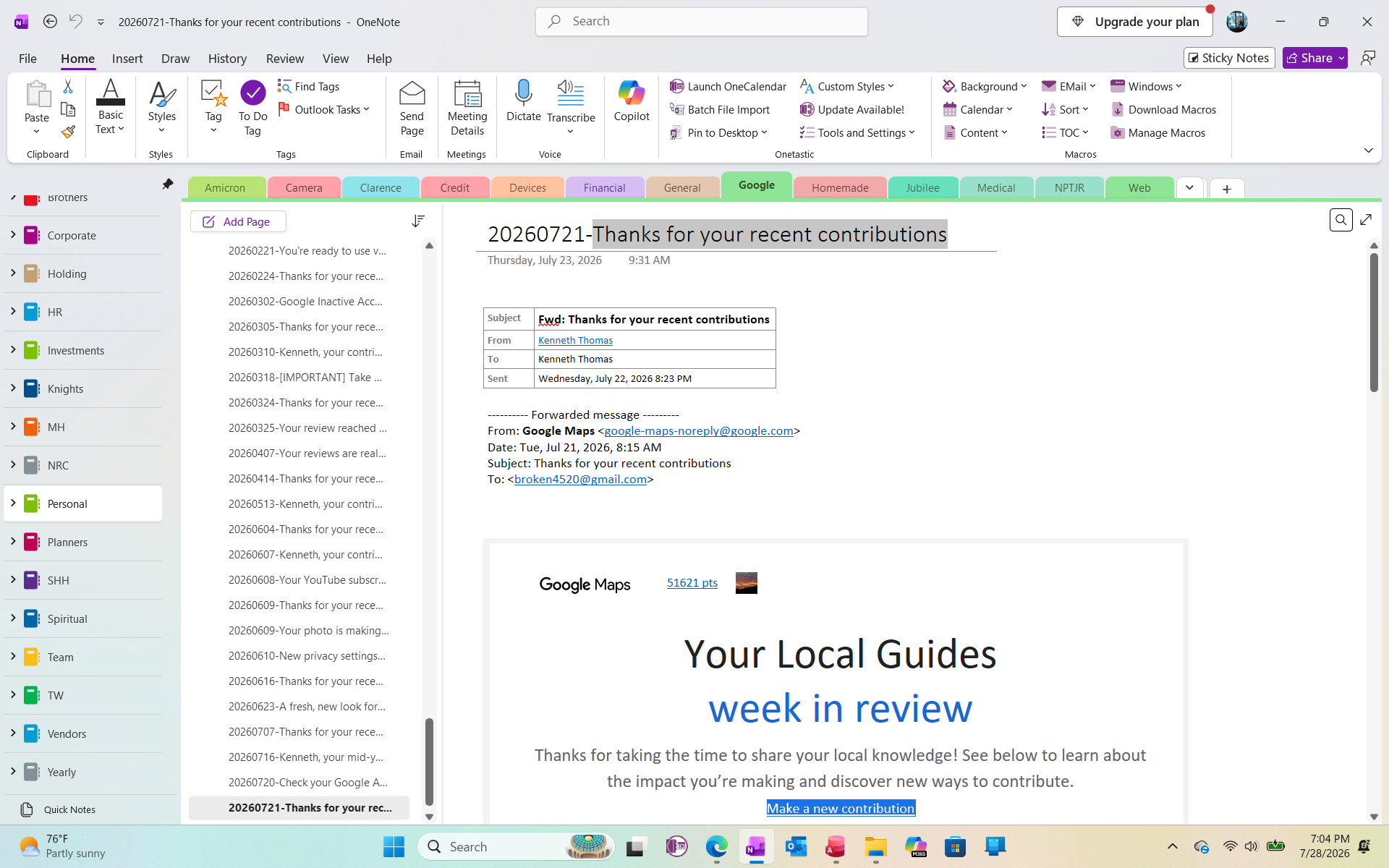
Richard, to further explain the source of the ByNotebookT and related tables and queries, the source of all the information is from documents and correspondence that I have saved in OneNote.  The OneNote program is what I use to save specific documents and correspondence, and I designed the ByNotebookT to use to cross reference the data in OneNote.  I save the data into OneNote almost every workday and in turn, save a record in the ByNotebookT via the ByNotebookF.
Richard Rost  @Reply  
           
2 months ago
Since you already have a separate table with a complete list of years, that is the best source for this combo box. Keep using it.

Set the Year combo box's Row Source Type to Table/Query, and use the year table as its Row Source. If that table has just one field, such as NBYearName, then use a single-column combo:

Column Count: 1

Bound Column: 1

Column Widths: 1"

Make sure the combo box's Control Source is the Year field in ByNotebookT (or the query the form is based on). That is what tells Access where to save the selected year.

If your year table has an ID field plus NBYearName, then use both fields in the Row Source, hide the ID column, and display the year:

Column Count: 2

Bound Column: 1

Column Widths: 0";1"

The important thing is that the value stored in the field behind ByNotebookF must match the value returned by the combo's Bound Column. If you are storing the actual year, bind to the year column. If you are storing a YearID, bind to the ID column.

Kenneth A Thomas OP  @Reply  
       
2 months ago

Kenneth A Thomas OP  @Reply  
       
2 months ago
Thank you everyone, Richard and Company, for all your help.  I believe that the Form is properly formatted, now I just have to clean up some data on the table.

This thread is now CLOSED. If you wish to comment, start a NEW discussion in Access Forum.
 

Next Unseen


What's This?


The following is a paid advertisement
Computer Learning Zone is not responsible for any content shown or offers made by these ads.
 

Learn
 
Access - index
Excel - index
Word - index
Windows - index
PowerPoint - index
Photoshop - index
Visual Basic - index
ASP - index
Seminars
More...
Customers
 
Login
My Account
My Courses
Lost Password
Memberships
Student Databases
Change Email
Info
 
Latest News
New Releases
User Forums
Topic Glossary
Tips & Tricks
Search The Site
Code Vault
Collapse Menus
Help
 
Customer Support
Web Site Tour
FAQs
TechHelp
Consulting Services
About
 
Background
Testimonials
Jobs
Affiliate Program
Richard Rost
Free Lessons
Mailing List
PCResale.NET
Order
 
Video Tutorials
Handbooks
Memberships
Learning Connection
Idiot's Guide to Excel
Volume Discounts
Payment Info
Shipping
Terms of Sale
Contact
 
Contact Info
Support Policy
Mailing Address
Phone Number
Fax Number
Course Survey
Email Richard
[email protected]
Blog RSS Feed    YouTube Channel

LinkedIn
Copyright 2026 by Computer Learning Zone, Amicron, and Richard Rost. All Rights Reserved. Current Time: 9/5/2026 4:07:17 PM. PLT: 1s