Free Lessons
Courses
Seminars
TechHelp
Fast Tips
Templates
Topic Index
Forum
ABCD
 
Home   Courses   TechHelp   Help   Contact   Merch   Join   Order   Logon   Forums   
 
Back to Access Forum    Comments List
Upload Images   @Reply   Bookmark    Link   Email   Next Unseen 
Link Tables After Manual Database Split
Kenneth A Thomas 
       
30 hours ago
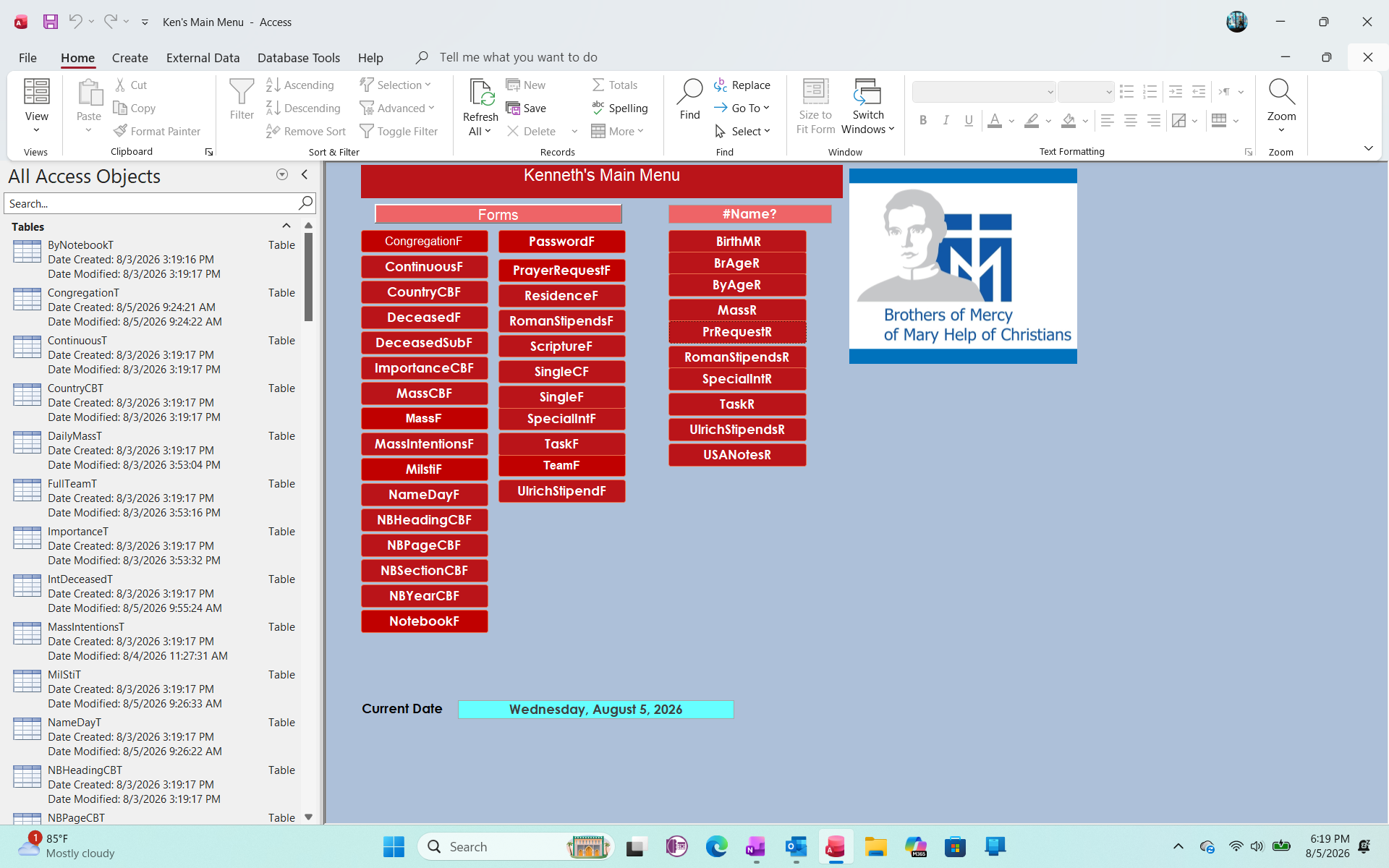
I finally decided to split my Access Database, so after watching Richard's video (Split Database) a couple of times last week, I decided about an hour ago to split my database.  HOWEVER, I forgot all the steps and moved my Tables over to another database by Copy and Paste instead of following the proper steps (Oops)!  Although I can open all the Tables on the new database, I am unable to open the related Forms.  Do I have to recreate all of the forms, or is there a way to recover the Tables to their original Table and start over again?  I was just watching Richards Recovery Video, but that is a bit above me.  Please note that I am the sole Access user in my office and all of the database is stored on my laptop only.  Help and thank you!

Kenneth
John Davy  @Reply  
         
29 hours ago
Hi Ken, Since you can open them, it is a matter of relocating the tables to where they belong. If you select External data, new Data Source, From Database,  Access and select the accdb where the tables are, Browse and select the tables, you can then Import  HTH John
Richard Rost  @Reply  
           
29 hours ago
John is on the right track, Ken. You should not have to recreate your forms.

The forms in your original database are still looking for the tables that used to be there. Since you copied the tables into a different database, the simplest fix is to link the original front-end database to those tables.

In your original database, go to External Data > New Data Source > From Database > Access. Browse to the database that now contains your tables, select "Link to the data source by creating a linked table," and then select all of your tables.

Once the linked tables are back in the original database, give them the same names as the original tables if Access has added anything like "TableName1" to avoid a duplicate name. Your forms, queries, and reports should then work again.

At that point, you have essentially done a manual split: the database with the tables is your back end, and the original database with the forms, queries, reports, and linked tables is your front end. Make a backup of both files before changing anything else.
John Davy  @Reply  
         
28 hours ago
Hi Rick, I thought he said he moved the tables, so I was going to have him move them back where they belong before relinking. John
Kenneth A Thomas OP  @Reply  
       
26 hours ago
1.  Yes, I moved the tables.

2.  I am unable to open the associated Forms.

3. I will try all suggestions and see whart works.

Thank you.
Kenneth A Thomas OP  @Reply  
       
26 hours ago
Well, I was able to move the tables back to the original Database and am able to open form.  I will attempt a proper transfer at a later time.   TY.
John Davy  @Reply  
         
25 hours ago
Hi Kenneth, You are almost there. Here is a link to Richard's video on splitting the database.https://599cd.com/blog/display-article.asp?ID=1373.  If you have any trouble let us know and we can help. John
Richard Rost  @Reply  
           
21 hours ago
Glad you got it working, Ken. Moving the tables back restored the table names and locations that your forms were expecting, so that makes perfect sense. When you're ready to split it properly, make a backup first, then try again. Since you're the only user and everything is currently on your laptop, there is no urgent need to split.
Thomas Gonder  @Reply  
      
17 hours ago
If your database is ever going to be shared with different users (or you are to play developer for multiple customers), you'll want to plan your splitting. For example, my log and import tables are in different BE data bases from the app data, that can run over the network. Since they can get quite large too, it helps avoid the 2GB db limit.

I also have two "BE" databases that sit on the FE's computer. They contain my static tables for: foreign language translates, validation of entry, job definition, menu organization, and FE control records. These are data dbs that are tied to controlling how the FE software behaves, and don't need to be constantly dragged across the network. They allow for easy multiple-user customization without the need to support multiple FEs.

To make Access life even better organized, I put some tables, for example postal codes, in another shared BE db that several client's (meaning different clients as in an accounting or legal firms) dbs can link to, so they all don't need their own duplicating postal code table. (That db contains many additional shared "universal" data tables such as additional postal code oriented tables {think country, services & formatting}, geo, language, currency, exchange rates, time zones, addresses, etc.)
Add a Reply Upload an Image
Next Unseen

 
New Feature: Comment Live View


The following is a paid advertisement
Computer Learning Zone is not responsible for any content shown or offers made by these ads.
 

Learn
 
Access - index
Excel - index
Word - index
Windows - index
PowerPoint - index
Photoshop - index
Visual Basic - index
ASP - index
Seminars
More...
Customers
 
Login
My Account
My Courses
Lost Password
Memberships
Student Databases
Change Email
Info
 
Latest News
New Releases
User Forums
Topic Glossary
Tips & Tricks
Search The Site
Code Vault
Collapse Menus
Help
 
Customer Support
Web Site Tour
FAQs
TechHelp
Consulting Services
About
 
Background
Testimonials
Jobs
Affiliate Program
Richard Rost
Free Lessons
Mailing List
PCResale.NET
Order
 
Video Tutorials
Handbooks
Memberships
Learning Connection
Idiot's Guide to Excel
Volume Discounts
Payment Info
Shipping
Terms of Sale
Contact
 
Contact Info
Support Policy
Mailing Address
Phone Number
Fax Number
Course Survey
Email Richard
[email protected]
Blog RSS Feed    YouTube Channel

LinkedIn
Copyright 2026 by Computer Learning Zone, Amicron, and Richard Rost. All Rights Reserved. Current Time: 8/4/2026 5:11:50 PM. PLT: 0s