Free Lessons
Courses
Seminars
TechHelp
Fast Tips
Templates
Topic Index
Forum
ABCD
 
Home   Courses   TechHelp   Help   Contact   Merch   Join   Order   Logon   Forums   
 
Back to Access Forum    Comments List
Upload Images   @Reply   Bookmark    Link   Email   Next Unseen 
Supervisor Subordinate
Amir Ouranus 
      
22 hours ago
Hello,

I have created a database containing all employees in our organization, with each employee assigned a unique Employee ID. I also have a form that displays employee information. I would like to add a subform that shows an employee's reporting relationships, such as:

Their assistants or direct reports (subordinates)
Their manager(s) or supervisor(s)

The challenge is that the relationship is many-to-many. An employee may have multiple subordinates and/or multiple supervisors.

I can model this relationship using only Employee IDs in a junction table. However, in the subform, I would like to display both the Employee ID and the employee's Full Name.

This is where I am running into difficulties. I created a relationship between the Employee ID in the Employees table and the Supervisor ID in the junction table. However, I am unable to create a second relationship between the Employee ID in the Employees table and the Subordinate ID in the same junction table.

Could you advise on the best way to structure these relationships so that I can display both the Employee ID and Full Name for supervisors and subordinates in the subform?

Thank you.
Donald Blackwell  @Reply  
        
21 hours ago
I would think the simplest solution would be two sub forms built on the same junction table.

The junction table would have EmployeeID and SupervisorId. For the Supervisor sub form have the link master as the employee id from the main form and the link child as the employee id in the sub form. Then for the Subordinate sub form, the link master as the employee id in the main form and the the link child as the supervisor id in the sub form.

Trying to get both in one sub form I think would be very hectic.

As Richard has done in several videos, you could then have the sub form(s) so that when you double-click on a subordinate or supervisor, it opens their employee record.
Donald Blackwell  @Reply  
        
21 hours ago
Richard's Access Relationship Seminar shows several techniques as well.

He also delves into this type of relationship in Employee Training 2 where he talks about Picard by Riker's Supervisor and Riker being the supervisor of others.
Kevin Yip  @Reply  
     
19 hours ago
You can indeed use just one junction table for relating both supervisors and subordinates, because their relationships are reciprocal: if A is B's supervisor, then it goes without saying that B is A's subordinate.  Hence, one table is enough, such as:

EmployeeID    SubordinateID
A001          A002
A001          A003
A001          A004
A002          A005
A002          A006
A002          A007

In the above sample table, A002 is a subordinate of A001, and also a supervisor of A005 to 7.

The query for finding A002's supervisor(s) would be:

     SELECT * FROM EmployeesT WHERE SubordinateID = "A002"

And the query for finding A002's subordinate(s) would be:

     SELECT * FROM EmployeesT WHERE EmployeeID = "A002"

Not mentioned in your post is whether you only need to find superiors and subordinates that are only one level deep, up or down.  For instance, the CEO is many levels higher than a lowly intern.  Do you need your database to tell you whether the CEO is the intern's superior, or the intern the CEO's subordinate?  That would complicate everything significantly, right down to table design.
Amir Ouranus OP  @Reply  
      
18 hours ago
Thank you Donald and Kevin for your help and suggestions.
Kevin, to answer you question; one level is all I'm looking for.
When I open an employees Form I want to see if he or she has an assistant, and who he or she reports to.
We do have assistants that help more that one Supervisor, and because of this I am building 2 Sub-Forms, one that shows who the person reports to, and one if he or she has an assistant.
I can show the relationship in the Sub-Forms; the issue I'm having the Sub-Form shows their employee ID, I can't make a relationship with the ID and the FullName of both the Supervisor and Subordinate.
I hope that makes sense.
Darrin Harris  @Reply  
      
16 hours ago
Hi Amir

You might be able to use a combo box to link the employee ID, I have just linked data from the course table to the Junction table to work out the duration of the course, in the many-to-many video, Richard mentions dlookup but the combo box works well.

I've only just started playing around with many to many relationships the last few days there is lots you can do.
Richard Rost  @Reply  
          
9 hours ago
Donald, you've got the right basic approach. You only need one junction table, with one record for each reporting relationship:

EmployeeSupervisorT
SupervisorID
SubordinateID

For example, if Employee 12 supervises Employees 25 and 26, and Employee 25 also has another supervisor, you would have:

SupervisorID    SubordinateID
12              25
12              26
18              25

Create two relationships from EmployeesT.EmployeeID to the junction table. One relationship goes to SupervisorID, and the other goes to SubordinateID. Access will allow both relationships because they are different fields in the junction table.

I would use two subforms on the EmployeeF.

1. Supervisors subform

This shows who the current employee reports to.

Link Master Fields: EmployeeID
Link Child Fields: SubordinateID

The Record Source for this subform should join the junction table to EmployeesT using SupervisorID, so you can display the supervisor's EmployeeID and FullName.

2. Assistants/Direct Reports subform

This shows who reports to the current employee.

Link Master Fields: EmployeeID
Link Child Fields: SupervisorID

The Record Source for this subform should join the junction table to EmployeesT using SubordinateID, so you can display the subordinate's EmployeeID and FullName.

The important part is that EmployeesT has to be joined twice conceptually, once in each query. For example, the supervisors subform query would look something like this:

SELECT R.SubordinateID,
       R.SupervisorID,
       E.EmployeeID,
       E.FullName
FROM EmployeeSupervisorT AS R
INNER JOIN EmployeesT AS E
ON R.SupervisorID = E.EmployeeID;

And the direct reports subform would be:

SELECT R.SupervisorID,
       R.SubordinateID,
       E.EmployeeID,
       E.FullName
FROM EmployeeSupervisorT AS R
INNER JOIN EmployeesT AS E
ON R.SubordinateID = E.EmployeeID;

You can leave the linking field in each subform query but hide it on the subform. That lets Access synchronize the subform properly while the user sees just the EmployeeID and FullName.

Also, make SupervisorID and SubordinateID a composite key on both fields together. That prevents accidentally entering the same supervisor/subordinate relationship twice.
Kevin Yip  @Reply  
     
8 hours ago
Amir  If you need the supervisor's name and subordinate's name in the same query, you can join the employees table twice.  Using Richard's example, that query would look like:

SELECT R.SubordinateID,
       R.SupervisorID,
       E.EmployeeID,
       E.FullName AS SupervisorName,
       E2.FullName AS SubordinateName,
FROM EmployeeSupervisorT AS R
INNER JOIN EmployeesT AS E
ON R.SupervisorID = E.EmployeeID
INNER JOIN EmployeesT AS E2
ON R.SubordinateID = E2.EmployeeID;

R, E, E2, SupervisorName, and SubordinateName are called "aliases."  They help to make every field name and table name in a query unique, which is a requirement.  If you join the same table twice, then one of the instances must be renamed with an alias.

On the query design graphical screen, if you drag the same table EmployeesT twice onto the screen, Access will rename one of them with the alias "_2", i.e. EmployeesT_2.  The next one will be named EmployeesT_3, and so on.
Thomas Gonder  @Reply  
      
7 hours ago
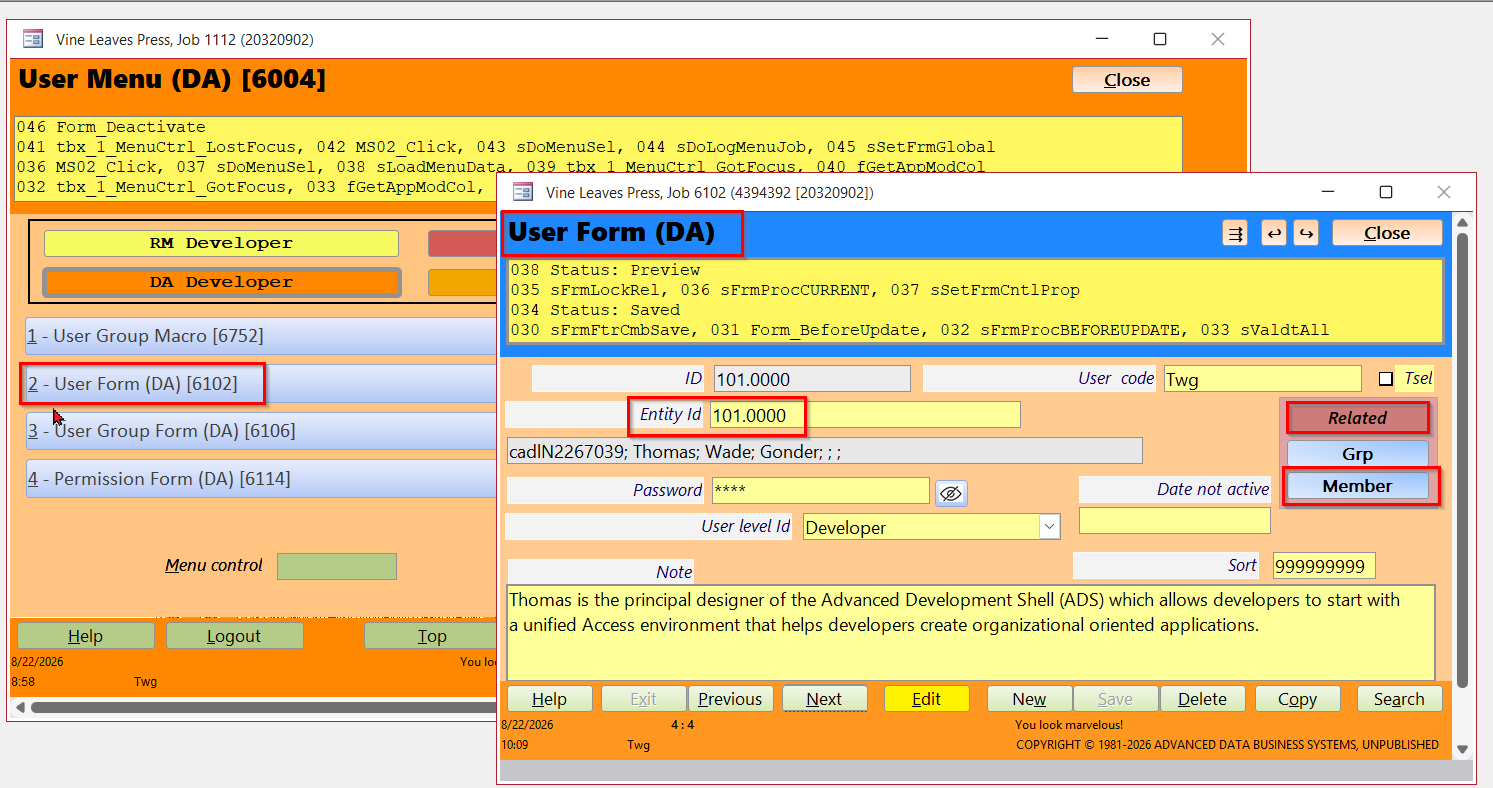
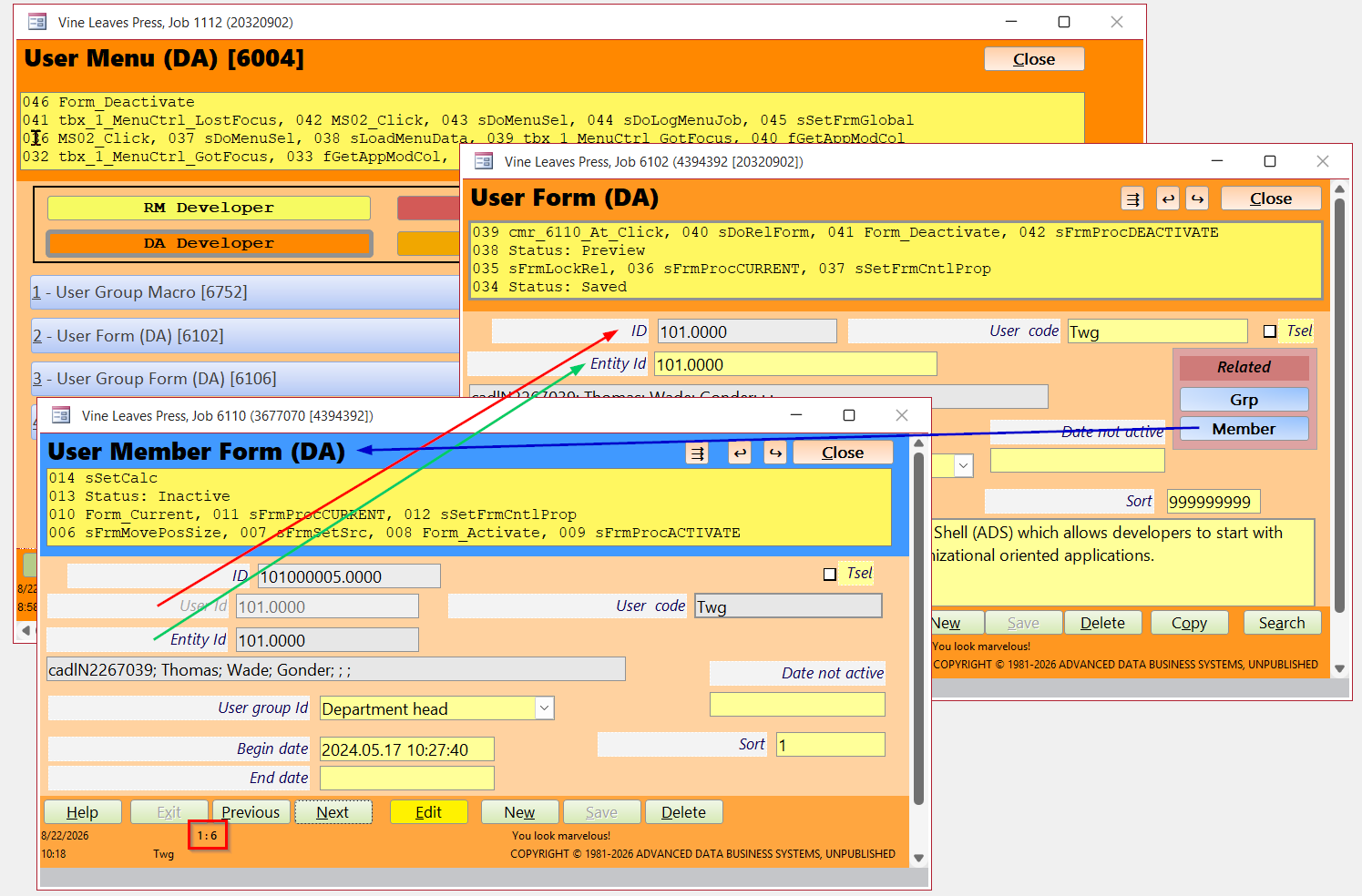
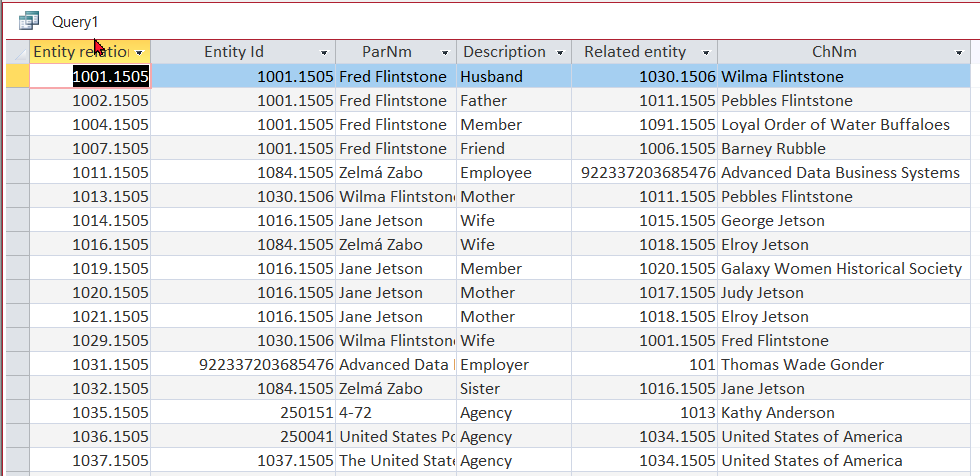
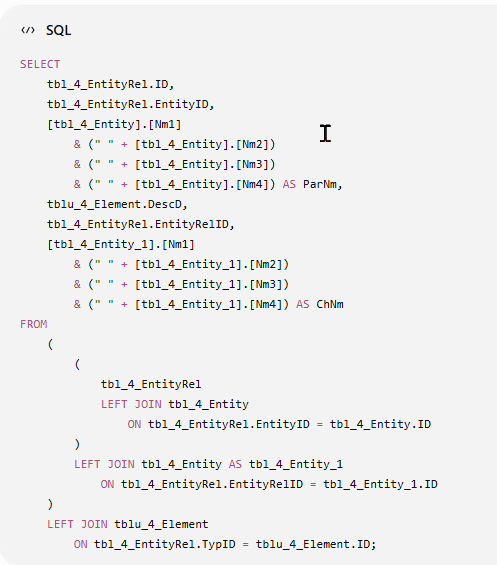
I take a little different approach to this situation, at least in forms. I start with the premise that one wants to know the other records that are related to the record in the one-up form I'm presently looking at. Then I have a "related" command button that goes to a new form, also one-up that shows each record related to the calling form. It's not quite like looking at a continuous form, but it does show ALL the detail for the child record. I'll demonstrate with my User table, that is one-to-one to the Entity table. And then many-to-many to a UserXUserGroup table. I've started a Human Resources module, and it follows the same model for employees, their associates, job skills and training.
Thomas Gonder  @Reply  
      
7 hours ago

Thomas Gonder  @Reply  
      
7 hours ago

Thomas Gonder  @Reply  
      
7 hours ago
The Entity ID and User ID just both happen to be 101.0000, to make my life easier in development, but often not the case in a production environment. Thomas is a "member" of six different User Groups (internal to the organization). A begin and end date can be applied to membership, and old memberships can me set to "not active" with a date field, so there is a nice audit trail of the related records.

Notice the Sort field? That allows users to sort by something other than an ID, display code or some name/description. For example, a supervisor might like the first record (of many) to pop up on a form to be Zelma, his assistant.
Thomas Gonder  @Reply  
      
7 hours ago

Thomas Gonder  @Reply  
      
6 hours ago
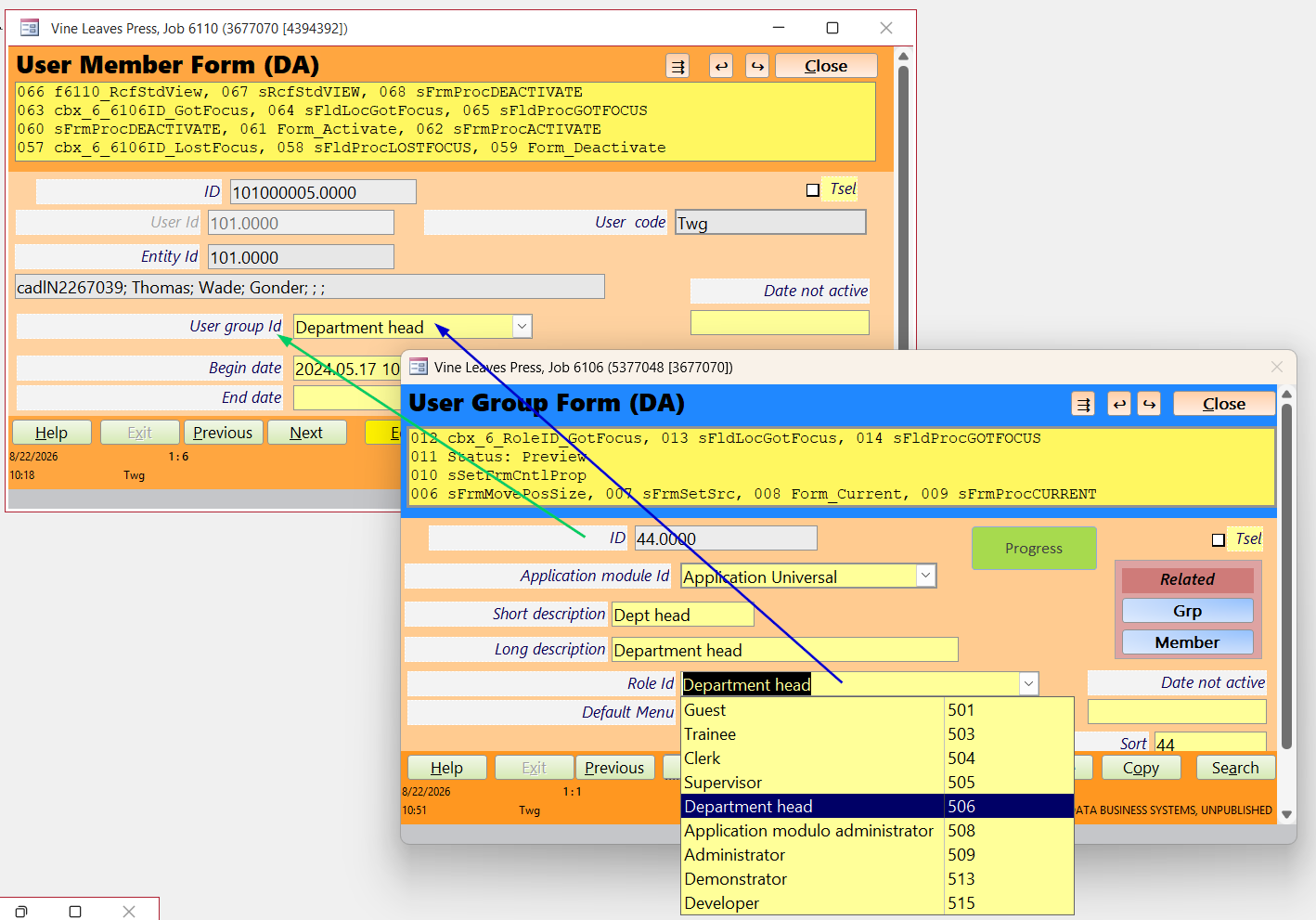
To really make your head spin as you drill down, do a right click on User group ID data control and get to the far many-to-many record in a form.

Any prompt with "ID" means a primary key. "Id" (lower case "d") means a foreign key. Ve vill force the users to vunderstand database concepts. Then, they can start to create their own queries.
Thomas Gonder  @Reply  
      
6 hours ago

Add a Reply Upload an Image
Next Unseen

 
New Feature: Comment Live View


The following is a paid advertisement
Computer Learning Zone is not responsible for any content shown or offers made by these ads.
 

Learn
 
Access - index
Excel - index
Word - index
Windows - index
PowerPoint - index
Photoshop - index
Visual Basic - index
ASP - index
Seminars
More...
Customers
 
Login
My Account
My Courses
Lost Password
Memberships
Student Databases
Change Email
Info
 
Latest News
New Releases
User Forums
Topic Glossary
Tips & Tricks
Search The Site
Code Vault
Collapse Menus
Help
 
Customer Support
Web Site Tour
FAQs
TechHelp
Consulting Services
About
 
Background
Testimonials
Jobs
Affiliate Program
Richard Rost
Free Lessons
Mailing List
PCResale.NET
Order
 
Video Tutorials
Handbooks
Memberships
Learning Connection
Idiot's Guide to Excel
Volume Discounts
Payment Info
Shipping
Terms of Sale
Contact
 
Contact Info
Support Policy
Mailing Address
Phone Number
Fax Number
Course Survey
Email Richard
[email protected]
Blog RSS Feed    YouTube Channel

LinkedIn
Copyright 2026 by Computer Learning Zone, Amicron, and Richard Rost. All Rights Reserved. Current Time: 8/22/2026 6:55:26 PM. PLT: 1s