Free Lessons
Courses
Seminars
TechHelp
Fast Tips
Templates
Topic Index
Forum
ABCD
 
Home   Courses   TechHelp   Help   Contact   Merch   Join   Order   Logon   Forums   
 
Back to Access Forum    Comments List
Upload Images | @Reply | Bookmark | Link | Email | Next Unseen |

Open Image Folder With FollowHyperlink
Lee Shastid 
    
2 days ago
In my Home Inventory DB I want to add a path to the folder of photos for the item. There are probably at least 5 photos to each item. So I don't necessarily want to display them just a link to them in case I were to need to print them. What is the easiest or best way to do this. This will be quite a few photos so adding a link to each photo would be time consuming. I just want to click a button or hyperlink to open the photo folders. Thanks for your help and opinions.
Donald Blackwell  @Reply  
        
2 days ago
Richard shows how to just store the folder information and then click a button to open that folder whenever in Follow Hyperlink
Lee Shastid OP  @Reply  
    
2 days ago
Thank you for the information. I didn’t think of Follow hyperlink I was just using hyperlink term in searching.
Kevin Yip  @Reply  
     
2 days ago
VBA can let you read image file names automatically, and even compose the full path names of all the files automatically.  This method uses the Dir() function.  Hopefully the other posters will point you to the respective course(s).  I'm unfamiliar with all of Richard's courses, unfortunately.  Storing just the folder names is good too, but having access to all the individual image paths is best.
Donald Blackwell  @Reply  
        
2 days ago
Kevin is right, in Access Developer 31 and Access Developer 32 Richard shows how to work with files and folders using Classic VB methods and in Access Developer 34 and Access Developer 35 he gets into using the newer File System Object (FSO) methods.

He also has a TechHelp video Open Folder using the Dir Function along with Dir Function TechHelp
Richard Rost  @Reply  
          
2 days ago
I also cover the more complete document-management approach in ABCD Core Part 5, including adding multiple documents at once in Lesson 6:
https://599cd.com/blog/display-article.asp?ID=1566

For the bulk image loading Kevin mentioned, take a look at my Load Multiple Images series:
https://599cd.com/blog/display-article.asp?ID=3333

That shows how to drop a bunch of pictures into an import folder, click a button, and have Access copy them into an images folder and record their filenames automatically. The pictures stay outside the database, so you don't have to enter each filename yourself.

For what you're describing right now, though, Donald's Follow Hyperlink suggestion should do the job. Store the folder path for each inventory item and use a button to open it. You can always add individual photo tracking later if you need it.
Lee Shastid OP  @Reply  
    
2 days ago
Thank you all...I have it working taking me to the parent folder on the external drive where the photos are. I think I may have to leave it like that with my level of knowledge. If I understand it correctly that will be the best. I am not at the level on how to get it to go to sub folder for that particular item. Instead of each item having its folder for its phots and receipts, I will just have to leave as it is or combine everything into one folder which is an option to....Thank you
Richard Rost  @Reply  
          
2 days ago
Lee the best solution is the one that works at your skill level. There are lots of different ways to do it. Don't try to take on a project that's beyond what you're comfortable building. Just keep learning how to do stuff, and you'll get there.
Lee Shastid OP  @Reply  
    
2 days ago
Richard I am with you 100 percent on that for sure. What I was hoping I could do is put a link on each form of the item leading to its own folder. But some of this just gets me going in circles. I do appreciate all of the help offered. I try  to use Google some before I post but it can get confusing at times.
David Clement  @Reply  
      
17 hours ago
Hello Richard,
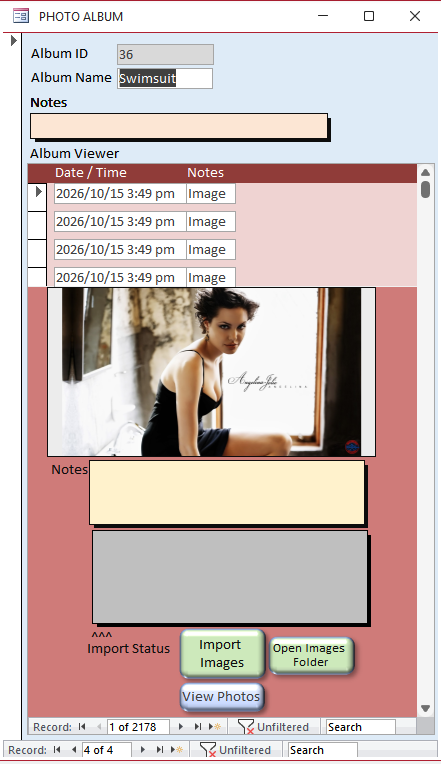
I have created a database using your Open Image Folder With Hyperlink method. After a few try's, I got it to work. I attemping to use this database as a basic photo album. So far, it is working and appears to be working fine. I really like being able to add multipe images at once. Your method is awesome.
My question is, once the photo is in the form, is there a similar as easy way to click a link to view the full size picture? The way it is now, after the images are added and files are renamed, it appears I can't do a follow hyperlink to view the original picture.
Kevin Yip  @Reply  
     
15 hours ago
David   One way is opening the picture with Windows' built-in picture viewer, which will let you zoom in/out or resize the pic.  This VBA code:

     Shell "cmd.exe /c ""C:\My Picture Folder\My Picture.jpg"""

will open up the default viewer associated with the image type, which is Windows' viewer by default.  It is just like double-clicking on an image file in Explorer.

If you don't like Windows' built-in viewer, you can have it open up a third-party viewer instead.  I use a popular freeware image viewer called IrfanView.

Another way is creating a form just to show a bigger version of the picture.  When the user clicks on the smaller pic, the On Click event of the image opens up the form with the bigger pic.
David Clement  @Reply  
      
13 hours ago
After this post, I promise I won't bother you all anymore about this anymore. As I have stated, my photo album is working and I really like it. I still have not figured out a way to click on what I will call the thumbnail and have it go to the full size picture. If it can't be done easily, I will give up the idea, and thank you for all the suggestions.
See Example.
David Clement  @Reply  
      
13 hours ago

David Clement  @Reply  
      
13 hours ago
When I click View Phots, I just have it going to a different folder because I couldn't figure out how to have the Record Selector show the Larger Picture.
David Clement  @Reply  
      
13 hours ago
I think I just figured it out!
Lee Shastid OP  @Reply  
    
7 hours ago
I have found a Tech Help video that is exactly what I want to do on a form, just need a little help. The video is How to Add a Button to open a client specific folder in Microsoft Access. I am trying to take the code in this video and keep it simple so that nay be where I am needing help.
I am using:

Dim Filepath As String
Filepath="M:\InventoryPhotos\" & ItemID & "\"
Shell "explorer.exe" & Filepath, vbNormal Focus

What do I need to do to get this to work?
Kevin Robertson  @Reply  
          
6 hours ago
Filepath needs to be in quotes, and you have an extra space in vbNormalFocus.

Shell "explorer.exe""" & filePath & """", vbNormalFocus
Alkan Toykan  @Reply  
       
6 hours ago
Lee you're on the right track, but there are a few small details in your code that need attention.
You need a space between "explorer.exe" and the folder path. The quotation marks around the path also help ensure that Windows handles it correctly.
The VBA constant is vbNormalFocus, not vbNormal Focus.
It is also a good idea to check whether the folder exists before trying to open it, since a folder might not have been created for a particular ItemID yet.

With these corrections, your code would look like this:

Private Sub btnViewPhotos_Click()

    Dim Filepath As String

    Filepath = "M:\InventoryPhotos\" & Me.ItemID & "\"

    If Len(Dir(Filepath, vbDirectory)) > 0 Then
        Shell "explorer.exe """ & Filepath & """", vbNormalFocus
    Else
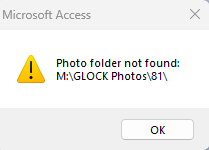
        MsgBox "Photo folder not found:" & vbCrLf & Filepath, vbExclamation
    End If

End Sub
Lee Shastid OP  @Reply  
    
6 hours ago
The folder has been created and I do not need a  folder  created if there is not one. but thank you for your help. I will try this and see.
Lee Shastid OP  @Reply  
    
6 hours ago
Alkan all I get is the Msg Box Folder not found
Alkan Toykan  @Reply  
       
6 hours ago
Lee, the first step is to check the actual path being generated. Add this line just before the If statement:
Debug.Print Filepath

Open the Immediate Window and check the output. Verify that the displayed path exactly matches the folder location in Windows Explorer. This should help us identify whether the issue is the path, ItemID, or the mapped drive.
Lee Shastid OP  @Reply  
    
5 hours ago
Would it make a difference if its an external drive instead of the hard drive? And also I am trying to use it on another DB before I put it in the inventory DB. So the external drive is M drive and The Parent folder is GLOCK and sub Folder is GLOCK Photos and the  ID on the form is FirearmID. I added that line and its does the same message.

Private Sub ViewPhotosBtn_Click()

    Dim Filepath As String

    Filepath = "M:\GLOCK Photos\" & Me.FirearmID & "\"
    
    Debug.Print Filepath

    If Len(Dir(Filepath, vbDirectory)) > 0 Then
        Shell "explorer.exe """ & Filepath & """", vbNormalFocus
    Else
        MsgBox "Photo folder not found:" & vbCrLf & Filepath, vbExclamation
    End If

End Sub
Lee Shastid OP  @Reply  
    
5 hours ago

Lee Shastid OP  @Reply  
    
5 hours ago
This DB is extremely small compared to the Inventory DB that is why I try everything on it first. Its basically my guinea pig DB. If I lose or do something no big deal even with backup of the other DB.
Lee Shastid OP  @Reply  
    
5 hours ago
I did a copy as path on the folder and this is what appeared "M:\GLOCK Photos"
Alkan Toykan  @Reply  
       
5 hours ago
The external drive shouldn't make a difference unless your Windows is blocking access to it. Your code is looking for M:\GLOCK Photos\81\, so first verify that this exact folder exists in Windows Explorer. Is 81 actually a subfolder inside GLOCK Photos? Also, try opening the parent folder directly with
Shell "explorer.exe ""M:\GLOCK Photos""", vbNormalFocus

This will help determine whether the issue is the base path or the FirearmID subfolder.
Alkan Toykan  @Reply  
       
5 hours ago
And Lee, is your M: drive an external USB drive or a mapped network drive? If it's a mapped drive, Windows Explorer might see it under your normal user session, and if you're running Access as Administrator, it might not see the same drive mapping.
Lee Shastid OP  @Reply  
    
4 hours ago
I don't know what the 81 is coming up, first couple tries it was just 1 instead of 81. It is an USB drive. Do you mean just change that one line of code, if so it does the same thing. Or just that line of code by itself?
Lee Shastid OP  @Reply  
    
4 hours ago
I have changed the path to the photos on my c drive and I get the same message
Alkan Toykan  @Reply  
       
4 hours ago
Since the same error occurs with a folder on your C: drive, the USB drive probably isn't the issue. Your code is using Me.FirearmID as the subfolder name, which is why it looks for folder 81. Does that exact subfolder exist under your photo folder? Also, does FirearmID contain the value you expect for the current record?
Kevin Robertson  @Reply  
          
4 hours ago
I think the problem is the target folder doesn't exist.
Try creating it before running the Shell command.

If Len(Dir(Filepath, vbDirectory)) = 0 Then
    MkDir Filepath
    Shell "explorer.exe """ & Filepath & """", vbNormalFocus
End If
Lee Shastid OP  @Reply  
    
4 hours ago
Kevin I think I totally am lost this time trying something that cant be done. I have a folder named Glock Photos/sub folder will be the serial number of that firearm. Multiple pictures in that folder. I am trying to have a button on the form that will go to the folder that matches my Firearm ID on the record I am on. I think basically your right it don't exist. I want the button on the form to go each subfolder that matches that record.
Lee Shastid OP  @Reply  
    
4 hours ago
I thought in the video it went specifically to the client folder which is basically what i wanted to do. Basically I am saying the sub folder is the same as the client folder.
Alkan Toykan  @Reply  
       
4 hours ago
First of all, you must plan what you want to do before you start building. Which folders and subfolders do you need? Do they exist, and if not, will they be created? What will be in these folders, and will you be copying the files manually, or will the code do it for you? You must first analyze your needs, then figure out your algorithm, prepare your environment, and finally start building. Trying to copy code whether from a video, a website, or a document is one of the best practices to learn, but first of all, try to understand the logic behind it.
Lee Shastid OP  @Reply  
    
3 hours ago
Well if I would have thought about this when I first built it I would have asked then. I also tried copying Richards code as you can tell that's what I started with. Folders do exist for some reason whether it be me not understanding how to link them together is the issue here or something not working right. You cant tell me that everyone that has built a DB can think of everything upfront. Somewhere down the line after a DB is built and being used an idea comes up to add (hence what happened here). The logic is the same as the video I want a button to open a client specific folder. Thanks for your time that I wasted. I apoligize. I am done with this endeavor.
Lee Shastid OP  @Reply  
    
3 hours ago
Please close this post
Add a Reply Upload an Image
Next Unseen


What's This?


The following is a paid advertisement
Computer Learning Zone is not responsible for any content shown or offers made by these ads.
 

Learn
 
Access - index
Excel - index
Word - index
Windows - index
PowerPoint - index
Photoshop - index
Visual Basic - index
ASP - index
Seminars
More...
Customers
 
Login
My Account
My Courses
Lost Password
Memberships
Student Databases
Change Email
Info
 
Latest News
New Releases
User Forums
Topic Glossary
Tips & Tricks
Search The Site
Code Vault
Collapse Menus
Help
 
Customer Support
Web Site Tour
FAQs
TechHelp
Consulting Services
About
 
Background
Testimonials
Jobs
Affiliate Program
Richard Rost
Free Lessons
Mailing List
PCResale.NET
Order
 
Video Tutorials
Handbooks
Memberships
Learning Connection
Idiot's Guide to Excel
Volume Discounts
Payment Info
Shipping
Terms of Sale
Contact
 
Contact Info
Support Policy
Mailing Address
Phone Number
Fax Number
Course Survey
Email Richard
[email protected]
Blog RSS Feed    YouTube Channel

LinkedIn
Copyright 2026 by Computer Learning Zone, Amicron, and Richard Rost. All Rights Reserved. Current Time: 10/16/2026 7:59:26 AM. PLT: 1s