Free Lessons
Courses
Seminars
TechHelp
Fast Tips
Templates
Topic Index
Forum
ABCD
 
Home   Courses   TechHelp   Help   Contact   Merch   Join   Order   Logon   Forums   
 
Back to Access Forum    Comments List
Upload Images | @Reply | Bookmark | Link | Email | Next Unseen |
Add Multiple Files Followup
David Clement 
      
4 hours ago
Hello Richard,
First of all, I want to thank you for your code to add multiple files. The Photo Album I have made is working great! It's getting quite large, showing me that it is working like I want it to other wise I wouldn't keep adding to it.
With all those files being linked to their location on my computer,and to the database, is their a way to either click on the picture or generate another link to view the full size photo? Most of my photos are 1920 x 1080 and that's how I wouuld like to view them. I have tried to copy and paste links in the database and then adding the file path to an excel spreadsheet and then putting that into access, but apparently excel won't let me do that. Are my abitions for this too big, or can it be done?
Thank you!
  
David Clement OP  @Reply  
      
4 hours ago

David Clement OP  @Reply  
      
4 hours ago
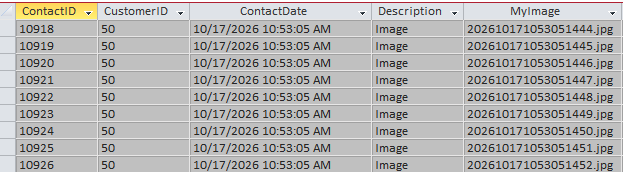
This is what I have now.
Alkan Toykan  @Reply  
        
3 hours ago
You can absolutely do this. Store the full path to the original image in a separate field in your table, rather than trying to retrieve it from Excel or reconstruct it later. Then you can either make the image control clickable or add a View Full Size button to your form. When clicked, use the Shell command to open the original image in the Windows default photo viewer, IrfanView, or another application of your choice.
David Clement OP  @Reply  
      
2 hours ago
I'm sorry, I don't know how to do that. I am not a Developer. At best, I am a so, so expert. In the past when I had smaller databases, I would just insert a Follow Hyperlink. Knowing how to use the Add Multiple Images method, I know have hundreds records, I can't to those 1 at a time, that is why I was trying to use Excel. I would copy the actual path to the file, and then add the file name. I would then merge those 2 coulmns in Excel into 1 column to have the entire path, then copy that into Access. Access won't let me do it that way.
David Clement OP  @Reply  
      
2 hours ago
I have it sort of worked out with the database. I made a button to show the picure in an Image Control in the form, but as I stated, my picture size is 1920 x 1080. I can't seem to make the Image Control big enough to show the whole piture.
Kevin Robertson  @Reply  
           
2 hours ago
Look at the Size Mode property for the Image control (Format tab).
David Clement OP  @Reply  
      
2 hours ago
In the past when using Follow Hyperlink, I would click on the Hyperlink, and Windows would just open the file in it's native viewer. That was okay for a few images, but now I have thousands of images. Unless I am missing something, the Image Control is just not big enough.
David Clement OP  @Reply  
      
2 hours ago
I now have it set to Clip, Still not quite big enough, but better.
Kevin Robertson  @Reply  
           
2 hours ago
Set to Zoom and the image will keep its aspect ratio, and you will see the entire image in the control.
David Clement OP  @Reply  
      
2 hours ago
Thsnk you. Can you tell me what a Return Without GoSub Error is? Everything still works, but now I get that annoying popup, and not always.
David Clement OP  @Reply  
      
2 hours ago
Opps... Thank you!
Richard Rost  @Reply  
           
2 hours ago
David, glad the photo album is working well! Yes, you can open the original photo without creating thousands of individual hyperlinks. Thanks, Kevin and Alkan, for helping.

Kevin's Zoom setting fits the whole picture inside the image control. Clip shows it at its original size but cuts off whatever doesn't fit. To see it in your normal photo viewer, your FollowHyperlink approach is still useful.

Your screenshot shows that MyImage already contains the filename. You just need to combine that with the folder location for the current record. If you kept the tutorial's Images folder beside the database, a View Photo button's On Click event procedure can use this line:

FollowHyperlink CurrentProject.Path & "\Images\" & MyImage

Put that inside the button's existing Sub/End Sub procedure, not directly in the On Click property box. Test it on a record with a filename and an image that exists. If your pictures are stored elsewhere, use that actual folder instead. One button then works for whichever record you're viewing; there's no need to rebuild the links in Excel. I demonstrate combining the folder and filename around the 10-minute mark in Load Multiple Images, Part 1.

On your new Return Without GoSub question: that message by itself isn't enough to identify what's causing it in your database. What exactly are you clicking or changing when it appears? Please post the complete error text and, if a Debug button appears, the line it highlights, with any personal information removed. Let's identify that before changing more code.
Donald Blackwell  @Reply  
        
62 minutes ago
Richard talked about the Return Without GoSub Error in Quick Queries # 106
Alkan Toykan  @Reply  
        
57 minutes ago
Kevin's suggestion to use Size Mode = Zoom is correct if the goal is to display the entire image within the Image control while preserving its aspect ratio. However, Zoom only scales the image to fit the control; it does not display a 1920 x 1080 image at its original pixel dimensions.

For a photo album containing thousands of images, I would use the Image control for previewing images and add a button (or use the Image control's On Click event) to open the original file in the default Windows photo viewer. That way, you can browse images in Access and still view the full-resolution photo when needed. I understand that's what you're trying to achieve.

Add a button to your form, use either FollowHyperlink or Shell approach shared in this thread in its On Click event and if your original photos are all stored in the same directory, you can construct the full file path by combining the directory path with the image filename.
David Clement OP  @Reply  
      
41 minutes ago
Alkan, thank you for you advise. I have never used that type of command before, I wouldn't know how to use it.
  Shell "cmd.exe /c ""C:\My Picture Folder\My Picture.jpg"""
Or where to put in in the database. Put it in the button?
That's what I was trying to do with Excel,
"J:\Database-Copy\ImagesDB\Images\202610151212263.jpg"or J:\Database-Copy\ImagesDB\Images\202610151212263.jpg

I already have this part of the file name in Access, 202610151212263.jpg. I was trying to put this in front of the file name,
J:\Database-Copy\ImagesDB\Images, to get this, J:\Database-Copy\ImagesDB\Images\202610151212263.jpg
and then do copy it from Excel into Access, but Access won't let me do that.

Kevin Robertson  @Reply  
           
37 minutes ago
Donald Blackwell  @Reply  
        
27 minutes ago
David, if your images folder is located in the same folder as your database, you can use the Shell command as Alkan suggested in the click event of a button or of the image:

Private Sub MyImage_Click()

     Shell "cmd.exe /c """ & CurrentProject.Path & "\Images\" & ImageFileName & """"

End Sub


Replace "MyImage" with the actual name of your Image control or button control and ImageFileName with the name of the field holding the location of your image.
David Clement OP  @Reply  
      
22 minutes ago
I may have missed something in the video Add Multiple Images. I don't remember if Richard Talked about being able to click either the picture or a link to display the full image, other than that, the datatbase works.
David Clement OP  @Reply  
      
21 minutes ago
Thank you!
Donald Blackwell  @Reply  
        
10 minutes ago
If you like how it's working great! On the other hand, if you'd like to have Access open the image to full size without loading an outside program, it's actually pretty easy with just a tiny bit of code (and a blank form with few or no controls on it).
Add a Reply Upload an Image
Next Unseen


What's This?


The following is a paid advertisement
Computer Learning Zone is not responsible for any content shown or offers made by these ads.
 

Learn
 
Access - index
Excel - index
Word - index
Windows - index
PowerPoint - index
Photoshop - index
Visual Basic - index
ASP - index
Seminars
More...
Customers
 
Login
My Account
My Courses
Lost Password
Memberships
Student Databases
Change Email
Info
 
Latest News
New Releases
User Forums
Topic Glossary
Tips & Tricks
Search The Site
Code Vault
Collapse Menus
Help
 
Customer Support
Web Site Tour
FAQs
TechHelp
Consulting Services
About
 
Background
Testimonials
Jobs
Affiliate Program
Richard Rost
Free Lessons
Mailing List
PCResale.NET
Order
 
Video Tutorials
Handbooks
Memberships
Learning Connection
Idiot's Guide to Excel
Volume Discounts
Payment Info
Shipping
Terms of Sale
Contact
 
Contact Info
Support Policy
Mailing Address
Phone Number
Fax Number
Course Survey
Email Richard
[email protected]
Blog RSS Feed    YouTube Channel

LinkedIn
Copyright 2026 by Computer Learning Zone, Amicron, and Richard Rost. All Rights Reserved. Current Time: 10/17/2026 6:18:59 PM. PLT: 0s