Free Lessons
Courses
Seminars
TechHelp
Fast Tips
Templates
Topic Index
Forum
ABCD
 
Home   Courses   TechHelp   Help   Contact   Merch   Join   Order   Logon   Forums   
 
Back to Access Forum    Comments List
Upload Images | @Reply | Bookmark | Link | Email | Next Unseen |
Parent Combobox List to Control Sub-subfom
Adrian Connolly 
      
11 hours ago
Hi
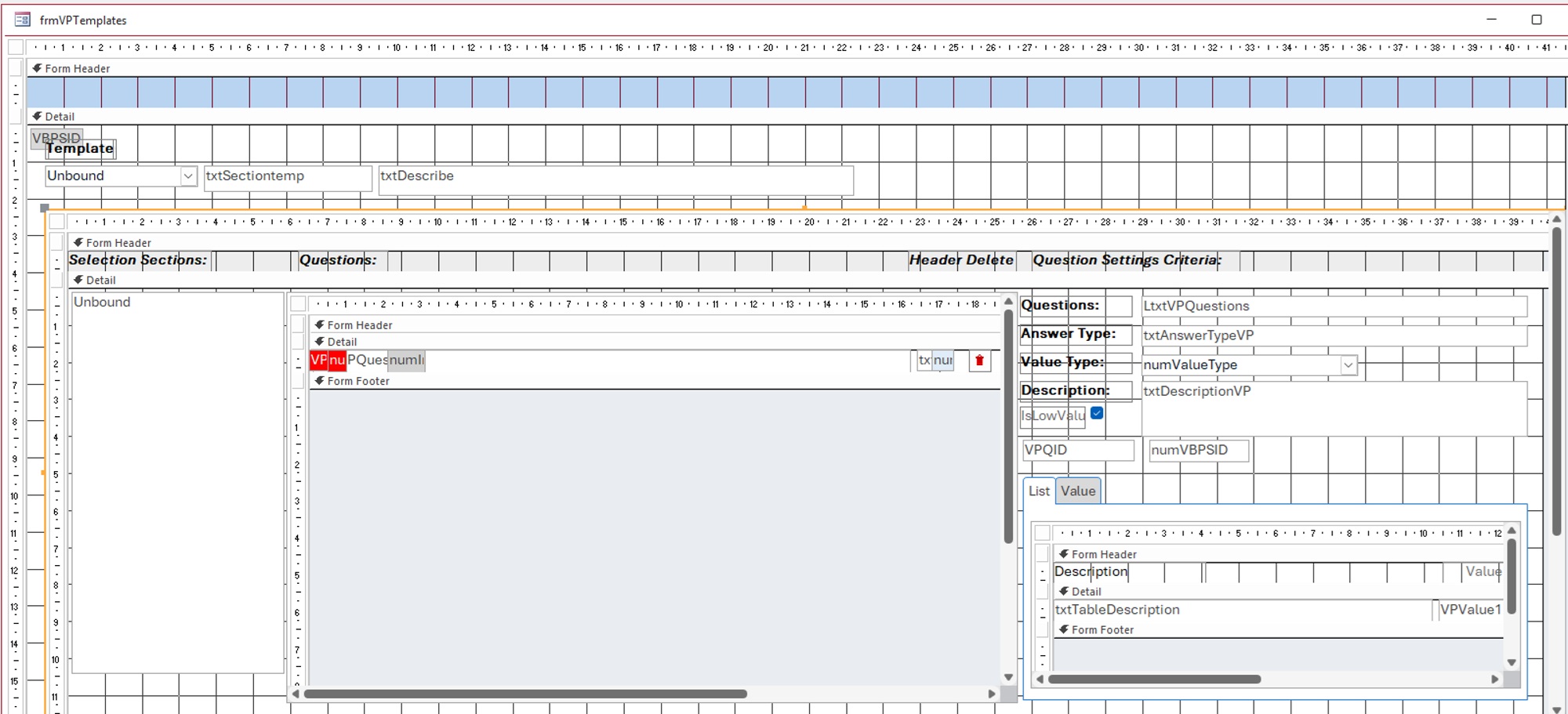
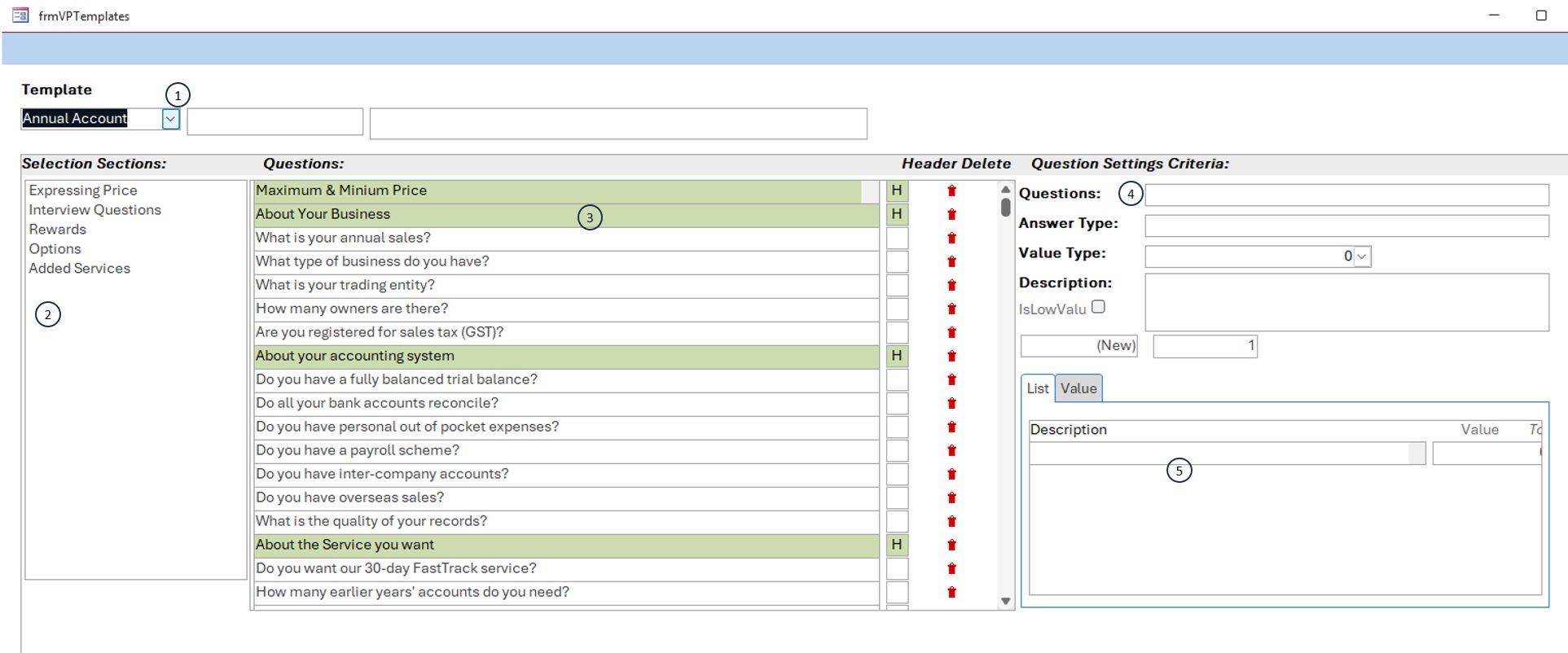
The plan is to filter a sub-subform ‘Questions” (3)

The idea is to select a template (or make a new one), (1) that controls the question sub-subform (3), to show only questions and section relating to that template.

The next control is from the selection list box (2), which also is to further control the question table (3).  Into sections eg; I select review it shows those questions relating to Review questions to that template.
At the moment I have been able to with VBA control parent subform number (4) form selection a question on the sub-subform (3) current event

    'the sunform controls the parent form
    Parent.Filter = "VPQID=" & VPQID
    Parent.FilterOn = True


In which can place the values for each questions
In the after update of the combo box (1),  of the following code

Private Sub TemplateCombo_AfterUpdate()
Dim strFilter As String
If IsNull(Me.TemplateCombo) Then
    Me.[Question Values Settings].Form.[Questions].Form.FilterOn = False
Else ' Assumes the field in the sub-subform is named TemplateID
    strFilter = "[TemplateID] = " & Me.TemplateCombo
    Me.[Question Values Settings]!Form.[Questions]!Form.Filter = strFilter
    Me.[Question Values Settings]!Form.[Questions]!Form.FilterOn = True
End If


Is there a file to learn from?
Or achive the objectives of (1) and (2)
Adrian Connolly OP  @Reply  
      
11 hours ago

Adrian Connolly OP  @Reply  
      
11 hours ago

Alkan Toykan  @Reply  
       
8 hours ago
You can achieve this by applying both criteria to the same sub-subform. Think of the Template combo box as the first filter, limiting the questions to the selected template. The Sections list box then narrows that result further, showing only the questions belonging to the selected section.

The key is to have both controls call the same filtering routine whenever their selections change. That routine builds the filter from the current selections and applies it to the Questions sub-subform. This way, each control works independently, but both contribute to the final result.
Alkan Toykan  @Reply  
       
8 hours ago
Richard's videos on Cascading Combo Boxes and Filtering Subforms via VBA would be good starting points for understanding the concepts involved. The first explains how selections can narrow down available choices, while the second covers filtering a subform using VBA. Your solution would combine these ideas by applying both the selected Template and Section to the Questions subform. I'd recommend revisiting both videos as a starting point.
Richard Rost  @Reply  
           
2 hours ago
Adrian, Alkan has the right idea: build one filter for the Questions sub-subform using both the selected template and section, joined with AND. Have both selection controls call the same routine so changing one doesn't discard the other's criteria.

Start with my Filter a Subform Using a Combo Box video. The free lesson covers the combo's After Update event, the subform's Filter and FilterOn properties, and checking the subform control's name. The lesson page also has a class-file download for Gold members. It's a starting point, not your exact nested layout.

For your nested reference, use Me.[Question Values Settings].Form.[Questions].Form consistently. Those bracketed names must be the actual subform CONTROL names, which can differ from the names of the forms inside them. Also verify that TemplateID and your section field are available in the Questions form's record source and that the selected values match their data types.

I'd get the template filter working by itself first, then add the section criterion. When the template changes, clear any section selection that no longer belongs to it and refresh the section list. Keep that filtering separate from selecting a question to display its settings. One piece at a time.
Add a Reply Upload an Image
Next Unseen


What's This?


The following is a paid advertisement
Computer Learning Zone is not responsible for any content shown or offers made by these ads.
 

Learn
 
Access - index
Excel - index
Word - index
Windows - index
PowerPoint - index
Photoshop - index
Visual Basic - index
ASP - index
Seminars
More...
Customers
 
Login
My Account
My Courses
Lost Password
Memberships
Student Databases
Change Email
Info
 
Latest News
New Releases
User Forums
Topic Glossary
Tips & Tricks
Search The Site
Code Vault
Collapse Menus
Help
 
Customer Support
Web Site Tour
FAQs
TechHelp
Consulting Services
About
 
Background
Testimonials
Jobs
Affiliate Program
Richard Rost
Free Lessons
Mailing List
PCResale.NET
Order
 
Video Tutorials
Handbooks
Memberships
Learning Connection
Idiot's Guide to Excel
Volume Discounts
Payment Info
Shipping
Terms of Sale
Contact
 
Contact Info
Support Policy
Mailing Address
Phone Number
Fax Number
Course Survey
Email Richard
[email protected]
Blog RSS Feed    YouTube Channel

LinkedIn
Copyright 2026 by Computer Learning Zone, Amicron, and Richard Rost. All Rights Reserved. Current Time: 10/20/2026 2:05:01 PM. PLT: 1s