Free Lessons
Courses
Seminars
TechHelp
Fast Tips
Templates
Topic Index
Forum
ABCD
 
Home   Courses   TechHelp   Help   Contact   Merch   Join   Order   Logon   Forums   
 
Back to Access Forum    Comments List
Upload Images | @Reply | Bookmark | Link | Email | Next Unseen |
Question About This Message
Lee Shastid 
    
5 hours ago
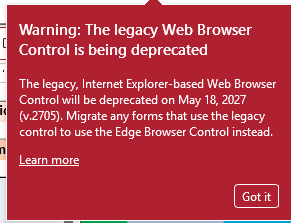
I get this message every time I log into my database. Do I need to learn something new to get prepared or just ignore it? Any guidance would be appreciated.
Lee Shastid OP  @Reply  
    
5 hours ago

Debbie Heaney  @Reply  
     
5 hours ago
I've had that message a couple of times. I just ignored it.

Unless you have a database the is currently using the Web Browser Control then this is nothing to worry about.
Donald Blackwell  @Reply  
       
5 hours ago
Hmm, I got that message one time and then it hasn't shown up since. The only thing it should matter for is if you have any forms or reports that use the old Web Browser control instead of the new Edge Browser control. If you do, you should plan to migrate them. If not, you have nothing to be concerned about.
Alex Hedley  @Reply  
           
4 hours ago
Did you click "Learn more"?
Richard Rost  @Reply  
            
2 hours ago
Lee, Debbie and Donald have it right. This isn't a warning that Microsoft Access is going away or that there's something wrong with your database. It's about one specific control: the old Internet Explorer-based box that some Access forms use to display a web page or an online image inside the form. A button or hyperlink that just opens your regular browser isn't the same thing.

The notice says Microsoft is targeting May 18, 2027 (version 2705). After the change reaches your version of Access, the old control won't display web content by default. If your database doesn't use it, go ahead and click Got it. You don't have to change anything. If you're not sure, look in Design View at any forms or subforms that show web content. If they already use the Edge Browser Control, those controls don't need converting.

If you do find the old control, make a backup first. In Design View, right-click the control and look for Change To > New browser control. Then test the form in a copy, especially if you have VBA that talks to the old control. My Edge Browser Control lesson shows what the new control looks like and how to use it.
Add a Reply Upload an Image
Next Unseen


What's This?


The following is a paid advertisement
Computer Learning Zone is not responsible for any content shown or offers made by these ads.
 

Learn
 
Access - index
Excel - index
Word - index
Windows - index
PowerPoint - index
Photoshop - index
Visual Basic - index
ASP - index
Seminars
More...
Customers
 
Login
My Account
My Courses
Lost Password
Memberships
Student Databases
Change Email
Info
 
Latest News
New Releases
User Forums
Topic Glossary
Tips & Tricks
Search The Site
Code Vault
Collapse Menus
Help
 
Customer Support
Web Site Tour
FAQs
TechHelp
Consulting Services
About
 
Background
Testimonials
Jobs
Affiliate Program
Richard Rost
Free Lessons
Mailing List
PCResale.NET
Order
 
Video Tutorials
Handbooks
Memberships
Learning Connection
Idiot's Guide to Excel
Volume Discounts
Payment Info
Shipping
Terms of Sale
Contact
 
Contact Info
Support Policy
Mailing Address
Phone Number
Fax Number
Course Survey
Email Richard
[email protected]
Blog RSS Feed    YouTube Channel

LinkedIn
Copyright 2026 by Computer Learning Zone, Amicron, and Richard Rost. All Rights Reserved. Current Time: 11/22/2026 3:50:17 PM. PLT: 1s