Free Lessons
Courses
Seminars
TechHelp
Fast Tips
Templates
Topic Index
Forum
ABCD
 
Home   Courses   TechHelp   Forums   Help   Contact   Merch   Join   Order   Logon  
 
Back to Import New, Changed Records    Comments List
Upload Images   @Reply   Bookmark    Link   Email   Next Unseen 
Import New Changed Records
Rajashree Natarajan 
      
5 years ago
Hi Richard,

I import the statement from a hearing aid vendor and append it to my vendor T. The statement contains new orders and repair orders. The problem is that they send the pt names as a joined name in their report and I have it as two separate fields in my Table. How do I import the statement and assign it the patient ID. Right now I am manually entering pt ID as I want a record history of orders and repairs and the cost for each patient in their form. I have a button in my Patient form that brings up the history of all their individual  hearing aid data.

Is there a way to find the patient name and automatically assign the Pt ID when i append  the statement every month? Also sometimes the excel sheet they send has typos in the names and does not match the field.

Can you think of a better solution for me to bring the data into my patient form?
Scott Axton  @Reply  
        
5 years ago
Good morning!  
I once had a similar circumstance with a client of mine.  I had them ask the vendor if they could maintain the data they way we provided it.  (We gave them the FirstName, LastName, ID among other fields) That was easy as they already had an export for that additional data themselves.  They just made a little adjustment and I had the data come back the way we needed. I was then able to just do a direct import.
So my first suggestion is  - Ask. It never hurts.

How do you receive your data?  Individual documents? Spreadsheet?  PDF? Other?
Could you provide a screen shot - even made up of fake info or blacked out of sensitive info so we can better help?

Separating the fields, if it is always the same is pretty straight forward.  Like "FirstName Last name" you just look for the space.  The gotcha is if the data is inconsistent.  First Last, First Middle Last, hyphenated, etc.

Take a look at the String Functions for a basic primer.

Scott Axton  @Reply  
        
5 years ago
Does your vendor use and ID that is unique?  That would be the easiest way to match up a patient and their record.  Other things that would make matching easier would be serial numbers on the aids, phone #, etc.

I just noticed I didn't read very well.  I see that you are getting an Execl Sheet.

Richards Text to Columns may help you split out the data prior to importing into your database.

Since you mentioned that the data has errors I would import it into a temporary table so you can clean it up prior to adding it to your tables.  It sounds like you will have some manual verification of at least some of the data.
Rajashree Natarajan OP  @Reply  
      
5 years ago
Thank you. Yes to all of the things you suggested.  I am a self access learner so most things don't come easy to me and I have to look up up how to do it. I think what you said may work. I will have to split the names as that it the only column in question. I will try and if I have questions may bother you again.
Scott Axton  @Reply  
        
5 years ago
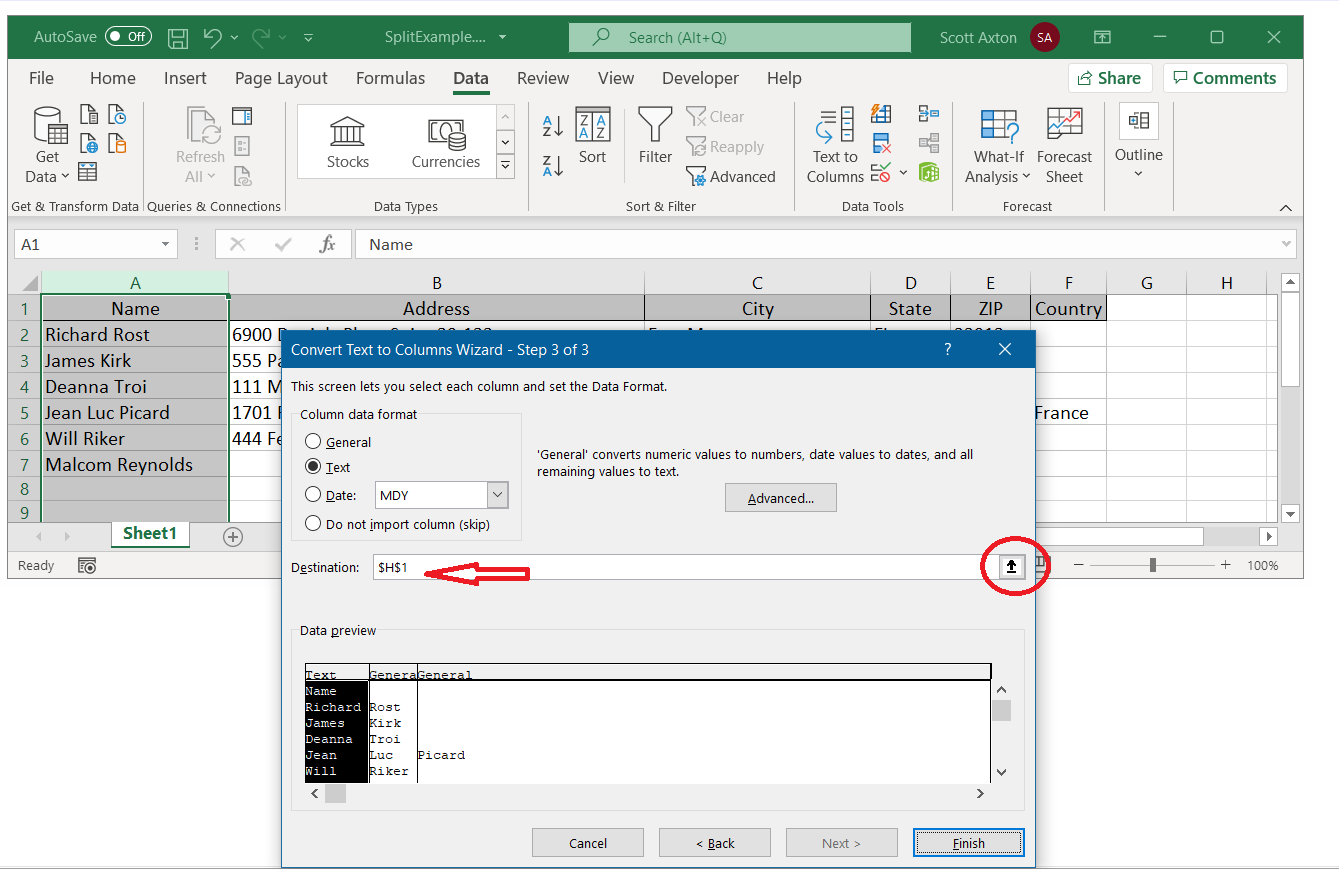
Here is a step by step for your Excel.
Before you do any thing BACK UP YOUR DATA.  Work with a copy "just in case".

First highlight the column with your FullName.
Next choose Text to Columns.
When the Text to Columns Wizard comes up:

Step 1 -
Choose Delimited then the Next button.

Step 2 -
Click the Tab box off and the Space box on.

Step 3 -
Click on the range selector (red circle) and choose a blank cell beyond your spreadsheet data.  I chose "H1"
in this sample.  You could also type it in to the box with the red arrow.
Click Finish.

#4 Note that doing it this way preserves your data in the A column and splits out the name in to H, I, and J.
It's not perfect but it's easy to see which names need fixing.  Note: Jean Luc Picard.

Hope that helps.
Scott Axton  @Reply  
        
5 years ago

Scott Axton  @Reply  
        
5 years ago

Scott Axton  @Reply  
        
5 years ago

Scott Axton  @Reply  
        
5 years ago

Rajashree Natarajan OP  @Reply  
      
5 years ago
Thank you. This was very helpful. I just have one more question and I think I will be able to update the data just the way I want it.  

When I import the names from my excel sheet, some are new and some are old patients . I want my access to look for the same name and update the pt ID.  An update query does not work as the PatientID is an auto number in the PatientListT. Is there a way to add that value PatientID to the  name in the VendorStatementT so I can use the info in another query. I want it all done automatically. Is this too much of a ask?
Scott Axton  @Reply  
        
5 years ago
Rajashree all of what you are writing about can be done.  In fact any time someone asks me, "Is there a way to do xxx in Access?" The answer is almost always yes.  

As a matter of fact, the select, update, and append queries are exactly what you need. Please re-watch the video above.

Unfortunately, there isn't a "magical wizard" built into Access to do what you are asking.  You need to decide what the criteria is for who is new and who is old.  How do you tell?  The next step, is converting that knowledge and manual process to instructions (programming) that Access can use to help you automate the process.

From what you have told me, much of what you need to do is at a level beyond where you are today in your Access learning level.

Without knowing your database and it's structure, how you've set up your relationships, what data is being transmitted back and forth, and how, between you and the vendor / lab, etc., it is nearly impossible to speak in generalities.


Scott Axton  @Reply  
        
5 years ago
Check out the video Multi-Table Update.  Also the Relationships and Update Queries videos Richard teaches about. (Links on that page).

Keep learning and progressing and you will get there.  I recommend to get through at least the
Expert level and maybe even into the Developer level in the courses.

If this is a case of, "I really need this done NOW and don't have the time or desire to go through the courses",
you could create a post on the

Microsoft Access Developer Network page.
There are others there that are available for hire to help.
Rajashree Natarajan OP  @Reply  
      
5 years ago
Awesome. Thanks for all your help.  I am still working thru the beginner level courses and will get to developer courses eventually.  Also we try to hire if I can't do it myself.  Appreciate all your help.
Scott Axton  @Reply  
        
5 years ago

You can do it!

I mentioned previously, determine your criteria (The steps you do manually) -  on paper,  in a word doc, something to guide you.  
You will need to do it in multiple queries.  First do the select queries to make sure the data matches.  Then one to update existing customers, one to import new customers (append). The id will be taken care of by the autonumber.

Once you have the customer / patient id's set then match the records backwards to the temporary table to assign the patient id to the order.  They are all orders - whether it is new or repair is just a "Type".  You don't need two tables.

When you have the pt ID in the temp table you are ready to bring in just the order info to the orders table.  Again using queries.

Now that you have the queries set and working. you can tie them all together - either using VBA or Macros.  

Over simplification I know.  But hopefully you get the idea.  It will take some time and effort now to pay off big benefits later.
      

This thread is now CLOSED. If you wish to comment, start a NEW discussion in Import New, Changed Records.
 

Next Unseen

 
New Feature: Comment Live View


The following is a paid advertisement
Computer Learning Zone is not responsible for any content shown or offers made by these ads.
 

Learn
 
Access - index
Excel - index
Word - index
Windows - index
PowerPoint - index
Photoshop - index
Visual Basic - index
ASP - index
Seminars
More...
Customers
 
Login
My Account
My Courses
Lost Password
Memberships
Student Databases
Change Email
Info
 
Latest News
New Releases
User Forums
Topic Glossary
Tips & Tricks
Search The Site
Code Vault
Collapse Menus
Help
 
Customer Support
Web Site Tour
FAQs
TechHelp
Consulting Services
About
 
Background
Testimonials
Jobs
Affiliate Program
Richard Rost
Free Lessons
Mailing List
PCResale.NET
Order
 
Video Tutorials
Handbooks
Memberships
Learning Connection
Idiot's Guide to Excel
Volume Discounts
Payment Info
Shipping
Terms of Sale
Contact
 
Contact Info
Support Policy
Mailing Address
Phone Number
Fax Number
Course Survey
Email Richard
[email protected]
Blog RSS Feed    YouTube Channel

LinkedIn
Copyright 2026 by Computer Learning Zone, Amicron, and Richard Rost. All Rights Reserved. Current Time: 4/30/2026 1:52:20 AM. PLT: 0s