Free Lessons
Courses
Seminars
TechHelp
Fast Tips
Templates
Topic Index
Forum
ABCD
 
Home   Courses   TechHelp   Help   Contact   Merch   Join   Order   Logon   Forums   
 
Back to Access Forum    Comments List
Upload Images   @Reply   Bookmark    Link   Email   Next Unseen 
Mail Merge Fail
Katherine Bradshaw 
    
4 years ago
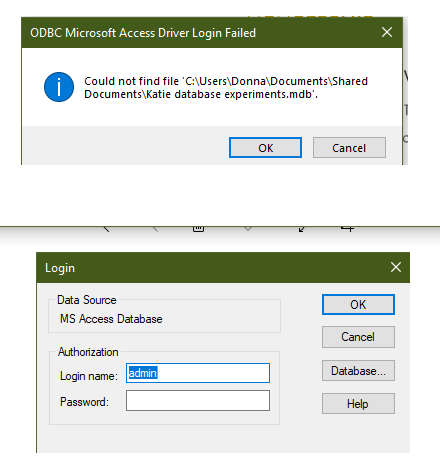
Does anyone know if I'm doing something wrong to get an ODBC driver login failure error while trying to do a mail merge into a Word document from Access? Both the database and the Word document are on the machine I'm working on, in the same shared folder.

I tried looking up that error online, and the results indicated that maybe it's a problem with my shared folder being read-only? (But I don't understand how a shared folder that is constantly accessed and added to could be read only.) I did try to uncheck the read-only option on the folder, and it appears to let me do it, but it doesn't "take". When I look in the properties again, the folder is again checked as read-only for the files inside.
Katherine Bradshaw OP  @Reply  
    
4 years ago

Scott Axton  @Reply  
      
4 years ago
The first thing I would do is make sure your directory is a Trusted Location in both MS Word and in Access.

File -> Options ->  Trust Center     then Click Trust Center Settings

Then depending on how your network is set up RIGHT click on the Shared folder in Explorer and Chose the Security Tab.  You may need to change your security setting for that folder.
Katherine Bradshaw OP  @Reply  
    
4 years ago
Thanks for the ideas, Scott. Alas, it didn't work.

I made the folder a trusted location for both Word and Access. In the security settings, that folder shows "everyone" on the network as well as the user and admin logins for this computer are all set to allow:
full control
modify
Read & execute
list folder contents
read
write

But I'm still getting that same error. Access locks up after I close Word and all the error messages. I have to force quit.
I tried using a different Word file, but same problem.

I tried moving the Word document to the desktop - same error. I tried moving both the database and the Word file to the desktop - same error, but it references being unable to find the desktop instead of the folder.

So the problem is maybe Word trying to find where the Access file is. Depending on how I click out of all the error messages, I get a new error that says Word can't find the file.

We have Office 365 and have often done Word-Excel mail merges.


Katherine Bradshaw OP  @Reply  
    
4 years ago
Hm. I tried opening the Word document first and working through the mail merge wizard there. It does give me the option to choose Access as a data source. However, the list of tables and queries to select from is incomplete. Several queries are missing, including the one I need to be able to run this merge.
Alex Hedley  @Reply  
           
4 years ago
Try creating a .udl file and see if you can connect to the database that way.
Scott Axton  @Reply  
      
4 years ago
Alex that one is new to me even.   I've not heard of that file type.
Would that be in Access or Word?
Alex Hedley  @Reply  
           
4 years ago
Just on the desktop, name it anything, with that ext, then double click it, and fill it in,
Scott Axton  @Reply  
      
4 years ago
Katherine -
I don't know why you aren't seeing your queries - unless they are too complex.  

Could you try a real basic merge using Richards Blank Template and see if Word will connect to that?  Say using the customer table.

Net trouble shooting I would try is merge directly from a table.  No queries no criteria.  Does that work?

If that works - could you copy your query that you want to use for your merge and make it into a make table query creating a temporary table.
Try using that for your merge.
Your queries (in the past) have had so much going on- making calculations etc. It might be that making the TmpTable is the better solution any way.  I have an idea it may make the merge less prone to problems.  You are just taking a snapshot of the data as of the time of printing any way.
Katherine Bradshaw OP  @Reply  
    
4 years ago
OK, it's confirmed - my problem is the query I'm trying to use.

I did the .udl trick, but I first tried it with just my HouseholdT, and it worked no problem.

When I tried it with my MemberMailingQ, it failed to work, even if I deleted the criteria in the query.

It's interesting to me that it's not necessarily queries that have user-entered criteria that don't work, or queries that are non-modifiable. But for whatever reason, some queries are just not OK for mail merges. Doing a mail merge the reverse way from Word will give the list of what works and what doesn't.

So I'll need to resort to a maketable query, or just set up a button to export the query as an Excel file.

Thanks for helping me troubleshoot this!

This thread is now CLOSED. If you wish to comment, start a NEW discussion in Access Forum.
 

Next Unseen

 
New Feature: Comment Live View


The following is a paid advertisement
Computer Learning Zone is not responsible for any content shown or offers made by these ads.
 

Learn
 
Access - index
Excel - index
Word - index
Windows - index
PowerPoint - index
Photoshop - index
Visual Basic - index
ASP - index
Seminars
More...
Customers
 
Login
My Account
My Courses
Lost Password
Memberships
Student Databases
Change Email
Info
 
Latest News
New Releases
User Forums
Topic Glossary
Tips & Tricks
Search The Site
Code Vault
Collapse Menus
Help
 
Customer Support
Web Site Tour
FAQs
TechHelp
Consulting Services
About
 
Background
Testimonials
Jobs
Affiliate Program
Richard Rost
Free Lessons
Mailing List
PCResale.NET
Order
 
Video Tutorials
Handbooks
Memberships
Learning Connection
Idiot's Guide to Excel
Volume Discounts
Payment Info
Shipping
Terms of Sale
Contact
 
Contact Info
Support Policy
Mailing Address
Phone Number
Fax Number
Course Survey
Email Richard
[email protected]
Blog RSS Feed    YouTube Channel

LinkedIn
Copyright 2026 by Computer Learning Zone, Amicron, and Richard Rost. All Rights Reserved. Current Time: 8/7/2026 11:57:39 PM. PLT: 1s