Free Lessons
Courses
Seminars
TechHelp
Fast Tips
Templates
Topic Index
Forum
ABCD
 
Home   Courses   TechHelp   Forums   Help   Contact   Merch   Join   Order   Logon  
 
Back to Access Forum    Comments List
Upload Images   @Reply   Bookmark    Link   Email   Next Unseen 
Combo Box Formatting
Amanda McDonald 
      
4 years ago
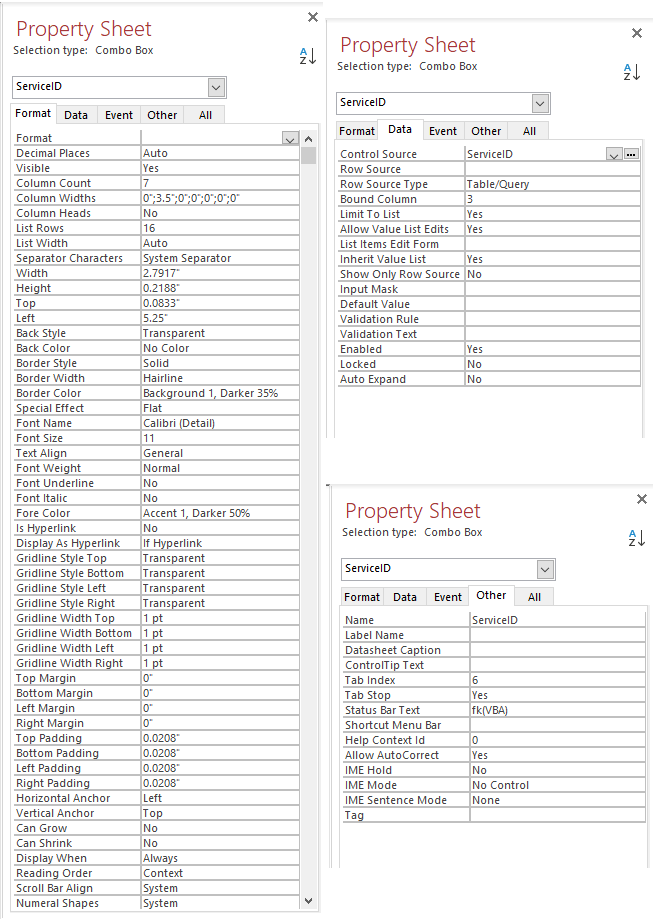
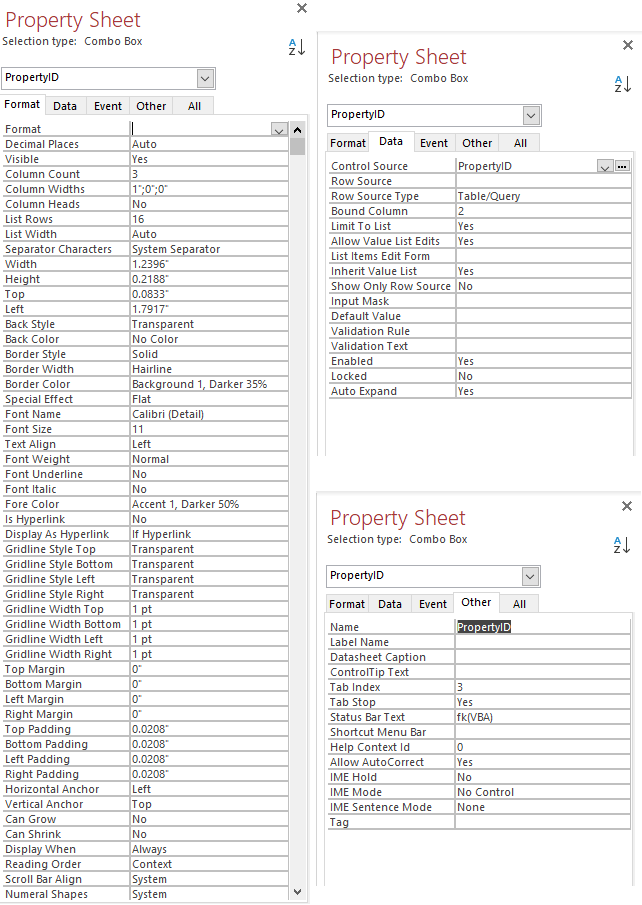
I have gone over my settings at least 10 times , I can not figure out how I changed the text color in the combo box selection and in the dropdown list of the ServiceID. Or what I've done that is preventing the color settings from displaing property on the PropertyID field.

I've already watched Richard's Can You Have Formatting and Colors List/Combo Box video and extended cut.

The boss wants both fields to look like the ServiceID field.

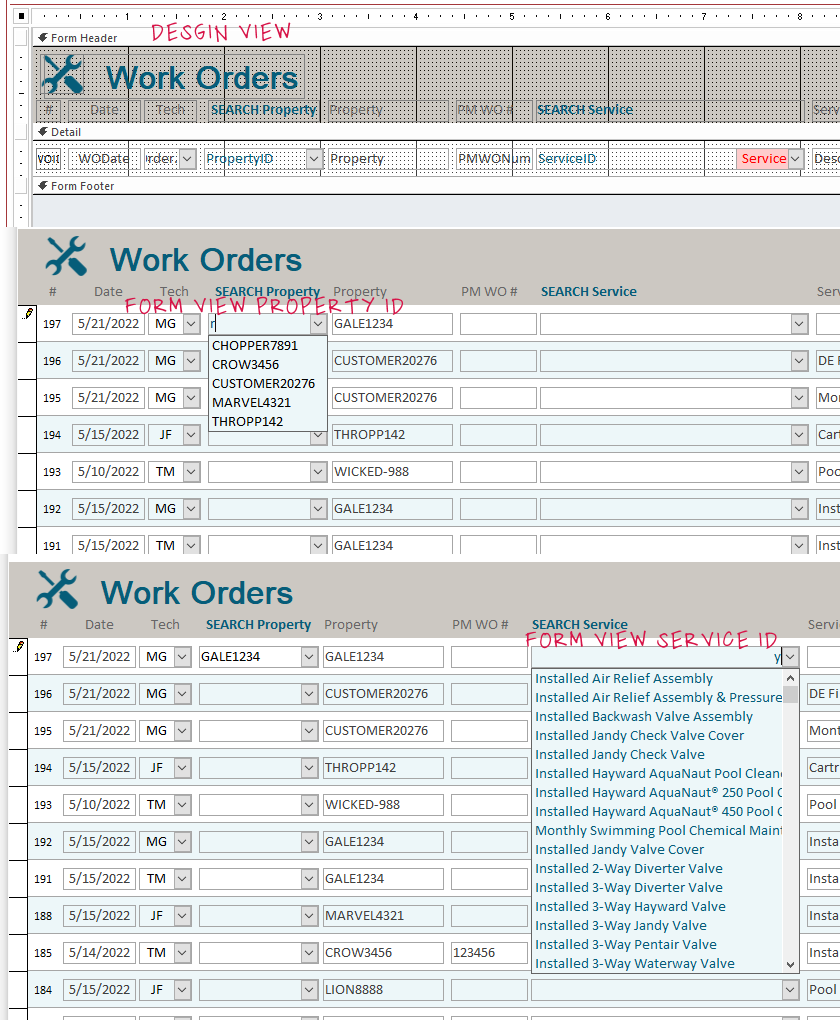
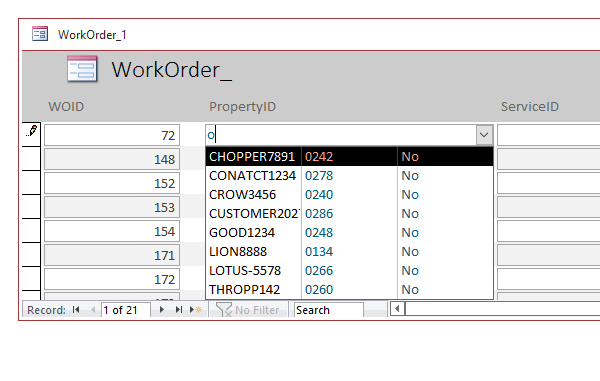
The PropertyID filed's Fore Color is set and appears the correct color in design view. In Form View, the color is correct for the text I type, however, the dropdown list is black, and once I make a selection the text reverts back to black.
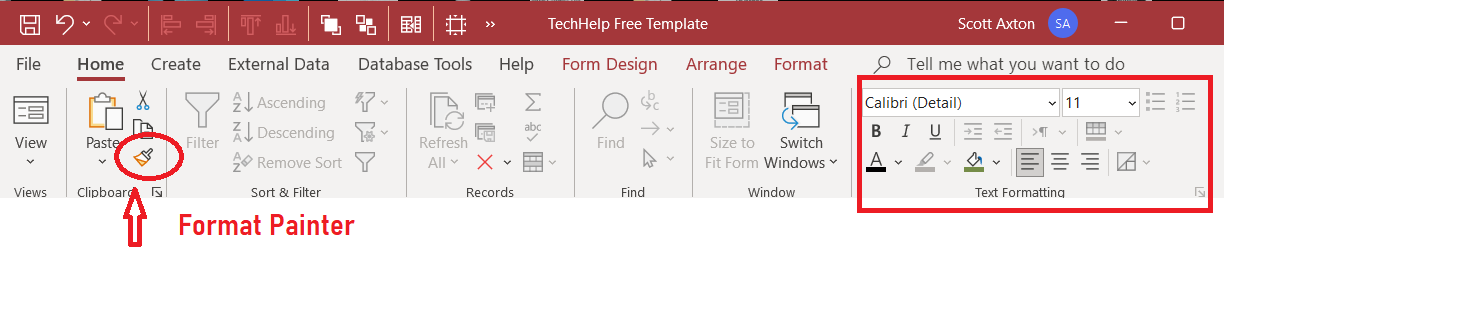
I have tried using the format painter, but it didn't change anything. I've tried using a different color, but no matter what I do it stays black. There is no color reference in the On Change or After Update events, the only code for these two fields.  I've checked table settings and query settings. I am at a loss.

Any insight would be very much appricated!
Amanda McDonald OP  @Reply  
      
4 years ago

Amanda McDonald OP  @Reply  
      
4 years ago

Amanda McDonald OP  @Reply  
      
4 years ago

Amanda McDonald OP  @Reply  
      
4 years ago

Amanda McDonald OP  @Reply  
      
4 years ago
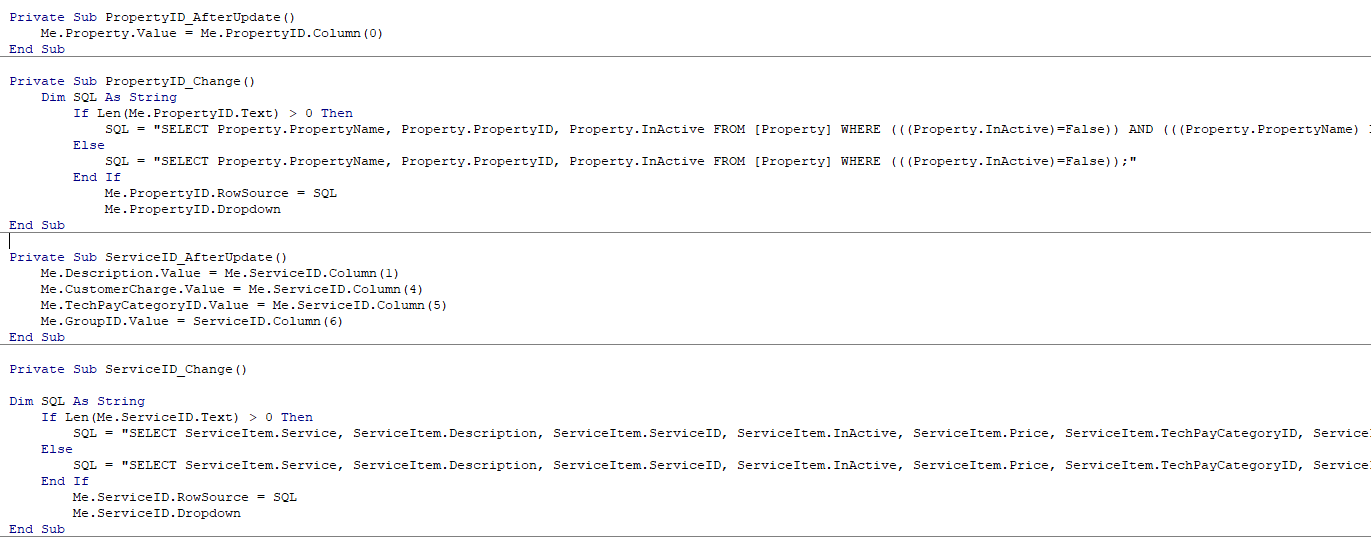
In PropertyID Field:


Private Sub PropertyID_AfterUpdate()
    Me.Property.Value = Me.PropertyID.Column(0)
End Sub

Private Sub PropertyID_Change()
    Dim SQL As String
        If Len(Me.PropertyID.Text) > 0 Then
            SQL = "SELECT Property.PropertyName, Property.PropertyID, Property.InActive FROM [Property] WHERE (((Property.InActive)=False)) AND (((Property.PropertyName) Like ""*" & Me.PropertyID.Text & "*"")) ORDER BY Property.PropertyName;"
        Else
            SQL = "SELECT Property.PropertyName, Property.PropertyID, Property.InActive FROM [Property] WHERE (((Property.InActive)=False));"
        End If
            Me.PropertyID.RowSource = SQL
            Me.PropertyID.Dropdown
End Sub
Amanda McDonald OP  @Reply  
      
4 years ago
In ServiceID Field:


Private Sub ServiceID_AfterUpdate()
    Me.Description.Value = Me.ServiceID.Column(1)
    Me.CustomerCharge.Value = Me.ServiceID.Column(4)
    Me.TechPayCategoryID.Value = Me.ServiceID.Column(5)
    Me.GroupID.Value = ServiceID.Column(6)
End Sub
Amanda McDonald OP  @Reply  
      
4 years ago
Also in ServiceID Field:

Private Sub ServiceID_Change()

Dim SQL As String
    If Len(Me.ServiceID.Text) > 0 Then
        SQL = "SELECT ServiceItem.Service, ServiceItem.Description, ServiceItem.ServiceID, ServiceItem.InActive, ServiceItem.Price, ServiceItem.TechPayCategoryID, ServiceItem.GroupID FROM ServiceItem WHERE (((ServiceItem.InActive)=False)) AND ((((ServiceItem.Service) Like '*" & Me.ServiceID.Text & "*')) OR (((ServiceItem.Description) Like '*" & Me.ServiceID.Text & "*'))) ORDER BY ServiceItem.Service;"
    Else
        SQL = "SELECT ServiceItem.Service, ServiceItem.Description, ServiceItem.ServiceID, ServiceItem.InActive, ServiceItem.Price, ServiceItem.TechPayCategoryID, ServiceItem.GroupID FROM ServiceItem WHERE (((ServiceItem.InActive)=False));"
    End If
        Me.ServiceID.RowSource = SQL
        Me.ServiceID.Dropdown
End Sub
Scott Axton  @Reply  
        
4 years ago

Scott Axton  @Reply  
        
4 years ago
Looks like you just chose a different style.  Click the one you want to keep, choose Format paint, then click the one you want to match.

Form Formatting is covered in Beginner 2 Lesson 4 & 5
Scott Axton  @Reply  
        
4 years ago
If that doesn't solve it then try it in a new blank form to see if the problem persists.
Sounds by your description that you did the right thing.

Also run down the Troubleshooter
Amanda McDonald OP  @Reply  
      
4 years ago
I stated in my original post that I already tried the format painter, but that didn't work.

I created a new form, the fields performed exactly the same.
I deleted the PropertyID field, copied the ServiceID field, renamed it, and reset the combo box property settings and the PropertyID field still did the same thing.
I deleted the PropertyID field again, created a new field by adding a new combo box control, and added the property settings for the combo box, it still did the same thing.

I went back to the property settings and changed the width of the columns so they would all be visible.

In the PropertyID field, the first column is black, and columns 2 & 3 are blue.
In the ServiceID field, all the columns are blue.

Any clue what would cause this?

I feel like it has to be something in the code. Unfortunately, I am new to coding and have no idea how to troubleshoot code that does not reference any formatting whatsoever but is affecting formatting.
Amanda McDonald OP  @Reply  
      
4 years ago

Amanda McDonald OP  @Reply  
      
4 years ago

Scott Axton  @Reply  
        
4 years ago
Yes I saw that - - "Sounds by your description that you did the right thing."

Did you start down the Troubleshooter check list?  Link above.

Unless you are explicitly changing the properties via code -  which I didn't see you doing - I suspect either a change in Access, your computer, or a corrupt file.

The easiest thing to start with is shutdown Access and do a restart.  That should clear out any memory issues.
Next, I'd try a brand new db.  Simple table and see if you can replicate the problem.
I cannot replicate so I'm thinking it is your computer or your Office installation.
Scott Axton  @Reply  
        
4 years ago

Kevin Yip  @Reply  
     
4 years ago
Amanda, I duplicated what you saw, so you were not seeing things. A combo box inherits the color settings of its table(s). In table design, each field has a Format property which sets the display color of the field in datasheet view. Anything that uses the table's data (queries, combo box, list box, SQL) will use the color settings.

This is actually a pretty old Access feature (not a bug), and apparently not one that is well known. Here is the only place I know that mentions it: https://tinyurl.com/4y42cczy

Check the Format property of your combo box. For some reason, if Format is empty, the combo box doesn't inherit the colors from its table(s).  If it's not empty, even if it has a single space that you entered inadvertently, the combo box inherits its table's colors.

So to fix your problem, (1) make sure your combo box's Format property is empty, and/or (2) remove the color settings in the Format property of the table(s) that provide data to your combo box.
Richard Rost  @Reply  
          
4 years ago
Amanda, the video you're referencing deals with changing the color of individual ROWS in a list box or combo box. But yeah, it looks like you changed the COLUMNS, which can be done the way Con Wun Yip mentioned. And yeah, I totally forgot about that trick. I don't think I've played with the colors in table/query settings since the 90s. LOL. This will make a cool Tip video. Thanks. :)
Kent Jamison  @Reply  
    
4 years ago
I've been having the same problem.  I found--for Reports at least--that by changing the fore and background colors FOR JUST THAT COMBO/LIST Box so they're opposite everything else seems to at least make them view correctly in Print Preview mode.  
I would love to see a new TechHelp video with a permanent solution on this one.  
--Kent J.
Richard Rost  @Reply  
          
4 years ago
That's today's video: Column Colors

This thread is now CLOSED. If you wish to comment, start a NEW discussion in Access Forum.
 

Next Unseen

 
New Feature: Comment Live View


The following is a paid advertisement
Computer Learning Zone is not responsible for any content shown or offers made by these ads.
 

Learn
 
Access - index
Excel - index
Word - index
Windows - index
PowerPoint - index
Photoshop - index
Visual Basic - index
ASP - index
Seminars
More...
Customers
 
Login
My Account
My Courses
Lost Password
Memberships
Student Databases
Change Email
Info
 
Latest News
New Releases
User Forums
Topic Glossary
Tips & Tricks
Search The Site
Code Vault
Collapse Menus
Help
 
Customer Support
Web Site Tour
FAQs
TechHelp
Consulting Services
About
 
Background
Testimonials
Jobs
Affiliate Program
Richard Rost
Free Lessons
Mailing List
PCResale.NET
Order
 
Video Tutorials
Handbooks
Memberships
Learning Connection
Idiot's Guide to Excel
Volume Discounts
Payment Info
Shipping
Terms of Sale
Contact
 
Contact Info
Support Policy
Mailing Address
Phone Number
Fax Number
Course Survey
Email Richard
[email protected]
Blog RSS Feed    YouTube Channel

LinkedIn
Copyright 2026 by Computer Learning Zone, Amicron, and Richard Rost. All Rights Reserved. Current Time: 5/6/2026 6:57:09 AM. PLT: 1s