Free Lessons
Courses
Seminars
TechHelp
Fast Tips
Templates
Topic Index
Forum
ABCD
 
Home   Courses   TechHelp   Forums   Help   Contact   Merch   Join   Order   Logon  
 
Back to Access Forum    Comments List
Upload Images   @Reply   Bookmark    Link   Email   Next Unseen 
BackColor Question
Jerry Fowler 
       
4 years ago
I get an Excel file from my office each month which I import into Access.  Then I have a form setup where I have all the fields from my database and the corasponding fields from the office. next I want to scroll from record to record and hilight the ones that dont match. Up to this point I have it working. I'm looking if there is an easier way to reset all my fields to a white background as I move from record to record.
Otherwise the only thing I can think of is to have a routine that sets each field one by one.  There are around 50 field on my side alone.
Richard Rost  @Reply  
          
4 years ago
Can you post a screen shot? Hard to visualize.
Jerry Fowler OP  @Reply  
       
4 years ago
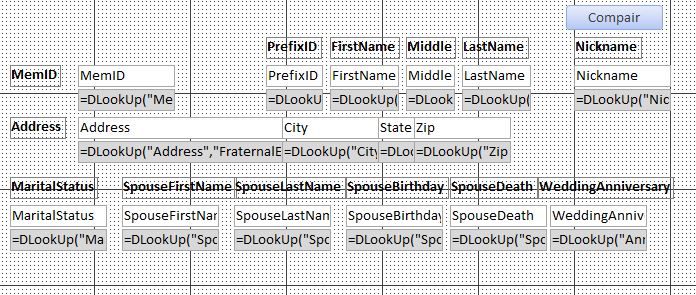
So on this pic you can see several types of fields the ones with white backcolor are the fields from my database and the ones with gray backcolor are from the home office. I'm compairing the two to see if they are the same and hi-lighting the field it they are different.  which is working but when I go to the next record the field stays hilighted.  So I'm looking for the easiest wat to reset all the fields to their default backcolors.
Jerry Fowler OP  @Reply  
       
4 years ago

Jerry Fowler OP  @Reply  
       
4 years ago
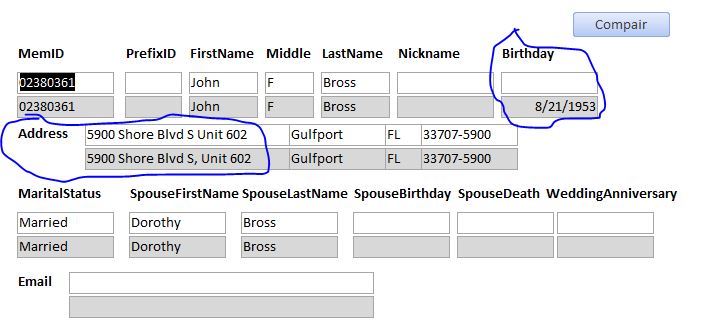
And this is just a shot of part of the screen.  There about 100 fields on the form and 50 need reset each time I change to a different record
Kevin Robertson  @Reply  
          
4 years ago
Hi Jerry,

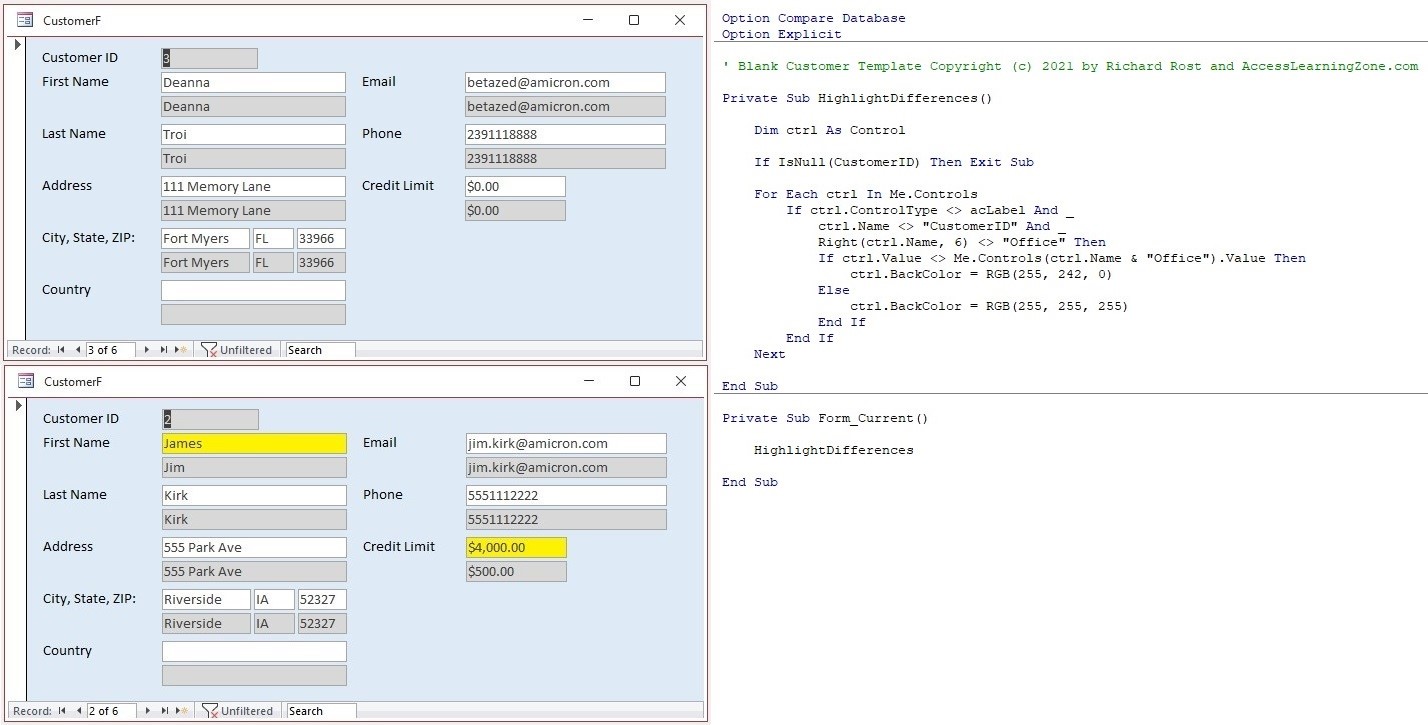
Is this the sort of thing you are looking for (see screenshot)

In my example I loop through the textboxes (Excluding the ID and the other greyed out fields) on my form. Each of the pairs of controls have pretty much the same names except the greyed out ones are suffixed with "Office".

The code will work with textboxes and will need to be modified to take into account other control types and your needs depending on your form and the fields. Labels are excluded from the loop as is the ID field, buttons are not.
Kevin Robertson  @Reply  
          
4 years ago

Jerry Fowler OP  @Reply  
       
4 years ago
Kevin let me see if I understand this correctly...

In the VBA code it looks like you had setup a loop to go through all the fields on the form.

It's expecting that the fields are named whatever I have in my table and then the one from the office is the same with "Office" at the end. for example the first field is PrefixID so the one from the office I would name PrefixIDOffice am I correct so far?  Also does that mean the first field that is checked;

     ctrl.Value would be the contents of PrefixID and
     Me.Controls(ctrl.Name & "Office") would be the contents of PrefixIDOffice and if they are not the same

     ctrl.BackColor = RGB(255,242,0) and if they are the same
     ctrl.BackColor = RGB(255,255,255) then if would loop through the rest of the fields skipping the very first one MemID

If I have got this correctly this far I'm still a little stumped as mine is not highlighting and of the fields.  Here is the code I have with the few minor changes in Fields

Private Sub HighlightDifferences()

    Dim ctrl As Control
    
    If IsNull(MemID) Then Exit Sub
    
    For Each ctrl In Me.Controls
    
        If ctrl.ControlType <> acLabel And _
            ctrl.Name <> "MemID" And _
            Right(ctrl.Name, 6) <> "Office" Then
            If ctrl.Value <> Me.Controls(ctrl.Name & "Office").Value Then
                ctrl.BackColor RGB(255, 242, 0)
            Else
                ctrl.BackColor = RGB(255, 255, 255)
        End If
    
    Next
    
End Sub

Private Sub Form_Current()

    HighlightDifferences

End Sub
Jerry Fowler OP  @Reply  
       
4 years ago

Jerry Fowler OP  @Reply  
       
4 years ago
Ok after some testing I found the SubRoutine stops running as soon as a blank (or Null) value is found.  I tried wrapping the ctrl.Value and the Me.Controls(ctrl.Name & "Office").Value with the Nz function but it did not work
Jerry Fowler OP  @Reply  
       
4 years ago
Ok after more testing it wasn't null value but I had to make a few changes to the VB code here is what is working for me.

Private Sub HighlightDifferences()

    Dim lngWhite As Long
    Dim lngYellow As Long
    Dim ctrl As Control
    
    lngWhite = RGB(255, 255, 255)
    lngYellow = RGB(255, 242, 0)
    
    If IsNull(MemID) Then Exit Sub
    
    For Each ctrl In Me.Controls
    
        If ctrl.ControlType = acTextBox And _
            ctrl.Name <> "MemID" And _
            Right(ctrl.Name, 6) <> "Office" Then
            If Nz(ctrl.Value, " ") <> Nz(Me.Controls(ctrl.Name & "Office").Value, " ") Then
                ctrl.BackColor = lngYellow
            Else
                ctrl.BackColor = lngWhite
            End If
        End If
    
    Next
    
End Sub

Kevin I would not have even been close to this point if it was't for you.  Thanks ever so much you guys are the best
Richard Rost  @Reply  
          
4 years ago
Kevin is "The Man." :)

This thread is now CLOSED. If you wish to comment, start a NEW discussion in Access Forum.
 

Next Unseen

 
New Feature: Comment Live View


The following is a paid advertisement
Computer Learning Zone is not responsible for any content shown or offers made by these ads.
 

Learn
 
Access - index
Excel - index
Word - index
Windows - index
PowerPoint - index
Photoshop - index
Visual Basic - index
ASP - index
Seminars
More...
Customers
 
Login
My Account
My Courses
Lost Password
Memberships
Student Databases
Change Email
Info
 
Latest News
New Releases
User Forums
Topic Glossary
Tips & Tricks
Search The Site
Code Vault
Collapse Menus
Help
 
Customer Support
Web Site Tour
FAQs
TechHelp
Consulting Services
About
 
Background
Testimonials
Jobs
Affiliate Program
Richard Rost
Free Lessons
Mailing List
PCResale.NET
Order
 
Video Tutorials
Handbooks
Memberships
Learning Connection
Idiot's Guide to Excel
Volume Discounts
Payment Info
Shipping
Terms of Sale
Contact
 
Contact Info
Support Policy
Mailing Address
Phone Number
Fax Number
Course Survey
Email Richard
[email protected]
Blog RSS Feed    YouTube Channel

LinkedIn
Copyright 2026 by Computer Learning Zone, Amicron, and Richard Rost. All Rights Reserved. Current Time: 5/6/2026 3:40:11 PM. PLT: 1s