Free Lessons
Courses
Seminars
TechHelp
Fast Tips
Templates
Topic Index
Forum
ABCD
 
Home   Courses   TechHelp   Forums   Help   Contact   Merch   Join   Order   Logon  
 
Back to Access Forum    Comments List
Upload Images   @Reply   Bookmark    Link   Email   Next Unseen 
Combo Box List Box Issue
Roger Caauwe 
     
4 years ago
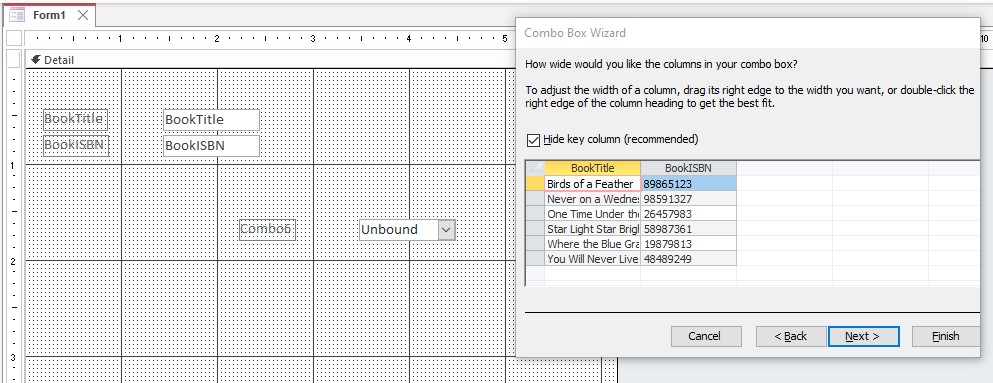
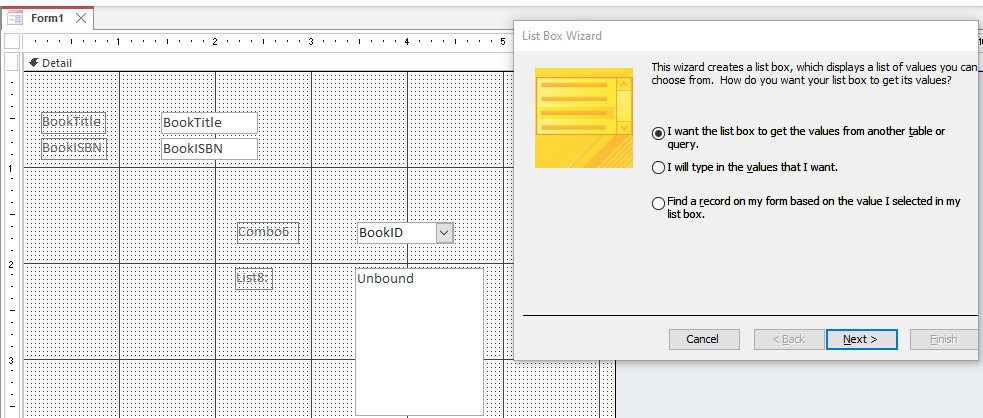
I have created several combo boxes that work just fine. However, now whenever I create a combo box that is bound to a table, I can open the box and view all the records and each field in the record. When I select a record that record gets heighted. The problem is that clicking on the desired record does not actually select it. I simply get a dinging sound. I have the same problem with list boxes. I have tried two different computers, two different versions of Access, and deleted Microsoft Office and reloaded it. Does anyone have any suggestions on where the problem might be?
Adam Schwanz  @Reply  
           
4 years ago
What do you mean "when I select a record it gets highlighted"? Are you actually clicking it or just hovering the mouse over it? The next part you say clicking on it does not select it, so could use some clarity there.

To me it sounds like you either have the combo box locked or you chose to store that value as something and the form is not updateable, like based from a query perhaps. If you look near the bottom left of Access do you see recordset not updateable while it's dinging?
Roger Caauwe OP  @Reply  
     
4 years ago
Thank you for responding. I really appreciate your help.

1. When I place my cursor on a record in the open combo box that records background turns to a black background. That is as it should be. As I move the cursor from record to record the record's background where the cursor is placed turns black. Again, that is as it should be. That is what I mean by, "when I select a record it gets highlighted".

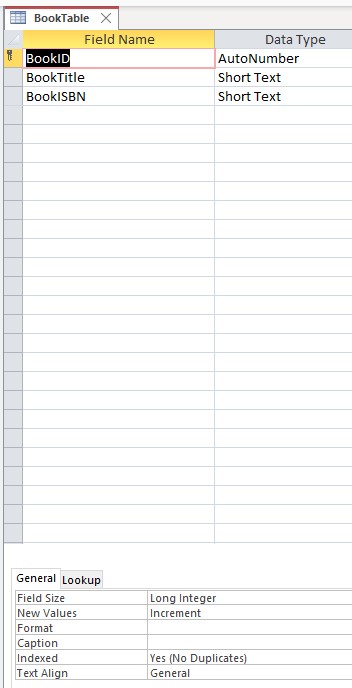
2. When I left click the highlighted record the combo box should close with the desired record showing in the box. Left clicking a record in the box only produces a ding sound and the combo box does not close. I did look in the bottom left of the access window and there is a message there: " Control can't be edited; it's bound to AutoNumber field 'BookID'. That is strange because all the combo boxes in another database are bound to the AutoNumber field of their respective tables, and they are working just fine.

3. The combo box has a table as the source and the table is updatable.

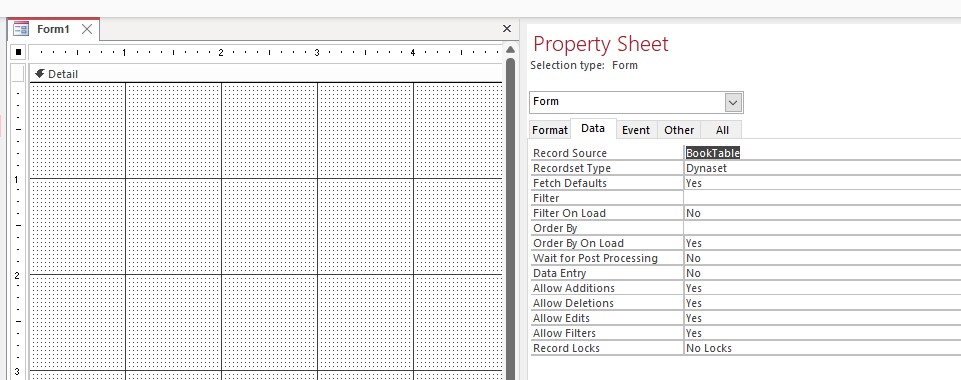
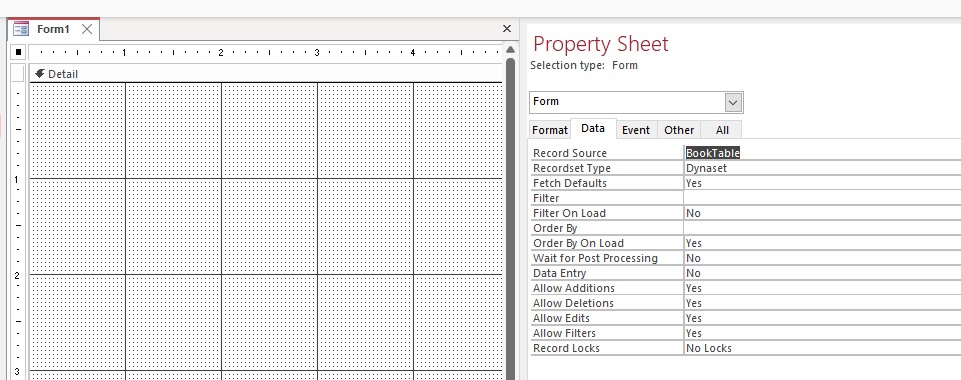
4. The form has "Allow Additions", "Allow Deletions", "Allow Edits", "Allow Filters" all set to yes. Record Locks is set to "No Locks".
Adam Schwanz  @Reply  
           
4 years ago
There's something fishy going on then. Just want to verify, is this form record source a table or on a query?

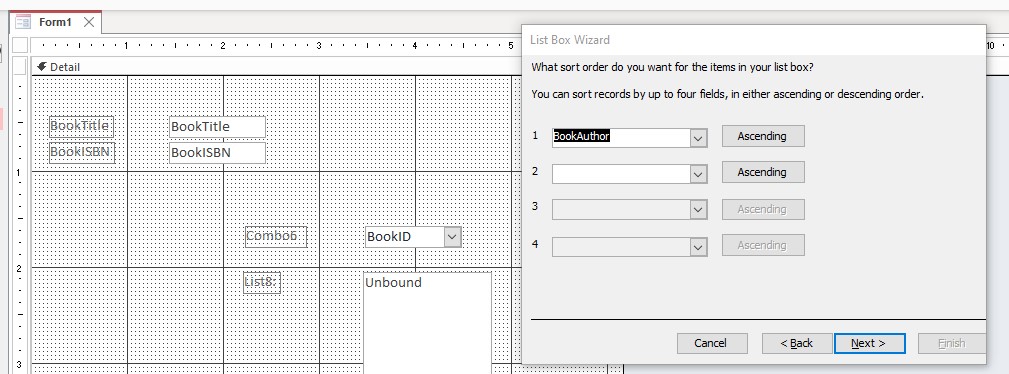
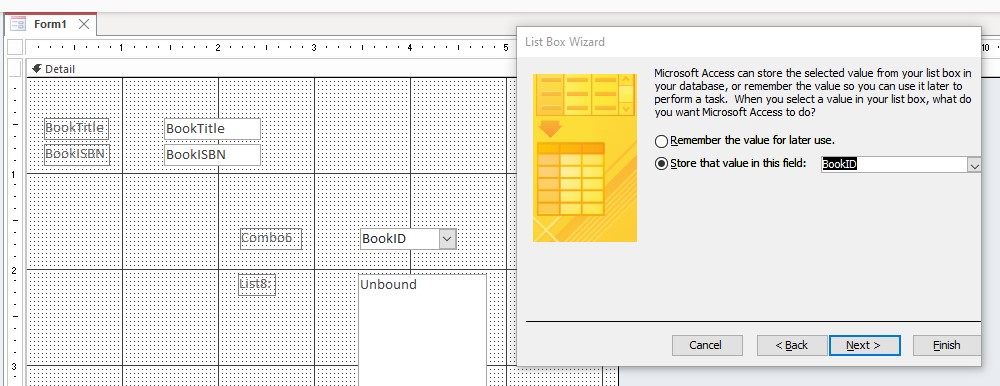
Lots of possibilities with the query, lot less with a table. Could you upload some images of the setup and the control/row source on the combo box? Image Uploads
Roger Caauwe OP  @Reply  
     
4 years ago
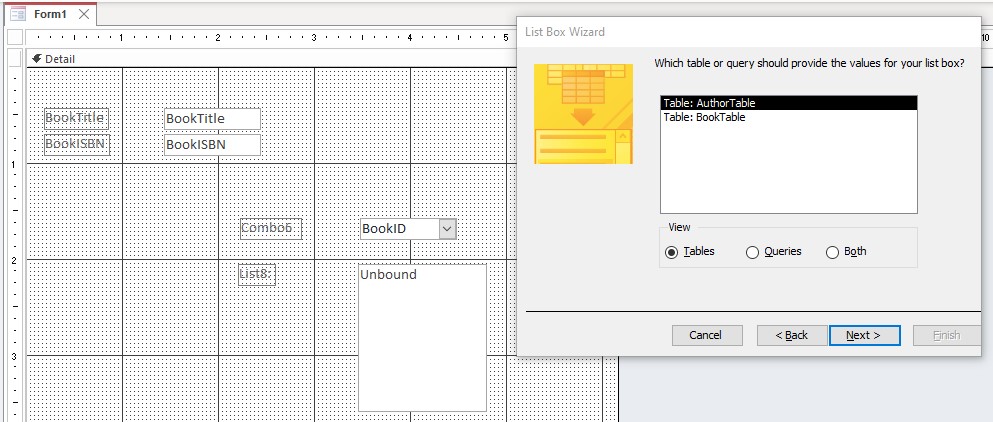
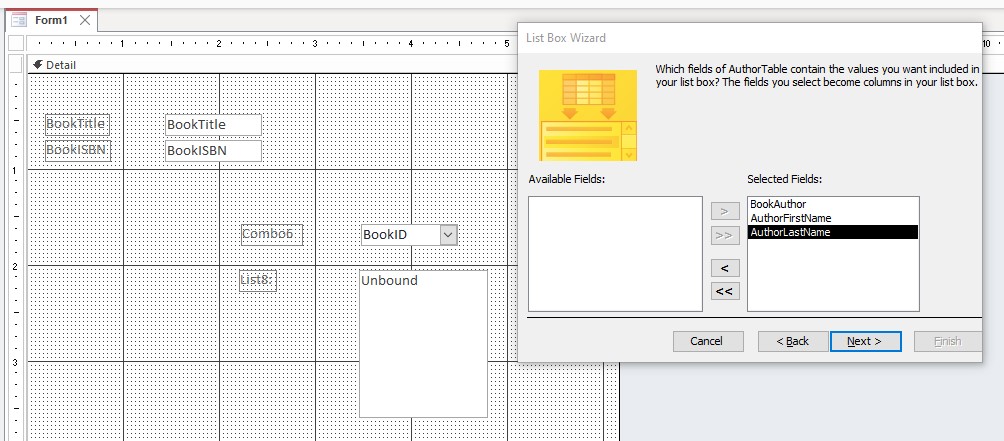
I am uploading the images. I'm sure I can do all at once. I may have to break them out into two submissions.
Roger Caauwe OP  @Reply  
     
4 years ago

Roger Caauwe OP  @Reply  
     
4 years ago

Roger Caauwe OP  @Reply  
     
4 years ago

Roger Caauwe OP  @Reply  
     
4 years ago

Roger Caauwe OP  @Reply  
     
4 years ago

Roger Caauwe OP  @Reply  
     
4 years ago

Roger Caauwe OP  @Reply  
     
4 years ago

Roger Caauwe OP  @Reply  
     
4 years ago

Roger Caauwe OP  @Reply  
     
4 years ago

Roger Caauwe OP  @Reply  
     
4 years ago

Roger Caauwe OP  @Reply  
     
4 years ago

Roger Caauwe OP  @Reply  
     
4 years ago

Roger Caauwe OP  @Reply  
     
4 years ago

Roger Caauwe OP  @Reply  
     
4 years ago

Roger Caauwe OP  @Reply  
     
4 years ago

Roger Caauwe OP  @Reply  
     
4 years ago

Kevin Robertson  @Reply  
          
4 years ago
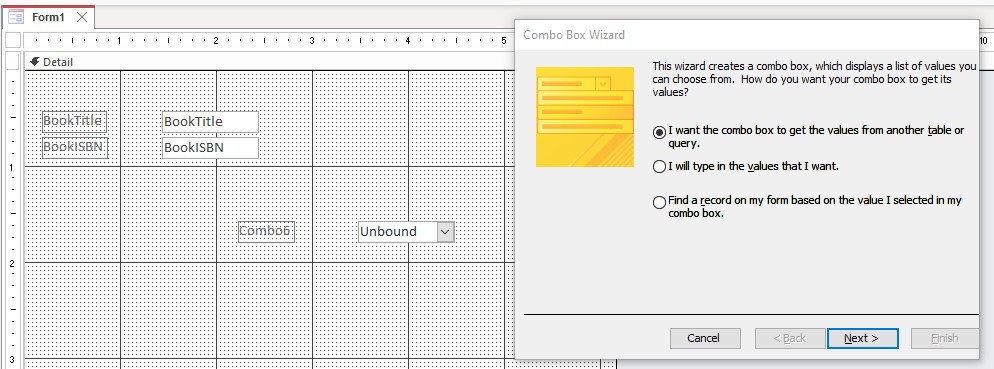
You are trying to bind both your Combo Box and your List Box to the AutoNumber Field of the form.

Relational Combo

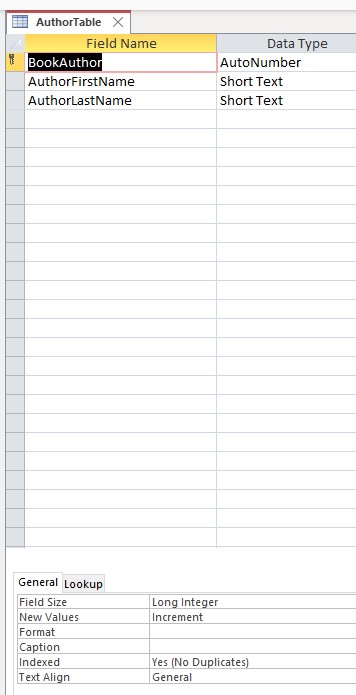
Also, your AuthorTable is missing a Foreign Key (BookID) that will relate the two table together.

Relationships
Roger Caauwe OP  @Reply  
     
4 years ago
I deleted the list box and I have the foreign Key (BookID) in the author table. The problem did not go away.
Kevin Robertson  @Reply  
          
4 years ago
I was looking at the images wrong (I looked at them after 1am). The Foreign Key should be in the BookTable NOT the AuthorTable. Add the AuthorID to the BookTable and remove BookID from the AuthorTable.

Review Access Beginner 8
Roger Caauwe OP  @Reply  
     
4 years ago
I removed the foreign key "BookID" from the AuthorTable and added the foreign key "AuthorID" to the BookTable. Still no change. I should add, I have the same problem with list boxes. In addition, I can add a combo box to a database I created some time ago and it will work just fine. But a new database I create now has this combo/list box issue.
Roger Caauwe OP  @Reply  
     
4 years ago
Just when you didn't think it couldn't get any fishier. I tried creating a combo and a list box for the AuthorTable on the BookForm. Both of them are working just fine. However, the problem still persists with the BookTable.
Kevin Robertson  @Reply  
          
4 years ago
Why do you need a Combo Box or List Box with data from the BookTable when the form in question is bound to the BookTable?
Roger Caauwe OP  @Reply  
     
4 years ago
So when I'm in the form I can select which book I want for that record. The purpose of the form is to match each book up with a particular author.
Scott Axton  @Reply  
        
4 years ago
Check out the Cascading video.  That may give you some ideas.
Roger Caauwe OP  @Reply  
     
4 years ago
Thanks for the suggestion. I did watch the cascading video. I'm not looking for cascading. I just want the Book Combo box to work.  I don't understand how the Author Combo box will work and the Book Combo box won't. I have created them the same way.
Kevin Robertson  @Reply  
          
4 years ago
Your form is bound to BookTable. Correct?
You are binding the Combo Box to BookID in the BookTable which is an AutoNumber which can't be changed.
The Combo Box CANNOT change the AutoNumber of the record.
This is why you are unable to make a selection in your Combo Box.
Roger Caauwe OP  @Reply  
     
4 years ago
I'm doing the combo box the way Rick taught in his combo box lesson. Every combo box I have created is bound to the AutoNumber field and they work find. I have discovered that if I click the record selector in the bottom left corner of the form the combo box changes to the correct record. It is only when I open the combo box that I'm have a problem. The author combo box is working fine and it is bound to AuthorID. AuthorID is the AutoNumber field.
Roger Caauwe OP  @Reply  
     
4 years ago
I'm not sure if this helps, but I have created another super simple database. It has a CarTable and a SalesPerson table. The combo box for the CarTable has the same problem. But the combo box for the SalesPerson works just fine. I even tried the CarTable combo box before and after I created the combo box for the SalesPerson and it was the same problem.
Scott Axton  @Reply  
        
4 years ago

I think that you are missing my point with having you watch the Cascading video.  You could literally place a combo box (or list box ) on a form and have it 'do nothing'. (unbound)
In the Cascading video, the choice you made determined what happens in the second (or more) combo boxes.

You, as the developer, have to give Access the instructions as to what happens when you choose or change the information in the combo box.  Typically the event that you would choose would be the
AfterUpdate.

Using your example above, you could be saying, "When I choose a Sales Person, I want to filter list box for the the cars that Sales person has sold."

In a different instance say in a CarSales form, you could use the same SalesPerson combo to indicate (associate or relate) that SP2 is the person that sold the car in the Sales record.

You are the driver (pun intended) of the data.  Access can only do what you tell it to - it can't determine on it's own what you are wanting to do.

In addition to the Combo box videos take a look at the Access Search Seminar.  Or at a minimum look at the Search Form 2.0 if you haven't already.

Putting in a plug for Richard here - Really consider getting a TechHelp Membership.  For the cost of a cup of coffee at your local coffeehouse per month you will receive tons of value.
If you decide to go with the Search Seminar be sure to use the special link Richard emailed to you since you are a Learning Connection member.  Make use of that discount!
Allan McConnell  @Reply  
     
4 years ago
Very interesting.
Could I just ask one thing? On your main form how many records are available?

Why am I asking that? Well I have developed a database to keep track of all our plant and fleet. On my main form I have a drop down combo box that works a treat.
I also have two other search features which allows the user to search either, by the plant ID or Vehicle Registration Plate. Now when a user uses anyone of these search boxes and then jumps to the record they find, my combo box does exactly what you are saying happens in your database. Why?

Because in my database when the main form opens, by default all records are available. However if a user uses the search boxes the form will only open up 1 records and this make the combo box unusable, very much like you describe.

For my database I have added a button to the form to click and "Show All Records".

Please switch on records selectors while debugging and see how many records your main form has access to. While I am new to this and maybe off center with this advice, it may be something given that this what happens is similar to what I have already had and have a work around.


Roger Caauwe OP  @Reply  
     
4 years ago
I'm playing with two very very simple databases here. I created them for the sole purpose of trying to figure out why the combo boxes are not working as they should. So, each database has only two tables and a form. Each table only has four records in it. Everything in both databases is working just fine, except one combo box in each table. I can add, change and delete records. All the fields update the way they should. I can cycle through each record using the record select arrows in the lower left corner and see any changes I make. My only issue is the one combo box on the form in each of the two databases. In the book database the book combo box has the issue, but the author combo box works perfect. All records get updated just as they should as long as I don't use the book combo box. In the car database the car combo box has the issue. The salesperson's combo box works perfectly. All records get updated as they should as long as I don't use the car combo box. Since one combo box is working in each database and all the combo boxes are created the using the same procedure, then all four should be working. I have another database that I created some time ago using the same procedures to create combo boxes as the book and car databases and they all work perfectly. I have created other database to test the issue with only one table and one form and I have the same issue. I am not really very smart about Access, but I really feel the problem has to do with the combo box associated with the primary table. Especially since I have the issue when there is only one table and one form. Gentlemen, I really appreciate all your help, comments, and suggests. Thank you for sticking with me on this.

This thread is now CLOSED. If you wish to comment, start a NEW discussion in Access Forum.
 

Next Unseen

 
New Feature: Comment Live View


The following is a paid advertisement
Computer Learning Zone is not responsible for any content shown or offers made by these ads.
 

Learn
 
Access - index
Excel - index
Word - index
Windows - index
PowerPoint - index
Photoshop - index
Visual Basic - index
ASP - index
Seminars
More...
Customers
 
Login
My Account
My Courses
Lost Password
Memberships
Student Databases
Change Email
Info
 
Latest News
New Releases
User Forums
Topic Glossary
Tips & Tricks
Search The Site
Code Vault
Collapse Menus
Help
 
Customer Support
Web Site Tour
FAQs
TechHelp
Consulting Services
About
 
Background
Testimonials
Jobs
Affiliate Program
Richard Rost
Free Lessons
Mailing List
PCResale.NET
Order
 
Video Tutorials
Handbooks
Memberships
Learning Connection
Idiot's Guide to Excel
Volume Discounts
Payment Info
Shipping
Terms of Sale
Contact
 
Contact Info
Support Policy
Mailing Address
Phone Number
Fax Number
Course Survey
Email Richard
[email protected]
Blog RSS Feed    YouTube Channel

LinkedIn
Copyright 2026 by Computer Learning Zone, Amicron, and Richard Rost. All Rights Reserved. Current Time: 4/30/2026 5:10:10 AM. PLT: 0s