Excel 2010-Now
Excel 2007
Excel 2003
Tips & Tricks
Excel Forum
Course Index CIG Excel Book
 
Home   Courses   TechHelp   Forums   Help   Contact   Merch   Join   Order   Logon  
 
Back to Lottery Numbers 2    Comments List
Upload Images   @Reply   Bookmark    Link   Email   Next Unseen 
VALUE when counting Lottery
Paul Kiener 
      
4 years ago
I really like the Excel Spreadsheet for Lottery2.  Clever way to compare the winning numbers.  However, when I attempt to "count" the winning numbers, if I construct the formula as a string, I get #VALUE! as a result.  If I construct the formula to compare one number with the "winning number", I will get either TRUE or FALSE correctly.  For instance, My Numbers Played range from A3:E3; my Winning Numbers range from K3:O3.  If my formula for COUNT is =OR(A3=K3), I get the correct TRUE/FALSE.  However, if I add a range, say =OR(A3=K3:O3) or even =OR(A3:E3=K3), I get #VALUE!.

Hope that I have explained my problem sufficiently.  Any and all help would be appreciated.  Thanks in advance!

Paul
Kevin Robertson  @Reply  
          
4 years ago
Have you tried using a Named Range as Richard did in the video?
If that also doesn't work, please post an image of your sheet clearly showing the formula.
Paul Kiener OP  @Reply  
      
4 years ago

Paul Kiener OP  @Reply  
      
4 years ago

Paul Kiener OP  @Reply  
      
4 years ago
Thanks Kevin for quick reply.  Yes, I have tried using a Named Range.  First image shows the formula and the returned #VALUE!.  Second image was included to show that the range K3:O3 has been named as "Winners".  Again, thank you so very much for your quick reply and help.
Kevin Robertson  @Reply  
          
4 years ago
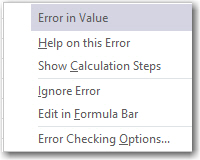
If you click the button next to the cell with the #VALUE error, what does it say?
Paul Kiener OP  @Reply  
      
4 years ago

Kevin Robertson  @Reply  
          
4 years ago
Have you tried entering the formula into a different cell?

Here is a page from Microsoft Support which may help.

How to correct a #VALUE! error
Paul Kiener OP  @Reply  
      
4 years ago
Yes, I have entered the formula (with Named Range "Winners") in a different cell.  I also entered in a different cell as =OR(A3=K3:O3), and I still get the #VALUE! response.
I reviewed the Microsoft Support help earlier, and again after your suggestion, and it was not any help.  Alas, the help article even mentions that solving #VALUE! is difficult.  I was thinking that possibly the cells may be formatted differently (e.g. one set is numerical, the other as text), but reformatting all the needed cells as numbers (with 0 decimal places) did not help.
I'm at a loss at the moment.
Kevin Yip  @Reply  
     
4 years ago
Hi Paul, maybe the version of Excel you're using does not allow such usage of OR (I don't really know, and have to check later).  Try using the COUNTIF() function, which counts the number of true conditions in a range, similar to what is done here.  Try typing this into G3:

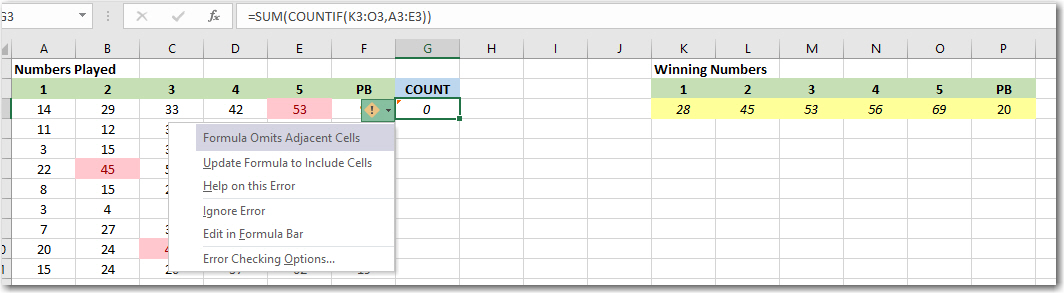
     =SUM(COUNTIF(K3:O3,A3:E3))

In the above, COUNTIF puts the results in a row, and SUM sums up the results.
Paul Kiener OP  @Reply  
      
4 years ago

Paul Kiener OP  @Reply  
      
4 years ago
Thanks, Kevin for your reply and help.  I tried what you suggested, and I get a different error message.  Also note that the total sum is incorrect (displays "0" and should be "1").  The version I am using is part of Microsoft Office Professional Plus 2019.
I went through the suggestions for correcting the error, but nothing seemed to help or apply to my situation.  For the suggested help regarding adjacent cells, I move G3 to H3, and P3 to Q3 (removing adjacent cells).  This did not help either (same error, and same incorrect sum total).
Thanks again for your help.
Kevin Yip  @Reply  
     
4 years ago
HI Paul, this is not the #VALUE! error that you got earlier, which indicated an incorrect formula.  This time, it actually returns a value (0), albeit an incorrect one.  Regarding the "adjacent cells" error, you can actually choose "Ignore error" because a formula is not required to use adjacent cells.

Do the cells that have different background colors contain conditional formatting that involves formulas? Are those formulas working as you expect?

I have no clue right now as to why OR() and COUNTIF() aren't working as expected.  In both cases, the range K3:O3 (and/or A3:E3) don't seem to be recognized as such.  I suggest you create a new range somewhere else on the worksheet, and/or on a new blank worksheet, and/or on a new workbook, and try the formulas again.
Paul Kiener OP  @Reply  
      
4 years ago
Kevin, thanks again for your input.  Yes, I realize that the errors are different (I mentioned that in the previous note, although I was not clear; sorry, lack of the technical language).
As for the different background colors:  (1) they work exactly as Richard explained and demonstrated in his clip; (2) I would image that there is some type of formula that is working in the background of Excel.  I think that any conditional formatting relies on some type of "formula", whatever that may be.  Be that as it may, I followed Richard's example and it works.  I tried the "Count" aspect, and this is what's not working, although it worked fine for Richard.
I actually did try creating a new worksheet in a new workbook, and I came up with the exact same result.  
'Tis a puzzle to me!
Kevin Robertson  @Reply  
          
4 years ago
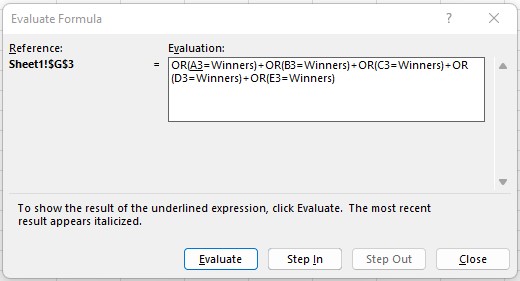
Try evaluating your formula (on the Formula Tab) so you can see what's happening.
Kevin Robertson  @Reply  
          
4 years ago

Kevin Robertson  @Reply  
          
4 years ago

Paul Kiener OP  @Reply  
      
4 years ago
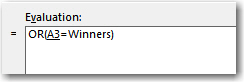
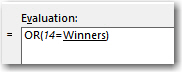
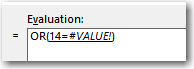
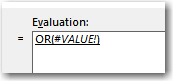
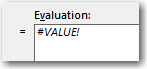
Kevin Robertson - thanks for the suggestion.  I went to evaluate the formula, but I narrowed down the formula to just the one OR segment, as the formula yields the #VALUE! error message.  So my formula is simply =OR(A3=Winners).  
"14" is my value in A3; my values for K3:O3 are 29, 45, 53, 56, and 69.  
Evaluate yielded 5 steps (screenshots to be uploaded).
FWIW:  If I evaluate A3 with K3, formula:  =OR(A3:K3), the evaluation works perfectly.  A3=14 and K3=29, returns "FALSE".  A3=14 and K3=14, returns "TRUE" (similar to what Richard demonstrated).  My problem arises with a range, either K3:O3, or that same range is given the name "Winners".
Paul Kiener OP  @Reply  
      
4 years ago

Paul Kiener OP  @Reply  
      
4 years ago

Paul Kiener OP  @Reply  
      
4 years ago

Paul Kiener OP  @Reply  
      
4 years ago

Paul Kiener OP  @Reply  
      
4 years ago

Paul Kiener OP  @Reply  
      
4 years ago
OK.  I did a little Google search (actually quite a bit, since I wasn't sure what I was looking for....).  I discovered that after I enter in G3 (my COUNT cell) the formula:  =OR(A3=Winners)+OR(B3=Winners)+OR(C3=Winners)+OR(D3=Winners)+OR(E3=Winners), I need to press <Ctrl><Shift><Enter> instead of just <Enter>.  So doing adds brackets at the beginning and end of the formula and makes it appear:  {=OR(A3=Winners)+OR(B3=Winners)+OR(C3=Winners)+OR(D3=Winners)+OR(E3=Winners)} and now it works as Richard had demonstrated in his Fast Tip.  Thank you both, Kevin Robertson and Kevin Yip!  I am extremely grateful for all the help that you were willing to provide.

This thread is now CLOSED. If you wish to comment, start a NEW discussion in Lottery Numbers 2.
 

Next Unseen

 
New Feature: Comment Live View


The following is a paid advertisement
Computer Learning Zone is not responsible for any content shown or offers made by these ads.
 

Learn
 
Access - index
Excel - index
Word - index
Windows - index
PowerPoint - index
Photoshop - index
Visual Basic - index
ASP - index
Seminars
More...
Customers
 
Login
My Account
My Courses
Lost Password
Memberships
Student Databases
Change Email
Info
 
Latest News
New Releases
User Forums
Topic Glossary
Tips & Tricks
Search The Site
Code Vault
Collapse Menus
Help
 
Customer Support
Web Site Tour
FAQs
TechHelp
Consulting Services
About
 
Background
Testimonials
Jobs
Affiliate Program
Richard Rost
Free Lessons
Mailing List
PCResale.NET
Order
 
Video Tutorials
Handbooks
Memberships
Learning Connection
Idiot's Guide to Excel
Volume Discounts
Payment Info
Shipping
Terms of Sale
Contact
 
Contact Info
Support Policy
Mailing Address
Phone Number
Fax Number
Course Survey
Email Richard
[email protected]
Blog RSS Feed    YouTube Channel

LinkedIn
Copyright 2026 by Computer Learning Zone, Amicron, and Richard Rost. All Rights Reserved. Current Time: 6/1/2026 3:00:22 PM. PLT: 1s