Free Lessons
Courses
Seminars
TechHelp
Fast Tips
Templates
Topic Index
Forum
ABCD
 
Home   Courses   TechHelp   Forums   Help   Contact   Merch   Join   Order   Logon  
 
Back to Access Developer Forum    Comments List
Upload Images   @Reply   Bookmark    Link   Email   Next Unseen 
One Click Mail Merge
Cal Labriny 

4 years ago
I need to be able to have a one click command button that will automatically perform a mail merge for a record in a form, into a pre-determined word document template. Also, if it is possible, to choose from a list of word documents from a combo box (doc name, doc pathway), then click on a mail merge command button to perform a one click mail merge function for the record on the form to that specific word document chosen from the combo box. Can this be done with VBA?
Kevin Yip  @Reply  
     
4 years ago
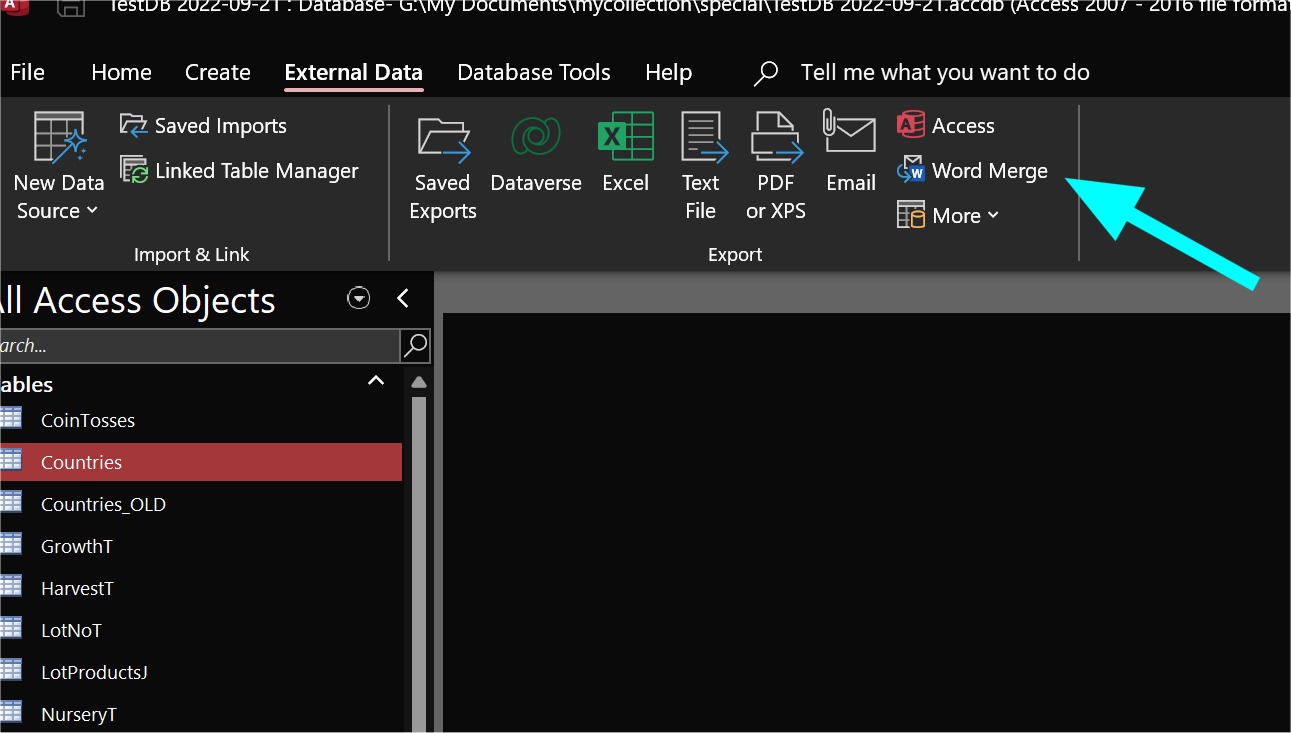
Access has mail merge to Word built in, in a wizard-driven interface (see picture below).  If that is not automated enough for you, then you need to create your own interface with VBA.  Word itself also has a mail merge wizard, which you probably know already.  You can design your own with Word VBA as well.  And yes, all of the tasks you describe are possible with VBA, in Access or Word: pick a file, one-click merge for chosen file, even output to PDF, email PDF, etc.
Kevin Yip  @Reply  
     
4 years ago

Cal Labriny OP  @Reply  

4 years ago
Thank you for your response and I am excited at the possibility of being able to use VBA in access to perform the mail merge function. I don't want my users using the wizard driven interface. I would like to place a command button in the form and have it driven by VBA. I was able to accomplish this in excel. Below is an example of how the code looked in my excel interface. Can you give me pointers on how something like this could be converted to vba in access? Because I can't use columns and rows and I want to use the tags already created by Word/Access. Do you have any examples of the different possibilities?

Dim LastRow as Long
Dim CustRow as Long
Dim CustCol as Long
Dim TempName as String
Dim Filename as String
Dim DocLoc as String
Dim TagName as String
Dim TagValue as String
Dim WordDoc as Object
Dim WordApp as Object
Dim FoundTempRng as Range


With Sheet3

Last Row = .Range("B70").End(xlUp).Row

For CustRow = 4 to LastRow
If .Range("A" & CustRow).Value = "x" Then       ''''The user had to select the row first
SaveToFile = Sheet1.Range("O4").Value   ""The user would click a button to open a dialogue box to choose the file folder destination, which would be saved in this cell
TempName = Sheet1.Range("S3").Value
Set TempRng = Sheet5.Range("Order_Templates")    """A named range of all the saved document templates options to be selected for the mail merge

Set FoundTempRng = TempRng.Find(TempName, , xlValues, xlwhole)
If not FoundTempRng is Nothing Then
TempRow = FoundTempRng.Row
DocLoc = Sheet5.Range("B" & TempRow).Value

On Error Resume Next

Set WordApp = GetObject("Word.Application")
If Err.Number <> 0 Then
Err.Clear
Set WordApp = CreateObject("Word.Application")

End If
WordApp.Visible = False
Set WordDoc = WordApp.Documents(Filename:=DocLoc, ReadOnly:=False)
For CustCol = 2 to 39
TagName = .Cells(2,CustCol).Value
TagValue = .Cells(CustRow, CustCol).Value
With WordDoc.Content.Find
.Text = TagName
.Replacement.Text = TagValue
.Wrap = wdFindContinie
.Execute Replace:=wdReplaceAll

End With
Next CustCol

Filename = SaveToFile & "\" & .Range("AL" & CustRow).Value & " " & .Range("S" & CustRow).Value & " " & Sheet1.Range("X3").Value & ".docx"
WordDoc.SaveAs Filename
WordDoc.Close False

End If
Next CustRow

EndWith
EndSub

Kevin Yip  @Reply  
     
4 years ago
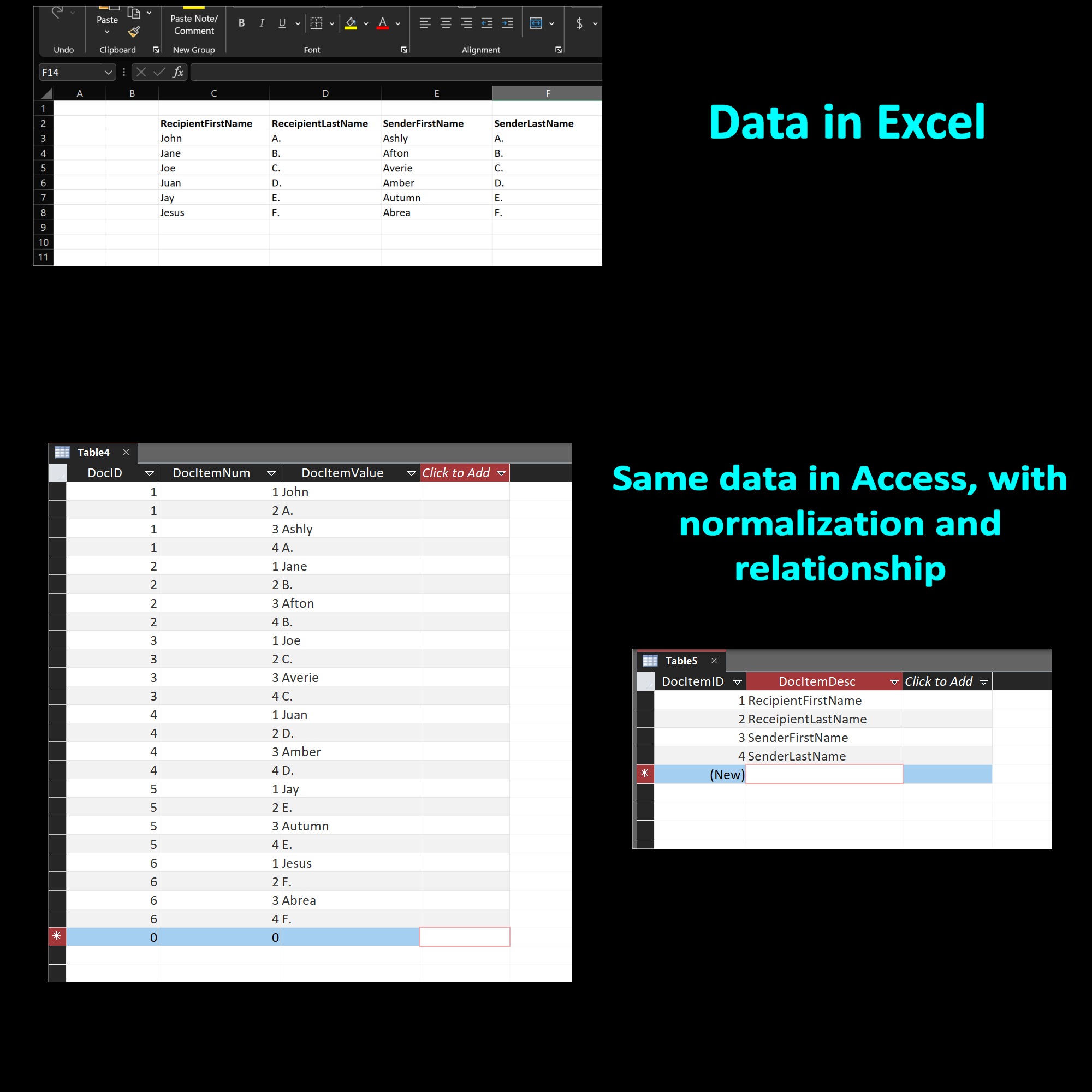
First you need to store your data in Access tables, which is a very structured way to store data.  This is often the biggest paradigm shift for an Excel user coming into Access.  See the picture below for what the usual differences are.  Access makes your data pretty much unrecognizable if you are new to Access.  This is not Access trying to make things difficult.  This is the only way for a relational database to manage data, and it puts the user in the best position to perform tasks.  For instance, on your Excel worksheet if you need to add a column, you have to rewrite your code (e.g., "For CustCol = 2 to 39" in your code).  Access has no such problem if the user designs the database properly.

Secondly, you need to use queries and Recordset loops (instead of For loops in your example) to retrieve the data you want in Access tables.  Thirdly, you need to design a form or forms for your users.  These three topics are the very basics of Access and they are too much to cover in one post.  

The actual automation (done with WordApp in your example) is actually the easiest, because the VBA code should be 99% the same.  

What is decidedly not different are how Access stores data and how you need to design how they should be stored and retrieve them.

All these are the most basic topics of Access, and one post probably can't cover them all.  You need to be systematically trained for this if you are new to Access, such as with the videos on this site and its YouTube channel.  You need to learn concepts such as primary keys, relationship, normalization, etc.

Access is often used for large projects.  If you want a "application" to handle thousands of contacts, for whom you do mail merges and also other things such as billing, shipping, etc., then you need Access.  If you only have a few contacts and/or a simpler workflow, then Excel often suffices.
Kevin Yip  @Reply  
     
4 years ago

Richard Rost  @Reply  
          
4 years ago
I cover Mail Merge with Access to Word in Access Expert 19. But you can also write everything just in Access and not have to use Word at all. See Letter Writer.

This thread is now CLOSED. If you wish to comment, start a NEW discussion in Access Developer Forum.
 

Next Unseen

 
New Feature: Comment Live View


The following is a paid advertisement
Computer Learning Zone is not responsible for any content shown or offers made by these ads.
 

Learn
 
Access - index
Excel - index
Word - index
Windows - index
PowerPoint - index
Photoshop - index
Visual Basic - index
ASP - index
Seminars
More...
Customers
 
Login
My Account
My Courses
Lost Password
Memberships
Student Databases
Change Email
Info
 
Latest News
New Releases
User Forums
Topic Glossary
Tips & Tricks
Search The Site
Code Vault
Collapse Menus
Help
 
Customer Support
Web Site Tour
FAQs
TechHelp
Consulting Services
About
 
Background
Testimonials
Jobs
Affiliate Program
Richard Rost
Free Lessons
Mailing List
PCResale.NET
Order
 
Video Tutorials
Handbooks
Memberships
Learning Connection
Idiot's Guide to Excel
Volume Discounts
Payment Info
Shipping
Terms of Sale
Contact
 
Contact Info
Support Policy
Mailing Address
Phone Number
Fax Number
Course Survey
Email Richard
[email protected]
Blog RSS Feed    YouTube Channel

LinkedIn
Copyright 2026 by Computer Learning Zone, Amicron, and Richard Rost. All Rights Reserved. Current Time: 4/30/2026 12:12:51 PM. PLT: 1s