3 hours
ago: Doing some maintenance on the server today. If you've placed an order and it hasn't processed yet, hang in there. Should be ready soon. I've got the car up on the jack and the tires are off...
Dismiss
I have quite an involved database. There are multiple users on multiple computers on the same network. There are several reports that the users need to print on a daily basis. We have a separate printer for each report that needs to be printed. Reason being is that one report prints a shipping label, one report prints a copy of a filed report for our files, one report prints an invoice, ect. ect. Now each employee has to choose the printer manually from the print preview screen. This causes printing errors and lost paperwork. How can I write a VBA code to set the specific printer to the specific report when the report prints without user input? I have tried a couple of lines of VBA code that I've found online with no success.
(Notes) Four different printers (Different Models)
All are connected wirelessly
On a couple of the VBA code lines I've tried; I wasn't very confident that I had the printer's name correct. How can I be sure the printer's name I will use in the VBA code is correct?
Most of the report printing done I would like to automate through VBA so it will print after a certain events, such as Report_Close, Form_Close, Form _Load, Button_Click, Ect.
Thanks for the information. After reading through it I am unsure of which parts of the VBA code to use and where to use them. Are there any videos that are related to this topic?
Here is What I have that doesn't work. In this particular example I want the default printer to be Cannon MF240. When click a command button on another form I want this report to just print out on the DYMO printer listed in the code. I don't want the user to see or have to do any action other than click one button.
Thanks,
code Private Sub btnPrintReport_Click()
Function SetDefaultPrinter(printerName As String) As Boolean
Dim RRST As Object
On Error Resume Next
If printerName = vbNullString Then Exit Function
If IsDefaultPrinter("DYMO LabelWriter Wireless on DYMOLWW137FF0") = True Then
SetDefaultPrinter = True
Exit Function
End If
Set wshNetwork = CreateObject("WScript.Network")
If wshNetwork Is Nothing Then Exit Function
wshNetwork.SetDefaultPrinter "DYMO LabelWriter Wireless on DYMOLWW137FF0"
Set wshNetwork = Nothing
SetDefaultPrinter = IsDefaultPrinter("DYMO LabelWriter Wireless on DYMOLWW137FF0")
On Error GoTo 0
DoCmd.PrintOut acReport, "PtNameQueryReport", 1, 1, acHigh, 1, no
If printerName = vbNullString Then Exit Function
If IsDefaultPrinter("Canon MF240") = True Then
SetDefaultPrinter = True
Exit Function
End If
And you just want to make sure the printer exists before printing?
Joseph PikarskiOP
@Reply 4 years ago
That code does not work. Like I said, I want to make the following happen:
User is on a main menu form -
1. User clicks a command button.
2. Command button does the following -
1. Opens a report (PTNameQueryReport)
2. Prints the report automatically on a SPECIFIC PRINTER (Dymo...), not the default one (docmd.printout...)
3. [Preferably sets the default printer back to the default (Canon MF240), but not required as i can use this code on every print command that I set up with each specific printer that I need for each report)
4. Close the report (PTNameQueryReport)
I would prefer the user to not see the report, and all of this to happen in the background.
Every time I read something and try a solution, I write a more involved code and confuse myself further, so if you could possible just write the code you would use in this situation that would be most helpful as I understand basic VBA for the most part, but this goes over my head.
Kevin Robertson
@Reply 4 years ago
Try this code instead:
Dim strDefaultPrinter  As String


'get current default printer.

strDefaultPrinter = Application.Printer.DeviceName


'switch to printer of your choice:

Set Application.Printer = Application.Printers("Your Printer Name")


On Error Resume Next

DoCmd.OpenReport "YourReportName"
Kevin Yip
@Reply 4 years ago
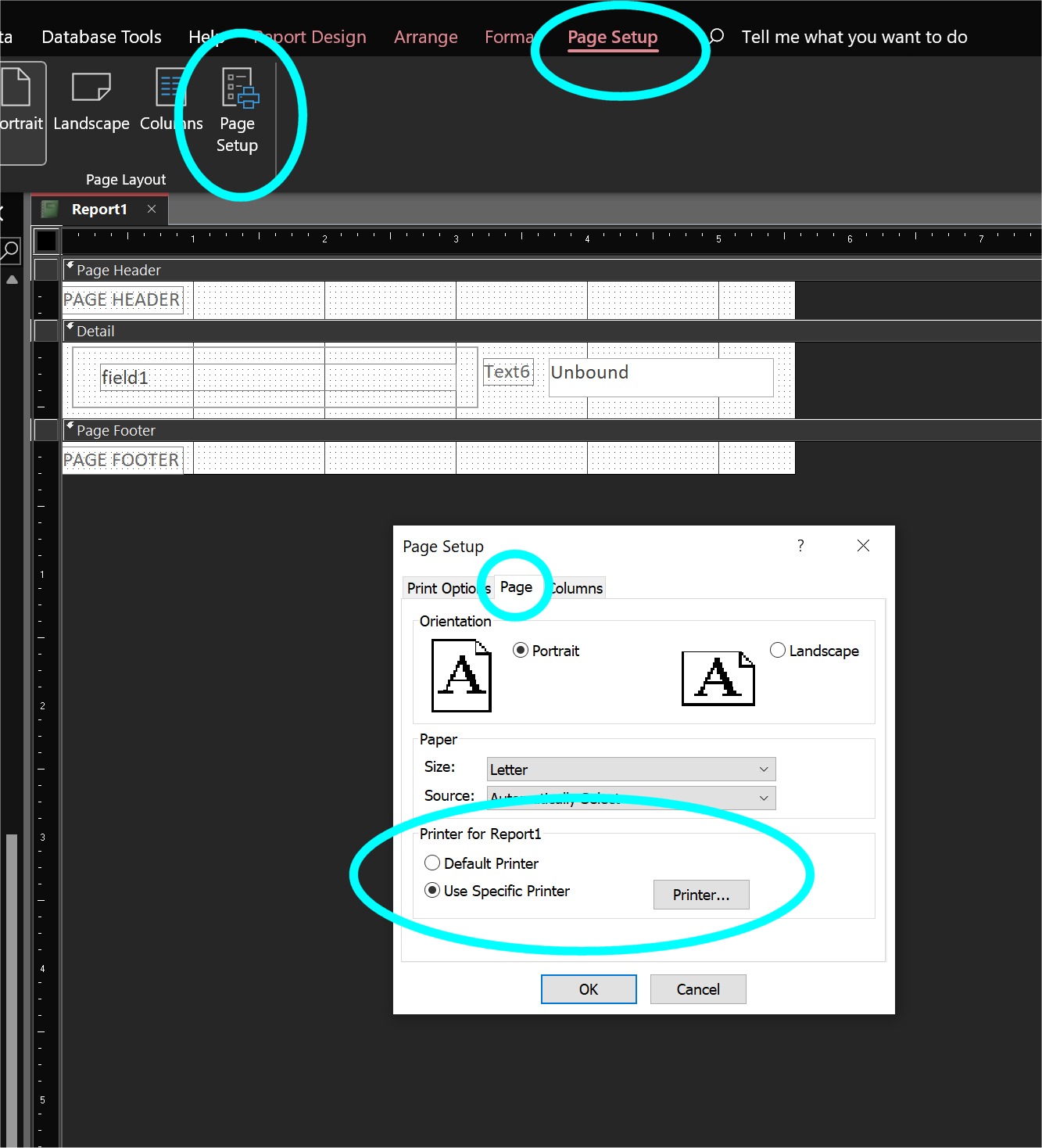
You can have each report print to a specific printer. Go to report design view -> page setup on top -> page setup on ribbon -> page tab -> use specific printer -> click Printer... to choose the printer (screenshot below). This will always be the printer used by this report until you come here again and change it. If this printer goes off line, you get a run-time error.
Kevin Yip
@Reply 4 years ago
John Davy
@Reply 4 years ago
Hi Joseph
Also, take a look at Rick's video on Dymo Labels He sets up labels for a specific printer
HTH
John
Jon Capps
@Reply 4 years ago
I want to jump in here, I have been fighting the exact same problem, setting the printer in the report only works if the printer is static, local and you force the router to lock specific IP address or if you are connected by USB to each PC.
I asked previously about this as we are using Remote Desktop and local printing. I am using the service that Richard suggested. https://599cd.com/blog/display-article.asp?ID=2221
The problem I keep facing is the printer is dynamic using the remote desktop and will change the local printer identification each time a user uses the remote desktop service, if the connection drops, the user will log back in and find the printer identification has changed. I have tried many solutions such as creating a button requesting a network census using VBA to get all local printer information and then attempt to lock down the report using VBA. I however found most documentation found does not specifically address using VBA to lock down a report to a specific local printer. As stated above by Kevin, I use that technique to set the printer, paper type (Dymo labels), orientation and paper margins. This works if you are local and you have dedicated printers to each piece of equipment, however if the printers are networked and the DHCP keeps changing the IP address it becomes a nightmare. I have had to make static IP address in the router to pin down the DHCP issue, only to find that this will not work if you are on a remote desktop. I have wasted a lot of hours to attempting resolve this issue and still not any closer.
I have made a lot of work arounds, only to find that copying text and pasting the text into the local DYMO printer software. I did receive one suggestion is to hire someone to make a program to address this, I just made a clunky work around instead.
Joseph PikarskiOP
@Reply 4 years ago
Kevin Yip,
I have tried this. After printing it goes back to default. I am afraid that Jon's issue is the same one that I am facing. Unless someone has another solution I fear I may be bound to keeping it the same way that I had it before.
Kevin Robertson,
I have used that exact code before, It would give me a runtime error.
Have you tried just the PrinterExists function to check if the printer is installed on the machine you're running the db on?
Kevin Yip
@Reply 4 years ago
Hi Jon & Joseph, try contacting Access Database Cloud (or whichever remote desktop service you use) to see if they have a solution. These services likely use propriety encrypted remote channels which no one but they can manipulate. If there is a solution they are probably the only people who know about it.
Jon Capps
@Reply 3 years ago
Jon Capps
@Reply 3 years ago
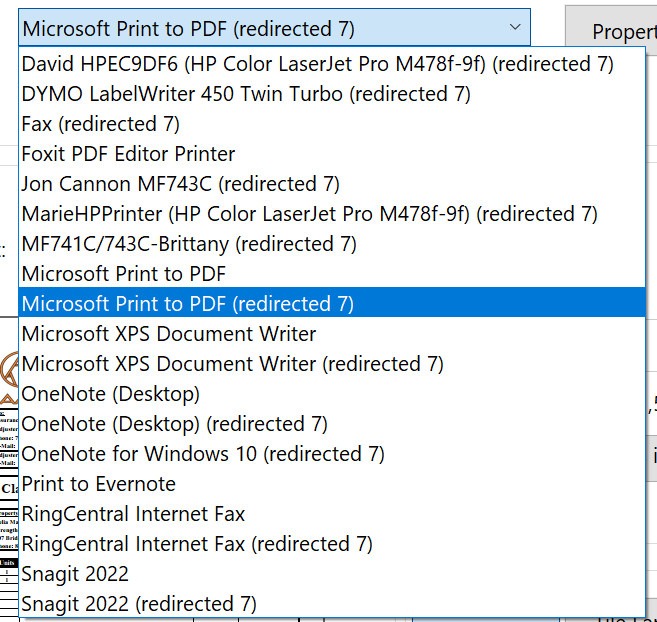
The image I just added is an example of what I facing the redirected printer keeps changing when using Windows remote desktop protocol. I use DYMO LabelWriter, Cannon MF743C for local printing daily. If I could get write VBA code to push a report to the specific printer I would have some of my printing frustrations resolved.
Sorry, only students may add comments.
Click here for more
information on how you can set up an account.
If you are a Visitor, go ahead and post your reply as a
new comment, and we'll move it here for you
once it's approved. Be sure to use the same name and email address.
This thread is now CLOSED. If you wish to comment, start a NEW discussion in
Access Forum.