Free Lessons
Courses
Seminars
TechHelp
Fast Tips
Templates
Topic Index
Forum
ABCD
 
Home   Courses   TechHelp   Forums   Help   Contact   Merch   Join   Order   Logon  
 
Back to Access Forum    Comments List
Upload Images   @Reply   Bookmark    Link   Email   Next Unseen 
Continuous Form Customisation
Dan Jackson 
            
3 years ago
Hi Guys,

I'm looking to create a continuous form similar to search 2.0. Once configured, I want to export to excel.

-->I want to include check boxes in header/footer to toggle columns on and off (Without leaving a space so ControlName.Visible function wouldn't quite work, at least on its own)


--> Include a button to output the form exactly as it is to spreadsheet. Would it be better to use
DoCmd.OutputTo acOutputQuery
Or
DoCmd.TransferSpreadsheet acExport
I only know how to export a query. How would i retain the settings made on the form to the exported spreadsheet

--> Sorting and filtering is covered in Search Form 2.0 so got that covered 👍

Many Thanks
Kevin Robertson  @Reply  
          
3 years ago
That's going to be pretty tough in a Continuous Form. You could hide the field(s) and move the controls to the left but what about the Check Boxes in the header? They are no longer going to be above the correct field and you can't hide them as you won't be able to show the hidden fields.

Have you considered using a List Box instead.
This is covered in Custom List Box and then in more detail in Access Developer 37.
Dan Jackson OP  @Reply  
            
3 years ago
Thanks buddy. That could work well, but would need a way of outputting whats on screen to excel
Kevin Robertson  @Reply  
          
3 years ago
The easiest way would be TransferSpreadsheet.

Here is code I used to export orders from my Order List (which is based on a query).
Dim Filename As String
    
Filename = CurrentProject.Path & "\OrderList.xlsx"
DoCmd.TransferSpreadsheet acExport, , "OrderListQ", Filename, True
FollowHyperlink Filename
Dan Jackson OP  @Reply  
            
3 years ago
Yeah, i do something similar at the moment with both my databases. Problem is that i want the user to be able to select their rows, sort the columns etc... to customise the form for what they want to see, then produce the spreadsheet based on their choices.
Richard Rost  @Reply  
          
3 years ago
I'm going to be covering some real cool Excel and Word automation in an upcoming Developer lesson.
Kevin Robertson  @Reply  
          
3 years ago
I just modified the code above to create a temporary table then add records based on some criteria (in this case paid orders). I then create the Excel Workbook with the filtered data. Open the Workbook and delete the temp table.

Dim Filename As String

CurrentDb.Execute "CREATE TABLE OrderListTempT (" & _
    "OrderID INTEGER, " & _
    "CustomerID INTEGER, " & _
    "CustomerLF TEXT, " & _
    "Description TEXT, " & _
    "Email TEXT, " & _
    "OrderDate DATETIME, " & _
    "OrderTotal CURRENCY, " & _
    "IsQuote YESNO, " & _
    "IsPaid YESNO)"
        
CurrentDb.Execute "INSERT INTO OrderListTempT SELECT * FROM OrderListQ WHERE IsPaid=TRUE"
Filename = CurrentProject.Path & "\OrderList-" & Format(Now(), "yymmddhhmmss") & ".xlsx"
DoCmd.TransferSpreadsheet acExport, , "OrderListTempT", Filename, True
CurrentDb.Execute "DROP TABLE OrderListTempT"
FollowHyperlink Filename


Check out the SQL Seminars (especially Parts 2 and 3)
Access SQL Seminars

Of course you could use the Query Designer to create a Make Table Query if that is easier.
Richard Rost  @Reply  
          
3 years ago
What he said. :)
Kevin Yip  @Reply  
     
3 years ago
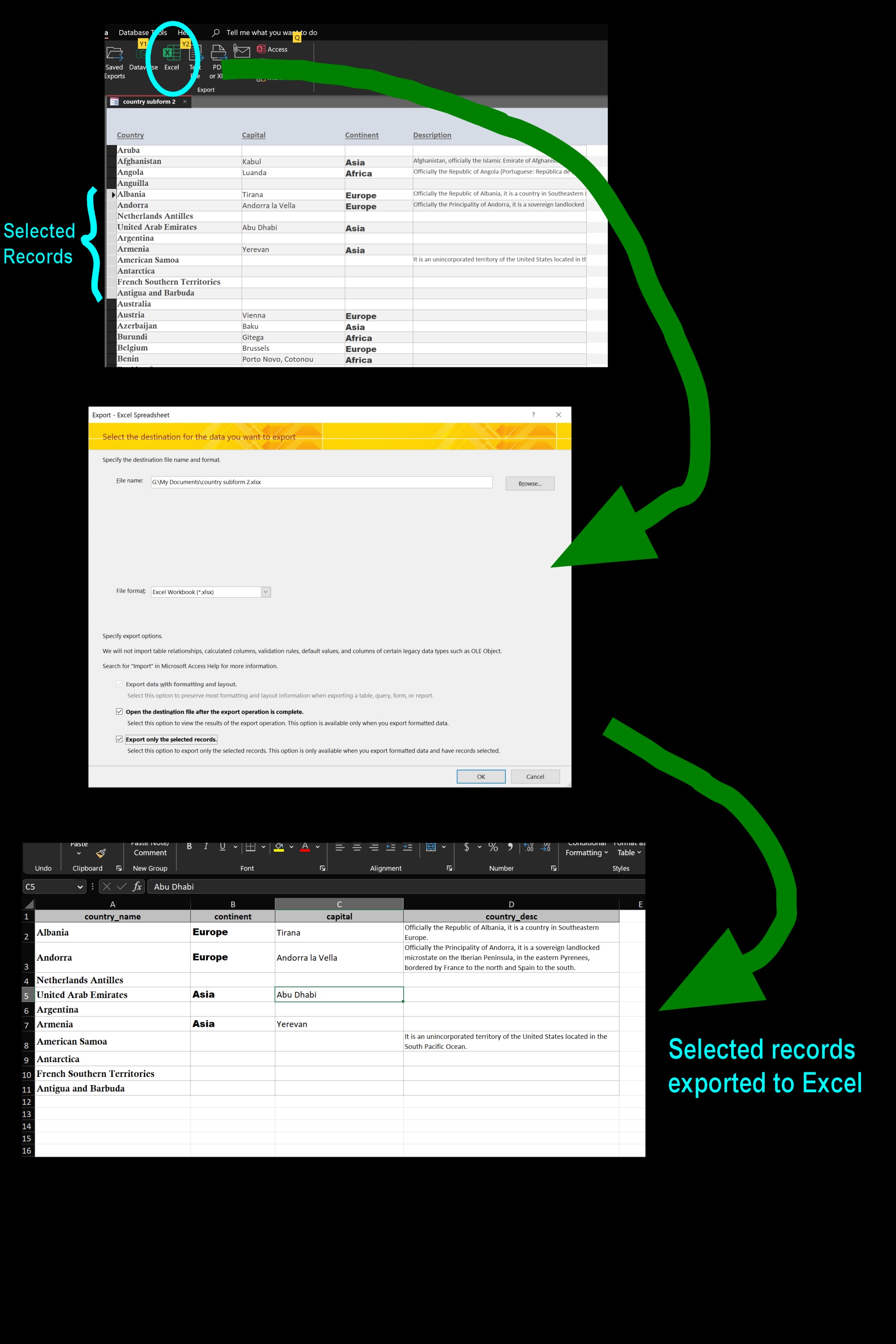
hi Dan, hiding columns in a continuous form is difficult to do.  But exporting a form in its current state can be easily done with a button on the ribbon.  See the pic below.  With the form active (i.e. opened and has focus), go to External Data on the ribbon and click "Excel".  A dialog box will come up, prompting for file name and options.  You can export to .xlsx format, whereas DoCmd.TransferSpreadsheet can only export to .xls.  Whatever you see on the form -- all the visible records, and most of their formatting such as font type, font size, column widths, etc. -- will be retained on the resulting Excel worksheet.  The Excel sheet will even auto-adjust row height to fit long text into the specified column width.

All the ribbon commands have their corresponding VBA commands.  For the above, it is:

     DoCmd.RunCommand acCmdExportExcel

The downside (if you consider it that) is that your users will see that dialog box, which you can't customize or disable.  But consider all its capabilities and the amount of code it saves you from writing and debugging, I should say this is the way to go.

This method cannot export subforms you see on the screen.  To do that, you still need to use Kevin's methods above.
Kevin Yip  @Reply  
     
3 years ago

Dan Jackson OP  @Reply  
            
3 years ago
Awesome, thanks for the ideas guys. I'll try them out

This thread is now CLOSED. If you wish to comment, start a NEW discussion in Access Forum.
 

Next Unseen

 
New Feature: Comment Live View


The following is a paid advertisement
Computer Learning Zone is not responsible for any content shown or offers made by these ads.
 

Learn
 
Access - index
Excel - index
Word - index
Windows - index
PowerPoint - index
Photoshop - index
Visual Basic - index
ASP - index
Seminars
More...
Customers
 
Login
My Account
My Courses
Lost Password
Memberships
Student Databases
Change Email
Info
 
Latest News
New Releases
User Forums
Topic Glossary
Tips & Tricks
Search The Site
Code Vault
Collapse Menus
Help
 
Customer Support
Web Site Tour
FAQs
TechHelp
Consulting Services
About
 
Background
Testimonials
Jobs
Affiliate Program
Richard Rost
Free Lessons
Mailing List
PCResale.NET
Order
 
Video Tutorials
Handbooks
Memberships
Learning Connection
Idiot's Guide to Excel
Volume Discounts
Payment Info
Shipping
Terms of Sale
Contact
 
Contact Info
Support Policy
Mailing Address
Phone Number
Fax Number
Course Survey
Email Richard
[email protected]
Blog RSS Feed    YouTube Channel

LinkedIn
Copyright 2026 by Computer Learning Zone, Amicron, and Richard Rost. All Rights Reserved. Current Time: 5/6/2026 5:41:09 AM. PLT: 1s