|
||||||

|
|
||||||
|
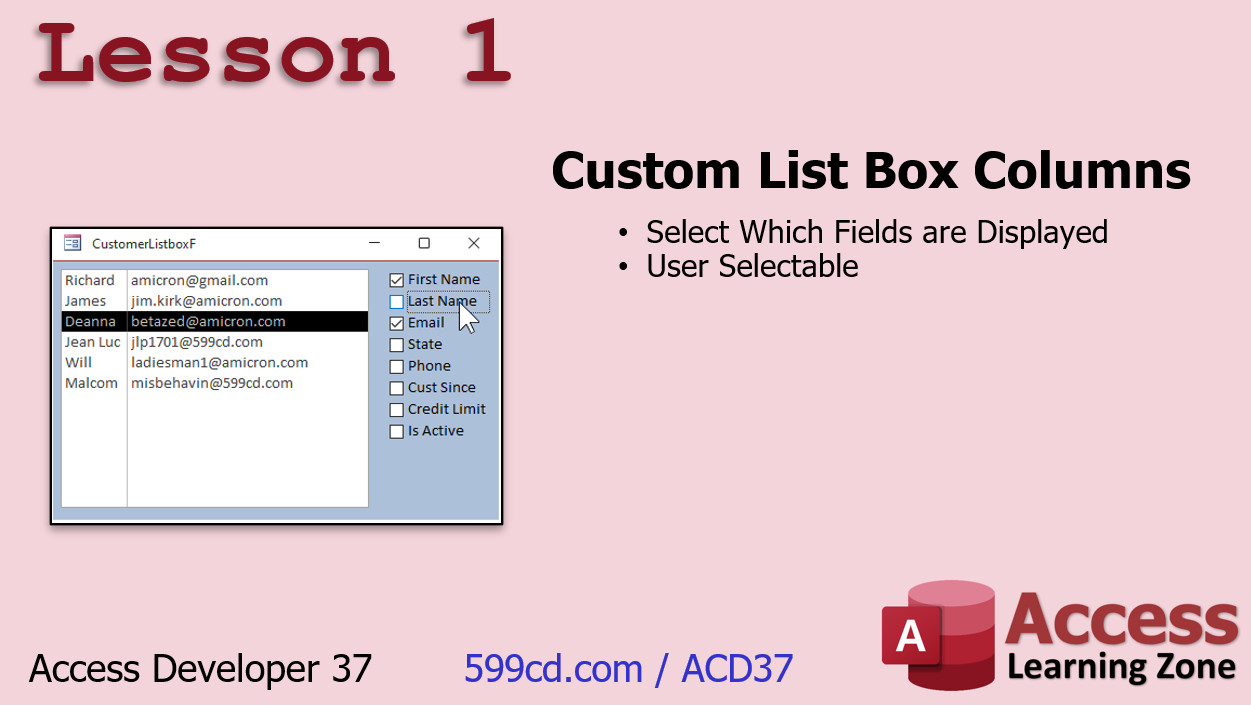
Access Developer 37User-Selected List of Fields to Display on a Form WelcomeIn this class we're going to work with custom list box columns. We're going to build a form based on any table. We'll start with a customer table, but you can switch it to any table or query that you want. You'll be able to specify which fields you want to make available to the user in the table/query field properties. Then the user can select which fields they want to see on the form at runtime. We'll work more with recordsets, multi-select list boxes, and learn some new stuff including querydefs. ResourcesTopics CoveredIn Lesson 1, we're going to build a form with custom list box columns, in other words we'll have our customers in a list box on the left, and a list of fields on the right. Based on what the user selects in those check boxes, that will determine which fields are displayed in the list box.
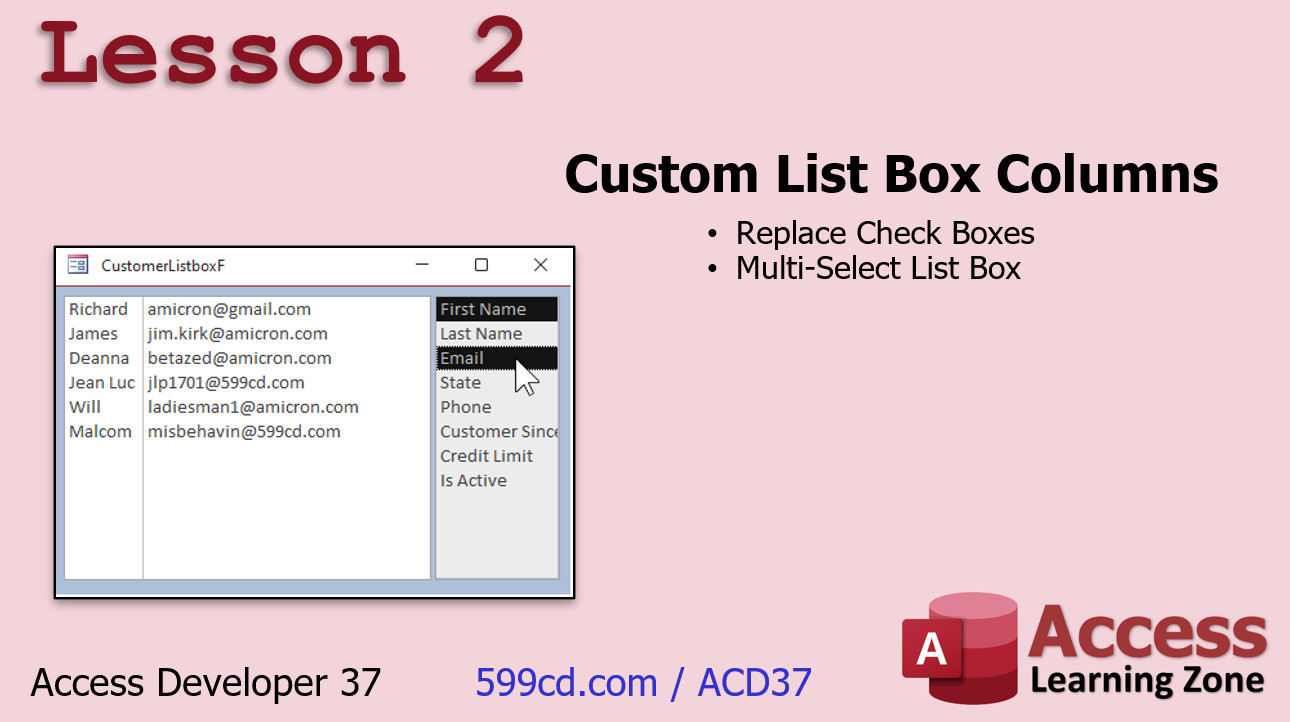
In Lesson 2, we're continuing to work with the custom list box columns form. We're going to replace those check boxes with a multi-select list box. Now we've done multi-select list boxes before in Developer 15. We're going to review them a little bit here and we're going to see how this is much easier to maintain the long run, and it looks better. It's a more elegant solution than a whole bunch of check boxes.
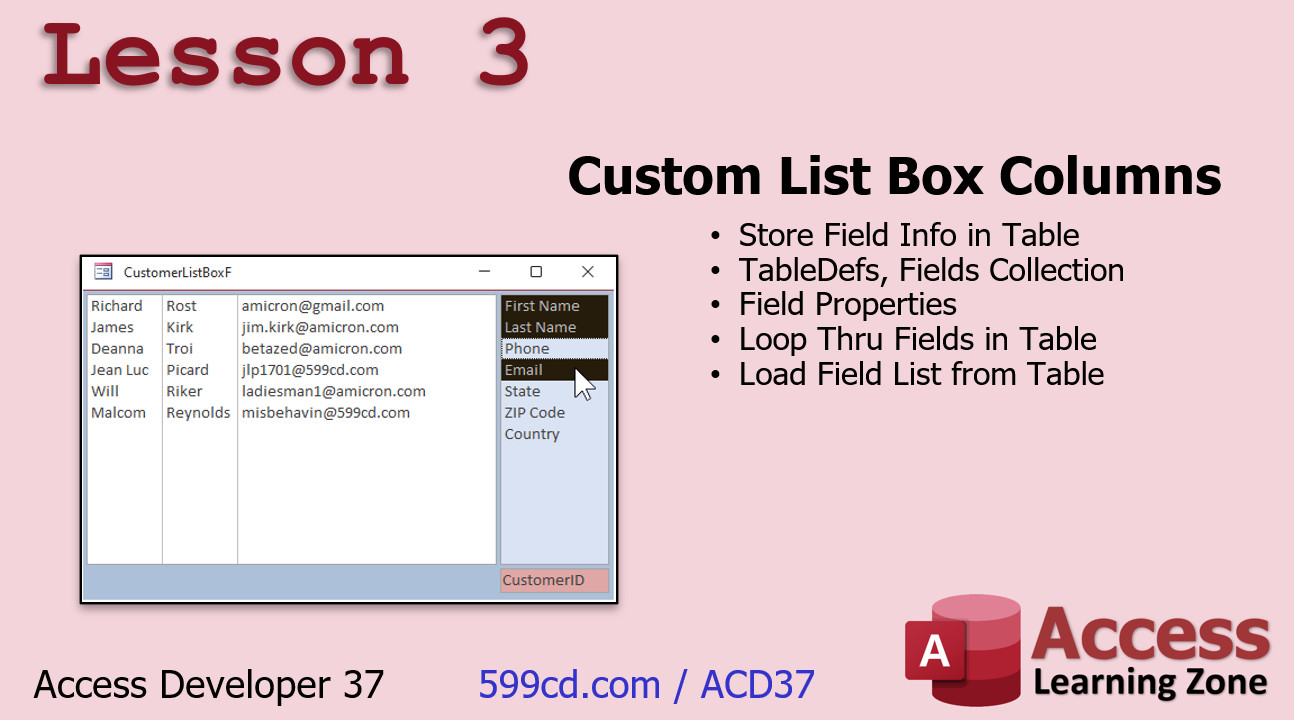
In Lesson 3, we're going to start moving away from having all of the fields listed in our VB code. It's a lot harder to maintain and upgrade. Instead, I want to store that information in the table itself in the table properties. So we're going to learn how to use the tabledefs collection the, fields collection, the field properties collection. We're going to loop through all the fields in a table and then we're going to load the field list based on the properties we're going to set in the table, which will determine the fields that we want to have listed, their widths, whether they're selected when the form loads, and lots more.
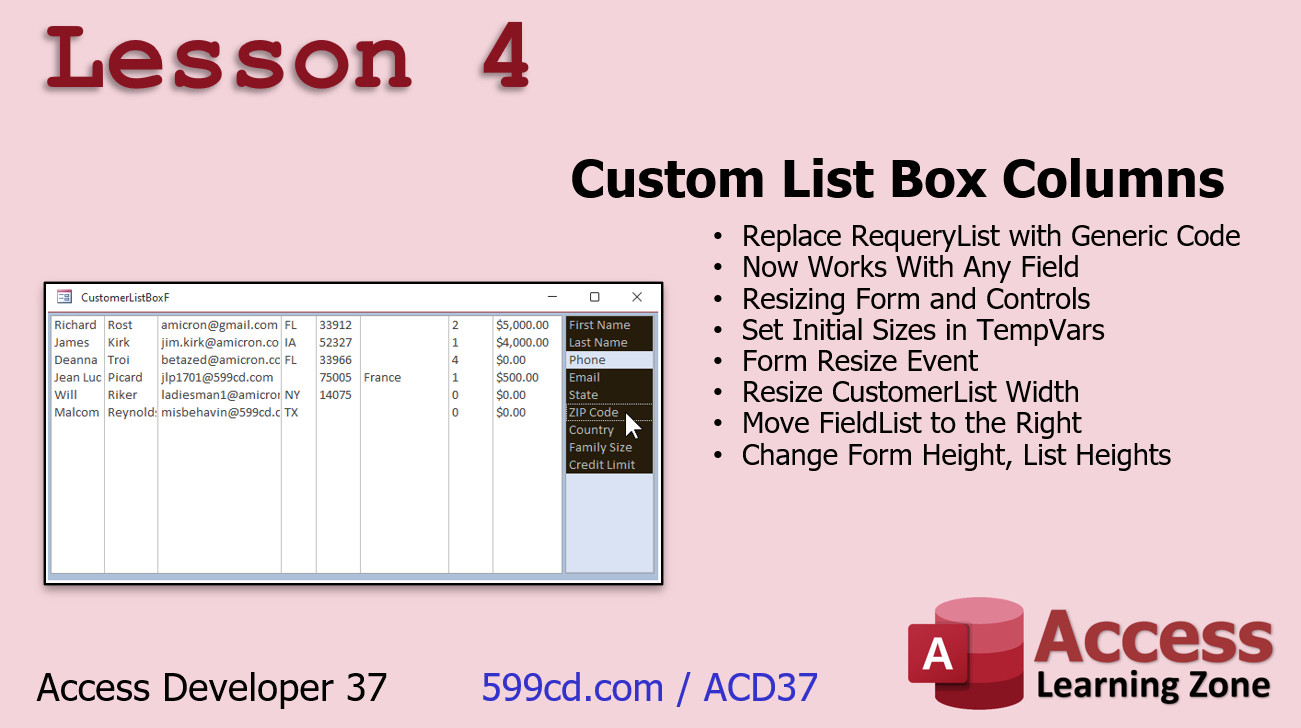
In Lesson 4, we're going to replace our requery list with generic code. In other words, it's going to ignore the field list completely and as long as you've got that table property set up it will work with any field in the table. Then we'll see how to resize the form so that if you want to make it wider or taller it'll resize the list widths accordingly and it'll move our little field list over to the right as well.
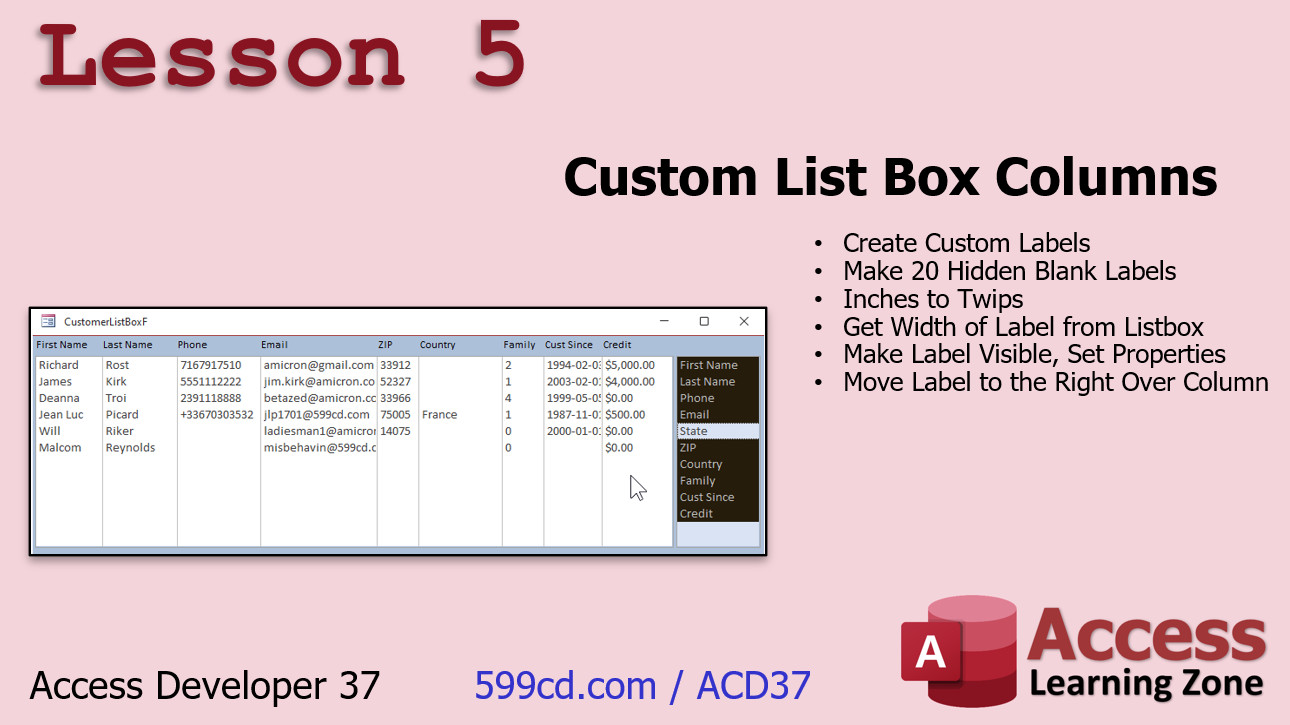
In Lesson 5, we're going to make some custom labels to go across the top of each of the columns so we can see what the column has in it. We'll make a bunch of blank labels and then using our code we'll position them properly on the screen. We'll do some inches to twips conversion. We'll set the width of the label and its other properties based on the data in our list box already. We know how wide each column is so that can tell us where to place each label.
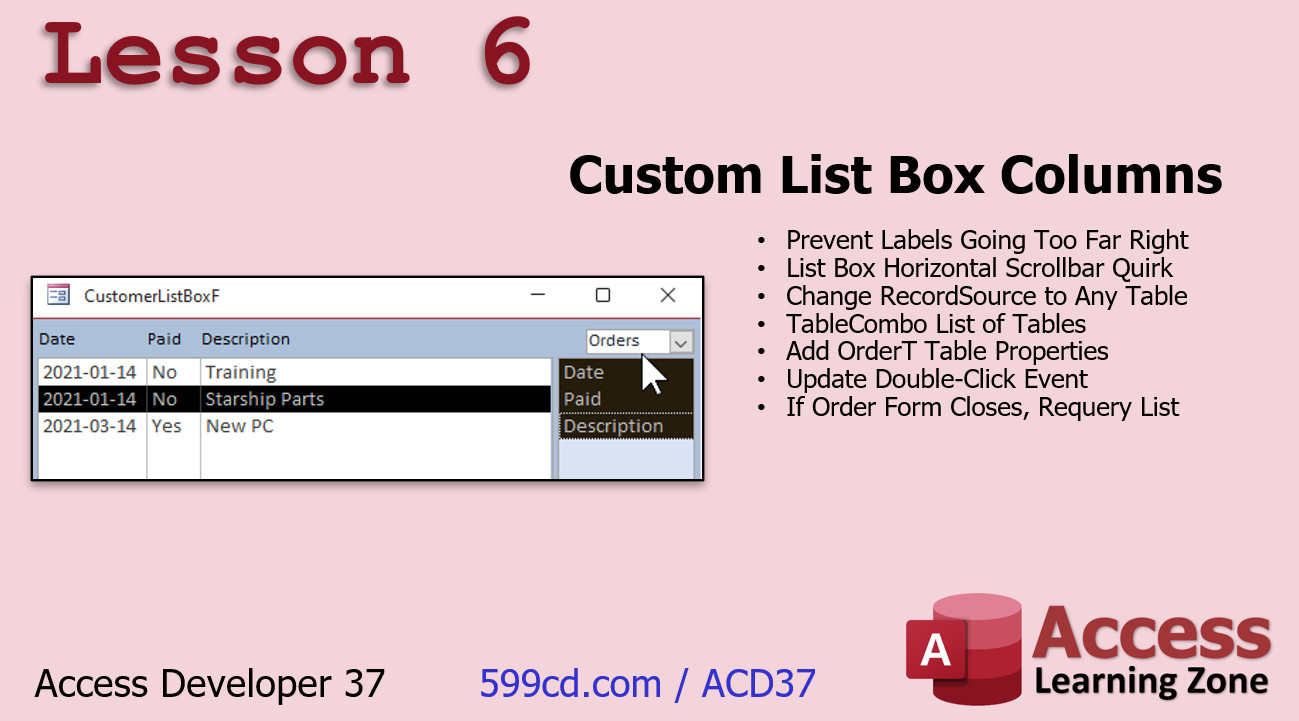
In Lesson 6, we're still working with the custom list box form. We're going to see how we can prevent those labels from going too far to the right and we'll deal with a quirk with the horizontal scroll bar that pops up. Then we're going to see how we can change the table that's in the form so we can pick the customer table or the order table and have the data in here change based on which table we pick.
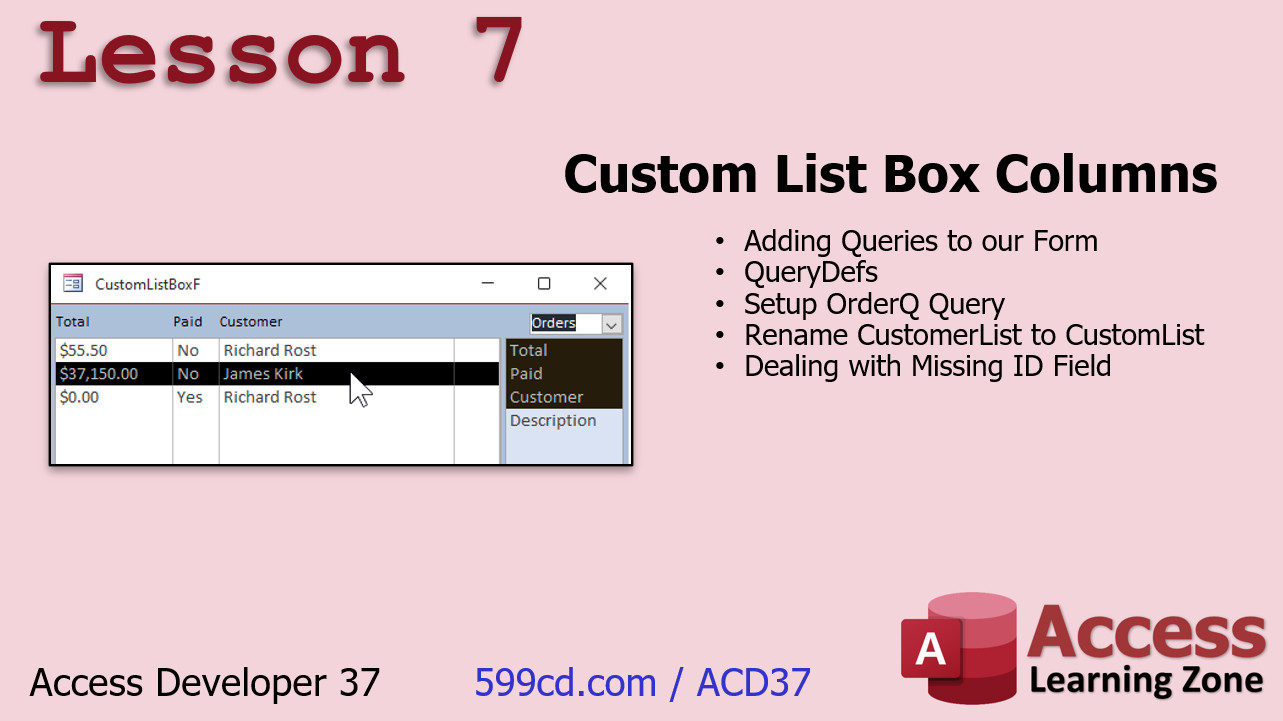
In Lesson 7, we're going to wrap up by learning something new: querydefs. We haven't done querydefs yet in any of our Developer classes (I just checked). We're going to add queries to the form. Now querydefs are very similar to tabledefs which we've done but you got to handle them a little bit differently. Then we're going to deal with missing that ID field. If the user doesn't put an ID field in their table or query then we have to be able to process that differently and disable the doubleclick event.
Enroll TodayEnroll now so that you watch these lessons, learn with us, post questions, and more!
Questions?Please feel free to post your questions or comments below. If you are not sure as to whether or not this product will meet your needs, I'd rather help you before you buy it. Remember, all sales are final. Thank you. Keywordsmicrosoft access, ms access, #msaccess, #microsoftaccess, #help, #howto, #tutorial, #instruction, #learn, #lesson, #training, #database, user defined List Box Columns, Specify Columns, User Editable, Multiple Columns, Populating a MultiColumn ListBox, column widths, multi-select list box, read settings from table, Display only Selected Fields, tabledefs, querydefs, inches to twips
More InformationTranscriptWelcome to Microsoft Access Developer Level 37 brought to you by AccessLearningZone.com. I am your instructor, Richard Rost. In today's class, we're going to work with Custom List Box Columns. We're going to build a form where it's going to be based on any table you want. We'll start with the customer table. You'll be able to specify in the customer table field properties which fields you want to see on this form, such as first name, last name, email, and so on. The user, once they open up the form, can pick which fields they want to see and those will be displayed in a list box. There is a lot of cool stuff you can do with this one. We'll learn some new things, including working with query defs, things we haven't done yet in the developer classes. So this one's going to be a lot of fun. I know I had a lot of fun recording it. This class, of course, follows Access Developer 36. I strongly recommend you've taken all the previous classes, and especially you might want to review developer 15 and 16 where I cover multi-select list boxes and recordsets. Very important lessons to have before taking this class. Do not skip levels. My lessons are designed to be taken one after the other in order, so each one might build on the topics from the previous classes. I'll be using Access 365. It's currently 2022, so it's roughly equivalent to Access 2021. The topics covered in today's class should work just fine going back to about 2007. If you have any questions about the material covered in today's class, just scroll down and post them right there in the form you see at the bottom of the page. If you have any questions about stuff that's covered in other classes or just general Access questions, you can post them in the Access forum. Be sure to visit my TechHelp page. This is my kind of sort of almost daily video podcast about Access where I answer questions sent in to me by the students. All the cool questions you answer here. Let's take a look at exactly what's covered in this class. In lesson one, we're going to build a form with custom list box columns. In other words, we'll have a list of customers in a list box and a list of fields on the right. Based on what the user selects in those checkboxes, that will determine which fields are displayed in the list box. In lesson two, we're continuing to work with the custom list box columns form. We're going to replace those checkboxes with a multi-select list box. Now, we've done multi-select list boxes before in developer 15. We're going to review them a little bit here and see how this is much easier to maintain in the long run. It looks better and is a more elegant solution than a whole bunch of checkboxes. In lesson three, we're going to start moving away from having all of the fields listed in our VB code, which is a lot harder to maintain and upgrade. Instead, I want to store that information in the table itself in the table's properties. We're going to learn how to use the TableDefs collection, the Fields collection, and the Field Properties collection. We'll loop through all the fields in a table and then load the field list based on the properties we're going to set in the table, which will determine the fields that we want to have listed, their widths, whether they're selected when the form loads, and much more. In lesson four, we're going to replace our query list with generic code. In other words, it's going to ignore the field list completely, and as long as you've got that table property set up, it will work with any field in the table. Then we'll see how to resize the form so that if you want to make it wider or taller, it'll resize the list and widths accordingly, and it'll move our little field list over to the right as well. In lesson five, we're going to make some custom labels to go across the top of each of the columns so we can see what the column has in it. We'll make a bunch of blank labels, then using our code, we'll position them properly on the screen. Let's do some inches to twips conversion; I'll explain what that is in just a few minutes. We'll set the width of the label and its other properties based on the data in our list box. Since we know how wide each column is, that can tell us where to place each label. In lesson six, we're still working with this custom list box form. We're going to see how we can prevent those labels from going too far to the right, and we'll deal with a quirk with the horizontal scroll bar that pops up. Then we're going to see how we can change the table that's in this form, so we can pick the customer table or the order table and have the data in here change based on which table we pick. In lesson seven, we're going to wrap up by learning something new: query defs. We haven't done query defs yet in any of our developer classes. I just checked. We're going to add queries to the form. Query defs are very similar to table defs, which we've done, but you have to handle them a little bit differently. Then we're going to deal with missing the ID field. If the user doesn't put an ID field in their table or query, then we have to be able to process that differently and disable the double click event. IntroIn this lesson, you will learn how to create forms in Microsoft Access with custom list box columns, allowing users to select which fields they want to display from any table. We will cover building the form, switching from checkboxes to a multi-select list box, storing field display settings in table properties, working with the TableDefs and Fields collections, and dynamically generating columns and labels. Additional topics include resizing the form to fit the selected fields, changing data sources, and using query defs for more advanced form functionality. This is Developer Level 37. QuizQ1. What is the main feature being built in Access Developer Level 37? A. A form with a customizable list box displaying columns based on selected fields B. A report generator with automated exports C. A new navigation pane for Access D. An automatic backup scheduler for the database Q2. How does the user choose which fields are displayed in the list box? A. By editing VBA code directly B. By selecting checkboxes or using a multi-select list box C. By changing a setting in Access options D. By running a macro Q3. Why does the course replace individual checkboxes with a multi-select list box in lesson two? A. Checkboxes do not work with list boxes B. It is more elegant and easier to maintain C. Multi-select list boxes are required in Access 365 D. Checkboxes are only available for Boolean fields Q4. Where will field display information eventually be stored for easier maintenance? A. In the form's property sheet B. In a separate Excel file C. In the table's field properties D. Hard-coded in VBA Q5. Which Access object collections are introduced for working with fields and their properties? A. Ribbon and Macro collections B. Forms and Queries collections C. TableDefs, Fields, and Field Properties collections D. Modules and Procedures collections Q6. What enhancement is made in lesson four regarding the target table? A. The table becomes read-only B. The form limits fields to just ID fields C. The code is made generic to work with any table set up with appropriate properties D. Fields are now color-coded based on data values Q7. What role do custom labels play in the developed form? A. They color rows red or green B. They are used for filtering search results C. They display column headings dynamically above the list box columns D. They allow users to edit data directly Q8. What measurement conversion is discussed for placing labels? A. Centimeters to inches B. Pixels to points C. Inches to twips D. Feet to meters Q9. How does the course address the possibility of the user not including an ID field in their data source? A. The form will not load at all B. The code automatically creates a new ID field C. The double click event is disabled and data is processed differently D. The system prompts the user to add one manually Q10. Which advanced topic is introduced in lesson seven? A. Parameterized queries in Access 97 B. Using QueryDefs for dynamic querying C. SQL Server integration via ODBC D. Creating switchboards with macros Answers: 1-A; 2-B; 3-B; 4-C; 5-C; 6-C; 7-C; 8-C; 9-C; 10-B DISCLAIMER: Quiz questions are AI generated. If you find any that are wrong, don't make sense, or aren't related to the video topic at hand, then please post a comment and let me know. Thanks. SummaryToday's video from Access Learning Zone focuses on Microsoft Access Developer Level 37. In this lesson, we will be working with custom list box columns, an incredibly useful feature for making your forms adaptable and user-friendly. We'll be building a form that can be based on any table you choose, with our initial example using the customer table. Within that table, you will be able to define which fields you want the form to display, such as first name, last name, email, and others. Once users open the form, they can select which fields they want to be visible, and those choices will then appear in a list box on the form. There is a lot of flexibility here and quite a bit you can do with these custom columns. We'll explore several new techniques in this class, including the use of query definitions (query defs), which have not yet been covered in previous developer courses. I found this topic especially engaging, and I think you will enjoy working with it as well. This class continues from where Access Developer 36 left off. I highly recommend that you complete all previous lessons before starting this one, with special attention to Developer Levels 15 and 16 where I cover multi-select list boxes and recordsets. These concepts are fundamental for what you will be learning in this session. It is important not to skip any levels, as each lesson builds upon the topics taught in the previous ones. Access 365 will be used for demonstration purposes, which as of 2022 is similar to Access 2021. However, the topics in this video should work with any version from 2007 onward. If you have questions about anything in today's lesson, feel free to use the comment form at the bottom of the page. For any general Access queries or topics covered in other videos, you are welcome to post in the Access forum. I also encourage you to check out my TechHelp page, where I post regular video responses to questions sent in by students. You might find answers to a wide range of interesting Access questions there. Here is a summary of what will be covered in today's class: In lesson one, we will begin by building a form with custom list box columns. The concept is to have a list of customers in a list box and a corresponding list of fields on the side. The fields displayed will be determined by what the user selects. Lesson two takes this a step further by replacing individual checkboxes with a multi-select list box. We have worked with multi-select list boxes in earlier sessions, specifically in Developer Level 15, but this serves as a helpful review and introduces a more streamlined and maintainable approach. In lesson three, we'll move away from hard-coding field lists in the code. Instead, we'll store this information in the table itself, leveraging table properties. Here, you'll learn how to work with the TableDefs, Fields, and Field Properties collections. The lesson will show you how to loop through all fields in a table and load the relevant fields into your form, including setting their widths, default selections, and more, all based on the properties you define. Lesson four will focus on making our approach more generic. The updated code will use your table property settings so the form works with any table and any set of fields. We will also cover how to make the form resizable, ensuring the list and column widths adjust dynamically, and relocating the field selection component as the form is resized. In lesson five, the lesson focuses on creating custom labels for each column at the top of the list box. You will learn how to generate and position these labels using code, convert between measurement units, and align the labels according to your field and column widths for a polished appearance. Lesson six addresses additional refinements, including keeping labels from extending beyond the visible area and handling a related issue with the horizontal scroll bar. Additionally, you will learn how to switch between different base tables, like moving from customers to orders, and see the data update based on the selected table. Finally, lesson seven introduces query definitions (query defs), a feature separate from table definitions and not yet discussed in our developer classes. We will add queries to our forms and address a scenario where the ID field is missing from a table or query, showing you how to handle this without causing errors or unwanted behavior. To see all of these steps demonstrated in detail, you can watch the complete video tutorial with step-by-step instructions for everything discussed here on my website at the link below. Live long and prosper, my friends. Topic ListBuilding a form with custom list box columns Displaying fields in a list box based on user selection Replacing checkboxes with a multi-select list box Using a multi-select list box for field selection Storing field display information in table field properties Using TableDefs, Fields, and Field Properties collections Looping through fields to load field lists from properties Setting column widths and default selections from table properties Replacing hardcoded field lists with dynamic code Making the form and list box resize dynamically Moving and resizing the field list panel Creating and positioning custom column labels programmatically Converting inches to twips for positioning controls Setting label widths and properties based on list box data Handling label placement to prevent overflow Managing horizontal scroll bar quirks on the list box Switching displayed data by selecting different tables Adding and using query defs in forms Handling query defs compared to table defs Processing cases where the ID field is missing Disabling double click event for missing ID field Primary Topicscustom forms, list box columns, field selection, table properties, TableDefs, Fields collection, Field Properties, form resizing, custom labels, query defs Secondary Topicsmulti-select list boxes, user interface techniques, inches to twips conversion |
||
|
| |||
| Keywords: access developer 37 querydefs inches to twips user defined List Box Columns, tabledefs, User Editable, Multiple Columns, Populating a MultiColumn ListBox, column widths, multi-select list box, read settings from table, Display only Selected Fields Custom Page Tag: whatsnew PermaLink Microsoft Access Developer 37 |