In Access Expert 9 lesson 3 I get stuck at around the 6:30 mark the SQL is edited to change what it says (from 'yes' to 'T' in regards to if a product is taxable. This is what I put in the row source:
SELECT ProductID, ProductName, UnitPrice, IIF(IsTaxable,'T','') AS Taxable FROM ProductT ORDER BY ProductName;
However, when I save and run the form, I get prompted for parameter values for 'T' and '', and then the row source changes to look like this:
SELECT ProductID, ProductName, UnitPrice, IIf(IsTaxable,['T'],['']) AS Taxable FROM ProductT ORDER BY ProductName;
Please advise on what I need to do to corrrect any errors. TIA
Maurizio EmanueleOP
@Reply 2 years ago
I wanted to point out that what I originally typed was 'T' and '' but for some reason, it shows as single quote on my post
Adam Schwanz
@Reply 2 years ago
If you create the query using the GUI in the query design, design view. You can go up to view and pick SQL view. That's helped me in the past figure out what I did wrong.
Adam Schwanz
@Reply 2 years ago
You can also just remove the brackets [ ]. Sometimes access will put them in automatically to try and be "helpful", sometimes it's really helpful and won't stop adding them too. But I just made a copy of the database and didn't have any problem using
SELECT ProductT.ProductID, ProductT.ProductName, ProductT.UnitPrice, IIf([IsTaxable],"T","") AS Taxable FROM ProductT;
Maurizio EmanueleOP
@Reply 2 years ago
Thank you for your response. I'm still having the same issue even after checking for correct spelling and punctuation. Any other thoughts?
Adam Schwanz
@Reply 2 years ago
If you've removed the brackets and are using double quotes " not ' then it should work. Next question would be are you using a downloaded database from one of the courses or is this something you're making on your own as you go through the class, if so are you sure the table structure is the same? Can you upload a picture of the properties on the combo box data tab?
Maurizio EmanueleOP
@Reply 2 years ago
I downloaded a copy of Access Beginner 5 and went from there, with no issues until now. I've been using OneDrive to save the database file.
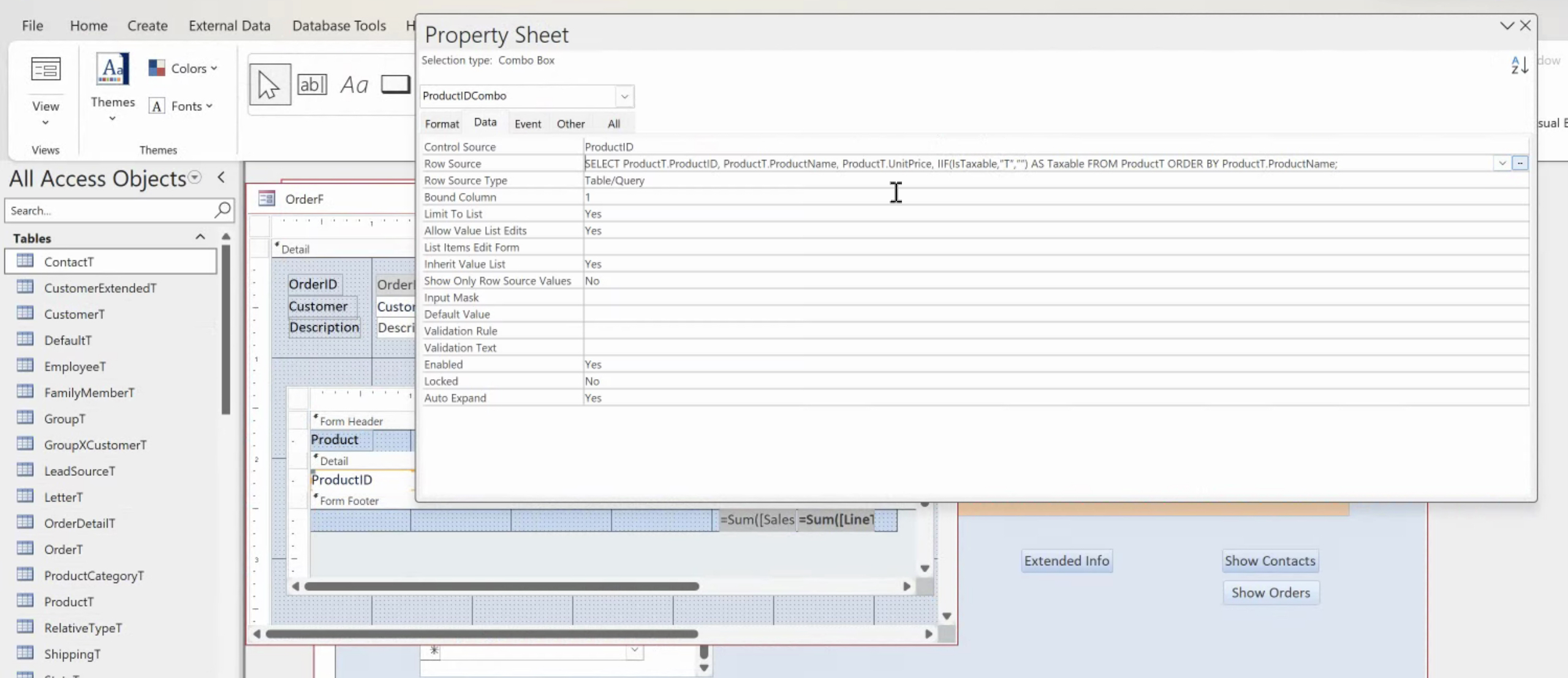
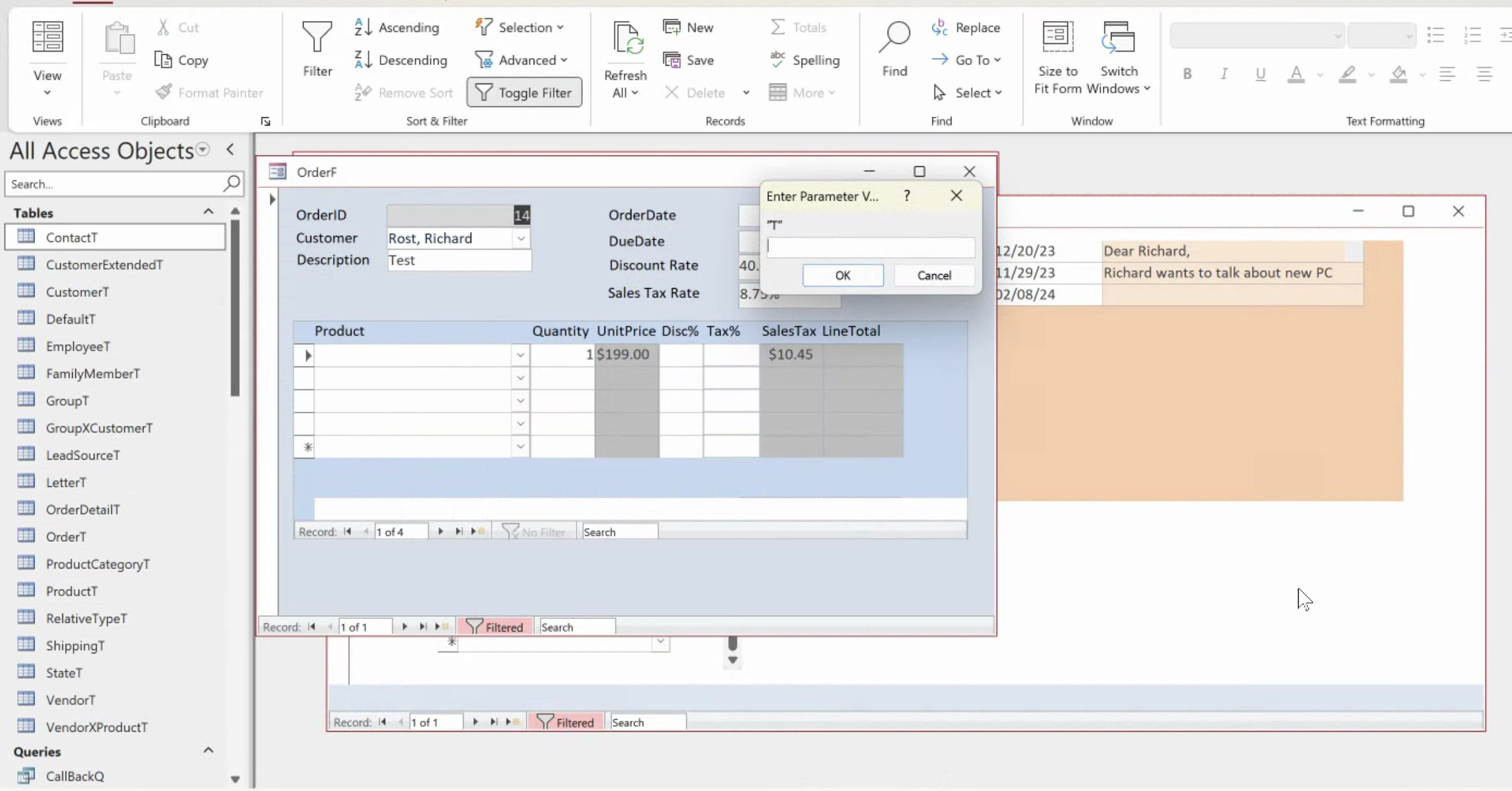
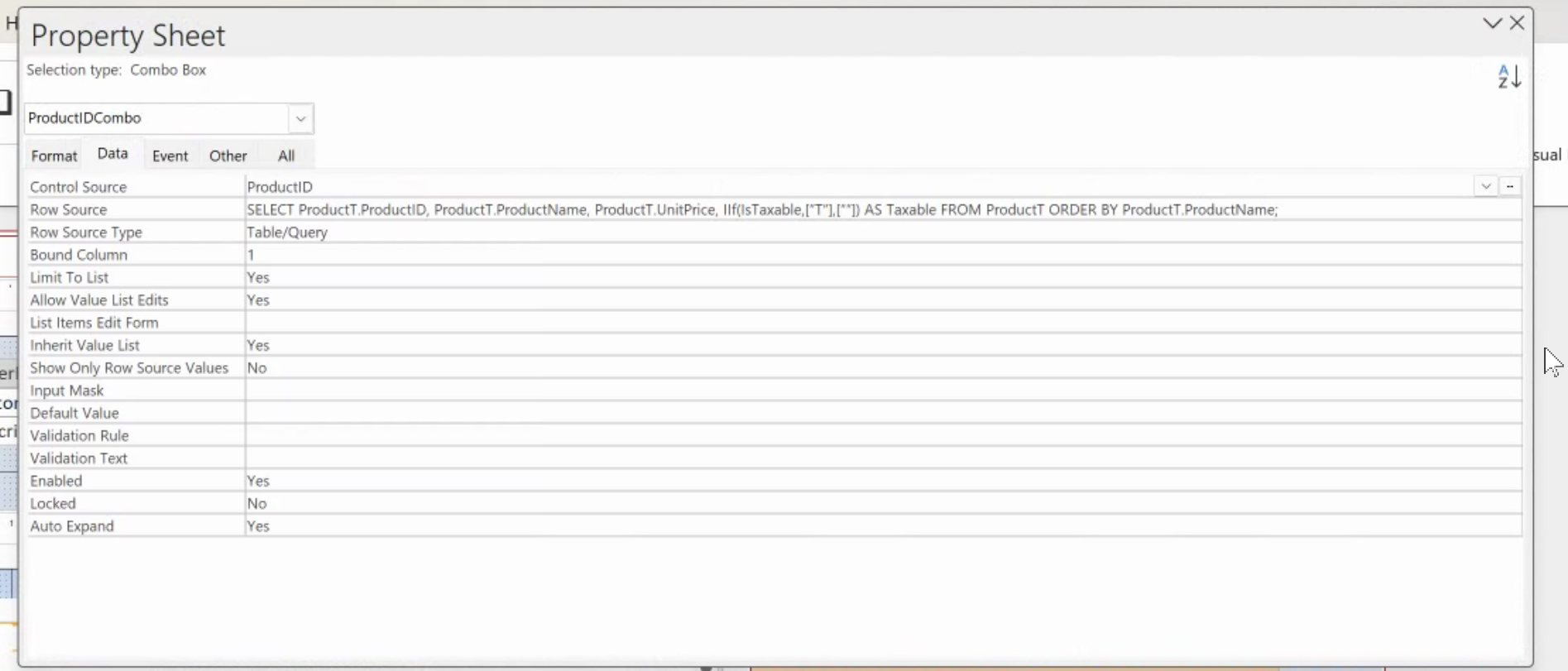
The first screenshot I will show you is how I typed the SQL. The screenshot has what shows when I try to open the order form afterwards. Then the third screenshot shows how Access automatically changed the SQL I typed in.
Maurizio EmanueleOP
@Reply 2 years ago
Maurizio EmanueleOP
@Reply 2 years ago
Maurizio EmanueleOP
@Reply 2 years ago
Adam Schwanz
@Reply 2 years ago
My eyesight might just be failing me, but are those the normal double quotes? Or are they the "smart" double quotes that are curly?
Something looks funny with the quotations around the T.
Adam Schwanz
@Reply 2 years ago
It should work with single quotes as well. Try using single quotes.
SELECT ProductID, ProductName, UnitPrice, IIF(IsTaxable,'T','') AS Taxable FROM ProductT ORDER BY [ProductName];
Maurizio EmanueleOP
@Reply 2 years ago
They are slanted quotes (not curly) as opposed to the quotes appearing straight up and down. Same problem with the single quote. Since I didn't have a problem up until now, I'm going to download the expert level 8 database and start level 9 over again. I wonder if the file being saved in the cloud did something strange to the file.
Adam Schwanz
@Reply 2 years ago
Yea that's very strange, come on back if it doesn't fix it. I've seen some dumb stuff break them but if it's worked this far maybe something is just corrupt.
Maurizio EmanueleOP
@Reply 2 years ago
I am also going to save the file and do the rest of the edits in my computer's hard drive instead of the cloud.
Adam Schwanz
@Reply 2 years ago
Probably a good idea.
Kevin Yip
@Reply 2 years ago
You must use plain quotation marks (the ones that look the same left and right) for composing strings in coding. If they look different left and right, they are special quotes for display purposes only. No programming languages I know use special quotes in program code; they all use plain quotes.
Maurizio EmanueleOP
@Reply 2 years ago
I figured out what the problem was, and I have a follow up question. The root of the problem was that the quotes were not straight up and down, they were slanted. I had to remove the IIF function, save it, close it, and then reopen the properties. I copied and pasted the double quotes from the format tab (the area where you specify the column widths, etc) and I pasted those double quotes where they should go, and now it works flawlessly. It's important to note that I had to completely erase everything in the IIF function, close everything and reopen everything, and retype the IIF function with the double quotes properly formatted before it worked.
So my follow up question is'.how do I prevent Access from displaying slanted quotes to begin with? Do I have to specify plain text somewhwere in the properties or settings?
Adam Schwanz
@Reply 2 years ago
Yea I knew something was off with those quotes. I have not seen access insert them automatically ever, the only time I've seen them come in is when you copy/paste them in accidentally. Do they come up as your normal quotes when you use the doublequote key?
If so, it could be a keyboard setting in windows, or if you open access and go to File->Options->Proofing, see if you have anything there about smart quotes, check inside the autocorrect options as well
Maurizio EmanueleOP
@Reply 2 years ago
So what I did to find the settings to disable the smart quotes was to go to the File->Options->Proofing and then the AutoCorrect options settings in MS word, where there was a tab that allowed me to disable smart quotes. That setting is not visible on Access, but when I changed it in MS Word, the settings carried over. Thanks, and I appreciate your help with all of this!
Maurizio EmanueleOP
@Reply 2 years ago
I have one more comment to make about this issue. The smart quotes reappeared after doing what I mentioned above. It turns out that since I'm remotely accessing my database from my iPad to my desktop computer, my iPad's keyboard settings had the smart quotes set to on, and after disabling it, I am no longer having this issue reoccur. I'm posting this in case someone else comes around in the future with the same problem.
Kevin Yip
@Reply 2 years ago
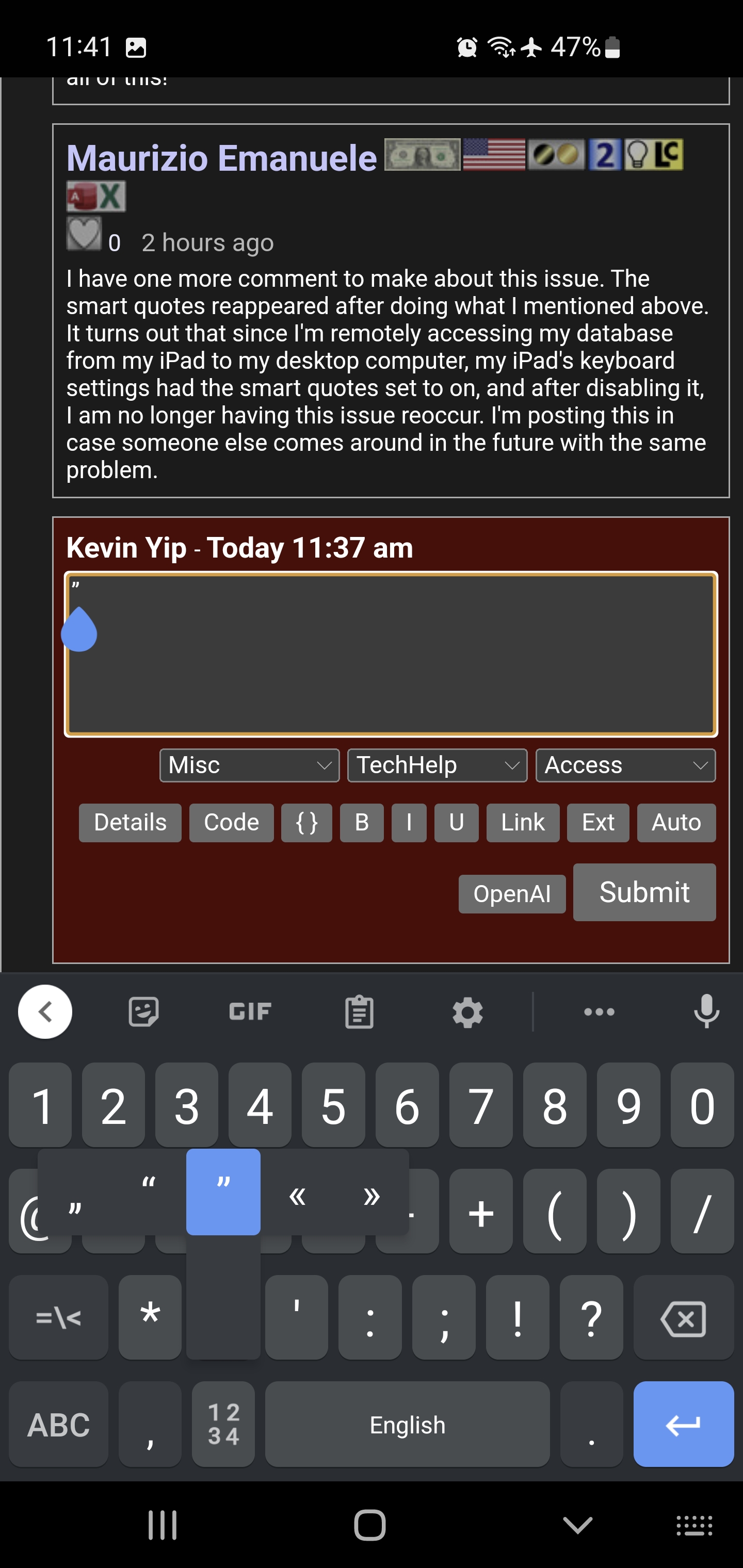
On most smart devices, you can easily switch between plain and smart quotes by pressing and holding the plain quote button on the on-screen keyboard (see picture below).
Kevin Yip
@Reply 2 years ago
Sorry, only students may add comments.
Click here for more
information on how you can set up an account.
If you are a Visitor, go ahead and post your reply as a
new comment, and we'll move it here for you
once it's approved. Be sure to use the same name and email address.
This thread is now CLOSED. If you wish to comment, start a NEW discussion in
Access Expert 9.